
MXT SLP5MP16CHDVR
MXT SLP5MP16CHDVR 16-Channel 5MP Hybrid DVR User Manual
Model: SLP5MP16CHDVR
הקדמה
This manual provides comprehensive instructions for the installation, operation, and maintenance of your MXT SLP5MP16CHDVR 16-Channel 5MP Hybrid Digital Video Recorder. This DVR supports 16 channels of HD-TVI/CVI/AHD analog cameras up to 5MP Lite resolution and up to 8 channels of IP cameras. It features H.265 video compression, dual SATA drive bays for storage, and is NDAA compliant. Remote surveillance is available via the SuperLive Plus mobile application.
וואָס איז אין די קעסטל
- 1x MXT SLP5MP16CHDVR Hybrid Digital Video Recorder
- מאַכט אַדאַפּטער
- וסב מאַוס
- SATA קייבלס (פֿאַר HDD אינסטאַלאַציע)
- שנעל אָנהייב גייד
באַמערקונג: Hard Disk Drives (HDD) are not included and must be purchased separately. A PoE switch is required for IP cameras and is also sold separately.
פּראָדוקט איבערview
Familiarize yourself with the physical components of your MXT SLP5MP16CHDVR.
פראָנט און דערציען פּאַנאַלז
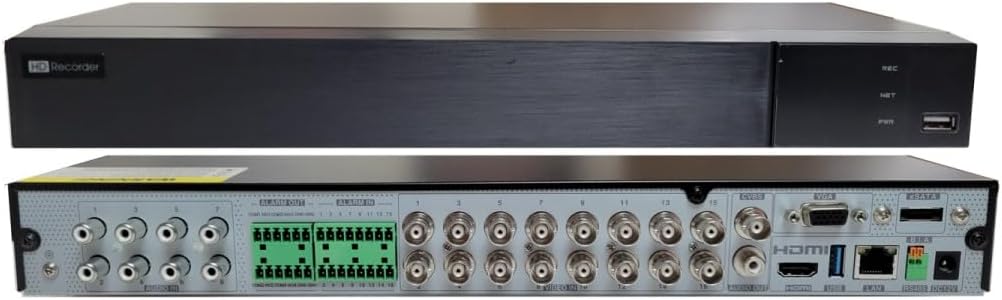
בילד באַשרייַבונג: This image displays both the front and rear panels of the MXT SLP5MP16CHDVR. The top view shows the sleek black front panel with "HD Recorder" branding, status indicator lights (REC, NET, PWR), and a USB port. The bottom view reveals the rear panel, which is densely populated with various ports including 16 BNC video inputs, alarm input/output terminals, RCA audio inputs/output, VGA, HDMI, Ethernet, USB ports, and power input.

בילד באַשרייַבונג: This diagram provides a detailed overview. The top left section lists key features such as 16-channel video input, H.265 compression, GUI, multi-mode recording, playback, remote control, and mobile surveillance. The top right section shows the DVR's dimensions (380mm width, 268mm depth, 48.1mm height). The bottom section is a clear, labeled diagram of the rear panel, indicating the position of each port, including video inputs (1-16), alarm I/O, audio I/O, VGA, HDMI, Ethernet, USB, and power.
סעטאַפּ
1. ייַזנוואַרג ייַנמאָנטירונג
- ייַנמאָנטירונג פון שווער פאָר:
Unscrew and remove the top cover of the DVR. Connect the SATA data and power cables from the DVR to your Hard Disk Drive(s). Secure the HDD(s) inside the DVR chassis using the provided screws. Replace the top cover.
- אַפּאַראַט קאַנעקשאַנז:
- Analog Cameras: Connect your HD-TVI/CVI/AHD analog cameras to the BNC video input ports (1-16) on the rear panel.
- IP קאַמעראַס: Connect IP cameras to a separate PoE switch (not included). Then, connect the PoE switch to the DVR's Ethernet port. The DVR does not have built-in PoE ports.
- אַודיאָ קאַנעקשאַנז: Connect audio input devices to the RCA audio input ports (up to 8 channels). Connect an audio output device to the RCA audio output port.
- ווידעא רעזולטאַט: Connect a monitor to the DVR using either the HDMI, VGA, or BNC (CVBS) output port. HDMI is recommended for optimal resolution.
- נעץ קאַנעקשאַן: Connect an Ethernet cable from your router or network switch to the DVR's LAN port.
- USB דעוויסעס: Connect the included USB mouse to a USB port on the front or rear panel. You can also connect a USB flash drive for backup purposes.
- מאַכט קשר: Connect the power adapter to the DVR's power input and then plug it into a power outlet.
2. ערשט קאָנפיגוראַטיאָן
Upon first boot, the DVR will guide you through a setup wizard. Follow the on-screen prompts to set up basic parameters such as language, date/time, network settings, and hard drive initialization.
- Hard Drive Formatting: Ensure your newly installed HDD(s) are formatted by the DVR for proper recording functionality.
- נעץ סעטטינגס: Configure network settings (DHCP or Static IP) to enable remote access and IP camera integration.
- Audio-Over-Coax: For HD-TVI cameras with built-in microphones, this feature requires manual activation in the DVR interface.
אַפּערייטינג ינסטראַקשאַנז
1. לייוו View
נאך דער ערשטער סעטאַפּ, וועט דער DVR ווייזן די לעבעדיגע view of connected cameras on the monitor. Use the USB mouse to navigate the Graphical User Interface (GUI).
- קאַנאַל ווייַז: Switch between single-channel view, multi-channel grid views (e.g., 4-channel, 9-channel, 16-channel).
- דיגיטאַל פארגרעסער: Use the mouse scroll wheel or on-screen controls to digitally zoom into live video feeds.
2. רעקאָרדינג
The DVR supports various recording modes. Access the recording settings via the main menu.
- קעסיידערדיק רעקאָרדינג: רעקאָרדס 24/7.
- רעקאָרדינג פון באַוועגונג דעטעקטיאָן: רעקאָרדירט נאָר ווען באַוועגונג ווערט דעטעקטירט אין דער קאַמעראַ'ס view. Configure motion detection zones and sensitivity for each channel.
- סקעדזשולד רעקאָרדינג: שטעלן ספּעציפֿישע צייטן פֿאַר רעקאָרדינג.
- שרעק רעקאָרדינג: Records when an external alarm input is triggered.
3. פּלייַבאַקק
צו שייַעךview רעקאָרדעד פוtage, navigate to the Playback menu.
- זוכן אָפּציעס: Search by date, time, event (motion, alarm), or tag.
- פּלייבאַק קאָנטראָלס: Standard controls include play, pause, fast forward, rewind, and frame-by-frame.
- סיימאַלטייניאַס שפּיל: The DVR supports simultaneous playback of up to 16 channels.
4. Remote Access (SuperLive Plus App)
The SuperLive Plus mobile application allows you to view live feeds, play back recordings, and manage your DVR remotely from iOS and Android devices.
- אראפקאפיע די אַפּ: זוכן פֿאַר "SuperLive Plus" in the Apple App Store or Google Play Store and install it on your smartphone or tablet.
- לייג דיווייס: Open the app and follow the instructions to add your DVR. This typically involves scanning a QR code displayed on the DVR's monitor or manually entering the DVR's network details.
- ווייַט פאַנגקשאַנז: Once connected, you can access live view, playback, PTZ control (if applicable), and configure certain DVR settings.
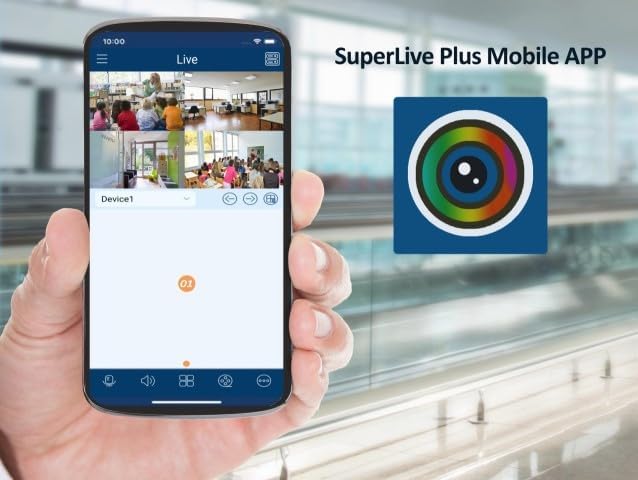
בילד באַשרייַבונג: This image shows a smartphone screen displaying the SuperLive Plus mobile application. The app interface is visible, showing a grid of four live camera feeds from a surveillance system. The app's branding and navigation elements are also present, indicating remote monitoring capabilities.
בילד באַשרייַבונג: This image displays the splash screen of the SuperLive Plus mobile application on a smartphone. The app's logo, featuring a camera lens icon, is prominently displayed against a blue background with a landscape silhouette. Below the logo, the text "SuperLive Plus" is visible, followed by the motto "Secure the world with you."
5. PTZ קאָנטראָל
If you have Pan-Tilt-Zoom (PTZ) cameras connected, you can control their movement and zoom functions directly from the DVR interface or through the SuperLive Plus app. The DVR supports PTZ preset and auto-cruise functions, with up to 255 presets and 8 cruises.
וישאַלט
- האַרט דרייוו פאַרוואַלטונג: Regularly check the status of your hard drives. The DVR can be configured to overwrite old footage automatically when the HDD is full. Consider backing up critical footagE פּיריאַדיקלי.
- Firmware דערהייַנטיקונגען: קוק די פאַבריקאַנט ס website for available firmware updates. Keeping your DVR's firmware up-to-date ensures optimal performance and security.
- רייניקונג: Ensure the DVR is kept in a clean, dust-free environment. Periodically clean the exterior with a soft, dry cloth. Do not use liquid cleaners directly on the unit.
טראָובלעשאָאָטינג
| פּראָבלעם | מעגלעך סיבה | לייזונג |
|---|---|---|
| קיין ווידעא ארויסגאנג אויף מאָניטאָר. | Loose video cable, incorrect monitor input, DVR not powered on. | Check HDMI/VGA/BNC cable connections. Ensure monitor is set to correct input source. Verify DVR power. |
| קיין קאַמעראַ בילד. | Camera not powered, loose BNC/network cable, incompatible camera type. | Check camera power supply and cable connections. Ensure camera type (TVI/CVI/AHD/IP) is supported and configured correctly. |
| קען נישט צוטריטן די DVR פון ווייטנס דורך די אפליקאציע. | No network connection, incorrect network settings, firewall issues, app configuration error. | Verify DVR has internet access. Check network settings (DHCP/Static IP). Ensure port forwarding (if required) is configured on your router. Re-add device in SuperLive Plus app. |
| קיין רעקאָרדינג. | No HDD installed, HDD not formatted, recording schedule not set, HDD full. | Install and format HDD. Configure recording schedule. Check HDD status and capacity. |
ספּעסאַפאַקיישאַנז
| שטריך | דעטאַל |
|---|---|
| מאָדעל נומער | SLP5MP16CHDVR |
| ווידעא אַרייַנשרייַב | 16-Channel HD-TVI/CVI/AHD (5MP/4MP/1080p/720p/WD1) + up to 8-Channel IP (5MP/4MP/3MP/1080p/960p/720p) |
| ווידעא קאַמפּרעשאַן | ה.265 |
| שפּיל־מעגלעכקייט | 16 Channels simultaneously |
| אַודיאָ אַרייַנשרייַב / רעזולטאַט | 8x RCA Input, 1x RCA Output |
| שרעק ינפּוט / רעזולטאַט | 16x Input, 4x Output |
| רעקאָרדינג האַכלאָטע | 5MP Lite/4MP Lite/1080p/1080p Lite/720p/WD1/D1 |
| באַנדווידט | Incoming: 32Mbps, Outgoing: 96Mbps |
| הדד קאַפּאַציטעט | 2x SATA (up to 10TB each), 1x E-SATA |
| ווידעא רעזולטאַט | 1x HDMI, 1x VGA, 1x BNC (CVBS) |
| ווייַט אַקסעס | Web Client, CMS, SuperLive Plus Mobile App (iOS/Android) |
| העסקעם | NDAA געהאָרכיק |
| דימענסיעס (L X W X H) | Approx. 18 x 14 x 5 inches (Package) |
| וואָג | 4 פונט |
וואָראַנטי און שטיצן
Warranty information and professional technical support for this MXT product are provided exclusively by the seller. Please refer to your purchase documentation or contact the seller directly for assistance with warranty claims or technical inquiries.
For the latest software, firmware, and additional resources, please visit the official MXT support webפּלאַץ אָדער קאָנטאַקט זייער קונה דינסט.
Ask a question about this manual
Ask about setup, troubleshooting, compatibility, parts, safety, or missing instructions. Manuals+ will review the question and use this page’s manual context to help answer it.