
SMRGBCD001
Wireless Mouse for Laptop PC Bluetooth RGB Rechargeable Mouses
באַניצער מאַנואַל
Brand: Generic | Model: SMRGBCD001
1. הקדמה
א דאנק פארן קויפןasing the Generic Wireless Mouse. This manual provides detailed instructions for setting up, operating, and maintaining your new mouse to ensure optimal performance and longevity. Please read this manual thoroughly before using the product and keep it for future reference.
This sleek and stylish wireless mouse is designed to elevate your computing experience. Its ergonomic design ensures comfortable use for extended periods, while the smooth gliding surface allows for precise cursor control. Featuring a striking RGB lighting system that cycles through a vibrant spectrum of colors, this mouse adds a touch of flair to your desktop setup. With its plug-and-play functionality and reliable wireless connectivity, you can bid farewell to tangled cords and enjoy seamless operation. Crafted with durability in mind, this mouse is built to withstand the demands of daily use.
2. פּראָדוקט איבערview
The Generic Wireless Mouse combines ergonomic comfort with advanced features for an enhanced user experience. Key features include:
- Seamless RGB Lighting: A vibrant RGB lighting strip that cycles through a spectrum of colors.
- ערגאָנאָמיק פּלאַן: Contoured shape and textured grips for comfortable and secure handling.
- פּינקטלעכע טראַקינג: High-precision optical sensor for smooth and accurate cursor control.
- צווייענדיק קאַנעקטיוויטי: Supports 2.4GHz wireless connection and Bluetooth (3.0 and 5.2) for versatile pairing.
- קריקאָנלאָדלעך באַטערי: Built-in 500mAh lithium polymer battery for extended use.
- שטילע קנעפּלעך: Mute buttons for a quiet clicking experience.
- צאַפּן און שפּיל: No software installation required for 2.4GHz mode.
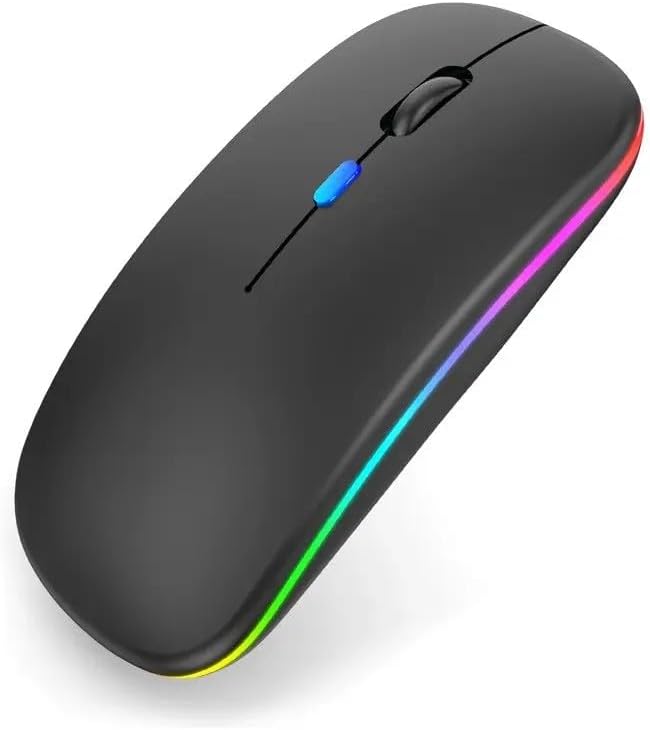
פיגורע 2.1: פראָנט view of the Generic Wireless Mouse, showcasing its sleek black design and vibrant RGB lighting strip along the sides.

פיגור 2.2: דער סלים פּראָfile of the wireless mouse, highlighting its rechargeable light feature and indicating support for both Bluetooth and USB receiver connectivity.
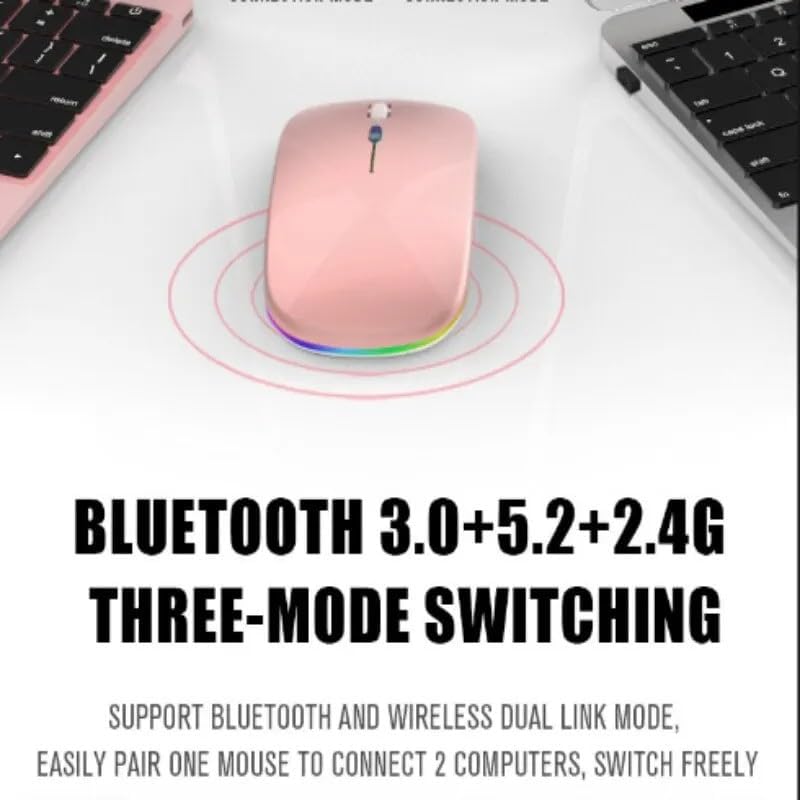
Figure 2.3: Illustration of the mouse's versatile connectivity options, supporting Bluetooth 3.0, Bluetooth 5.2, and 2.4G wireless modes, allowing connection to multiple devices.
3. סעטאַפּ
3.1 ערשט טשאַרדזשינג
Before first use, it is recommended to fully charge the mouse. Connect the included USB charging cable to the mouse's charging port and the other end to a USB power source (e.g., computer USB port, USB wall adapter).

Figure 3.1: The mouse connected to a charging cable, illustrating its 500mAh battery and long endurance after a single charge.
The RGB lighting may indicate charging status. A full charge typically provides up to 60 days of use, depending on usage patterns and RGB lighting settings.
3.2 פֿאַרבינדן די מויז
Your mouse supports two primary connection modes: 2.4GHz Wireless and Bluetooth.
3.2.1 2.4GHz ווירעלעס פֿאַרבינדונג
- Locate the USB nano receiver, usually stored in a compartment on the bottom of the mouse.
- שטעקט אריין דעם USB נאַנאָ ריסיווער אין אַ פאַראַן USB פּאָרט אויף אייער קאָמפּיוטער.
- קער אויף די מויז ניצן די מאַכט באַשטימען אויף די דנאָ.
- Switch the mouse to 2.4G mode (refer to the mode switch on the bottom of the mouse).
- The computer should automatically detect and install the necessary drivers. The mouse is ready for use.
3.2.2 בלועטאָאָטה קאַנעקשאַן
The mouse supports Bluetooth 3.0 and Bluetooth 5.2. You can easily pair one mouse to connect to two computers and switch freely between them.
- קער אויף די מויז ניצן די מאַכט באַשטימען אויף די דנאָ.
- Switch the mouse to Bluetooth mode (BT1 or BT2, refer to the mode switch on the bottom of the mouse).
- אויף אייער קאָמפּיוטער אָדער מיטל, עפֿנט די בלועטוט סעטטינגס.
- זוכן פֿאַר new devices. The mouse should appear as "Wireless Mouse" or similar.
- אויסקלייבן די מויז צו פּאָרן. פֿאָלגן אַלע אינסטרוקציעס אויף דעם עקראַן.
- אַמאָל פּערד, די מויז איז גרייט פֿאַר נוצן.
4. אַפּערייטינג ינסטרוקטיאָנס
4.1 מאַכט אויף / אַוועק
Use the power switch located on the bottom of the mouse to turn it ON or OFF.
4.2 וועקסלען פֿאַרבינדונג מאָדעס
The mouse features a mode switch on its underside, allowing you to toggle between 2.4G wireless mode and two Bluetooth modes (BT1, BT2). This enables seamless switching between up to three connected devices.
4.3 דפּי אַדזשאַסטמאַנט
The mouse typically features a DPI (Dots Per Inch) button, often located near the scroll wheel, to adjust cursor sensitivity. Press this button to cycle through different DPI settings (e.g., 800, 1200, 1600 DPI) to match your preference and task requirements.
4.4 RGB לייטינג קאָנטראָל
The mouse features dynamic RGB lighting. The lighting typically activates automatically when the mouse is in use. Some models may allow cycling through different lighting modes or turning the lighting off by pressing a specific button (often the DPI button or a dedicated light button) or a combination of buttons. Refer to the product's specific button functions for detailed control.

Figure 4.1: The mouse's colorful and cool RGB lights, designed to enhance the aesthetic of your desktop setup.
4.5 שטילע קליק פֿונקציע
This mouse is designed with mute buttons, providing a quiet clicking experience. This feature is particularly beneficial in quiet environments, ensuring you do not disturb others.

Figure 4.2: Demonstrating the silent button feature, allowing for comfortable and undisturbed use, even in quiet environments.
5. וישאַלט
5.1 רייניקונג
To clean your mouse, gently wipe its surface with a soft, dry, or slightly damp cloth. Avoid using harsh chemicals, abrasive cleaners, or excessive moisture, as these can damage the mouse's finish or internal components.
5.2 באַטערי קער
- Avoid exposing the mouse to extreme temperatures (hot or cold) as this can affect battery life.
- If the mouse will not be used for an extended period, it is advisable to turn it off to conserve battery life.
- Charge the mouse using only the provided cable or a compatible USB charging cable.
6. טראָובלעשאָאָטינג
| פּראָבלעם | מעגלעך לייזונג |
|---|---|
| Mouse not responding (2.4GHz) |
|
| מויז רעאַגירט נישט (בלוטעט) |
|
| קורסאָר אומשטענדלעך אדער שפּרינגענדיק |
|
| RGB לייץ נישט ארבעטן |
|
| מויז לאָדט זיך נישט אויף |
|
7. ספּעסאַפאַקיישאַנז
| שטריך | דעטאַל |
|---|---|
| מאָדעל נומער | SMRGBCD001 |
| סאָרט | גענעריק |
| קאַנעקטיוויטי טעכנאָלאָגיע | Bluetooth (3.0, 5.2), 2.4GHz USB Wireless |
| באַוועגונג דעטעקשאַן טעכנאָלאָגיע | אָפּטיש |
| קאָליר | שוואַרץ |
| ספּעציעלע שטריך | Ergonomic Design, RGB Lighting, Silent Click Buttons |
| באַטערי טיפּ | 1 ליטהיום פּאָלימער באַטאַרייע (500mAh) |
| פאַבריקאַנט | Ch |
| ערשטער דאַטע בנימצא | 26 אויגוסט 2024 |
8. וואָראַנטי און שטיצן
For warranty information and customer support, please refer to the documentation included with your purchase or visit the manufacturer's official webזייטל. האַלט דיין קויפן באַווייַז פֿאַר קיין וואָראַנטי קליימז.
If you encounter any issues not covered in this manual, please contact the retailer or manufacturer's customer service for assistance.
Ask a question about this manual
Ask about setup, troubleshooting, compatibility, parts, safety, or missing instructions. Manuals+ will review the question and use this page’s manual context to help answer it.