
1. הקדמה
This user manual provides comprehensive instructions for the installation, operation, and maintenance of your NVIDIA RTX 5000 Ada Generation GPU. Designed for professional workflows, this GPU leverages the NVIDIA Ada Lovelace architecture to deliver exceptional performance for rendering, AI, graphics, and compute workloads. Please read this manual carefully before installing and using the product to ensure optimal performance and longevity.
2. פּראָדוקט איבערview
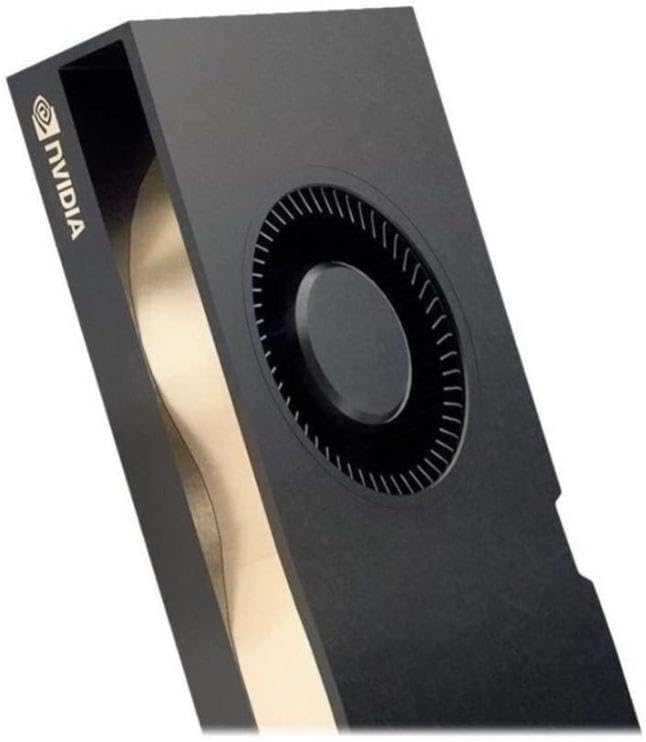
The NVIDIA RTX 5000 Ada Generation GPU is a high-performance graphics card built for demanding professional applications. It features 100 third-generation RT Cores, 400 fourth-generation Tensor Cores, and 12,800 CUDA cores, coupled with 32 GB of GDDR6 graphics memory. This combination enables advanced AI graphics and petaFLOPS inferencing performance.
שליסל פֿעיִקייטן:
- NVIDIA GPUדירעקט שטיצן פֿאַר דירעקט זיקאָרן אַקסעס (RDMA).
- NVIDIA Quadro Sync II קאַמפּאַטאַבילאַטי
- 3 ד סטעריאָו שטיצן מיט סטעריאָו קאַנעקטער
- NVIDIA GPUDirect פֿאַר ווידעא שטיצן
- NVIDIA מאָסאַיק טעכנאָלאָגיע
וואָס איז אין די קעסטל:
- NVIDIA 900-5G132-2540-000 RTX 5000 Ada Graphic Card - 32 GB GDDR6
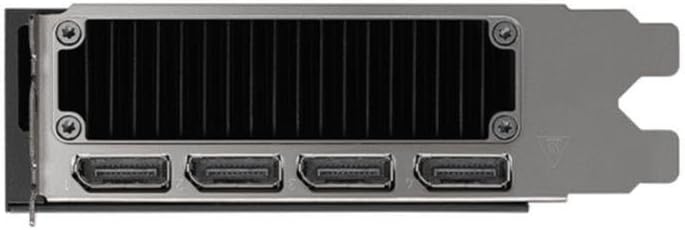
פּראָדוקט בילדער:

3. סעטאַפּ און ייַנמאָנטירונג
Proper installation is crucial for the performance and stability of your NVIDIA RTX 5000 Ada GPU. Ensure your system meets the minimum requirements before proceeding.
סיסטעם רעקווירעמענץ:
- PCI Express x16 slot on motherboard
- Adequate power supply unit (PSU) with required PCIe power connectors (refer to GPU specifications for exact wattage)
- Compatible operating system (Windows, Linux)
- מינימום 8 גיגאבייט סיסטעם זכּרון (RAM)
ינסטאַלירונג סטעפּס:
- צוגרייטן אייער סיסטעם: מאַכט אויס דעם קאָמפּיוטער און אָפּשטעקן אַלע קייבלס. עפֿנט דעם קאָמפּיוטער קעסטל.
- געפינען PCIe סלאָט: Identify an available PCI Express x16 slot on your motherboard. Remove any expansion slot covers if necessary.
- Insert the GPU: Carefully align the GPU with the PCIe slot and press down firmly until it is securely seated. Ensure the retention clip locks into place.
- פאַרבינדן מאַכט: Connect the required PCIe power cables from your power supply to the GPU's power connectors.
- Secure the GPU: Secure the GPU to the computer case using the screw or latch mechanism provided by your case.
- שליסן דעם פאַל און ווידער פֿאַרבינדן: פֿאַרמאַכט אייער קאָמפּיוטער קעסטל, פֿאַרבינדט ווידער אַלע קייבלס, און צינדט אָן אייער סיסטעם.
- ינסטאַלירן דריווערס: Once the operating system loads, download and install the latest NVIDIA Quadro drivers from the official NVIDIA webפּלאַץ (www.nvidia.com/drivers). Follow the on-screen instructions for driver installation.
4. אַפּערייטינג ינסטרוקטיאָנס
After successful installation, your NVIDIA RTX 5000 Ada GPU is ready for operation. This section covers general usage and specific features.
NVIDIA קאָנטראָל פּאַנעל:
The NVIDIA Control Panel provides extensive options for configuring your GPU settings, including display resolution, refresh rates, 3D settings, and multi-display configurations. Access it by right-clicking on your desktop and selecting "NVIDIA Control Panel."
Multi-Display Setup (NVIDIA Mosaic Technology):
The NVIDIA RTX 5000 Ada supports multiple displays. Utilize NVIDIA Mosaic technology to seamlessly span applications across multiple high-resolution displays, creating a single large desktop. Refer to the NVIDIA Control Panel for Mosaic configuration options.
Professional Application Optimization:
For optimal performance in professional design, rendering, and simulation applications, ensure you are using the latest certified drivers. Many applications have specific GPU acceleration settings that can be configured within the application itself or via the NVIDIA Control Panel.
GPUDirect and Quadro Sync II:
Leverage NVIDIA GPUDirect for direct data transfer between GPUs and third-party devices, reducing CPU overhead. For advanced synchronization across multiple GPUs and displays, the RTX 5000 Ada is compatible with NVIDIA Quadro Sync II (sold separately).
5. וישאַלט
Regular maintenance helps ensure the longevity and optimal performance of your GPU.
דרייווער דערהייַנטיקונגען:
Periodically check the official NVIDIA website for the latest driver updates. Keeping your drivers current can improve performance, add new features, and resolve compatibility issues.
רייניקונג:
- באַזייַטיקונג פון שטויב: Over time, dust can accumulate on the GPU's heatsink and fan, impeding cooling. With the system powered off and unplugged, use compressed air to gently clear dust from the fan blades and heatsink fins.
- ייבערפלאַך רייניקונג: Use a soft, dry, lint-free cloth to wipe the exterior surfaces of the GPU. Avoid using liquid cleaners directly on the card.
6. טראָובלעשאָאָטינג
This section addresses common issues you might encounter with your NVIDIA RTX 5000 Ada GPU.
קיין אַרויסווייַז רעזולטאַט:
- Ensure the monitor cable is securely connected to both the GPU and the monitor.
- Verify that the GPU is fully seated in the PCIe slot and that all power connectors are properly attached.
- פּרובירט מיט אַן אַנדערן דיספּליי קאַבל אָדער מאָניטאָר אויב מעגלעך.
- Check your BIOS/UEFI settings to ensure the correct primary display adapter is selected (PCIe/Discrete GPU).
דרייווער אינסטאַלאַציע פּראָבלעמען:
- דאַונלאָוד די לעצטע דרייווערס גלייך פֿון דער באַאַמטער NVIDIA webפּלאַץ.
- צייטווייליג דיאַקטיווירן אַנטיווירוס ווייכווארג בעת דרייווער אינסטאַלאַציע.
- Use Display Driver Uninstaller (DDU) in Safe Mode to completely remove previous driver versions before attempting a clean installation.
Performance Problems or Crashes:
- Ensure your system's power supply unit (PSU) meets the recommended wattage for the GPU.
- Monitor GPU temperatures using monitoring software. Excessive heat can lead to throttling or instability. Ensure adequate case airflow.
- Verify that your operating system and applications are up to date.
- Run diagnostic tools (e.g., NVIDIA's built-in diagnostics or third-party stress tests) to identify potential hardware issues.
7. ספּעסאַפאַקיישאַנז
The following table details the technical specifications of the NVIDIA RTX 5000 Ada Generation GPU.
| שטריך | באַשרייַבונג |
|---|---|
| סאָרט | נווידיאַ |
| מאָדעל נומער | 900-5G132-2540-000 |
| גראַפיקס קאָופּראַסעסער | NVIDIA Quadro RTX 5000 |
| graphics קאָרט ראַם גרייס | 32 גיגאבייט GDDR6 |
| זכּרון ספּיד | 2000 מהז |
| גפּו זייגער ספּיד | 2550 מהז |
| מאַקסימום סקרין האַכלאָטע | 3840x2160 |
| וידאו רעזולטאַט צובינד | DisplayPort, HDMI |
| פּונקט וואָג | 1.32 פונט |
| קאָליר | שוואַרץ |
| ערשטער דאַטע בנימצא | 1טן דעצעמבער 2024 |
8. וואָראַנטי און שטיצן
NVIDIA provides support for its products. For detailed warranty information and technical assistance, please refer to the official NVIDIA support resources.
אפיציעלע שטיצע:
- NVIDIA Support Webפּלאַץ: For drivers, FAQs, and troubleshooting guides, visit www.nvidia.com/support.
- פּראָדוקט פאַרשרייבונג: Register your product on the NVIDIA website to receive updates and facilitate warranty claims.
פארלענגערטע שוץ פלענער:
Extended protection plans may be available for purchase to provide additional coverage beyond the standard manufacturer's warranty. Please check with your retailer or NVIDIA for details on available plans.
- 3-יאָר שוץ פּלאַן
- 4-יאָר שוץ פּלאַן
- קאָמפּלעט פּראָטעקט (מאָנטלעך פּלאַן)