
1. הקדמה
The MAXHUB UC P30 SC802A 12X VHD Camera is a high-definition video capture device designed for professional use. Featuring 12x optical zoom and 1080p video resolution, it is ideal for various applications including video conferencing, live streaming, and educational environments. This manual provides detailed instructions to help you set up, operate, and maintain your camera for optimal performance.
2. וואָס איז אין דער קעסטל
ביטע באַשטעטיקן אַז אַלע קאָמפּאָנענטן זענען פאַראַן אין דער פּאַקעט:
- 1 x MAXHUB UC P30 SC802A 12X VHD Camera
- (Additional accessories such as power adapter, USB cable, remote control, etc., would typically be listed here if provided in the product data. Based on "Included Components: 1 product", only the camera is explicitly mentioned.)
3. פּראָדוקט איבערview
Familiarize yourself with the key components and features of your MAXHUB UC P30 SC802A camera.
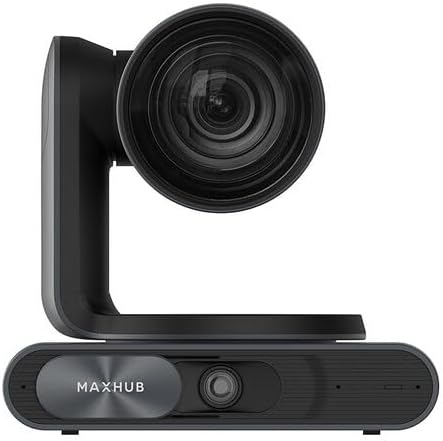
פיגורע 3.1: פראָנט view of the MAXHUB UC P30 SC802A camera, showing the main lens and the MAXHUB branding on the base.

פיגורע 3.2: אַנגגאַלד view of the MAXHUB UC P30 SC802A camera, highlighting its compact design and the rotating camera head.
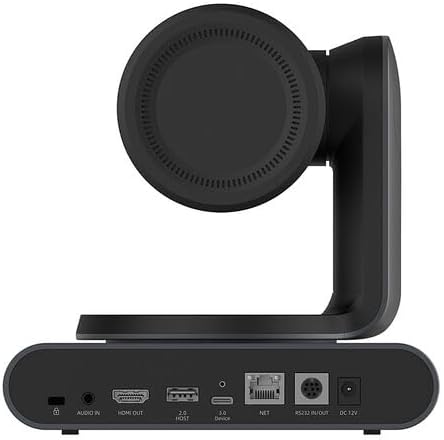
פיגורע 3.3: דערציען view of the MAXHUB UC P30 SC802A camera, displaying various connectivity ports including Audio In, HDMI Out, USB 2.0 Host, USB 3.0 Device, NET (Ethernet), RS232 In/Out, and DC 12V power input.
4. סעטאַפּ
Follow these steps to set up your MAXHUB UC P30 SC802A camera:
- אָרט: Place the camera on a stable, flat surface or mount it securely using compatible mounting hardware (not included, unless specified). Ensure it has a clear line of sight to the area you wish to capture.
- מאַכט קשר: Connect the provided power adapter to the DC 12V input port on the rear of the camera (refer to Figure 3.3) and plug the adapter into a power outlet.
- USB קשר: Connect the camera to your computer using a USB cable (USB 3.0 Device port, refer to Figure 3.3). The camera is designed for plug-and-play operation with most operating systems.
- ווידעא רעזולטאַט (אַפּשאַנאַל): For direct video monitoring, connect an HDMI cable from the HDMI Out port on the camera to an HDMI input on a display device (refer to Figure 3.3).
- אַודיאָ אַרייַנגאַנג (אָפּציאָנעל): If using an external microphone, connect it to the Audio In port on the camera (refer to Figure 3.3).
- נעץ פֿאַרבינדונג (אָפּציאָנעל): For network control or streaming, connect an Ethernet cable to the NET port (refer to Figure 3.3).
- דרייווער ינסטאַלירונג: In most cases, the camera will be recognized automatically by your operating system. If prompted, allow the system to install necessary drivers. For advanced features or specific software, refer to the manufacturer's webפּלאַץ פֿאַר שאָפער דאַונלאָודז.
5. אַפּערייטינג ינסטרוקטיאָנס
Once the camera is set up, you can begin operation:
- מאַכט אויף: The camera will power on automatically once connected to power. An indicator light (if present) will illuminate.
- ווייכווארג דערקענונג: Open your preferred video conferencing, streaming, or recording software on your computer. Select the MAXHUB UC P30 camera as your video input device.
- Pan, Tilt, Zoom (PTZ) Control:
- מאַנואַל קאָנטראָל: The camera head can be manually adjusted for initial positioning.
- ווייכווארג קאָנטראָל: Utilize the PTZ controls within your video software or a dedicated MAXHUB control application (if available) to remotely adjust pan, tilt, and zoom.
- ווייַט קאָנטראָל (אויב אָנווענדלעך): If a remote control was included, use it to precisely adjust the camera's position and zoom level.
- פאָקוס אַדזשאַסטמאַנט: The camera typically features auto-focus. If manual focus is required, it can usually be adjusted via software controls.
- ווידעא סעטטינגס: Adjust video settings such as resolution (up to 1080p), frame rate, brightness, contrast, and white balance through your software's camera settings.
- מאַכט אַוועק: Disconnect the power adapter from the camera or the power outlet to turn off the device.
6. וישאַלט
געהעריגע אויפהאלטונג גאראנטירט די לאנגעוויטי און אפטימאלע פערפארמאנס פון אייער קאמערא:
- רייניקונג די לענס: Use a soft, lint-free cloth specifically designed for optical lenses to gently wipe the camera lens. Avoid abrasive materials or harsh chemicals.
- רייניקונג דעם גוף: ווישט אָפּ דעם קאַמעראַ קערפּער מיט אַ ווייכן, טרוקענעם שטאָף. פֿאַר שווערן שמוץ, אַ ביסל טרוקןamp מען קען ניצן אַ שטאָף, אָבער זאָרגט זיך אַז קיין נאַס זאָל נישט אַרײַנגיין אין די פּאָרטן אָדער אינעווייניקסטע קאָמפּאָנענטן.
- סטאָרידזש: When not in use for extended periods, store the camera in a cool, dry place, away from direct sunlight and extreme temperatures. Use the original packaging or a protective case if available.
- ויסמיידן אַבסטראַקשאַנז: Ensure the camera's ventilation openings (if any) are not blocked to prevent overheating.
7. טראָובלעשאָאָטינג
זעט דעם אָפּטייל פֿאַר געוויינטלעכע פּראָבלעמען און זייערע לייזונגען:
| פּראָבלעם | מעגלעך סיבה | לייזונג |
|---|---|---|
| קיין בילד/ווידעא ארויסגאנג |
|
|
| נעבעך בילד קוואַליטעט |
|
|
| Camera not recognized by computer |
|
|
8. ספּעסאַפאַקיישאַנז
Key technical specifications for the MAXHUB UC P30 SC802A 12X VHD Camera:
| שטריך | דעטאַל |
|---|---|
| מאָדעל נאָמען | UCP30 |
| סאָרט | MAXHUB |
| קאַמקאָרדער טיפּ | Action Camera (Note: This might be a misclassification in the source data, as it's a PTZ camera. Describing it as a "Professional Video Conferencing Camera" would be more accurate based on its features.) |
| אָפּטיש פארגרעסער | 12 רענטגענ |
| ווידעא קאַפּטורע רעסאָלוטיאָן | 1080 פּ |
| ווידעא קאַפּטורע פֿאָרמאַט | mp4 |
| קאַנעקטיוויטי טעכנאָלאָגיע | וסב |
| קאָליר | שוואַרץ |
| פּונקט וואָג | 2.2 פונט |
| פּעקל דימענשאַנז | 3.94 X 0.79 X 0.39 אינטשעס |
| ASIN | B0DF5RFM3J |
| ערשטער דאַטע בנימצא | 25 אויגוסט 2024 |
9. וואָראַנטי אינפֿאָרמאַציע
MAXHUB products are typically covered by a manufacturer's warranty. For specific warranty terms, conditions, and duration, please refer to the warranty card included with your product or visit the official MAXHUB webזייטל. האַלט דיין קויפן באַווייַז פֿאַר וואָראַנטי קליימז.
10. שטיצן
If you encounter any issues not covered in this manual or require further assistance, please contact MAXHUB customer support. You can usually find contact information on the official MAXHUB webוועבזייטל אדער דורך דעם פארקויפער וואו איר האט געקויפט דעם פראדוקט.
פֿאַר אָנליין רעסורסן, באַזוכט די MAXHUB Store on Amazon.