
1. הקדמה
This manual provides detailed instructions for the installation, operation, and maintenance of your Luowice Solar Security Camera. This wireless outdoor camera features a 3W solar panel for continuous power, 360° pan and tilt functionality, 3MP color night vision, and is designed to be weatherproof for reliable outdoor use. Please read this manual thoroughly before use to ensure proper setup and functionality.

Image 1.1: Luowice Solar Security Camera with integrated solar panel.
2. פּראָדוקט איבערview
2.1 שליסל פֿעיִקייטן
- 100% Wire-Free Setup: Operates on WiFi and powered by a 3W solar panel, eliminating the need for frequent battery charging and complex wiring.
- ברייט ווינקל קאַווערידזש: Offers 355° horizontal and 90° vertical rotation for comprehensive area monitoring via the O-KAM PRO app.
- 3MP Color Night Vision: Provides clear, high-resolution video day and night, including full-color night vision with floodlights.
- Motion-Triggered Floodlights & Auto Tracking: Automatically activates floodlights and tracks human-shaped objects upon detection, enhancing security.
- צוויי-וועג אַודיאָ: Allows real-time communication with visitors or deterrence of intruders.
- לאקאלע און וואָלקן סטאָרידזש: Supports micro SD card (up to 128GB, not included) for 24/7 loop recording and optional cloud storage services.
- וועטערפּראָאָף פּלאַן: IP66 rated, ensuring reliable performance in various severe weather conditions.
- Multi-User Sharing & Data Encryption: Securely share camera access with family members with advanced encryption.
2.2 קאַמפּאָונאַנץ
דער פּעקל טיפּיקלי כולל:
- Luowice Solar Security Camera
- 3W Solar Panel (integrated or separate with mounting bracket)
- מאַונטינג בראַקאַץ און סקרוז
- וסב טשאַרדזשינג קאַבלע
- באַניצער מאַנואַל
3. סעטאַפּ אינסטרוקציעס
3.1 טשאַרדזשינג די באַטאַרייע
Before initial use, fully charge the camera's internal battery using the provided USB cable. Connect the cable to the camera's charging port and a standard 5V USB power adapter (not included). The indicator light will show charging status.
3.2 אַפּ אינסטאַלאַציע און אַקאַונט שאַפונג
- אָפּלאָדירן די O-KAM PRO אַפּ פֿון דיין סמאַרטפֿאָן'ס אַפּ סטאָר (iOS אָדער אַנדרויד).
- עפֿנט די אַפּ און פֿאָלגט די אינסטרוקציעס אויף דעם עקראַן צו שאַפֿן אַ נײַעם חשבון אָדער לאָגט זיך אײַן אויב איר האָט שוין אײנס.
3.3 פֿאַרבינדן די קאַמעראַ צו Wi-Fi
- In the O-KAM PRO app, tap the "+" icon to add a new device.
- Select your camera model or scan the QR code on the camera if prompted.
- Follow the app's instructions to connect the camera to your 2.4 GHz Wi-Fi network. Ensure your phone is connected to the same 2.4 GHz network during setup.
- Once connected, the camera's indicator light will change, and you will receive a confirmation in the app.

Image 3.1: The camera supports 2.4 GHz Wi-Fi for stable data transmission.
3.4 מאָונטינג די אַפּאַראַט
Choose a location with optimal sunlight exposure for the solar panel and a clear view of the area you wish to monitor. Ensure the camera is within range of your Wi-Fi network.
- Mark the drilling positions using the mounting bracket as a template.
- בויער האָלעס און אַרייַנלייגן וואַנט אַנגקערז אויב נייטיק.
- באַפֿעסטיקן די מאַונטינג קלאַמער צו דער וואַנט מיט שרויפֿן.
- Attach the camera to the mounting bracket. Adjust the angle of the solar panel to maximize sunlight exposure.

Image 3.2: Camera mounted outdoors, demonstrating continuous solar power.
4. אַפּערייטינג ינסטרוקטיאָנס
4.1 לעבן View און פּאַן/טילט קאָנטראָל
Open the O-KAM PRO app and select your camera to access the live view. Use the on-screen controls to pan (355° horizontal) and tilt (90° vertical) the camera to adjust its viewינג ווינקל.

Image 4.1: Remote pan and tilt control via the O-KAM PRO app.
4.2 צוויי-וועג אַודיאָ
פון די לייוו view, tap the microphone icon to speak through the camera's speaker. Tap the speaker icon to listen to audio from the camera's vicinity.

Image 4.2: Demonstrating two-way audio communication.
4.3 באַוועגונג דעטעקציע און וואָרענונגען
The camera features advanced motion detection with human shape recognition. When motion is detected, the camera can automatically turn on floodlights, track the object, and send instant alerts to your phone.
- Setting Detection Sensitivity: In the app settings, adjust the detection sensitivity to minimize false alarms.
- Defining Detection Zones: Create specific detection zones to focus monitoring on critical areas and ignore irrelevant movements.
- אַלערץ: Receive instant app notifications and email alerts when motion is detected.

Image 4.3: Motion detection with intelligent recognition for humans, vehicles, and pets.

Image 4.4: Configuring custom motion detection zones.
4.4 רעקאָרדינג און סטאָרידזש
The camera supports two primary storage methods:
- מיקראָ סד קאַרד: Insert a micro SD card (up to 128GB, not included) into the designated slot for continuous 24/7 loop recording, even without network access.
- וואָלקן סטאָרידזש: Optional cloud storage services are available through the O-KAM PRO app for secure, remote access to your footage.

Image 4.5: Micro SD card slot for local storage.
5. וישאַלט
5.1 רייניקונג
- ווישט רעגולער אויס די קאַמעראַ לינז און זונ פּאַנעל מיט אַ ווייכן, דamp cloth to remove dust and debris. This ensures optimal image clarity and solar charging efficiency.
- דו זאלסט נישט נוצן האַרב קעמיקאַלז אָדער אַברייסיוו קלינערז.
5.2 וועטער שוץ
The camera is IP66 weatherproof, designed to withstand rain, snow, and dust. However, extreme weather conditions may temporarily affect performance. Ensure all ports are securely sealed.
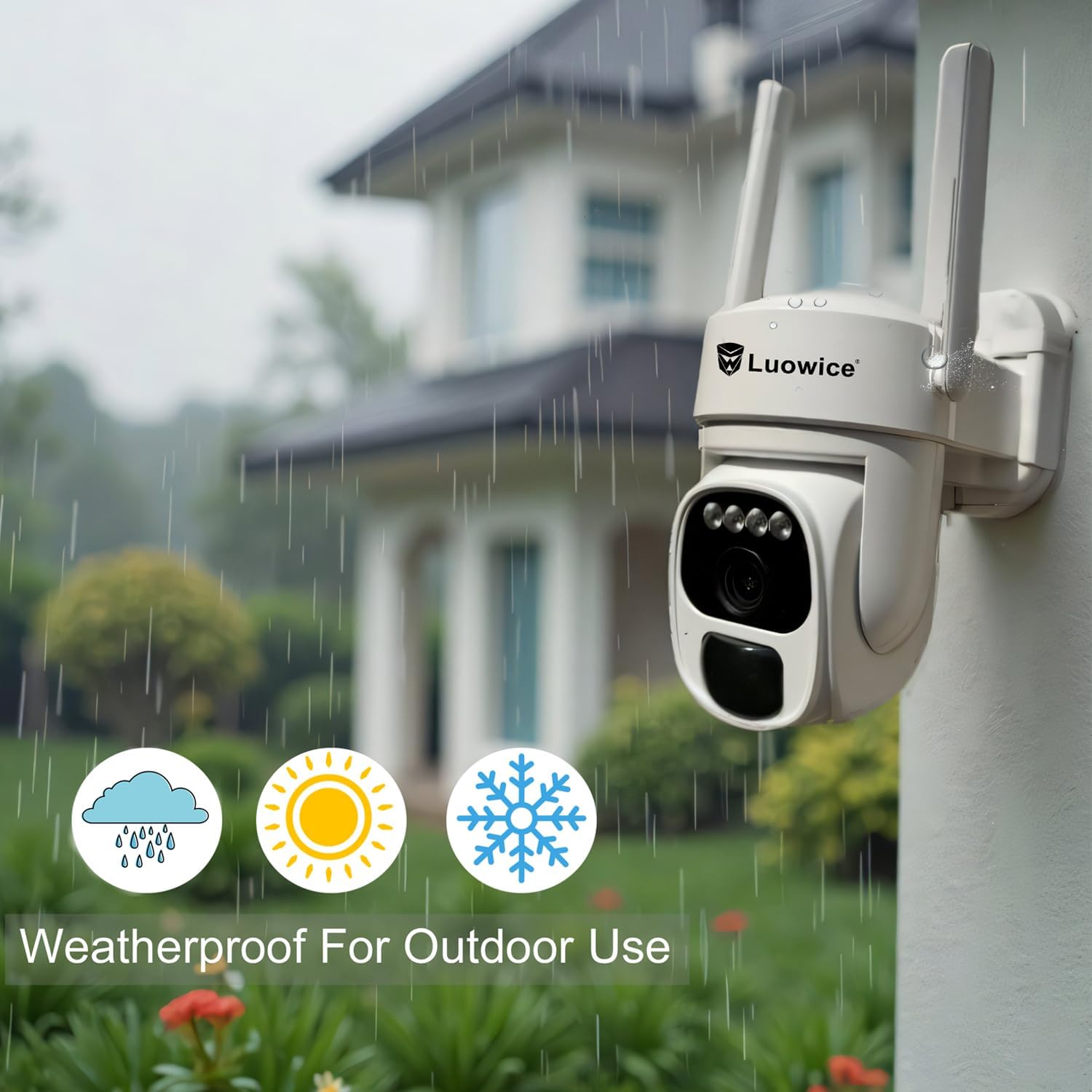
Image 5.1: The camera's weatherproof design for outdoor use.
6. טראָובלעשאָאָטינג
- קאַמעראַ פֿאַרבינדט זיך נישט צו Wi-Fi: Ensure your Wi-Fi is 2.4 GHz. Check Wi-Fi signal strength at the camera's location. Restart your router and the camera.
- באַטערי נישט טשאַרדזשינג: Verify the solar panel is clean and receiving direct sunlight. Check the USB charging cable connection. Ensure the ambient temperature is within the operating range for charging.
- נעבעך ווידעא קוואַליטעט: Clean the camera lens. Ensure adequate lighting. Check your internet connection speed.
- False motion alerts: אַדזשאַסטירן באַוועגונג דעטעקשאַן סענסיטיוויטי אין דער אַפּ. דעפינירן ספּעציפֿישע דעטעקשאַן זאָנעס צו ויסשליסן נישט באַטייַטיק געביטן.
- Pan/Tilt not responding: Check app connectivity. Ensure there are no physical obstructions. Restart the camera.
7. ספּעסאַפאַקיישאַנז
| שטריך | באַשרייַבונג |
|---|---|
| ווידעא קאַפּטורע רעסאָלוטיאָן | 3 מפּ |
| מאַכט מקור | Solar Powered (3W Solar Panel) |
| קאַנעקטיוויטי פּראָטאָקאָל | ווי-פי (2.4 GHz) |
| פּאַן / טילט קייט | 355 ° האָריזאָנטאַל, 90 ° ווערטיקאַל |
| נאַכט זעאונג | Color Night Vision with Floodlights |
| סטאָרידזש אָפּציעס | מיקראָ SD קאַרטל (ביז 128 גיגאבייט), וואָלקן סטאָרידזש |
| וועטערפּראָאָף שאַץ | IP66 |
| באַטעריז פארלאנגט | 1 ליטהיום יאָן באַטאַרייע (אַרייַנגערעכנט) |
| פּונקט וואָג | 1.85 פונט |
| דימענשאַנז | 7.87 x 6.18 x 5.55 אינטשעס (פּאַקעט) |
| קאַמפּאַטאַבאַל דעוויסעס | Smartphones, Tablets, Computers |
8. וואָראַנטי און שטיצן
8.1 וואָראַנטי אינפֿאָרמאַציע
Luowice products typically come with a manufacturer's warranty. Please refer to the product packaging or the official Luowice website for specific warranty terms and conditions. Optional extended protection plans may be available for purchase.
8.2 קונה שטיצן
For technical assistance, troubleshooting, or warranty claims, please contact Luowice customer support through their official website or the contact information provided with your product. When contacting support, please have your product model (B0DF4TVZ7Z) and purchase details ready.