
FLYINGVOICE P23GW
FLYINGVOICE P23GW VoIP Phone User Manual
Model: P23GW
Your guide to setting up, operating, and maintaining your advanced business IP phone.
1. הקדמה
The FLYINGVOICE P23GW is an advanced business IP phone designed for modern communication needs. It features dual-band WiFi, Bluetooth 4.2, a USB port for expansion, and a vibrant color screen. This manual provides detailed instructions to help you maximize the functionality of your P23GW VoIP phone.
2. פּעקל אינהאַלט
Before proceeding with the setup, please verify that all items are present in your package:
- FLYINGVOICE P23GW VoIP Phone Unit
- כאַנדסעט
- כאַנדסעט שנור
- עטהערנעט קאַבלע
- מאַכט אַדאַפּטער
- שנעל ינסטאַללאַטיאָן גייד

פיגורע 2.1: The P23GW VoIP Phone with its power adapter, as typically found in the package.
3. סעטאַפּ
3.1 פיזיש קאַנעקשאַן
- פֿאַרבינדן דעם האַנדסעט: שטעקט איין עק פון דעם אויפגעדרייטן האַנדסעט שנור אין דעם האַנדסעט און דעם אַנדערן עק אין דעם האַנדסעט פּאָרט אויף דער טעלעפאָן באַזע.
- פאַרבינדן צו די נעץ: Connect one end of the Ethernet cable to the LAN port on the phone and the other end to your network router or switch. If you are using the phone to provide network access to a computer, connect the computer to the PC port on the phone.
- פאַרבינדן מאַכט: Plug the power adapter into the power port on the phone and then into a power outlet. The phone will automatically power on.
3.2 ערשט קאַנפיגיעריישאַן
Upon first boot, the phone will attempt to obtain network settings via DHCP. You may need to configure SIP accounts manually or through auto-provisioning, depending on your service provider.
- נעץ סעטטינגס: Navigate to the 'Network' menu on the phone's color screen to configure IP settings if DHCP is not used.
- SIP רעגיסטראַציע: Access the 'SIP Account' menu to enter your SIP server address, username, and password. The phone supports quick SIP registration directly from the LCD screen.
4. אַפּערייטינג ינסטרוקטיאָנס
4.1 גרונטלעכע רוף פונקציעס
- מאַכן אַ רוף: Pick up the handset or press the Speaker button, then dial the number and press the 'Dial' or 'Send' soft key.
- ענטפֿערן אַ רוף: Pick up the handset or press the 'Speaker' button when the phone rings.
- ענדיקן אַ רוף: Hang up the handset or press the 'End Call' soft key.
- האַלטן/אָנהייבן: During a call, press the 'Hold' soft key. Press it again to resume the call.
- אַריבערפירן: During a call, press the 'Transfer' soft key, dial the new number, and press 'Transfer' again.
4.2 Display and Keypad Navigation
The P23GW features a 2.8-inch color display with a 7-level adjustable backlight for optimal visibility in various lighting conditions.

פיגורע 4.1: Adjusting the backlight on the P23GW's color display for improved readability.
Use the navigation keys (Up, Down, Left, Right, OK) to browse menus and select options. The soft keys below the display change functionality based on the current context.
4.3 אַוואַנסירטע פֿעיִקייטן
4.3.1 Wireless Connectivity (Dual-Band WiFi & AP Mode)
The P23GW supports 2.4G and 5GHz dual-band WiFi, providing flexible network connection options. It also features AP (Access Point) and Wi-Fi to LAN capabilities, allowing the phone to share its network connection with other devices.

פיגורע 4.2: The P23GW operating in Wireless AP Mode, demonstrating its ability to share network connectivity with other devices.
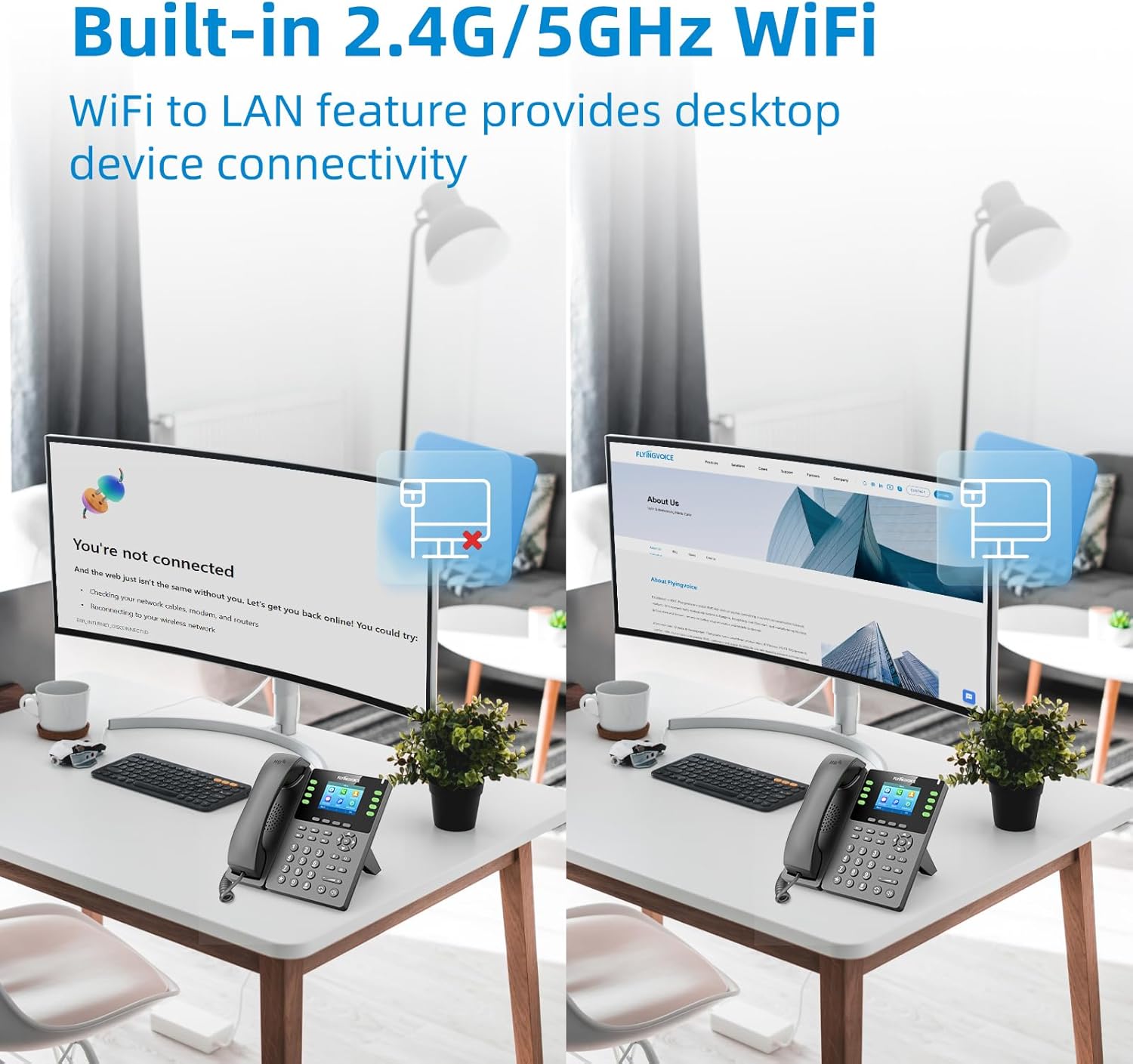
פיגורע 4.3: The P23GW's built-in 2.4G/5GHz WiFi enabling desktop device connectivity via its Wi-Fi to LAN feature.
4.3.2 בלועטאָאָטה 4.2
Integrated Bluetooth 4.2 allows for seamless pairing with wireless headsets, offering enhanced mobility and comfort during calls. To pair a device, navigate to the 'Bluetooth' menu in the phone settings.
4.3.3 USB Expansion
The USB 2.0 port expands the phone's functionality. It can be used for connecting various external devices, including:
- USB drives for automatic or manual call recording.
- Bluetooth adapters (if not already integrated).
- Wireless headsets.
- Expansion modules (e.g., P2EXP for additional programmable keys).

פיגורע 4.4: The P23GW's USB 2.0 and dual Ethernet ports, illustrating connectivity options for expanded functions.
4.3.4 Call Management Features
- Multiple VoIP Accounts: Supports up to 8 VoIP accounts, allowing for flexible line management.
- Speed Dial Keys: Utilize the 6 dedicated speed dial keys for quick access to frequently called numbers.
- 6-וועג קאַנפראַנסינג: Facilitate multi-party conversations with the built-in 6-way audio conferencing feature.

פיגורע 4.5: Visual representation of the P23GW's six-way audio conference capability, enabling easier communication and collaboration.
4.3.5 Local Phonebook
The phone includes a local phonebook capable of storing up to 2,000 contacts, ensuring all your important contacts are readily accessible.
5. וישאַלט
5.1 רייניקונג
To maintain the phone's appearance and functionality, regularly clean its surfaces. Use a soft, dry cloth for the display and a slightly damp cloth for the body. Avoid using harsh chemicals or abrasive cleaners.
5.2 פירמוואַרע דערהייַנטיקונגען
FLYINGVOICE periodically releases firmware updates to improve performance, add features, and address security concerns. The P23GW supports unified firmware. Check the official FLYINGVOICE website for the latest firmware versions and instructions on how to update your device.
6. טראָובלעשאָאָטינג
This section addresses common issues you might encounter with your P23GW VoIP phone.
| פּראָבלעם | מעגלעך סיבה | לייזונג |
|---|---|---|
| קיין רעדל טאָן | Phone not powered on; Network cable loose; SIP account not registered. | Check power connection; Ensure Ethernet cable is securely plugged in; Verify SIP account registration status in settings. |
| קען נישט מאַכן/באַקומען רופן | SIP account issues; Network connectivity problems; Firewall blocking VoIP traffic. | Confirm SIP account credentials; Check network connection; Consult your network administrator about firewall settings. |
| Poor call quality (echo, static) | Network congestion; Low bandwidth; Faulty handset/headset. | Ensure stable internet connection; Reduce network traffic; Test with a different handset or headset. |
| וויפי קשר אַנסטייבאַל | Weak signal; Interference; Incorrect WiFi settings. | Move phone closer to WiFi router; Check for interfering devices; Re-enter WiFi password and settings. |
For more advanced diagnostics, the P23GW supports remote management tools, allowing administrators to monitor and configure the device remotely.

פיגורע 6.1: Examples of remote management interfaces that can be used for troubleshooting and configuration of the P23GW.
7. טעכניש ספּעסאַפאַקיישאַנז
| שטריך | באַשרייַבונג |
|---|---|
| סאָרט | פליענדיק קול |
| מאָדעל | P23GW |
| קאָליר | שוואַרץ |
| טיפּ פון טעלעפאָן | Cordless (VoIP IP Phone) |
| מאַכט מקור | אַק אַדאַפּטער |
| ווייַז | 2.8-inch Color Screen with 7-level adjustable backlight |
| וואָיפּ אַקאַונץ | 8 SIP Accounts |
| WiFi | 2.4G/5GHz Dual-Band WiFi, AP & Wi-Fi to LAN features |
| בלועטאָאָטה | בלועטאָאָטה 4.2 |
| וסב פּאָרט | USB 2.0 for expansion (e.g., recording, headsets) |
| שנעל-דיאַל קנעפּלעך | 6 פּראָוגראַמאַבאַל שליסלען |
| קאָנפערענסינג | 6-וועג קאַנפראַנסינג |
| פאָנעבאָאָק קאַפּאַציטעט | ביז 2,000 קאָנטאַקטן |
| קאַמפּאַטאַבאַל דעוויסעס | Computers, Wireless Headsets, Answering Machines, Bluetooth-enabled Devices |
8. שטיצן און וואָראַנטי
8.1 טעכניש שטיצן
For technical assistance or inquiries, FLYINGVOICE offers dedicated 1-to-1 tech support. Please refer to the contact information provided with your product or visit the official FLYINGVOICE webפּלאַץ פֿאַר שטיצן רעסורסן.
8.2 פּראָדוקט וואָראַנטי
The FLYINGVOICE P23GW VoIP Phone comes with a standard manufacturer's warranty. Please refer to the warranty card included in your product packaging for specific terms, conditions, and duration of the warranty. Keep your purchase receipt as proof of purchase for warranty claims.
Ask a question about this manual
Ask about setup, troubleshooting, compatibility, parts, safety, or missing instructions. Manuals+ will review the question and use this page’s manual context to help answer it.