
1. הקדמה
This manual provides essential information for the proper setup, operation, and maintenance of your Azeyou 10.1-inch Android 14 Tablet, model AT1016U5. Please read this manual thoroughly before using your device to ensure optimal performance and safety.

בילד 1.1: פאָרנט און הינטן view of the Azeyou 10.1-inch Android 14 Tablet.
2. זיכערקייַט אינפֿאָרמאַציע
כדי צו פאַרמייַדן שאָדן צו אייער מיטל אָדער שאָדן צו זיך און אַנדערע, אָבסערווירט די פאלגענדע פאָרזיכטיגקייטן:
- שטעלט נישט אויס די טאַבלעט צו עקסטרעמע טעמפּעראַטורן, דירעקטע זונשייַן, אדער הויכע הומידיטי.
- פֿאַרמײַדט צו לאָזן פאַלן אָדער אויסשטעלן די טאַבלעט צו שטאַרקע קלאַפּן.
- Use only the charger and accessories provided or approved by Azeyou.
- האַלט די טאַבלעט אַוועק פון וואַסער און אַנדערע פליסיקייטן.
- Do not attempt to disassemble or repair the tablet yourself. Contact customer support for assistance.
- אַוועקוואַרפן די טאַבלעט און איר באַטאַרייע פאַראַנטוואָרטלעך לויט די לאָקאַלע רעגולאַציעס.
3. פּעקל אינהאַלט
באַשטעטיקן אַז אַלע זאכן זענען פאַראַן אין פּעקל:
- 1x Azeyou Android 14 Tablet
- 1x TYPE C Cable
- 1x Tablet Adaptor
- 1x באַניצער מאַנואַל

Image 3.1: Contents included in the Azeyou Tablet package.
4. פּראָדוקט איבערview
Familiarize yourself with the physical components and controls of your Azeyou Tablet.
4.1. פיזישע אויסלייג

Image 4.1: Diagram showing the location of ports and buttons on the Azeyou Tablet.
- מאַכט / שלאָס קנעפּל: Press to turn on/off the tablet or to lock/unlock the screen.
- באַנד קנעפּלעך: סטרויערן די אַודיאָ באַנד.
- באַשטעטיק פּינהאָלע: Use a thin pin to reset the device if it becomes unresponsive.
- וסב טיפּ-C פּאָרט: פֿאַר טשאַרדזשינג און דאַטן אַריבערפירן.
- מיקראָ סד קאָרט שפּעלטל: Insert a Micro SD card for expandable storage (up to 1TB, not included).
- אַפּאַראַט: Front (5MP) and Rear (8MP) cameras for photos and video calls.
- רעדנער: Dual multimedia box speakers for audio output.
4.2. שליסל פֿעיִקייטן
- אַפּערייטינג סיסטעם: אַנדרויד 14
- פּראַסעסער: 2.0 GHz Octa-Core Processor (Allwinner A523)
- ווייַז: 10.1-inch IPS Touch Screen, 1280x800 resolution
- זכּרון: 8GB RAM (4GB physical + 4GB virtual)
- סטאָרידזש: 128GB ROM, expandable up to 1TB via TF card
- באַטערי: 6000 מאַה ליטהיום פּאָלימער
- קאַנעקטיוויטי: Wi-Fi 6 (802.11a/b/g/n/ac), בלועטוט 5.0
- קאַמעראַס: 5 מפּ פראָנט, 8 מפּ דערציען
- נאָך: GMS certified, Widevine L1 support

Image 4.2: Visual representation of the tablet's core features including OS, memory, cameras, and connectivity.
5. סעטאַפּ
5.1. טשאַרדזשינג די באַטערי
Before first use, fully charge the tablet. Connect the provided USB Type-C cable to the tablet's charging port and the other end to the tablet adaptor. Plug the adaptor into a power outlet. The charging indicator will show the charging status. A full charge typically takes approximately 1.5 hours.
5.2. פּאָווערינג אויף / אויסגעלאשן
- צו מאַכט אויף: Press and hold the Power/Lock button until the Azeyou logo appears on the screen.
- צו מאַכט אַוועק: Press and hold the Power/Lock button until the power options menu appears. Select "Power off" and confirm.
- צו ריסטאַרט: From the power options menu, select "Restart."
5.3. ערשט סעטאַפּ
ביים ערשטן מאָל אנצינדן, פאָלגט די אינסטרוקציעס אויפן עקראַן צו קאָנפיגורירן אייער טאַבלעט:
- אויסקלייַבן דיין שפּראַך.
- פאַרבינדן צו אַ Wi-Fi נעץ.
- לאָג אַרײַן מיט אײַער גוגל אַקאַונט אָדער שאַפֿט אַ נײַעם. דאָס איז נייטיק צו דאַונלאָודן אַפּפּס פֿון גוגל פּליי סטאָר.
- Review און אָננעמען די תּנאים און באַדינגונגען.
- Set up screen lock (PIN, pattern, or password) for security.
5.4. אריינשטעלן א מיקראָ SD קאַרטל
To expand storage, insert a Micro SD card (not included) into the Micro SD card slot. Gently push the card until it clicks into place. Ensure the tablet is powered off before inserting or removing the card.
6. אַפּערייטינג ינסטרוקטיאָנס
6.1. נאַוויגירן אַנדרויד 14
Your tablet runs on Android 14, offering enhanced privacy controls and a user-friendly interface. Use touch gestures to navigate:
- צאַפּן: אויסקלייַבן אַ נומער.
- לאַקכענען: סקראָלן דורך סקרינז אדער רשימות.
- קניפּ: פארגרעסערן אדער פארקלענערן בילדער און web בלעטער.
- לאנג פּרעס: צוטריט קאנטעקסטועלע מעניוס אדער באוועג איקאנעס.
6.2. Wi-Fi און בלועטוט קאָנעקטיוויטי
Access the Quick Settings panel by swiping down from the top of the screen to enable or disable Wi-Fi and Bluetooth. For detailed settings, go to סעטטינגס > נעץ און אינטערנעט or סעטטינגס> קאָננעקטעד דעוויסעס.
6.3. אינסטאַלירן אַפּליקאַציעס
The Google Play Store is pre-installed. Tap the Play Store icon to browse and download applications. A Google account is required for this process.
6.4. קאַמעראַ יוז
Open the Camera app to take photos or record videos. The tablet features a 5MP front camera and an 8MP rear camera. Tap the screen to focus and press the shutter button to capture.

בילד 6.1: עקס.amples of camera usage and dual camera setup on the Azeyou Tablet.
6.5. Display and Eye Protection
The 10.1-inch IPS display offers a 1280x800 resolution. It includes low blue light technology to reduce eye strain. Adjust display settings under סעטטינגס> ווייַז.

Image 6.2: The 10.1-inch IPS display of the Azeyou Tablet.
6.6. באַטערי מאַנאַגעמענט
The 6000mAh battery provides approximately 6 hours of mixed usage. To optimize battery life, reduce screen brightness, disable Wi-Fi/Bluetooth when not in use, and close unused applications.

Image 6.3: Battery capacity and estimated usage times for the Azeyou Tablet.
7. וישאַלט
7.1. רייניקן די טאַבלעט
Use a soft, lint-free cloth to clean the screen and body of the tablet. Do not use abrasive cleaners or solvents, as they may damage the surfaces.
7.2. ווייכווארג דערהייַנטיקונגען
קאָנטראָלירט פּעריִאָדיש פֿאַר סיסטעם דערהייַנטיקונגען צו זיכער מאַכן אַז אייער טאַבלעט האט די לעצטע פֿעיִקייטן און זיכערהייט פּאַטשאַז. גייט צו סעטטינגס > סיסטעם > סיסטעם דערהייַנטיקונג.
7.3. סטאָרידזש מאַנאַגעמענט
רעגולער אויסמעקן נישט-נייטיקע זאכן files and uninstall unused apps to maintain optimal performance. You can manage storage under סעטטינגס> סטאָרידזש.
8. טראָובלעשאָאָטינג
אויב איר טרעפט פּראָבלעמען מיט אייער טאַבלעט, זעט די פאלגענדע געוויינטלעכע לייזונגען:
| פּראָבלעם | לייזונג |
|---|---|
| טאַבלעט טוט זיך נישט אָן | Ensure the battery is charged. Connect the charger and wait a few minutes before attempting to power on again. If unresponsive, use a thin pin to press the Reset pinhole. |
| די פאַרשטעלן איז ניט ריספּאַנדאַבאַל | Restart the tablet by holding the Power/Lock button. If unresponsive, use the Reset pinhole. |
| קענען ניט פאַרבינדן צו ווי-פי | Ensure Wi-Fi is enabled in settings. Check if the router is working correctly. Try forgetting the network and reconnecting. |
| Apps are crashing or slow | Close background applications. Clear app cache (Settings > Apps > [App Name] > Storage & cache). Ensure sufficient storage space. Restart the tablet. |
| באַטאַרייע דריינז געשווינד | Reduce screen brightness. Disable Wi-Fi, Bluetooth, and GPS when not in use. Close unused apps. Check battery usage in Settings > Battery. |
If the problem persists, please contact Azeyou customer support for further assistance.
9. ספּעסאַפאַקיישאַנז
Detailed technical specifications for the Azeyou 10.1-inch Android 14 Tablet (Model AT1016U5).
| שטריך | באַשרייַבונג |
|---|---|
| מאָדעל נומער | AT1016U5 |
| אָפּערייטינג סיסטעם | אַנדרויד 14 |
| פּראַסעסער | Octa-Core (Allwinner A523), 2 GHz |
| באַראַן | 8 גיגאבייט (4 גיגאבייט פיזיש + 4 גיגאבייט ווירטועל) |
| אינערלעכער סטאָרידזש | 128 גיגאבייט |
| יקספּאַנדאַבאַל סטאָרידזש | Up to 1 TB via Micro SD card (not included) |
| פאַרשטעלן גרייס | 10.1 אינטשעס |
| פאַרשטעלן האַכלאָטע | 1280x800 IPS |
| דערציען אַפּאַראַט | 8 מפּ |
| פראָנט אַפּאַראַט | 5 מפּ |
| באַטאַרייע קאַפּאַציטעט | 6000 מאַה ליטהיום פּאָלימער |
| דורכשניטלעך באַטאַרייע לעבן | 6 Hours (mixed usage) |
| ווירעלעסס קאַנעקטיוויטי | Wi-Fi 6 (802.11a/b/g/n/ac) |
| בלועטאָאָטה | בלועטאָאָטה 5.0 |
| דימענשאַנז (LxWxH) | 9.5 X 6.3 X 0.32 אינטשעס |
| פּונקט וואָג | 1.68 פונט |
| קאָליר | גרוי |
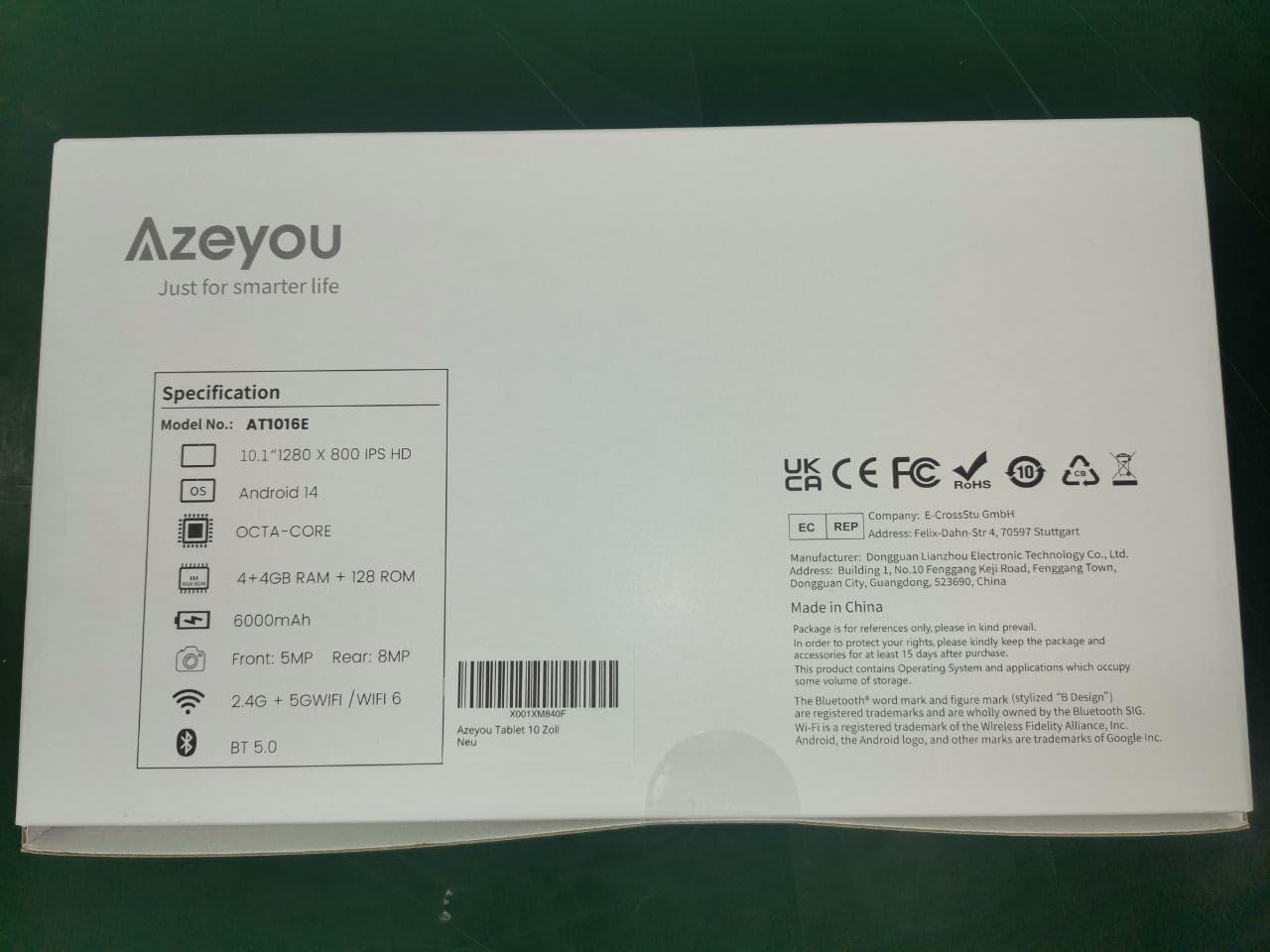
Image 9.1: Back of the product packaging displaying key specifications.
10. וואָראַנטי און שטיצן
Your Azeyou Tablet is covered by a manufacturer's warranty. For specific warranty terms and conditions, please refer to the documentation included with your purchase or visit the official Azeyou website. For technical support, troubleshooting assistance, or warranty claims, please contact Azeyou customer service.
איר קענט געפֿינען מער אינפֿאָרמאַציע און שטיצע אויף דער Azeyou Brand Store.