
1. הקדמה
Thank you for choosing the PUTRIMS K12 Google TV Projector. This manual provides essential information for the safe and efficient use of your new projector. Please read it thoroughly before operation and keep it for future reference.

Figure 1.1: PUTRIMS K12 Projector
2. זיכערקייַט אינפֿאָרמאַציע
- קוק נישט גלייך אריין אין די פּראָיעקטאָר לינז ווען די לamp איז אויף.
- פאַרזיכערן געהעריק ווענאַליישאַן צו פאַרמייַדן אָוווערכיטינג.
- האַלט דעם פּראָיעקטאָר ווײַט פֿון וואַסער אָדער אַנדערע פֿליסיקייטן.
- ניצן בלויז די צוגעשטעלט מאַכט אַדאַפּטער.
- ויסמיידן פּלייסינג די פּראַדזשעקטער אויף אַנסטייבאַל סערפאַסיז.
- פרובירט נישט צו צענעמען אדער פאררעכטן דעם פראיעקטאר אליין. קאנטאקטירט קאסטומער סופארט פאר הילף.
3. פּעקל אינהאַלט
באַשטעטיקן אַז אַלע זאכן זענען פאַראַן אין דיין פּעקל:
- PUTRIMS K12 Projector
- ווייַט קאָנטראָל
- מאַכט שנור
- HDMI קאַבלע
- פּראַדזשעקטער לענס קאָווער
- באַניצער מאַנואַל (דעם דאָקומענט)
4. פּראָדוקט איבערview
The PUTRIMS K12 projector is designed for a versatile home theater and business experience. It features a sleek design with essential ports for connectivity.
פיגורע 4.1: פראָנט view of the K12 Projector, showing the lens and auto-focus sensors.

פיגורע 4.2: דערציען view of the K12 Projector, highlighting HDMI, USB, and audio ports.
Video 4.1: General product overview and feature demonstration of the PUTRIMS K12 projector.
5. סעטאַפּ
5.1 פיזישע אויפשטעל
The K12 projector offers flexible installation options to suit various environments:
- טאַבלעטאָפּ אָרט: שטעלט דעם פּראָיעקטאָר אויף אַ סטאַבילער, גלאַטער ייבערפלאַך.
- Tripod Mounting: Use the M5 screw hole on the bottom to attach a tripod.
- סופיט מאַונטינג: זיכער מאָנטירן דעם פּראָיעקטאָר צום דאַך ניצנדיק אַ קאָמפּאַטיבלע מאָונט.
- וואַנט מאָונטינג: Attach the projector to a wall using a suitable bracket.

Figure 5.1: Diverse installation methods for the K12 Projector.
5.2 ערשט מאַכט אויף
- פאַרבינדן די מאַכט שנור צו די פּראַדזשעקטער און אַ מאַכט ווענטיל.
- דרוק די מאַכט קנעפּל אויף די פּראַדזשעקטער אָדער די ווייַט קאָנטראָל צו קער עס אויף.
- The projector will automatically perform auto-focus and keystone correction.
5.3 נעץ פֿאַרבינדונג (WiFi)
To access online streaming services and updates, connect your projector to a WiFi network:
- נאַוויגירן צו די 'סעטטינגס' מעניו אויף די פּראָיעקטאָר.
- אויסקלייבן 'נעץ' אדער 'WiFi סעטטינגס'.
- אַקטיווירן WiFi און אויסקלײַבן די נעץ וואָס איר ווילט פֿון דער רשימה.
- אַרייַן די פּאַראָל אויב געבעטן און פאַרבינדן.
5.4 בלועטאָאָטה קאַנעקשאַן
Connect external Bluetooth speakers or headphones for enhanced audio:
- גיי צו 'סעטטינגס' און סעלעקטיר 'בלוטעט'.
- Turn on Bluetooth and put your external device into pairing mode.
- אויסקלייבן אייער דעווייס פון דער ליסטע צו פארבינדן.
5.5 סקרין מירערינג
Share content from your mobile devices or computer wirelessly:
- For iOS devices (Airplay): Ensure your iOS device and the projector are connected to the same WiFi network. Open the 'iOS Cast' interface on the projector. On your iOS device, open Control Center, tap 'Screen Mirroring', and select 'K12-xxxx' from the list.
- For Android/Windows devices (Miracast): Ensure your device and the projector are connected to the same WiFi network. Open the 'Miracast' interface on the projector. On your Android/Windows device, enable screen mirroring/cast feature and select 'K12-xxxx' to connect.
6. אַפּערייטינג ינסטרוקטיאָנס
6.1 גוגל טיווי פֿעיִטשערס
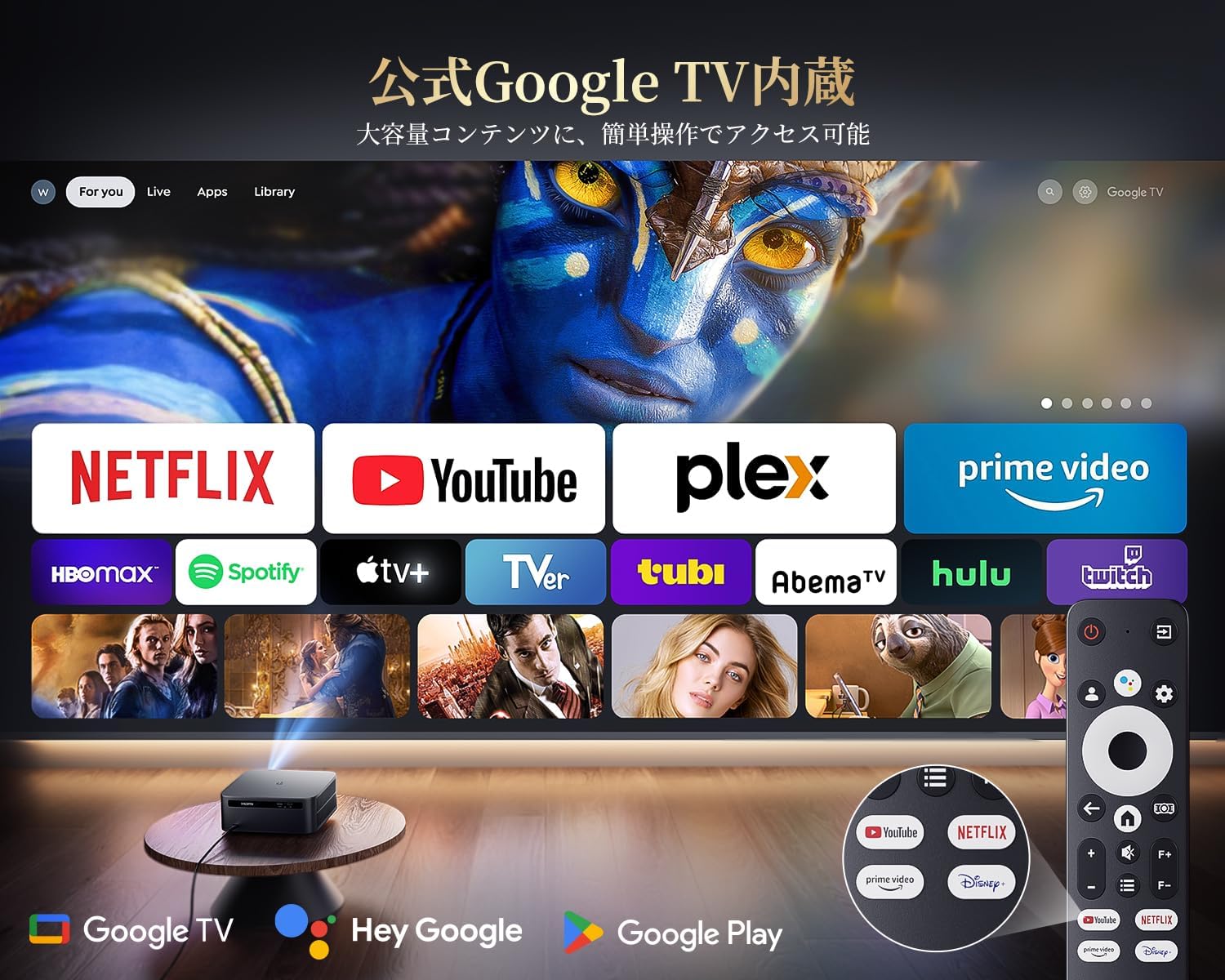
The PUTRIMS K12 comes with official Google TV, providing access to a vast library of content and applications.
- סטרימינג אַפּפּס: Directly access Netflix, Disney+, YouTube, Prime Video, Hulu, and many more with a single click.
- Google פּלייַ סטאָר: Download and install over 10,000 applications and games.
- רעגולער דערהייַנטיקונגען: The projector receives periodic updates to enhance security and stability.

Figure 6.1: Google TV interface with popular streaming applications.
6.2 קול קאָנטראָל
Utilize the Google Voice Assistant for convenient control of your projector and content.
- Press the voice control button on your remote.
- Speak commands such as "Open Netflix," "Play One Piece," "Tell me the weather," or "Increase volume."

Figure 6.2: Using the Google Voice Assistant with the remote control.
6.3 בילד אַדזשאַסטמאַנט
The K12 projector features advanced image adjustment capabilities for optimal viewing.
- אַוטאָ פאָקוס: The projector automatically adjusts the focus for a clear image upon startup or movement.
- אַוטאָ קיסטאָנע קערעקשאַן: It automatically corrects horizontal and vertical trapezoidal distortions, ensuring a perfectly rectangular image even from an angle.
- פארגרעסער פֿונקציע: אַדזשאַסטירן די גרייס פון דעם עקראַן פון 50% ביז 100% אָן צו רירן דעם פּראָיעקטאָר.
- אַספּעקט פאַרהעלטעניש: Supports 4:3 and 16:9 aspect ratios.
- ברייטנאַס און קאַנטראַסט: Customize brightness and contrast settings to your preference.

פיגור 6.3: אויטאָמאַטישער פאָקוס און קיסטאָון קערעקשאַן אין אַקציע.

Figure 6.4: Projection distances and corresponding screen sizes (100", 120", 150").
6.4 קאַנעקטינג פונדרויסנדיק דעוויסעס
The K12 projector offers multiple connectivity options for various devices:
- הדמי קרייַזבויגן: Connect to soundbars, laptops, gaming consoles (Switch, PS5), or DVD players.
- וסב: Play media directly from USB memory sticks.
- 3.5 מם אַודיאָ פּאָרט: Connect to external audio systems.

Figure 6.5: Seamless connection with various external devices.
7. וישאַלט
7.1 לינז רייניקונג
To maintain optimal image quality, regularly clean the projector lens.
- פאַרזיכערן אַז די פּראַדזשעקטער איז אויסגעדרייט אַוועק און אַנפּלאַגד.
- Gently wipe the lens with a soft, lint-free cloth or a cotton swab.
- פֿאַר שווערע פֿלעקן, ניצט אַ לינז רייניקונג לייזונג ספּעציעל דיזיינד פֿאַר אָפּטישע סערפאַסיז.
- Avoid using abrasive materials or harsh chemicals that could damage the lens.
8. טראָובלעשאָאָטינג
דאָ זענען לייזונגען צו געוויינטלעכע פּראָבלעמען וואָס איר קענט באַגעגענען:
- No image/signal: Check all cable connections (HDMI, power). Ensure the correct input source is selected on the projector.
- בלערי בילד: The projector features auto-focus. If the image remains blurry, ensure the lens is clean and there are no obstructions.
- Image not rectangular: The projector has auto-keystone correction. If issues persist, ensure the projector is placed on a stable surface and try repositioning it.
- קיין קול: Check volume settings on both the projector and connected devices. Ensure external speakers are properly connected via Bluetooth or audio cable. If using HDMI ARC, verify the connection and settings.
- WiFi/Bluetooth connection issues: Ensure the projector and your device are within range of the router/device. Restart both the projector and the router/device.
- App crashes or malfunctions (for unofficial Android TV versions): The PUTRIMS K12 has an official Google TV license, which ensures stability. If you experience issues, ensure your system is updated.
פֿאַר ווייטערדיקע הילף, ביטע זעט די וואָראַנטי און שטיצע אָפּטייל.
9. ספּעסאַפאַקיישאַנז
| שטריך | באַשרייַבונג |
|---|---|
| סאָרט | פּוטרימס |
| מאָדעל | K12 |
| ברייטנאַס | 1500 אַנסי לומענס |
| האַכלאָטע | 1080P FHD (4K Support) |
| אָפּערייטינג סיסטעם | אפיציעלע גוגל טעלעוויזיע |
| קול קאָנטראָל | Google Voice Assistant |
| פאָקוס | Omnidirectional Auto Focus |
| קייסטאָנע קערעקשאַן | Horizontal & Vertical Auto Keystone Correction |
| פארגרעסער | 50%-100% |
| מאַקסימום פאַרשטעלן גרייס | 300 אינטשעס |
| WiFi | WiFi 6 |
| בלועטאָאָטה | בלועטאָאָטה 5.3 |
| אַודיאָ רעזולטאַט | 20W HIFI Speaker, 3.5mm Audio Jack |
| אַרייַנשרייַב פּאָרץ | HDMI ARC, USB |
| דימענשאַנז | 40.5 X 30.2 X 17 סענטימעטער |
| וואָג | 3.31 קג |
10. וואָראַנטי און שטיצן
PUTRIMS is committed to providing excellent customer service. Your K12 projector comes with comprehensive support:
- נאָך-סאַלעס סערוויס: 24 hours a day, 365 days a year.
- טעכניש שטיצן: Professional technical assistance is available.
- וואָראַנטי: Free exchange or 100% refund guarantee for initial defects or natural failures under normal use.
If you have any questions or require assistance, please contact PUTRIMS customer support via the official email address provided in your product packaging or on the official webפּלאַץ.