
הקדמה
This manual provides detailed instructions for the setup, operation, maintenance, and troubleshooting of your Docooler Wireless Mechanical Keyboard, Fun Cake House edition. Please read this manual thoroughly before using the product to ensure optimal performance and longevity.
The Docooler Wireless Mechanical Keyboard features red switches, PBT keycaps, a high-clear display, and a volume control knob. It supports multiple connectivity options including 2.4G wireless, Bluetooth, and wired connections, and is compatible with Windows, Mac, iOS, and Android systems.
פּעקל אינהאַלט
באַשטעטיקן אַז אַלע זאכן זענען פאַראַן אין פּעקל:
- 1x Docooler Wireless Mechanical Keyboard (Fun Cake House)
- 1x USB Cable (for wired connection and charging)
- 1x 2.4G וסב ופנעמער
- 1x באַניצער מאַנואַל (דאָס דאָקומענט)
סעטאַפּ
1. אויפלאָדן די קלאַוויאַטור
Before initial use, fully charge the keyboard. Connect the provided USB cable to the keyboard's USB-C port and the other end to a USB power source (e.g., computer USB port, wall adapter). The display will indicate charging status. A full charge typically takes 2-3 hours.
The keyboard is equipped with an 1850mAh rechargeable lithium battery.
2. קאַנעקטיוויטי אָפּציעס
Your keyboard supports three connection modes: 2.4G Wireless, Bluetooth (BT), and Wired USB.
2.1. 2.4ג ווירעלעסס קאַנעקשאַן
- Locate the 2.4G USB receiver, usually stored in a compartment on the keyboard.
- שטעקט אריין דעם 2.4G USB ריסיווער אין א פאראן USB פארט אויף אייער קאמפיוטער.
- Switch the keyboard's connection mode to 2.4G (refer to the אַפּערייטינג מאָדעס section for details on switching modes).
- The keyboard should automatically connect. The display will show the 2.4G connection icon.
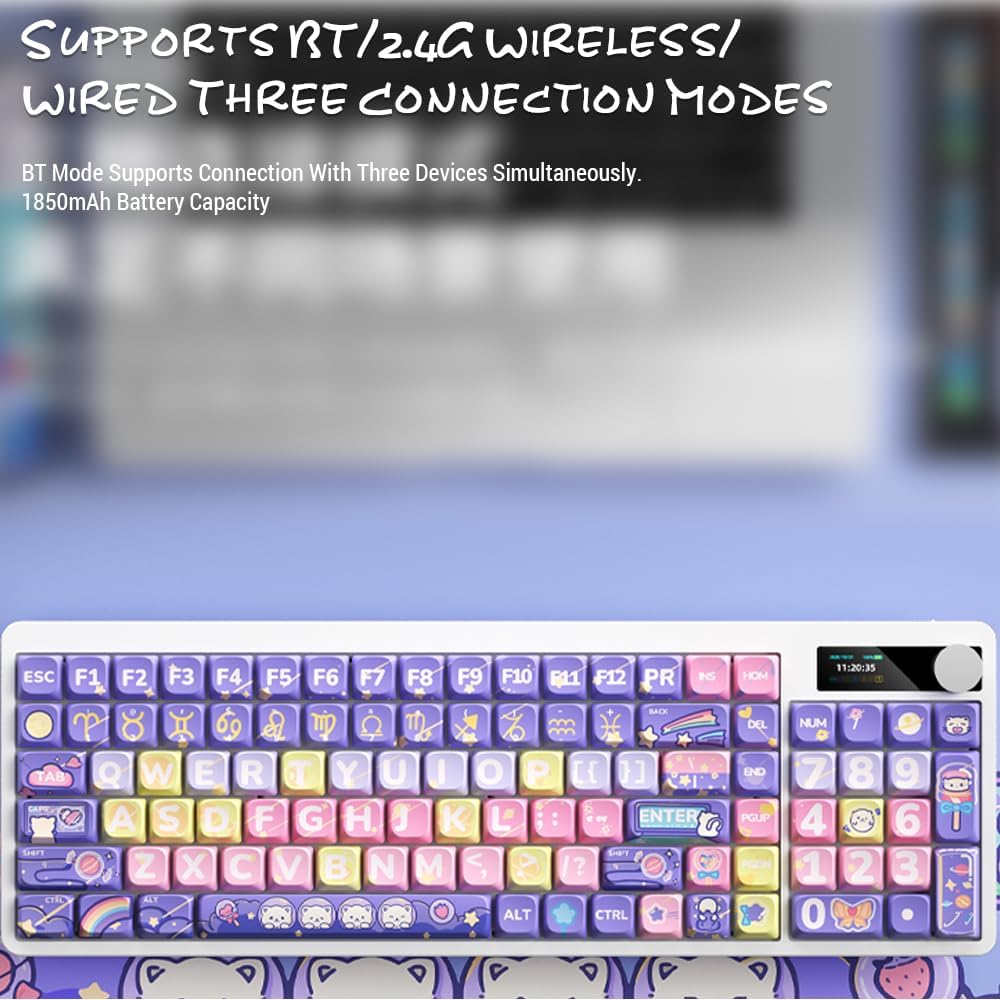
Image: Keyboard display showing 2.4G wireless connection status.
2.2. Bluetooth (BT) Connection
The keyboard can connect to up to three Bluetooth devices simultaneously.
- Switch the keyboard's connection mode to Bluetooth (BT1, BT2, or BT3).
- אויף אייער דעווייס (קאמפיוטער, טאַבלעט, סמאַרטפאָון), אַקטיווירט בלועטוט און זוכט פֿאַר נײַע דעווייסעס.
- Select "Docooler Keyboard" (or similar name) from the list of available devices.
- If prompted, enter the pairing code displayed on your screen.
- Once paired, the display will show the Bluetooth connection icon for the selected channel.
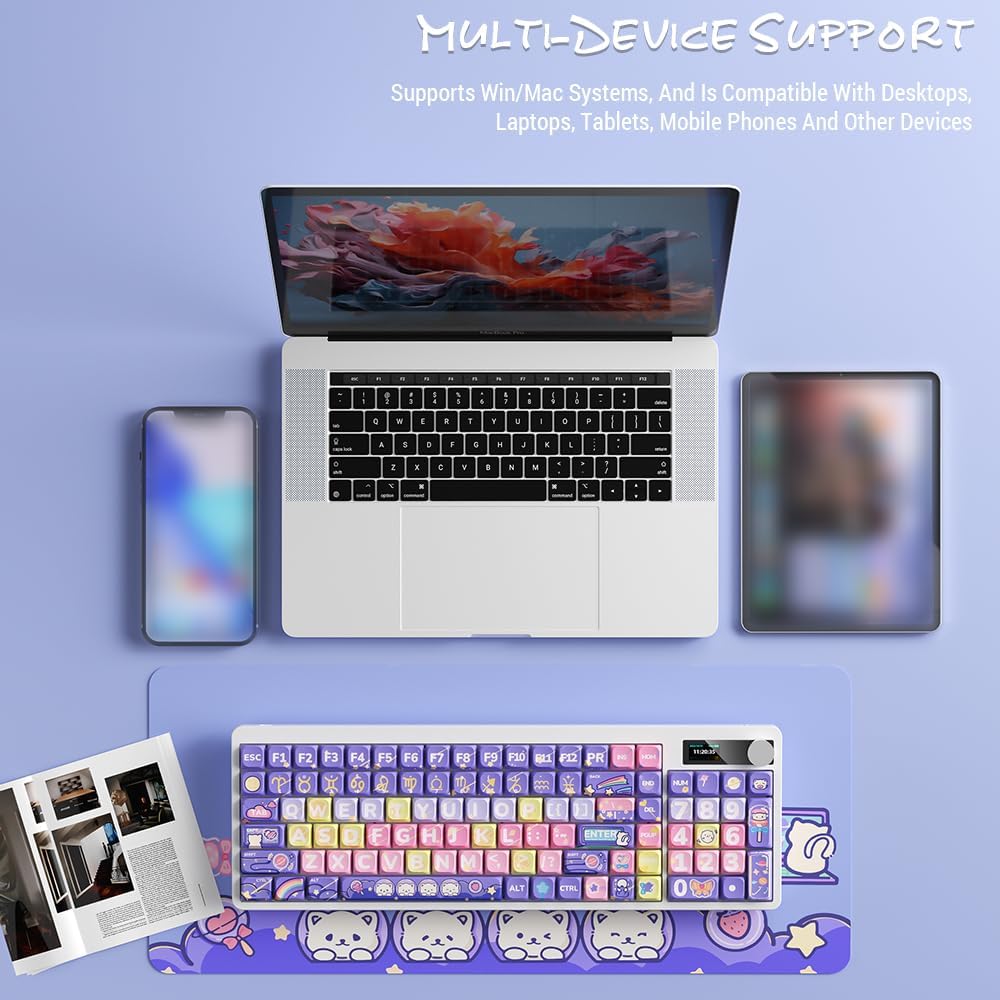
Image: Docooler keyboard demonstrating multi-device support, connected to a laptop, tablet, and smartphone via Bluetooth.
2.3. דראָטיקע USB פֿאַרבינדונג
- Connect the provided USB cable directly from the keyboard to your computer's USB port.
- Switch the keyboard's connection mode to Wired (refer to the אַפּערייטינג מאָדעס אָפּטיילונג).
- די קלאַוויאַטור וועט ווערן דערקענט ווי אַ נאָרמאַלע USB קלאַוויאַטור.
אַפּערייטינג ינסטראַקשאַנז
1. סוויטשינג קאַנעקשאַן מאָדעס
Use the dedicated mode switch or key combination (refer to the keyboard's specific function keys, often marked with icons for 2.4G, BT, and USB) to cycle through the connection modes. The display screen will clearly indicate the active mode.

Image: Close-up of the keyboard display showing indicators for Bluetooth, 2.4G, and wired connection modes, along with battery status and time.
2. High Clear Display Functions
The integrated display provides real-time information and customization options. It can show:
- טאָג און צייט
- באַטאַרייע מדרגה
- Connection Mode (2.4G, BT1/2/3, Wired)
- באַקלייט סעטטינגס
- באַנד מדרגה
- Custom Images or Dynamic GIFs (customization via software, if available)

בילד: דעטאַלירט view of the keyboard's high-clear display, illustrating various functions such as date, time, power, connection mode, and backlight settings.
3. באַנד קאָנטראָל קנופּ
The metal knob located on the top right of the keyboard allows for quick adjustment of system volume. Rotate clockwise to increase volume, counter-clockwise to decrease. Pressing the knob typically mutes/unmutes audio.

Image: Close-up of the unique metal round knob, highlighting its function for adjusting brightness and volume.
4. באַקלייט אַדזשאַסטמאַנט
The keyboard features a colorful backlight. Use the dedicated function keys (often Fn + specific keys) or the display menu to cycle through different lighting effects, adjust brightness, and change colors. Refer to the display for visual feedback on backlight settings.
5. פונקציע קנעפּלעך (Fn קאָמבינאַציעס)
פילע קנעפּלעך האָבן צווייטיקע פונקציעס וואָס זענען צוטריטלעך דורך האַלטן די Fn key and pressing the desired key. Common Fn combinations include:
- Fn+F1-F12: Multimedia controls (play/pause, volume, track skip), application shortcuts.
- Fn + פײַל קנעפּלעך: Backlight brightness/speed adjustment.
- Fn + געווינען: Lock/unlock Windows key.
- Fn + Mode Key: Switch between 2.4G, BT, and Wired modes.
Consult the keycap legends for specific Fn functions on your "Fun Cake House" keyboard.
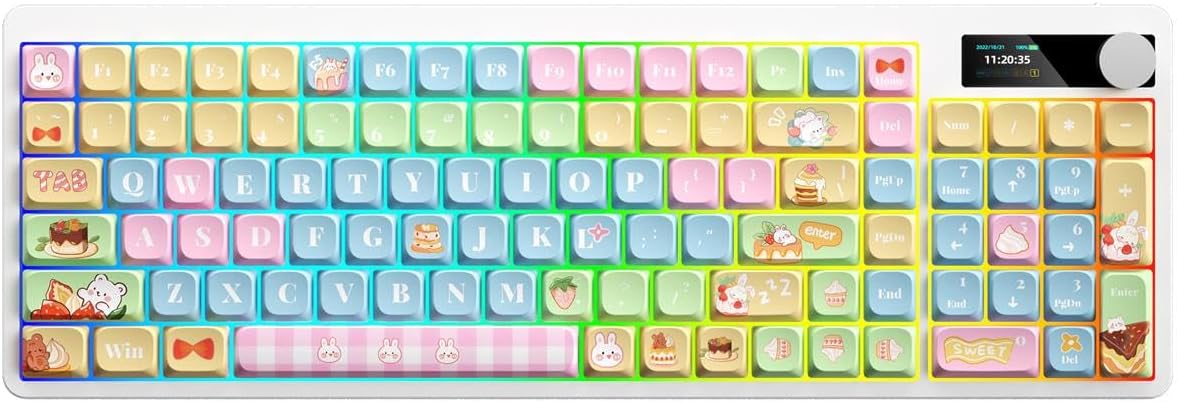
Image: Full layout of the Docooler Wireless Mechanical Keyboard in the Fun Cake House design, showing all 101 keys, the display, and the volume knob.
וישאַלט
1. רייניקונג
- טרענט אפ די קלאַוויאַטור פון אַלע מאַכט קוועלער און דעוויסעס איידער רייניקונג.
- ניצן אַ ווייך, לינט-פֿרייַ שטאָף אַ ביסל דampשווענקט מיט וואַסער אָדער אַ מילדער רייניקונג לייזונג צו ווישן די קלאַוויאַטור און קלאַוויאַטור ייבערפלאַך.
- פֿאַר שטויב און שמוץ צווישן די קלאַוויאַטורן, ניצט קאָמפּרעסירטע לופט אָדער אַ קליין באַרשט.
- Avoid using harsh chemicals, abrasives, or solvents, as these can damage the keyboard's finish and keycap legends.
2. Keycap Removal (Optional)
The PBT keycaps can be removed for deeper cleaning or replacement. Use a keycap puller to gently lift keycaps straight up. Avoid excessive force to prevent damage to the switch stems.
3. סטאָרידזש
When not in use for extended periods, store the keyboard in a cool, dry place away from direct sunlight and extreme temperatures. Ensure the battery is partially charged (around 50%) before long-term storage to preserve battery health.
טראָובלעשאָאָטינג
קלאַוויאַטור ניט ריספּאַנדינג
- קאָנטראָלירן די באַטאַרייע: Ensure the keyboard is charged. Connect it via USB cable to charge.
- טשעק קאנעקשאן מאָדע: Verify the keyboard is in the correct mode (2.4G, BT, or Wired) for your device.
- 2.4G Issues: Ensure the USB receiver is securely plugged in. Try a different USB port.
- בלועטאָאָטה ישוז: Re-pair the keyboard with your device. Ensure Bluetooth is enabled on your device. Try forgetting the device and re-pairing.
- Wired Issues: Ensure the USB cable is securely connected to both the keyboard and the computer. Try a different USB cable or port.
- ריסטאַרט: ריסטאַרט דיין קאָמפּיוטער/אַפּאַראַט און די קלאַוויאַטור.
Keys Not Registering / Double Typing
- ריינע קלאַוויאַטור קאַפּס: Remove keycaps and clean any debris around the switch.
- Firmware דערהייַנטיקן: Check the Docooler official website for any available firmware updates for your model.
באַקלייט נישט ארבעטן
- ברייטנאַס סעטטינגס: Ensure the backlight brightness is not set to minimum or off. Adjust using Fn combinations or the display menu.
- מאַכט שפּאָרן: The backlight may turn off after a period of inactivity to save battery. Press any key to reactivate.
Display Screen Issues
- מאַכט ציקל: דריי אויס די קלאַוויאַטור און מאַך ווידער אָן.
- ברייטקייט: Ensure the display brightness is not set too low.
ספּעסאַפאַקיישאַנז
| מאָדעל | Docooler Wireless Mechanical Keyboard (Fun Cake House) |
| באַשטימען טיפּ | רויטע סוויטשעס |
| קייקאַפּס | PBT |
| קאַנעקטיוויטי | 2.4G Wireless, Bluetooth (BT), Wired USB |
| באַקלייט | פאַרביק באַקלייט |
| שליסל ראָולאָוווער | גאַנץ שליסל ראָולאָוווער |
| ווייַז | High Clear Display |
| קנופּ | Metal Volume Control Knob |
| באַטערי | 1850mAh 3.7V Rechargeable Lithium Battery |
| שליסל אויסלייג | 101 Keys (with display screen + knob) |
| שטיצט סיסטעמען | Windows, Mac, iOS, Android |
| דימענשאַנז | 39.7 רענטגענ 13.4 רענטגענ 1.7 סענטימעטער (15.6 רענטגענ 5.3 רענטגענ 0.7 אין) |
| וואָג | 621 ג (1.37 לבס) |

Image: Diagram illustrating the dimensions of the Docooler Wireless Mechanical Keyboard: 39.7cm (15.6in) length and 13.4cm (5.3in) width.
וואָראַנטי אינפֿאָרמאַציע
Docooler products are covered by a limited warranty from the date of purchase. This warranty covers manufacturing defects in materials and workmanship. It does not cover damage caused by accident, misuse, abuse, modification, improper installation, or normal wear and tear.
For specific warranty terms and conditions, please refer to the warranty card included with your product or visit the official Docooler webפּלאַץ.
קונה שטיצן
If you encounter any issues or have questions regarding your Docooler Wireless Mechanical Keyboard that are not addressed in this manual, please contact our customer support team.
- בליצפּאָסט: support@docooler.com
- Webפּלאַץ: Visit the official Docooler website for FAQs, drivers, and additional support resources: www.docooler.com
When contacting support, please have your product model (B0DB7YPHFK) and purchase information ready.