
הקדמה
א דאנק פארן קויפןasing the KTC H27S17 27-inch WQHD 180Hz Curved Gaming Monitor. This manual provides essential information for the safe and efficient use of your new monitor. Please read it thoroughly before use and retain it for future reference.
פּראָדוקט איבערview ווידעא
ווידעא: אן אפיציעלע פראדוקט ווידעא ווייזונגasing the key features and design of the KTC H27S17 27-inch Curved Gaming Monitor.
פּעקל אינהאַלט
באַשטעטיקט אַז אַלע זאכן וואָס זענען אויסגערעכנט אונטן זענען אַרייַנגערעכנט אין אייער פּעקל:
- מאַכט קאַבלע
- DisplayPort קאַבלע
- מאַכט אַדאַפּטער
- מאָניטאָר שטייט
- שטיין באַזע
- Driver CD (or download link)
- מאַונטינג סקרוז
- Instruction Manual (Japanese version)
- שנעל אָנהייב גייד
- וואָראַנטי קאַרד
סעטאַפּ אינסטרוקציעס
1. אַסעמבאַל די שטיין
Attach the stand base to the monitor stand using the provided screws. Then, securely attach the assembled stand to the back of the monitor.
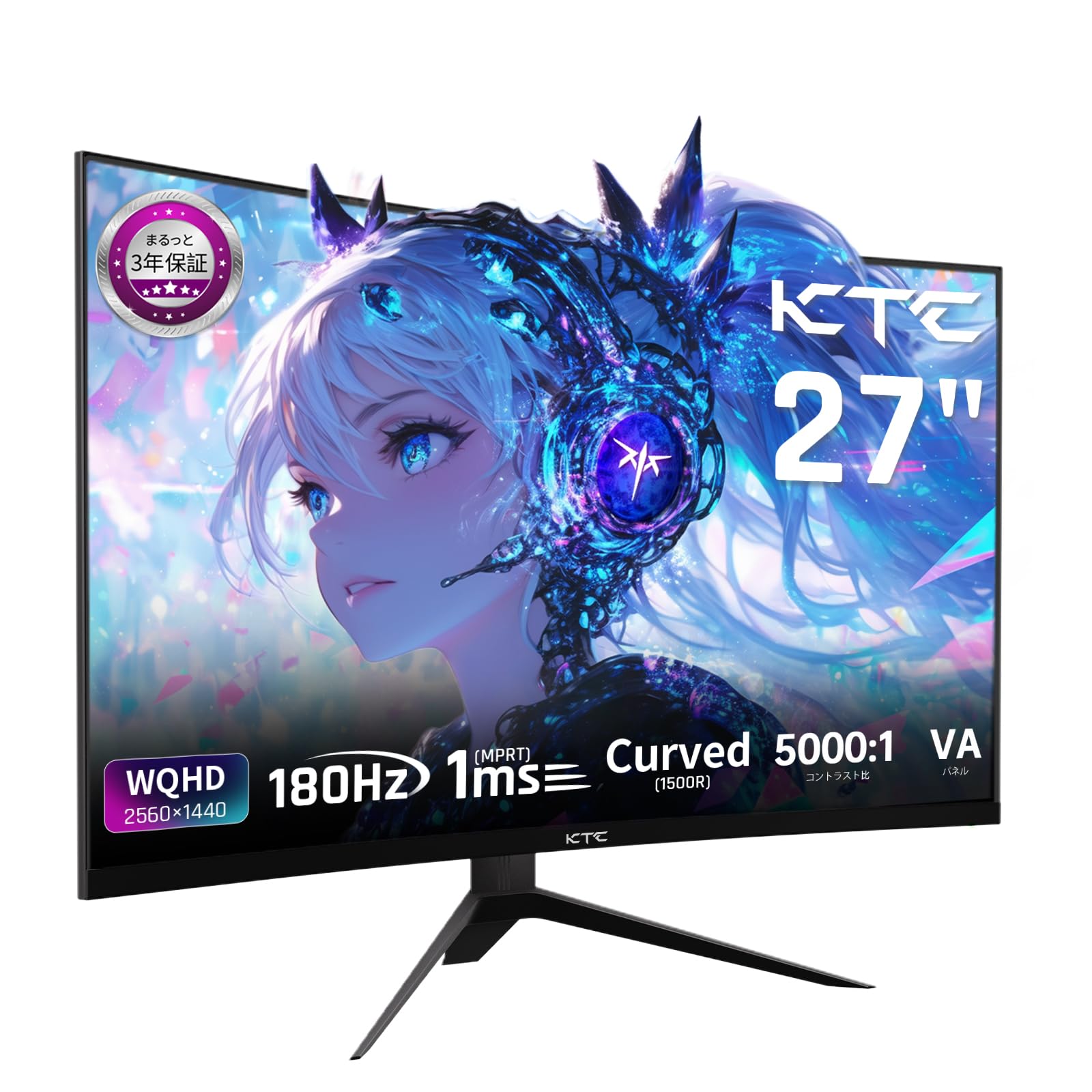
Image: The KTC H27S17 monitor fully assembled with its stand, viewעד פון די פראָנט.
2. Connecting to a Power Source
Connect the power adapter to the monitor's DC input port, then plug the power cable into a wall outlet.
3. זיך פֿאַרבינדן צו אַ מיטל
Use the appropriate cable (DisplayPort or HDMI) to connect your computer or gaming console to the monitor. Ensure the cable is securely connected to both the monitor and your device.

בילד: הינטערשטע view of the monitor showing the various input ports including DC, USB, HDMI, DisplayPort, and headphone jack.
4. וועסאַ מאָונטינג (אָפּציאָנעל)
The monitor supports VESA 100mm x 100mm mounting. If using a VESA mount, remove the stand and attach the monitor to your VESA-compatible arm or wall mount using appropriate screws.
Image: Diagram illustrating the VESA 100x100mm mounting pattern and tilt adjustment range on the back of the monitor.
אַפּערייטינג ינסטראַקשאַנז
מאַכט אויף / אַוועק
דריק דעם מאַכט קנעפּל, וואָס געפינט זיך געוויינטלעך אויף דער הינטערשטער אָדער אונטערשטער טייל פון מאָניטאָר, צו עס אנצינדן אָדער אויסלעשן. די מאַכט אינדיקאַטאָר ליכט וועט זיך אָנצינדן ווען דער מאָניטאָר איז אָן.
אויף-סקרין ווייַז (אָסד) מעניו
Use the joystick or buttons on the monitor to navigate the OSD menu. This menu allows you to adjust various display settings such as brightness, contrast, color temperature, input source, and gaming features.
אַרייַנשרייַב מקור סעלעקציע
If multiple devices are connected, use the OSD menu to select the desired input source (HDMI 1, HDMI 2, DisplayPort 1, DisplayPort 2).
ווייַז פֿעיִקייטן
Curved Display (1500R)
די 1500R קרומונג גיט אַן איממערסיווע viewing experience, reducing eye strain during extended use by matching the natural curve of the human eye.

Image: A curved monitor displaying a vibrant image, highlighting the 1500R curvature for an immersive experience.
WQHD Resolution (2560x1440)
Experience detailed visuals with WQHD (2560x1440) resolution, offering approximately 1.7 times the pixel density of Full HD displays.

Image: A monitor displaying a high-resolution image, emphasizing the clarity of WQHD (2560x1440) compared to lower resolutions.
High Refresh Rate (180Hz) and Fast Response Time (1ms MPRT)
The 180Hz refresh rate and 1ms (MPRT) response time ensure smooth, blur-free visuals, crucial for fast-paced gaming and action scenes.

Image: A split screen comparison on the monitor, demonstrating the difference between 180Hz/1ms and 60Hz/5ms, highlighting reduced motion blur.
Vibrant Color Reproduction and HDR10
With sRGB 132%, DCI-P3 104%, Adobe RGB 112% color volume, and HDR10 support, the monitor delivers accurate and vivid colors with enhanced contrast between bright and dark areas.

Image: A monitor displaying a colorful scene, illustrating the wide color gamut and high contrast ratio (5000:1).
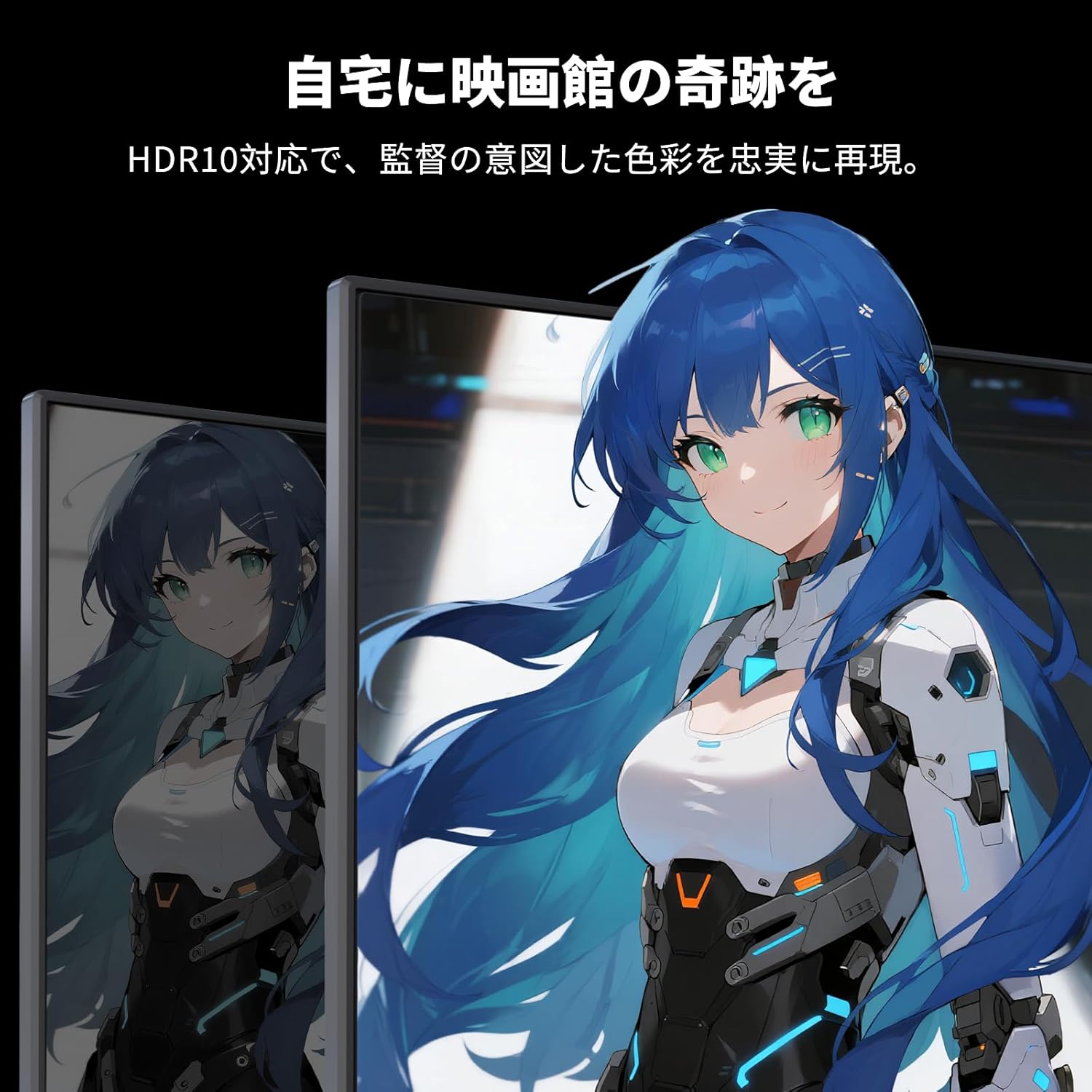
Image: A monitor showing a scene with HDR10 enabled, demonstrating improved dynamic range and detail in both bright and dark areas.
אַדאַפּטיוו סינק טעכנאָלאָגיע
Adaptive Sync (FreeSync and G-Sync compatible) eliminates screen tearing and stuttering, providing a fluid gaming experience.

Image: A split screen comparison on the monitor, showing the difference between Adaptive Sync OFF (screen tearing) and ON (smooth image).
אויג קער פֿעיִטשערז
The monitor includes Flicker-Free technology and a Low Blue Light mode to reduce eye strain during prolonged use.

Image: Illustrations demonstrating Flicker-Free technology and Low Blue Light mode, designed to reduce eye fatigue.
קאַנעקטיוויטי
The KTC H27S17 monitor offers multiple connectivity options:
- 2 x HDMI 2.0: Supports WQHD (2560x1440) at 144Hz.
- 2 x DisplayPort 1.4: Supports WQHD (2560x1440) at 180Hz.
- 1 x USB 2.0: For firmware upgrades only.
- 1 x 3.5mm Headphone Jack: פֿאַר אַודיאָ רעזולטאַט.
- 1 x DC Input: פֿאַר מאַכט פֿאַרבינדונג.
בילד: דעטאַלירט view of the monitor's rear panel, highlighting the DC input, USB port, HDMI ports, DisplayPort inputs, and headphone jack.
Physical Adjustments
טילט אַדזשאַסטמאַנט
The monitor stand allows for tilt adjustment from -5 to 15 degrees, enabling you to find an optimal viewינג ווינקל פֿאַר טרייסט.
Image: Diagram illustrating the tilt adjustment range of the monitor stand.
VESA קאַמפּאַטאַבילאַטי
The monitor is compatible with VESA 100mm x 100mm mounting standards, allowing for flexible installation with monitor arms or wall mounts.
וישאַלט
רייניקונג די פאַרשטעלן
ווישט אָפּ דעם עקראַן מיט אַ ווייכן, לינט-פֿרײַעם שטאָף. פֿאַר שווערע פֿלעקן, ווישט לײַכט.ampווישט דעם שטאָף מיט וואַסער אָדער אַ רייניקונג לייזונג פֿאַר דעם עקראַן. פֿאַרמייַדט ניצן שטרענגע כעמיקאַלן אָדער אַברייסיוו מאַטעריאַלן.
Cleaning the Monitor Body
Wipe the monitor body with a soft, dry cloth. Do not use liquid cleaners directly on the monitor.
סטאָרידזש
ווען נישט אין באַנוץ פֿאַר לענגערע פּעריאָדן, זאָל מען האַלטן דעם מאָניטאָר אין אַ קיל, טרוקן אָרט, אַוועק פֿון דירעקטער זון און עקסטרעמע טעמפּעראַטורן.
טראָובלעשאָאָטינג
אויב איר טרעפט פּראָבלעמען מיט אייער מאָניטאָר, באַציעט זיך צו די פאלגענדע געוויינטלעכע לייזונגען:
- קיין מאַכט: Ensure the power cable and adapter are securely connected and the power outlet is functional.
- קיין סיגנאַל: Verify that the input cable (HDMI/DisplayPort) is correctly connected to both the monitor and the source device. Select the correct input source via the OSD menu.
- פליקערנדיק/פארדרייטע בילד: Check cable connections. Ensure your graphics card drivers are up to date. Try adjusting the refresh rate in your device's display settings.
- דעד פּיקסעלס: While rare, a small number of dead pixels may be within manufacturing tolerances. Refer to the warranty policy for details.
- Audio Issues (Headphone Jack): Ensure headphones are fully plugged in. Check audio settings on your connected device.
For further assistance, please contact KTC customer support.
ספּעסאַפאַקיישאַנז
| שטריך | באַשרייַבונג |
|---|---|
| סאָרט | קטק |
| מאָדעל | H27S17 |
| פאַרשטעלן גרייס | 27 אינטשעס |
| האַכלאָטע | WQHD (2560 x 1440 pixels) |
| אַספּעקט פאַרהעלטעניש | 16:9 |
| קערוואַטשער | 1500ר |
| טאַפליע טיפּ | VA |
| דערפרישן קורס | 180 הז |
| ענטפער צייט | 1 מיז (MPRT) |
| קאַנטראַסט פאַרהעלטעניש | 5000:1 |
| ברייטנאַס | 300 סי / מ² |
| קאָליר גאַמע | sRGB 132% / DCI-P3 104% / Adobe RGB 112% |
| HDR שטיצן | HDR10 |
| אַדאַפּטיוו סינק | FreeSync, G-Sync Compatible |
| קאַנעקטיוויטי | 2x HDMI 2.0, 2x DisplayPort 1.4, 1x USB 2.0 (Upgrade only), 1x Headphone Jack |
| וועסאַ בארג | 100 מם X 100 מם |
| טילט אַדזשאַסטמאַנט | -5 צו 15 דיגריז |
| אויג קער פֿעיִטשערז | פליקער-פֿרײַ, נידעריק בלוי ליכט |
וואָראַנטי און שטיצן
KTC provides a 3-year warranty and a 12-month exchange service for this product. For any questions or issues, please contact customer support.
- טעלעפֿאָן: 050-3606-8990
- בליצפּאָסט: support@ktcplay.com

Image: Information regarding KTC's 3-year warranty and contact details for customer support.
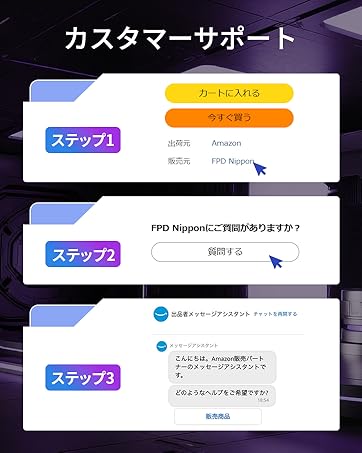
Image: Step-by-step guide on how to contact customer support via Amazon.