
WAYXYZ UTR-232
Starlink Wi-Fi 6 Tri-Band Router
מאָדעל: UTR-232
Brand: WAYXYZ
1. פּראָדוקט איבערview
This manual provides instructions for the WAYXYZ Starlink Wi-Fi 6 Tri-Band Router, Model UTR-232. This device is designed to extend and enhance your Wi-Fi coverage, offering high-speed connectivity for various applications.
שליסל פֿעיִקייטן:
- קאָמפּרעהענסיוו קאָמפּאַטיביליטי: Works with Starlink Gen 1, Gen 2, and Gen 3 routers.
- Tri-Band Wi-Fi 6: Delivers speeds up to 3 Gbps for optimal performance.
- ברייט קאַווערידזש: Extends Wi-Fi coverage up to 3200 sq ft.
- עטהערנעט פּאָרץ: Includes 2 LAN ports with a removable cover for wired connections.
- מעש נעטוואָרקינג: Supports mesh configurations to eliminate dead zones.
וואָס איז אין די קעסטל:
- 1x Starlink Gen 3 Wifi Router (UTR-232)
- 1x Starlink Gen 3 Power Cable
- 1x Starlink Gen 3 Ethernet Router Cable
- 1x RJ 45 Cover
- 1x Starlink Power Supply

Image 1.1: The WAYXYZ Starlink Gen 3 Wi-Fi 6 Tri-Band Router and its retail packaging.

Image 1.2: The contents included in the box: the router, power cable, Ethernet cable, RJ45 cover, and power supply.
2. סעטאַפּ אינסטרוקציעס
Follow these steps to set up your WAYXYZ Starlink Wi-Fi 6 Tri-Band Router.
2.1 ערשטע פּלאַצירונג
Place the router in a central location within your desired coverage area, away from obstructions and other electronic devices that may cause interference.

Image 2.1: The router positioned on a table, ready for connection.
2.2 מאַכט קאַנעקשאַן
- Connect the Starlink Gen 3 Power Cable to the power port on the router.
- Plug the Starlink Power Supply into a standard electrical outlet.

Image 2.2: A hand connecting the power cable to the router's power input.
2.3 Ethernet Connection (Optional)
The router includes 2 LAN ports for wired connections. For Gen 2 routers, a Starlink Ethernet Adapter is required for wired mesh network capabilities.
- Remove the protective cover from the Ethernet ports located at the base of the router.
- Connect one end of the Starlink Gen 3 Ethernet Router Cable to a LAN port on the router.
- Connect the other end to your Starlink dish or existing network device (e.g., Ethernet Adapter for Gen 2).
- If not using the Ethernet ports, ensure the RJ 45 Cover is securely in place to protect the ports.

בילד 2.3: נאָענט־אַרויף view of the Ethernet ports with their removable cover at the base of the router.
2.4 נעטוואָרק קאָנפיגוראַטיאָן
Once powered on, the router will broadcast a Wi-Fi network. Use the Starlink app or a web browser to complete the network setup, including setting up your Wi-Fi name (SSID) and password.
3. אַפּערייטינג ינסטרוקטיאָנס
Your WAYXYZ Starlink Wi-Fi 6 Tri-Band Router provides advanced networking capabilities.
3.1 Wi-Fi קאָנעקטיוויטי
The router utilizes Wi-Fi 6 (802.11ax) technology across three frequency bands (Tri-Band) to provide high-speed and efficient wireless communication. Connect your devices (smartphones, tablets, computers) to the Wi-Fi network using the SSID and password you configured during setup.
3.2 מעש נעטוואָרקינג
This router supports mesh networking, allowing you to create a seamless Wi-Fi network throughout your home or office. It is compatible with Gen 2 and Gen 3 Starlink routers for mesh configurations. Refer to the Starlink app for detailed instructions on adding mesh nodes.
3.3 געפירט ינדיקאַטאָר
The router features an LED indicator to show its operational status. Consult the Starlink app or online resources for specific LED patterns and their meanings.
4. וישאַלט
To ensure optimal performance and longevity of your router, follow these maintenance guidelines:
- רייניקונג: Gently wipe the router with a soft, dry cloth. Do not use liquid cleaners or abrasive materials.
- ווענטילאַטיאָן: Ensure the router is placed in a well-ventilated area to prevent overheating. Do not block ventilation openings.
- Firmware דערהייַנטיקונגען: Regularly check for and install firmware updates through the Starlink app to benefit from performance improvements and security enhancements.
- ינווייראַנמענאַל טנאָים: Operate the router within recommended temperature and humidity ranges as specified by the manufacturer.
5. טראָובלעשאָאָטינג
אויב איר טרעפט פּראָבלעמען מיט אייער ראַוטער, זעט די פאלגענדע געוויינטלעכע טראָובלעשווטינג טריט:
- קיין אינטערנעט פֿאַרבינדונג:
- Check all cable connections, including power and Ethernet.
- Restart the router by unplugging it from the power outlet for 30 seconds and then plugging it back in.
- Verify your Starlink dish is properly aligned and receiving a signal.
- לאַנגזאַמע Wi-Fi גיכקייטן:
- זיכער מאַכן אַז דער ראַוטער איז צענטראל פּלאַצירט און פריי פון שטערונגען.
- קוק פֿאַר ינטערפיראַנס פון אנדערע עלעקטראָניש דעוויסעס.
- Perform a speed test to confirm the issue is with Wi-Fi and not your internet service.
- Consider adding additional mesh nodes for larger coverage areas.
- קענען ניט פאַרבינדן צו Wi-Fi:
- באַשטעטיקט אַז איר גיט אַרײַן דאָס ריכטיקע Wi-Fi פּאַראָל.
- Ensure the router's LED indicator shows normal operation.
- פרובירט צו פארגעסן די נעץ אויף אייער דעווייס און זיך ווידער פארבינדן.
Gen 3 Router vs. Gen 2 Router Comparison:
Understanding the differences between router generations can assist in troubleshooting compatibility and performance issues.
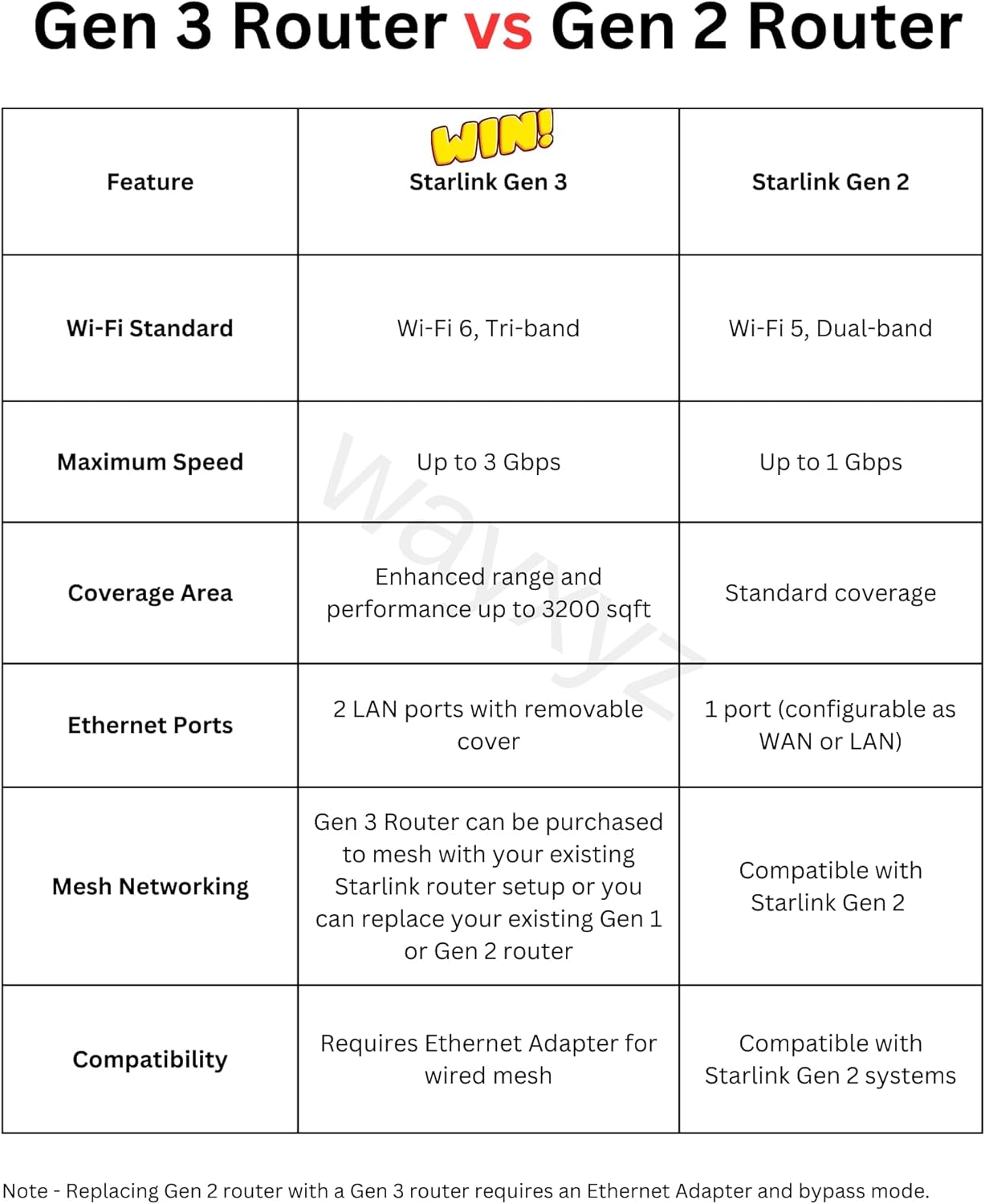
Image 5.1: A table comparing key features of the Starlink Gen 3 Router with the Gen 2 Router, including Wi-Fi standard, maximum speed, coverage area, Ethernet ports, and mesh networking capabilities.
6. ספּעסאַפאַקיישאַנז
| שטריך | דעטאַל |
|---|---|
| מאָדעל נאָמען | Starlink Gen 3 Mesh Router |
| נומער מאָדעל נומער | UTR-232 |
| סאָרט | WAYXYZ |
| פּראָדוקט דימענשאַנז | 11.8 X 2.4 X 4.7 אינטשעס |
| פּונקט וואָג | 3 פונט |
| קאַנעקטיוויטי טעכנאָלאָגיע | עטהערנעט, ווי-פי |
| ווירעלעסס קאָמוניקאַציע סטאַנדאַרד | 802.11 אַקס (ווי-פי 6) |
| אָפטקייַט באַנד קלאַס | טרי-באַנד |
| מאַקסימום גיכקייַט | אַרויף צו 3 גבפּס |
| קאַווערידזש שטח | אַרויף צו 3200 סק ft |
| עטהערנעט פּאָרץ | 2 LAN ports with removable cover |
| קאַמפּאַטאַבאַל דעוויסעס | Smartphone, Starlink Gen 1, Starlink Gen 2, Starlink Gen 3, Tablet |
| ספּעציעלע פֿעיִקייטן | Access Point Mode, Guest Mode, Internet Security, LED Indicator, Remote Access |
7. וואָראַנטי און שטיצן
For warranty information, please refer to the documentation included with your purchase or contact the retailer. For technical support, please visit the official WAYXYZ webפּלאַץ אָדער קאָנטאַקט זייער קונה סערוויס אָפּטיילונג.
Ask a question about this manual
Ask about setup, troubleshooting, compatibility, parts, safety, or missing instructions. Manuals+ will review the question and use this page’s manual context to help answer it.