
TomTom Lite 5 inches
TomTom GO Classic Lite (5 Inch) User Manual
Model: Lite 5 inches
1. הקדמה
The TomTom GO Classic Lite (5 Inch) is a budget-friendly car satellite navigation device designed to provide cost-effective and reliable navigation. This device offers high-quality maps with monthly updates, live TomTom Traffic information, and the intuitive TomTom RouteBar for quick route overviews. It is engineered to provide confident and informed driving, ensuring peace of mind on the road.
שליסל פֿעיִקייטן אַרייַננעמען:
- TomTom Traffic: Real-time updates to avoid traffic jams and provide reliable estimated times of arrival (ETAs).
- Europe Map Updates: Monthly map updates included to ensure the latest road information.
- Clear and Responsive Screen: A 5-inch capacitive touchscreen with higher resolution for clear guidance.
- גיכקייט קאַמעראַ וואָרענונגען: Live notifications to help maintain speed limits (free for three months, then subscription-based).
- Updates via Wi-Fi: Conveniently update maps and software directly from the device without a computer.
- Exclusive TomTom Features: Includes the RouteBar, user-friendly interface, and smart search engine.
2. סעטאַפּ
2.1. וואָס איז אין דער קעסטל
איידער איר אָנהייבט, זיכער מאַכן אַז אַלע קאָמפּאָנענטן זענען פאַראַן:
- TomTom GO Classic Lite device with integrated mount
- וסב- C קאַבלע
- Installation poster
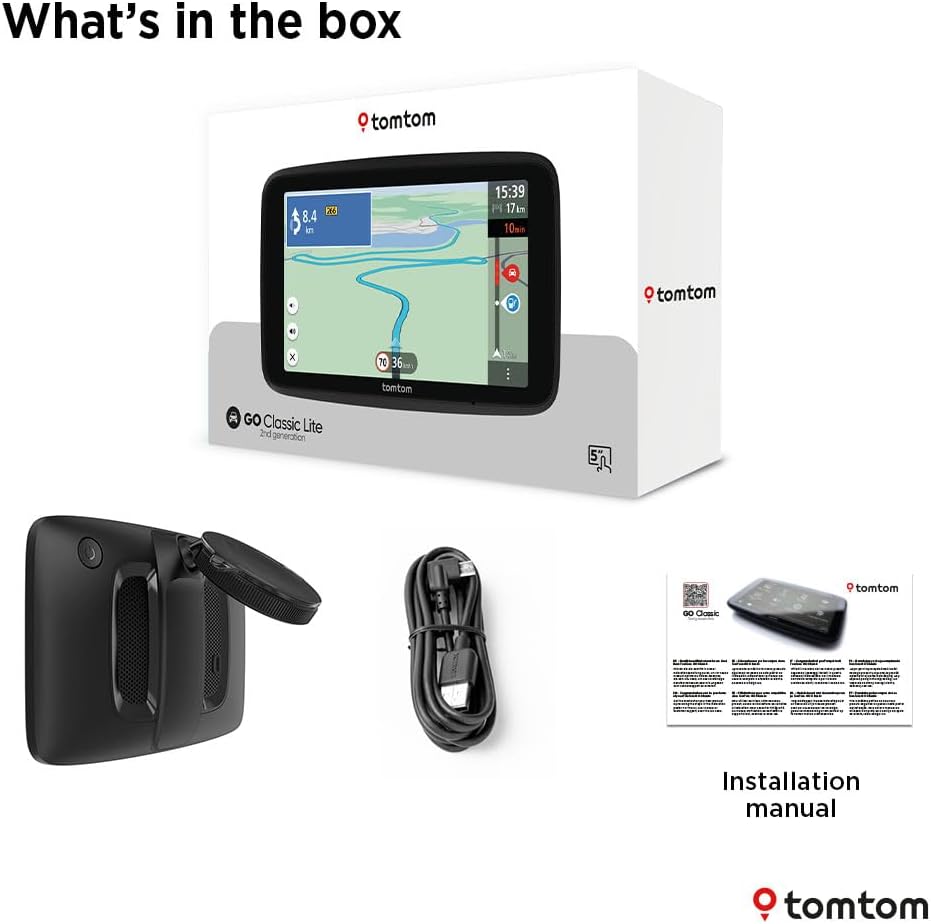
Image: Contents of the TomTom GO Classic Lite box.
2.2. דיווייס איבערview
Familiarize yourself with the device's physical components:

בילד: הינטערשטע view of the TomTom GO Classic Lite, highlighting the On/Off button, 5-inch capacitive touch screen, integrated reversible mount, powerful speaker, and USB-C port.
- אויף / אַוועק קנעפּל: Located on the top edge.
- וסב- C פּאָרט: פֿאַר טשאַרדזשינג און דאַטן אַריבערפירן.
- Integrated Reversible Mount: Allows mounting on either the windscreen or dashboard.
- שטאַרקער רעדנער: For clear voice instructions.
2.3. מאַונטינג די מיטל
The TomTom GO Classic Lite features an integrated reversible mount for flexible placement in your vehicle.

Image: Mounting options for the TomTom GO Classic Lite, showing placement on a windscreen and dashboard. Note that dashboard mounting may require additional accessories.
- Windscreen Mounting: Attach the suction cup of the integrated mount firmly to a clean, dry area of your windscreen.
- דאַשבאָרד מאַונטינג: For dashboard mounting, an adhesive disk or beanbag (sold separately) is required. Attach the mount to this accessory.
זיכער מאַכן אַז דער אַפּאַראַט איז זיכער אינסטאַלירט און שטערט נישט אייער view פון דער וועג אדער אריינמישן זיך מיט לופטבעגס.
2.4. Initial Power On and Wi-Fi Setup
Upon first power-on, the device will guide you through the initial setup process, including connecting to a Wi-Fi network. This connection is crucial for downloading map updates and software updates.
- דריק און האלט דעם אן/אויס קנעפל צו אנצינדן דעם אפאראט.
- Follow the on-screen prompts to select your language, region, and connect to your home or mobile Wi-Fi network.
- Once connected, the device will check for available updates.
3. אַפּערייטינג די מיטל
3.1. Navigation Basics
The TomTom GO Classic Lite provides clear visual and spoken instructions for navigation.

Image: The TomTom GO Classic Lite displaying an active navigation route.
- אריינגעבן א דעסטינאציע: Tap the search icon on the main menu to enter an address, point of interest, or coordinates.
- Route Calculation: After entering your destination, the device will calculate the fastest route.
- ווייַטערדיק אינסטרוקציעס: Follow the spoken turn-by-turn directions and visual cues on the screen.
3.2. TomTom Traffic
TomTom Traffic provides real-time traffic information to help you avoid delays and find faster routes.

Image: TomTom GO Classic Lite displaying real-time traffic updates on the screen.
- Traffic information is automatically integrated into route planning.
- The device will suggest alternative routes if significant delays are detected on your current path.
3.3. TomTom RouteBar
The RouteBar provides a condensed summary of your route, showing upcoming traffic, points of interest, and potential delays at a glance.

Image: The TomTom RouteBar providing a quick overview of route information.
- View realistic ETAs, including potential traffic delays.
- See icons for road works, fuel stations, and other relevant information along your route.
3.4. Map Updates and Coverage
The device includes monthly map updates for Europe, ensuring you always have the most current road information.
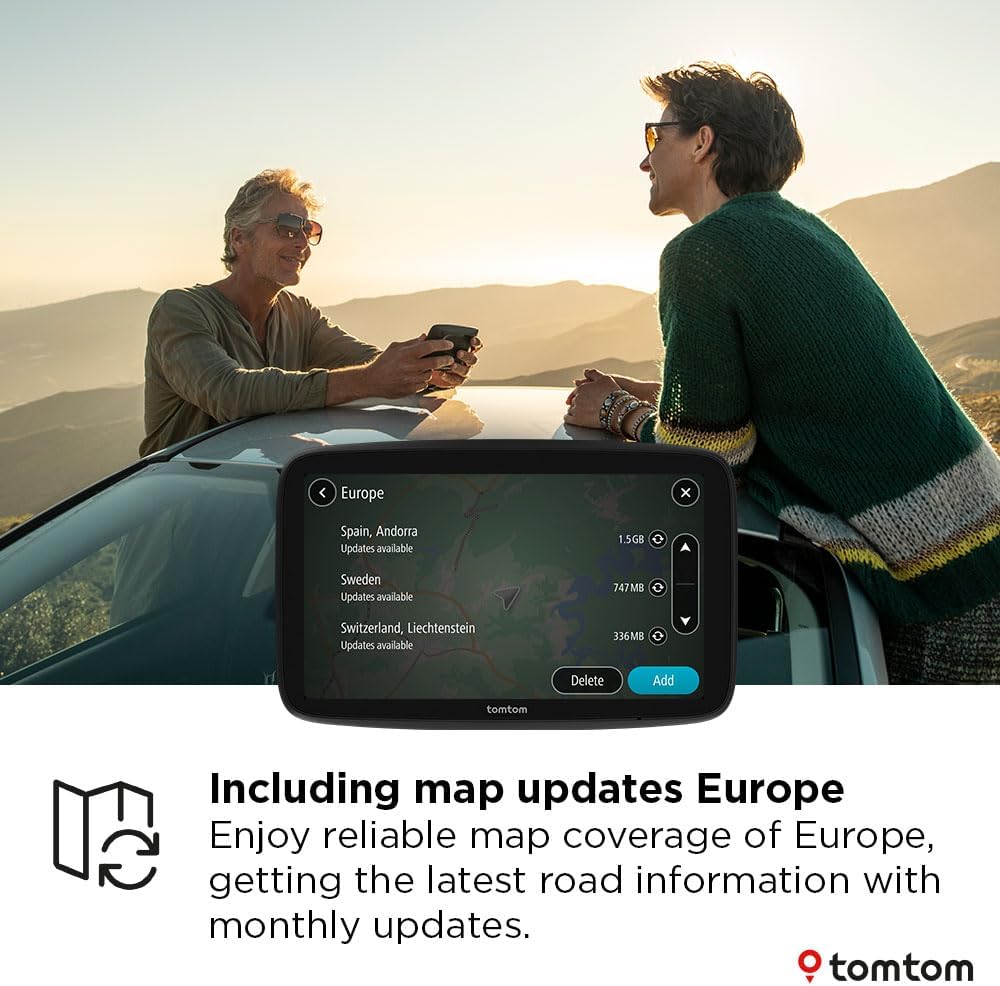
Image: TomTom GO Classic Lite displaying available map updates for various European countries.
- Map updates are delivered via Wi-Fi directly to your device.
- No computer is needed for these updates.
3.5. Speed Camera Alerts
Receive live notifications for speed cameras to help you stay informed and adhere to speed limits.
- Speed camera alerts are free for the first three months.
- A subscription is required to continue receiving alerts after the trial period.
4. וישאַלט
4.1. רייניקונג די מיטל
- Use a soft, lint-free cloth to clean the screen and exterior of the device.
- דו זאלסט נישט נוצן אַברייסיוו קלינערז אָדער סאָלוואַנץ.
4.2. Software and Map Updates
Regularly check for and install software and map updates to ensure optimal performance and the most accurate navigation data.
- פאַרבינדן דיין מיטל צו אַ סטאַביל Wi-Fi נעץ.
- Navigate to the 'Settings' menu on your device and look for 'Updates' or 'Maps & Software'.
- פֿאָלגט די אינסטרוקציעס אויף דעם עקראַן צו דאַונלאָודן און ינסטאַלירן אַלע בנימצא דערהייַנטיקונגען.
5. טראָובלעשאָאָטינג
5.1. דיווייס גייט נישט אן
- Ensure the device is fully charged. Connect it to a power source using the provided USB-C cable.
- Press and hold the On/Off button for at least 10-15 seconds to perform a soft reset.
5.2. פּראָבלעמען מיטן GPS סיגנאַל
- ענשור אַז די מיטל האט אַ קלאָר view of the sky. Obstructions like tall buildings or tunnels can interfere with the GPS signal.
- Move the device to a different location in your vehicle, such as closer to the windscreen.
5.3. פראבלעמען מיט Wi-Fi קאנעקשאן
- באַשטעטיקן אַז אייער Wi-Fi פּאַראָל איז ריכטיק.
- זיכער מאַכן אַז די דעווייס איז אין דער ראַנגע פון דיין Wi-Fi ראַוטער.
- Restart your Wi-Fi router and then try connecting the device again.
5.4. Map Update Failures
- Ensure you have a stable and strong Wi-Fi connection.
- Check if there is sufficient storage space on your device for the update.
- Try performing the update at a different time, as server load can sometimes affect download speeds.
6. ספּעסאַפאַקיישאַנז
| שטריך | דעטאַל |
|---|---|
| סאָרט | TomTom |
| מאָדעל נאָמען | Lite 5 inch |
| פאַרשטעלן גרייס | 5 אינטשעס |
| סקרין טיפּ | קאַפּאַסיטיווע טאָוטשסקרעען |
| מאַפּע טיפּ | Europe (monthly updates included) |
| קאַנעקטיוויטי טעכנאָלאָגיע | USB-C, Wi-Fi, Bluetooth |
| מאַונטינג טיפּ | Integrated Reversible Mount (Dashboard Mount requires separate accessory) |
| אָפּערייטינג סיסטעם | Windows CE |
| באַטעריז | 1 ליטהיום פּאָלימער באַטאַרייע (אַרייַנגערעכנט) |
| פּעקל דימענשאַנז | 18.5 X 12.7 X 4.8 סענטימעטער |
| פּונקט וואָג | 380 ג |
| לאַנד פון אָריגין | כינע |
7. וואָראַנטי און שטיצן
For warranty information and technical support, please refer to the official TomTom website or contact TomTom customer service directly. Details can typically be found on the TomTom support pages or within the device's digital documentation.
באַזוכן די TomTom Store on Amazon פֿאַר מער פּראָדוקט אינפֿאָרמאַציע און אַקסעסאָריעס.
Ask a question about this manual
Ask about setup, troubleshooting, compatibility, parts, safety, or missing instructions. Manuals+ will review the question and use this page’s manual context to help answer it.