
X9 Performance X9RBBLKBDOCKS
X9 Full-Size Bluetooth Keyboard with Phone Holder
Model: X9RBBLKBDOCKS | Brand: X9 Performance
הקדמה
The X9 Full-Size Bluetooth Keyboard with Phone Holder is a versatile input device designed for enhanced productivity across multiple platforms. It features a full 110-key layout, integrated phone/tablet holder, and multi-device connectivity via 2.4G wireless and Bluetooth. This manual provides detailed instructions for setting up, operating, maintaining, and troubleshooting your keyboard.
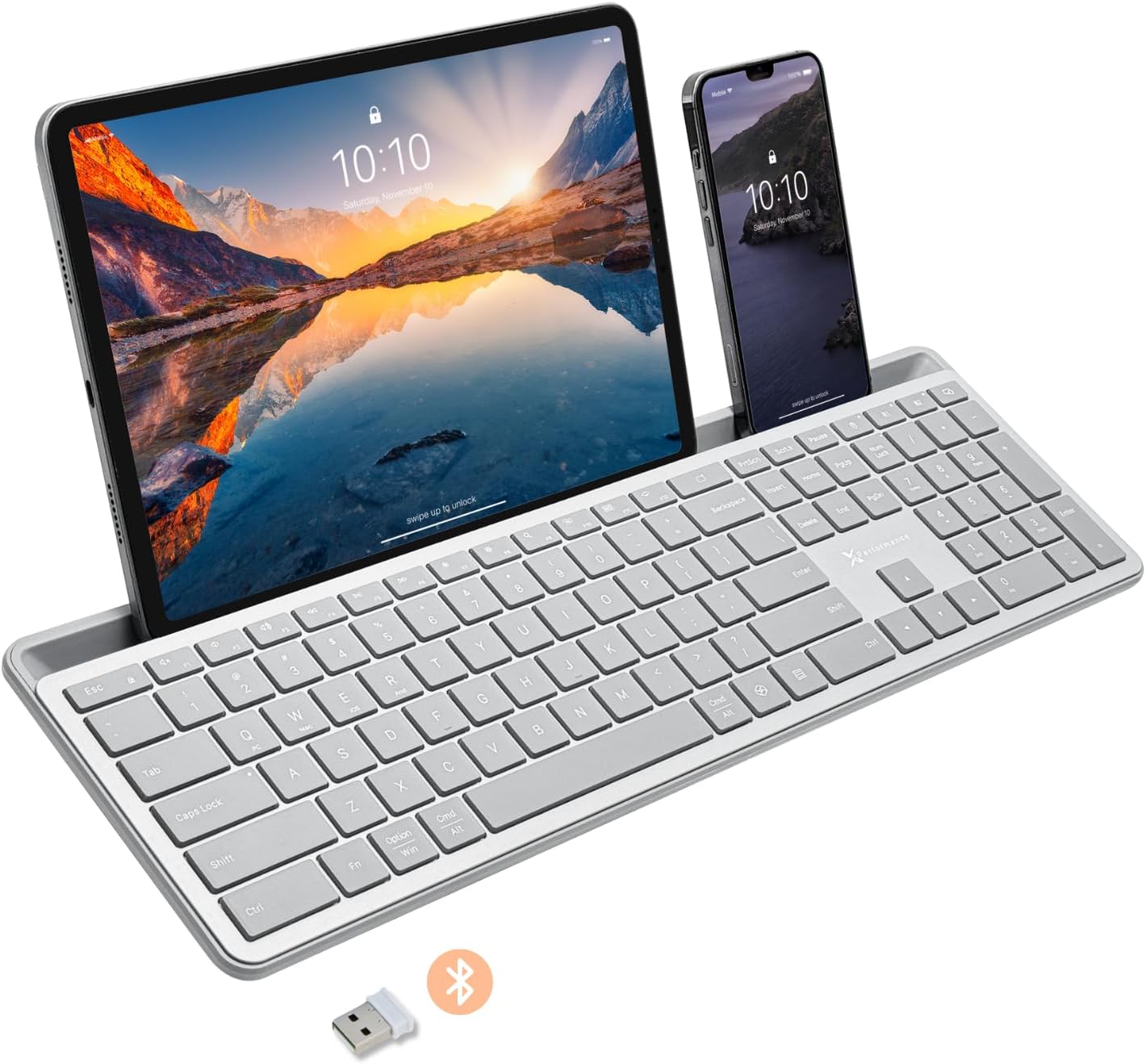
Image: The X9 Full-Size Bluetooth Keyboard in silver, featuring an integrated dock holding a tablet and a smartphone. A USB dongle and Bluetooth symbol are visible below the keyboard.
שליסל פֿעיִקייטן
- טריפּל מאָדע קאָנעקטיוויטי: Seamlessly connect up to three devices using 2.4G wireless (via included USB dongle) and two independent Bluetooth channels.
- Integrated Device Dock: An extra-long dock (16.75" long x 0.45" wide) securely holds your smartphone and tablet simultaneously, allowing for easy transitions between devices. Note: May not fit devices with thick cases.
- באַקלייט שליסלען: Crisp white LED backlighting with 3 adjustable brightness levels for comfortable typing in various lighting conditions.
- קריקאָנלאָדלעך באַטערי: Equipped with a 1000 mAh rechargeable battery for extended use, with a USB-C charging cable included.
- גאַנץ גרייס אויסלייג: A complete 110-key layout including a numeric keypad for efficient data entry and productivity.
- Multi-OS קאַמפּאַטאַבילאַטי: Designed for Windows and Mac users, with seamless compatibility across macOS, iOS, and Android operating systems.
- שטילע שליסלען: Keys are designed for a quiet typing experience.

Image: Diagram illustrating the keyboard's ability to pair with up to three devices: a smartphone via Bluetooth (channel 1), a desktop monitor via 2.4GHz wireless (channel 2), and a laptop via Bluetooth (channel 3).

בילד: א נאָענטע בילד view of the keyboard's integrated dock, highlighting its extra-long design and a note indicating its dimensions (0.45" width) and potential incompatibility with thick device cases.

Image: A close-up of the keyboard's side, showing a USB-C cable plugged into the charging port, with text indicating a 1000mAh rechargeable battery.
פּעקל אינהאַלט
ביטע זיכער מאַכן אַז אַלע זאכן זענען פאַראַן אין פּעקל:
- X9 Full-Size Bluetooth Keyboard
- וסב-C טשאַרדזשינג קאַבלע
- 2.4G וסב ווירעלעסס דאָנגלע
סעטאַפּ גייד
1. אויפלאָדן די קלאַוויאַטור
Before first use, fully charge the keyboard. Connect the included USB-C charging cable to the keyboard's charging port and the other end to a USB power source (e.g., computer USB port, USB wall adapter). The charging indicator light will show charging status and turn off when fully charged.
2. פֿאַרבינדן זיך צו דעוויסעס
The X9 keyboard supports three connection channels: one 2.4G wireless channel and two Bluetooth channels (B1 and B2).
2.1. 2.4ג ווירעלעסס קאַנעקשאַן
- Locate the 2.4G USB wireless dongle, typically stored in a compartment on the keyboard.
- שטעקט אריין דעם USB דאנגל אין א פאראן USB פארט אויף אייער קאמפיוטער.
- Turn on the keyboard. The keyboard should automatically connect to your computer via the 2.4G dongle.
2.2. Bluetooth Connection (B1 / B2)
- קער אויף די קלאַוויאַטור.
- דריקן און האַלטן די B1 or B2 key for 3-5 seconds until the corresponding indicator light (B1 or B2) starts blinking rapidly. This indicates the keyboard is in pairing mode.
- אויף אייער דעווייס (סמאַרטפאָן, טאַבלעט, קאָמפּיוטער), גייט צו בלועטוט סעטטינגס און אַקטיווירט בלועטוט.
- זוכן פֿאַר new devices. The keyboard should appear as "X9 Keyboard" or similar.
- Select the keyboard from the list to pair. Follow any on-screen prompts to complete the pairing process. The indicator light will stop blinking and remain solid for a few seconds, then turn off, indicating successful connection.
- Repeat these steps for the second Bluetooth channel (B2) if you wish to connect another device.
אַפּערייטינג ינסטראַקשאַנז
1. וועקסלען צווישן פארבונדענע דעווייסעס
To switch between your connected devices, simply press the corresponding connection key:
- דרוק 2.4G key to switch to the device connected via the USB dongle.
- דרוק B1 key to switch to the device connected via Bluetooth Channel 1.
- דרוק B2 key to switch to the device connected via Bluetooth Channel 2.
2. Adjusting Backlight Brightness
The keyboard features three levels of backlight brightness. To adjust:
- דרוק די Fn שליסל + ליכט ציבעלע key (usually located near the F12 key) repeatedly to cycle through the brightness levels (Low, Medium, High, Off).

Image: A close-up of the keyboard in a dark setting, showcasing its clear backlit keys. Indicators for Low, Medium, and High brightness levels are shown below the keyboard.
3. Using the Copilot AI Key
The keyboard includes a dedicated Copilot AI key for quick access to AI functionalities on compatible systems. Press this key to activate Copilot or similar AI features.
4. Operating System Specific Functions
The keyboard is optimized for various operating systems. Some function keys may behave differently or require the Fn key to access secondary functions depending on your OS (Windows, macOS, iOS, Android).
- For optimal compatibility, ensure your device's operating system is updated.
- Some systems may require specific key combinations (e.g., Fn + Option + R for Android, as mentioned in customer reviews for specific app compatibility). Refer to your device's documentation for advanced keyboard settings.
וישאַלט
To ensure the longevity and optimal performance of your X9 keyboard, follow these maintenance guidelines:
- רייניקונג: ניצן אַ ווייך, לינט-פֿרייַ שטאָף אַ ביסל דampened with water or a mild cleaning solution to wipe the surface of the keyboard. Avoid excessive moisture. For cleaning between keys, use compressed air.
- סטאָרידזש: האַלט די קלאַוויאַטור אין אַ קיל, טרוקן אָרט אַוועק פון דירעקט זונשייַן און עקסטרעמע טעמפּעראַטורן.
- באַטערי זאָרגן: Avoid fully discharging the battery frequently. For long-term storage, charge the battery to about 50% to preserve its lifespan.
- ויסמיידן ספּילז: האַלט פליסיקייטן אַוועק פון דער קלאַוויאַטור צו פאַרמייַדן שעדיקן צו אינעווייניקסטע קאָמפּאָנענטן.
טראָובלעשאָאָטינג
If you encounter issues with your X9 keyboard, refer to the following common problems and solutions:
| פּראָבלעם | מעגלעך סיבה / לייזונג |
|---|---|
| די קלאַוויאַטור טוט זיך נישט אָן. | Battery is depleted. Connect the keyboard to a power source using the USB-C cable and allow it to charge. |
| די קלאַוויאַטור קאָנעקט זיך נישט דורך בלוטוט. |
|
| 2.4G wireless connection not working. |
|
| די קנעפלעך רעאגירן נישט אדער טייפן נישט ריכטיג. |
|
| די באַקלייט אַרבעט נישט. |
|
ספּעסאַפאַקיישאַנז
| שטריך | דעטאַל |
|---|---|
| מאָדעל נומער | X9RBBLKBDOCKS |
| קאַנעקטיוויטי טעכנאָלאָגיע | 2.4G ווירעלעס, בלועטוט |
| קאַמפּאַטאַבאַל דעוויסעס | Laptop, PC, Mac, iOS, Android (Smartphone, Tablet) |
| קלאַוויאַטור אויסלייג | Full-Size, 110-key |
| באַקלייט | Single Color (White), 3 Brightness Levels |
| באַטאַרייע קאַפּאַציטעט | 1000 מאַה (ריטשאַרדזשאַבאַל) |
| פּראָדוקט דימענשאַנז (L x W x H) | 17.33" x 5.56" x 0.89" (44.02 ס״מ x 14.12 ס״מ x 2.26 ס״מ) |
| פּונקט וואָג | 2.25 פונט (1.02 קג) |
| Device Dock Dimensions (L x W) | 16.75" x 0.45" |
| פאַבריקאַנט | X9 פאָרשטעלונג |

בילד: אן איבערקאפ view of the X9 keyboard with measurements indicating its length (17.3"), width (5.55"), and height (0.89").
וואָראַנטי אינפֿאָרמאַציע
X9 Performance products are designed for reliability and performance. For specific warranty terms and conditions, please refer to the warranty card included with your product or visit the official X9 Performance webזייטל. טיפּישערװײַז, פּראָדוקטן זײַנען באדעקט קעגן חסרונות אין מאַטעריאַלן און אַרבעט פֿאַר אַ באַשטימטע צײַט פֿון דעם קויפֿדאַטום.
שטיצן
For further assistance, technical support, or to inquire about replacement parts, please contact X9 Performance customer support:
- Webפּלאַץ: Visit the official X9 Performance webזייטל פֿאַר אָפֿט געשטעלטע פֿראַגעס, דרייווערס און שטיצע רעסורסן.
- קאָנטאַקט: Refer to the contact information provided on the product packaging or the official webזייטל פֿאַר טעלעפאָן אָדער בליצפּאָסט שטיצע.
Please have your product model number (X9RBBLKBDOCKS) and purchase details ready when contacting support.
Ask a question about this manual
Ask about setup, troubleshooting, compatibility, parts, safety, or missing instructions. Manuals+ will review the question and use this page’s manual context to help answer it.