
1. פּראָדוקט איבערview
The Apple USB-C to SD Card Reader is designed for transferring high-resolution photos and videos from an SD card to your USB-C enabled Mac, iPad, or iPhone. It supports UHS-II speeds for fast data transfer and is backward compatible with other SD cards and adapters. Its design ensures it does not obstruct adjacent ports on your device.
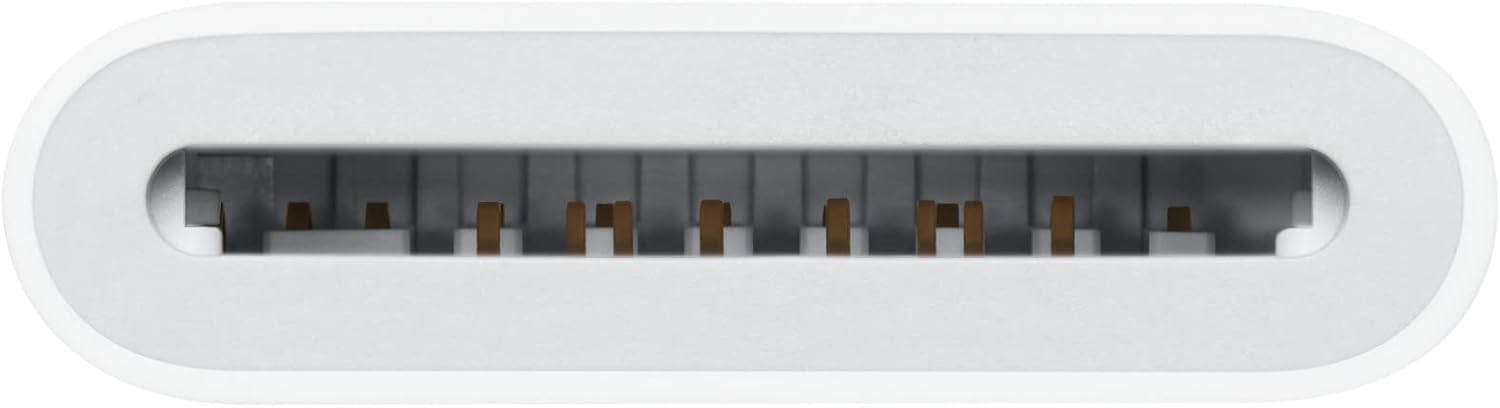
Image 1.1: The Apple USB-C to SD Card Reader. This device facilitates direct data transfer from SD cards to compatible Apple devices.
2. סעטאַפּ
To begin using your Apple USB-C to SD Card Reader, follow these steps:
- פֿאַרבינדט דעם לייענער: Insert the USB-C connector of the card reader into an available USB-C port on your Mac, iPad, or iPhone. Ensure the connection is secure.
- Prepare Your SD Card: Ensure your SD card is clean and free of debris. Note the orientation of the SD card for proper insertion.

Image 2.1: The USB-C to SD Card Reader connected to an iPad. The reader is designed to integrate seamlessly with your device.

Image 2.2: The USB-C to SD Card Reader connected to a MacBook Air. The compact design ensures it does not block other ports.
3. אַפּערייטינג ינסטרוקטיאָנס
Once the reader is connected, you can proceed with data transfer:
- אַרײַנשטעלן די SD קאַרטל: Carefully insert your SD card into the slot on the card reader. Push the card in firmly until it clicks into place and is fully seated. Refer to the diagram on the reader for correct orientation.
- אַקסעס Files:
- אויף מעק: The SD card will appear as a removable drive on your desktop or in Finder under 'Locations'. You can then drag and drop files or use photo management applications.
- On iPad/iPhone: Open the 'Files' app. The SD card will appear under 'Locations'. You can browse, import, and manage your photos and videos directly from the card.
- זיכער ארויסווארפן: Before removing the SD card or the reader, always safely eject the storage device from your operating system to prevent data corruption.

בילד 3.1: נאָענט־אַרויף view of the SD card slot. Ensure the card is inserted with the correct orientation and fully seated.

Image 3.2: The USB-C to SD Card Reader connected to a MacBook Pro, ready for file אַריבערפירן.
4. וישאַלט
To ensure the longevity and optimal performance of your card reader:
- רייניקונג: Use a soft, dry, lint-free cloth to clean the exterior of the reader. Avoid using abrasive cleaners or solvents. Do not allow moisture to enter any openings.
- סטאָרידזש: Store the card reader in a cool, dry place away from direct sunlight and extreme temperatures. Protect the USB-C connector and SD card slot from dust and physical damage when not in use.
- האַנדלינג: Avoid bending or twisting the cable. Do not force the SD card or USB-C connector into place.
5. טראָובלעשאָאָטינג
If you encounter issues with your Apple USB-C to SD Card Reader, consider the following:
- קאַרטל נישט דערקענט:
- Ensure the SD card is fully inserted into the reader. Some cards may require a firm push to seat correctly.
- Try inserting a different SD card to rule out an issue with the card itself.
- זיכער מאַכן אַז אייער מיטל'ס אָפּערייטינג סיסטעם איז אַרויף צו דאַטע.
- Try connecting the reader to a different USB-C port or a different compatible device.
- לאַנגזאַמע טראַנספער גיכקייטן:
- While the reader supports UHS-II speeds, actual transfer rates depend on the SD card's speed class and the host device's capabilities. Ensure you are using a high-speed SD card for optimal performance.
- פֿאַרמײַדן צו לויפֿן קייפל פֿאָדערנדיקע אַפּליקאַציעס בעת גרויסע file טראַנספערס.
- Files Not Appearing:
- On Mac, check Finder's 'Locations' sidebar.
- On iPad/iPhone, ensure you are looking in the 'Files' app under 'Locations'.
- באַשטעטיקן אַז די files on the SD card are not corrupted or hidden.
- Intermittent Disconnection:
- Ensure the USB-C connection to your device is stable and not loose.
- Avoid moving the device or reader during data transfer.
6. טעכניש ספּעסאַפאַקיישאַנז
| שטריך | דעטאַל |
|---|---|
| פּראָדוקט דימענשאַנז | 6.14 X 2.64 X 0.71 אינטשעס |
| פּונקט וואָג | 1.41 אונסעס |
| פאַבריקאַנט | עפּל |
| ASIN | B0D7FSCFPM |
| נומער מאָדעל נומער | MW653AM/A |
| מעדיע טיפּ | SD Card (UHS-II compatible, backward compatible) |
| קאַנעקטיוויטי טעכנאָלאָגיע | וסב טיפּ C |
| ספּעציעלע שטריך | סאָליד פּלאַן |
| קאָליר | ווייַס |
7. וואָראַנטי און שטיצן
This Apple USB-C to SD Card Reader is covered by Apple's standard limited warranty. For detailed warranty information, terms, and conditions, please refer to the official Apple website or the documentation included with your original purchase.
For technical assistance, product support, or service inquiries, please visit the official Apple Support website or contact Apple customer service directly. You can find support resources, FAQs, and contact options at support.apple.com.