
Acer ODK460
Acer USB C SD 4.0 Card Reader (Model ODK460) - User Manual
Model: ODK460
1. הקדמה
This manual provides instructions for the Acer USB C SD 4.0 Card Reader, Model ODK460. This 2-in-1 card reader is designed for efficient data transfer between memory cards and USB-C enabled devices. It supports a wide range of memory card types and offers high-speed data transmission.

Image: The Acer USB C SD 4.0 Card Reader in pink, shown connected to a laptop with both SD and MicroSD cards inserted, illustrating its compact design and dual slot functionality.
2. פֿעיִקייטן
- הויך קוואַליטעט קאַנסטראַקשאַן: Encased in an aluminum casing for durability and wear resistance. Includes a dust cover to protect the USB-C port from debris.
- 2-אין-1 פּלאַן: Features a standard SD slot and a micro SD (TF) slot. Both slots can be used simultaneously for easy synchronization and file exchange. Supports SD, SDXC, SDHC, Micro SD (TF), Micro SDXC, and Micro SDHC memory cards.
- Efficient Transmission: Offers a data transmission speed of up to 312MB/s, supporting UHS-II SD/Micro (4.0) card speed levels. This facilitates rapid transfer of large video and image files. Actual transfer speed is dependent on the memory card used.
- פּאָרטאַטיוו פּלאַן: Lightweight and compact, making it easy to carry with laptops, cameras, and mobile devices. Supports USB OTG function for direct connection to smartphones and tablets.
- ברייט קאַמפּאַטאַבילאַטי: Plug-and-play functionality requires no driver installation. Compatible with various devices featuring USB-C ports, including Windows, macOS, Linux, Chrome OS, Android, and iPad.

Image: The Acer USB C SD 4.0 Card Reader shown next to a credit card, highlighting its compact and portable size. Dimensions are also indicated.
3. סעטאַפּ אינסטרוקציעס
- אַראָפּנעמען שטויב דעקל: Carefully remove the protective dust cover from the USB-C connector of the card reader.
- אַרײַנשטעלן זכּרון קאַרטל(ן): Insert your standard SD card into the larger SD slot and/or your MicroSD (TF) card into the smaller MicroSD slot. Ensure the cards are inserted with the correct orientation until they are firmly seated. Do not force the cards.
- פאַרבינדן צו מיטל: Plug the USB-C connector of the card reader into an available USB-C port on your compatible device (e.g., laptop, tablet, smartphone).
- אָטאַמאַטיק דערקענונג: The card reader is plug-and-play. Your operating system should automatically detect the connected memory card(s) without requiring any driver installation.

Image: The Acer USB C SD 4.0 Card Reader connected to a laptop, demonstrating how to insert both SD and MicroSD cards into their respective slots for use.
4. אַפּערייטינג ינסטרוקטיאָנס
- אַקסעסינג Files: Once connected, your device's operating system will typically display the inserted memory card(s) as removable storage. On Windows, navigate to "My Computer" or "This PC"; on macOS, look in "Finder" to locate the card reader.
- טראַנספערינג Files: צו אַריבערפירן files, simply drag and drop them between your device's internal storage and the memory card(s) as you would with any other external drive.
- גלייכצייטיגע באַניץ: The card reader supports simultaneous reading and writing from both the standard SD and MicroSD slots. This allows for direct file transfer between the two cards or between either card and your host device.
- זיכער באַזייַטיקונג: Always safely eject the memory card(s) from your operating system before physically disconnecting the card reader to prevent data corruption and ensure data integrity.

Image: The Acer USB C SD 4.0 Card Reader connected to a laptop, illustrating the capability to read and write to two SD cards simultaneously, with progress bars shown on the screen.
5. וישאַלט
- שטויב שוץ: Always replace the dust cover on the USB-C connector when the card reader is not in use. This prevents dust and debris from entering the port and affecting connectivity.
- סטאָרידזש: Store the card reader in a clean, dry environment away from direct sunlight and extreme temperatures.
- האַנדלינג: Handle the device with care. Avoid dropping it or subjecting it to strong impacts. Do not force memory cards into the slots; ensure correct orientation to prevent damage to both the card and the reader.
- רייניקונג: If necessary, gently wipe the exterior of the card reader with a soft, dry cloth. Do not use liquid cleaners or solvents.
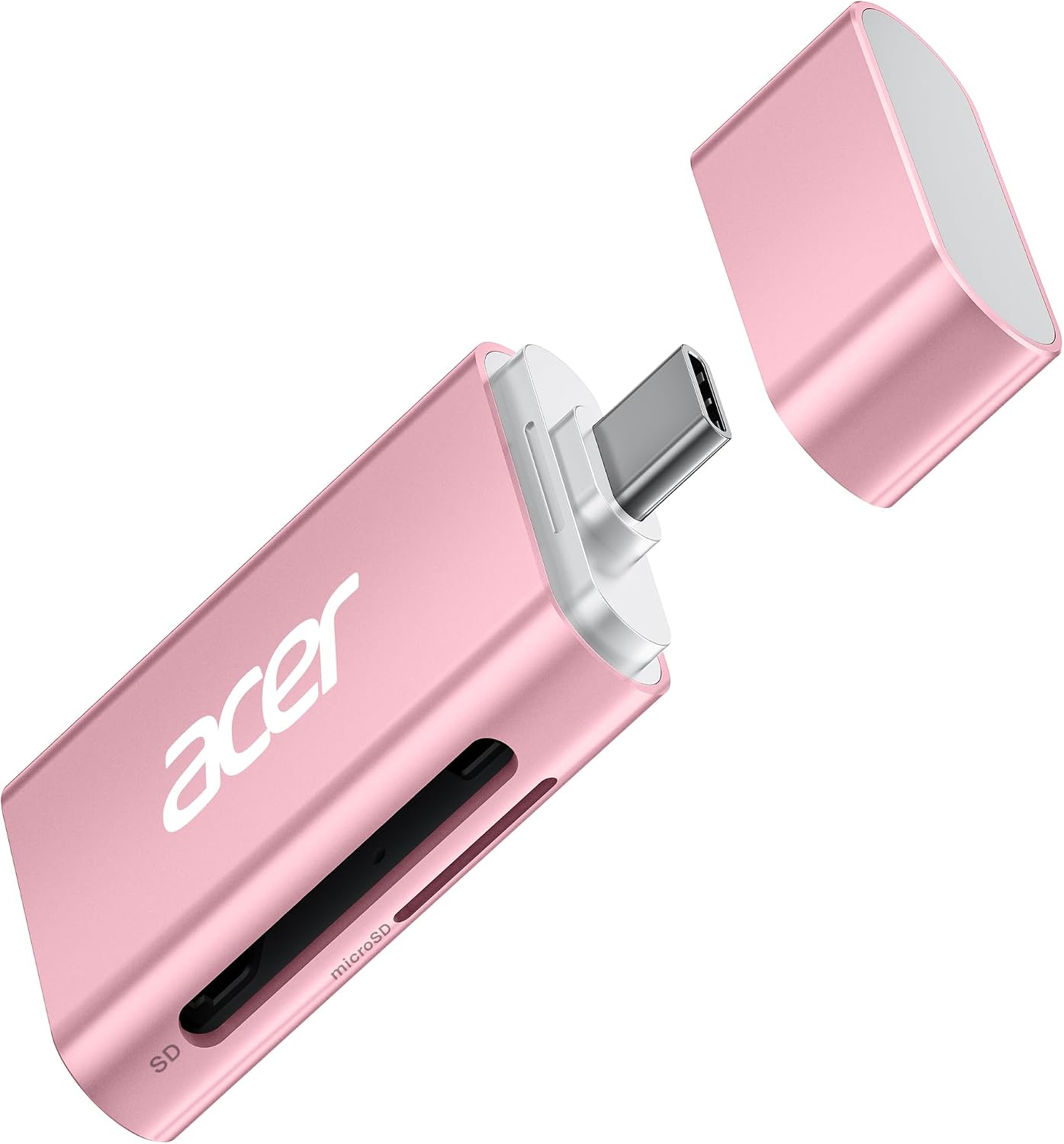
בילד: א דעטאַלירטע view of the Acer USB C SD 4.0 Card Reader with its protective dust cap removed, exposing the USB-C connector. This highlights the design for port protection.
6. טראָובלעשאָאָטינג
- מיטל ניט דערקענט:
- זיכער מאַכן אַז דער קאַרטל לייענער איז גאָר אַרײַנגעשטעקט אין דעם USB-C פּאָרט.
- Try connecting to a different USB-C port on your device.
- Verify that the memory card is correctly inserted into the card reader.
- Test with a different memory card to rule out card issues.
- ריסטאַרט דיין קאָמפּיוטער אָדער מיטל.
- לאַנגזאַמע טראַנספער גיכקייטן:
- Ensure your memory card supports UHS-II (SD 4.0) speeds for optimal performance. The reader supports up to 312MB/s, but actual speed depends on the card's capabilities.
- If using an adapter (e.g., USB-C to USB-A), ensure the adapter and the port it's connected to support USB 3.0 or higher for faster speeds. Some older USB 3.0 ports or adapters may limit performance.
- Close other applications that might be consuming system resources or performing background data transfers.
- Memory Card Not Reading:
- Check if the memory card is locked (write-protected). Unlock it if necessary.
- Ensure the card's contacts are clean and free of debris.
- Try inserting the card into another compatible device to check if the card itself is faulty.
7. ספּעסאַפאַקיישאַנז
| סאָרט | אַסער |
| מאָדעל נאָמען | ODK460 |
| מעדיע טיפּ | SD Card, SDHC, SDXC, microSDXC |
| קאַנעקטיוויטי טעכנאָלאָגיע | וסב טיפּ C |
| ספּעציעלע פֿעיִקייטן | Compact, Dust Proof, Easy Setup, Plug & Play |
| קאָליר | ראָזעווע |
| קאַמפּאַטאַבאַל דעוויסעס | קאַמעראַ, לאַפּטאָפּ, סמאַרטפאָון, טאַבלעט |
| דאַטאַ אַריבערפירן קורס | Up to 312 MB/s (UHS-II SD 4.0) |
| ייַזנוואַרג צובינד | USB 3.0 Type C, USB 3.1 Type C |
| Slot Count | 2 (Standard SD, Micro SD/TF) |
| אַפּערייטינג סיסטעם קאַמפּאַטאַבילאַטי | Windows, macOS, Linux, Chrome OS, Android, iPad |
| נומער דימענשאַנז (L X W X H) | 2.1" x 1.1" x 0.4" (5.3 ס״מ x 2.8 ס״מ x 1 ס״מ) |
| UPC | 195133263320 |

Image: The Acer USB C SD 4.0 Card Reader displayed alongside a laptop, tablet, smartphone, and drone, illustrating its broad compatibility with various USB-C enabled devices.
8. וואָראַנטי און שטיצן
וואָראַנטי: This Acer product is covered by a 1-Year Manufacturer's Warranty. Please retain your proof of purchase for any warranty claims.
שטיצן: For technical assistance, troubleshooting, or further inquiries regarding your Acer USB C SD 4.0 Card Reader, please visit the official Acer support website or contact their customer service department. You can find contact information and resources on the Acer webפּלאַץ: www.acer.com/support
Ask a question about this manual
Ask about setup, troubleshooting, compatibility, parts, safety, or missing instructions. Manuals+ will review the question and use this page’s manual context to help answer it.