
הקדמה
This user manual provides detailed instructions for the Docooler Wireless Gaming Mouse, featuring a transparent crystal shell, tri-mode connectivity (USB Wired, 2.4G Wireless, and Bluetooth), adjustable DPI settings, and vibrant RGB lighting. Please read this manual thoroughly to ensure proper use and optimal performance of your new gaming mouse.

Image: The Docooler Wireless Gaming Mouse, showcasing its transparent crystal shell and internal RGB lighting.
פּראָדוקט פֿעיִקייטן
- Transparent Crystal Shell: The mouse features a fully transparent PC shell, offering a unique aesthetic and allowing visibility of internal components and lighting.
- טריי-מאָד קאַנעקטיוויטי: Supports three connection methods:
- יו-עס-בי ווייערד: For a stable, low-latency connection.
- 2.4G ווירעלעס: Utilizes a USB receiver for reliable wireless performance.
- בלועטאָאָטה: For convenient wireless connection to compatible devices.
- אַדזשאַסטאַבאַל דפּי: Five adjustable DPI levels (1200-1600-2000-2400-3600DPI) for precise control and adaptability to various tasks and games.
- RGB לייטינג: Features multiple RGB lighting backlight effects with 11 light guides, creating an immersive visual experience.
- טיפּ C שנעל טשאַרדזשינג: Built-in 650mAh lithium battery with Type-C charging port, providing long endurance of up to 30 days on a full charge.
- ערגאָנאָמיק פּלאַן: Designed for comfortable use during extended periods, with an upgraded oil-repellent coating for fingerprint resistance.
- שטילע קליקן: Equipped with mute buttons for quiet operation.
- ברייט קאַמפּאַטאַבילאַטי: Compatible with various devices including PCs, laptops, and other commonly used electronic devices.

בילד: אן איבערview of the mouse's features, including 3 modes, RGB light, mute button, ergonomic design, transparent shell, 5-step DPI, rechargeable battery, and game engine.

Image: A detailed display of the mouse's components, including the anti-slip roller, transparent body, charging support, and multimedia side keys.
פּעקל אינהאַלט
ביטע טשעק די פּאַקעט פֿאַר די פאלגענדע זאכן:
- Docooler Wireless Gaming Mouse
- יו-עס-בי ריסיווער (2.4 דזשי)
- וסב טיפּע- C טשאַרדזשינג קאַבלע
- באַניצער מאַנואַל
סעטאַפּ און קאַנעקשאַן
ערשט טשאַרדזשינג
Before first use, it is recommended to fully charge the mouse. Connect the supplied USB Type-C charging cable to the mouse's charging port and the other end to a USB power source (e.g., computer USB port, USB wall adapter). The RGB lighting may indicate charging status.
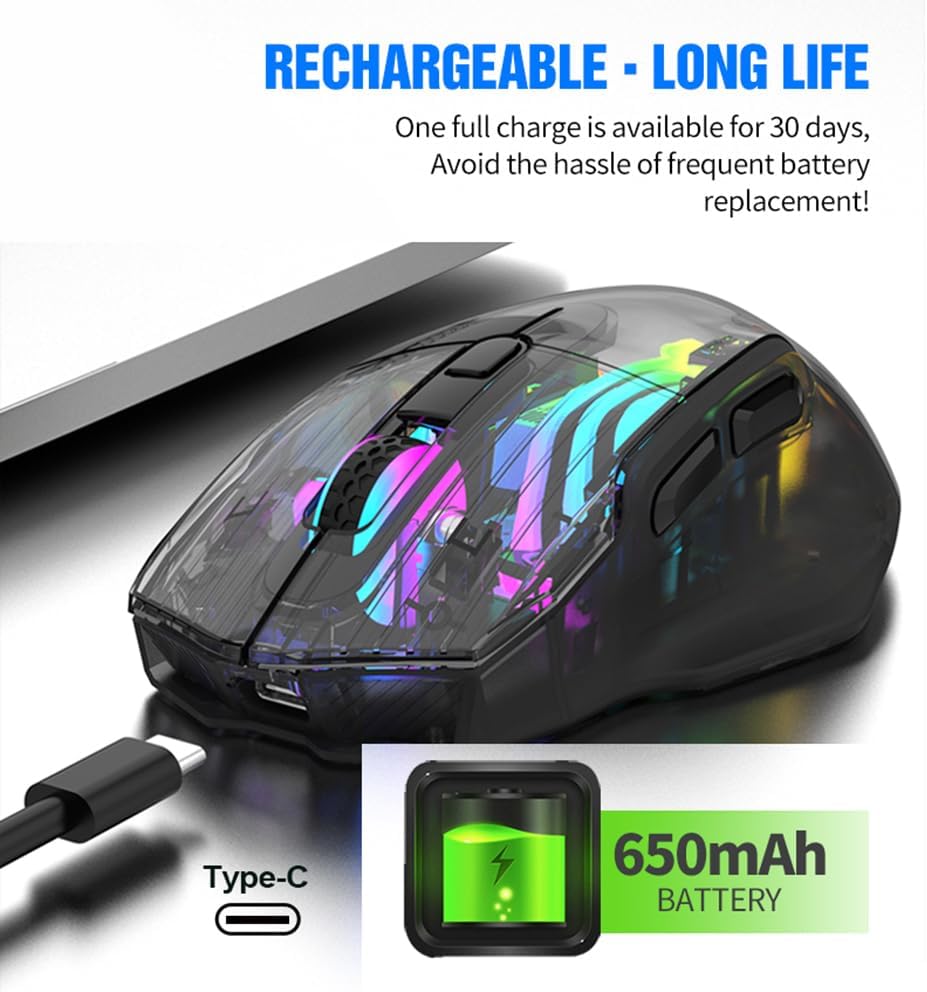
Image: The Docooler Wireless Gaming Mouse connected via its Type-C charging cable, illustrating its rechargeable battery feature.
Connecting via 2.4G Wireless Mode
- געפינט דעם USB ריסיווער, וואס געפינט זיך געווענליך אין א קאמפארטמענט אויף דער אונטערשטער זייט פון דער מויז.
- צאַפּן די וסב ופנעמער אין אַ בנימצא וסב פּאָרט אויף דיין קאָמפּיוטער.
- Turn on the mouse using the power switch located on the underside. Ensure the mode switch is set to 2.4G wireless mode (indicated by a specific icon or position).
- די מויז זאָל זיך אויטאָמאַטיש פֿאַרבינדן צו דיין קאָמפּיוטער.
פֿאַרבינדן דורך בלועטוט מאָדע
- Turn on the mouse and set the mode switch on the underside to Bluetooth mode (indicated by a Bluetooth icon or position).
- אויף אייער קאָמפּיוטער אָדער מיטל, עפֿנט די בלועטוט סעטטינגס.
- זוכן פֿאַר new devices. The mouse should appear as "Docooler Mouse" or similar.
- Select the mouse to pair. Follow any on-screen prompts if a pairing code is required (usually 0000 or 1234, but often not needed for mice).
Connecting via USB Wired Mode
- Connect the supplied USB Type-C cable to the mouse's port.
- פאַרבינדן די אנדערע סוף פון די וסב קאַבלע צו אַ בנימצא וסב פּאָרט אויף דיין קאָמפּיוטער.
- די מויז וועט פונקציאָנירן ווי אַ דראָטיקע מויז און וועט אויך לאָדן סיימאַלטייניאַסלי.

Image: A diagram illustrating the three connection modes: 2.4G wireless, wired (USB to Type-C), and Bluetooth mode.
אַפּערייטינג מאָדעס
The Docooler Wireless Gaming Mouse supports three distinct operating modes: 2.4G Wireless, Bluetooth, and USB Wired. You can switch between these modes using the switch located on the underside of the mouse. Select the mode that best suits your current needs and device compatibility.
דפּי אַדזשאַסטמאַנט
The mouse offers five adjustable DPI (Dots Per Inch) levels to customize cursor sensitivity. This allows for precise control for tasks requiring accuracy or rapid movement for gaming. The available DPI settings are 1200, 1600, 2000, 2400, and 3600 DPI.
To adjust the DPI, press the DPI switch button, typically located near the scroll wheel on the top of the mouse. Each press will cycle through the available DPI settings. The RGB lighting may change to indicate the current DPI level.

Image: The Docooler Wireless Gaming Mouse with an arrow pointing to the DPI switch, illustrating its function for adjusting sensitivity.
RGB לייטינג
The mouse features dynamic RGB lighting with 16.8 million colors and various effects, enhancing your gaming or work environment. The translucent shell allows the internal LEDs and light guides to create an immersive lighting display.
To switch between different lighting effects, use the dedicated light effect switching button, which is typically located on the underside of the mouse. Pressing this button will cycle through the available RGB modes.

Image: Two Docooler Wireless Gaming Mice (white and black variants) displaying their vibrant RGB illusion lighting, with a close-up of the light effect switching button on the underside.
טשאַרדזשינג
The mouse is equipped with a built-in 650mAh lithium battery, providing extended usage time. A full charge can last up to 30 days, depending on usage patterns and RGB lighting settings.
To charge the mouse, connect the provided USB Type-C cable to the charging port on the front of the mouse and to a USB power source. The mouse can be used while charging in wired mode.
Ergonomics and Compatibility
The Docooler Wireless Gaming Mouse is designed with an ergonomic curve to provide a comfortable grip, reducing strain during long periods of use. Its lightweight construction and oil-repellent coating contribute to a pleasant user experience.
This mouse offers wide compatibility with various operating systems and devices, including but not limited to PCs, laptops, Smart TVs, and All-in-one PCs. For specific device compatibility, please refer to your device's specifications or contact customer support.

Image: The Docooler Wireless Gaming Mouse positioned in front of various compatible devices such as a Smart TV, PC, All-in-one PC, and Notebook, highlighting its wide compatibility.
וישאַלט
To ensure the longevity and optimal performance of your Docooler Wireless Gaming Mouse, follow these maintenance guidelines:
- רייניקונג: ניצט אַ ווייכע, טרוקענע שטאָף צו ווישן די ייבערפלאַך פון דער מויז. פֿאַר שווערע שמוץ, אַ ביסל טרוקןamp cloth can be used, but ensure no liquid enters the mouse. Avoid using harsh chemicals or abrasive cleaners.
- סטאָרידזש: האַלט די מויז אין אַ קיל, טרוקן אָרט אַוועק פון דירעקט זונשייַן און עקסטרעמע טעמפּעראַטורן.
- באַטערי זאָרגן: Avoid completely draining the battery frequently. Charge the mouse regularly to maintain battery health. If storing for a long period, charge the battery to about 50% and recharge every few months.
- וסב ופנעמער: ווען נישט אין באַנוץ, לייגט אַוועק דעם USB ריסיווער אין זיין באַשטימטן אָפּטייל אויף דער מויז כּדי צו פאַרמייַדן פֿאַרלוסט.
טראָובלעשאָאָטינג
| פּראָבלעם | מעגלעך סיבה | לייזונג |
|---|---|---|
| מויז ענטפערט נישט. | Low battery; Incorrect connection mode; USB receiver not properly connected (2.4G); Bluetooth not paired. | Charge the mouse; Ensure the mode switch is set correctly (2.4G, BT, or Wired); Re-insert USB receiver; Re-pair Bluetooth. |
| RGB לעמפּלעך אַרבעטן נישט. | Lights turned off; Low battery. | Press the light effect switching button on the underside; Charge the mouse. |
| קורסאָר באַוועגונג איז אומשטענדלעך אָדער פּאַמעלעך. | Low DPI setting; Dirty sensor; Uneven surface. | Increase DPI using the DPI switch button; Clean the optical sensor with a soft cloth; Use on a clean, flat mouse pad or surface. |
| Mouse disconnects frequently. | Interference; Distance from receiver/device; Low battery. | Reduce interference (move away from other wireless devices); Ensure mouse is within range; Charge the mouse. |
ספּעסאַפאַקיישאַנז
- מאָדעל נומער: LWE1749742334267PB
- קאַנעקטיוויטי: Tri-Mode (2.4G Wireless, Bluetooth, USB Wired)
- דפּי לעוועלס: 1200 / 1600 / 2000 / 2400 / 3600 דפּי
- באַטאַרייע קאַפּאַציטעט: 650 מאַה ליטהיום באַטערי
- טשאַרדזשינג פּאָרט: וסב טיפּ-C
- לייטינג: RGB Backlight (16.8 Million Colors)
- נומער פון קנעפּלעך: 7
- פּראָדוקט דימענשאַנז: 5.04 X 3.03 X 0.04 אינטשעס
- נומער וואָג: 7 אונסעס
- שאָל מאַטעריאַל: טראַנספּעראַנט פּיסי
וואָראַנטי און שטיצן
Docooler products are manufactured to the highest quality standards. This product is covered by a manufacturer's warranty against defects in materials and workmanship. For detailed warranty information, please refer to the warranty card included with your product or visit the official Docooler webפּלאַץ.
If you encounter any issues or have questions regarding your Docooler Wireless Gaming Mouse, please contact our customer support team. Provide your product model number (LWE1749742334267PB) and a detailed description of the issue for faster assistance.
Docooler Customer Support:
- Webפּלאַץ: Visit the Docooler Store on Amazon (פֿאַר אַלגעמיינע פֿראַגעס און פּראָדוקט אינפֿאָרמאַציע)
- בליצפּאָסט: זעט די פּראָדוקט פּאַקאַדזשינג אָדער באַאַמטער webזייטל פֿאַר דירעקט שטיצע אימעיל.