
ZIUMIER Z30
ZIUMIER Gaming Headset User Manual
Model: Z30 | Brand: ZIUMIER
הקדמה
Thank you for choosing the ZIUMIER Gaming Headset with Detachable Cat Ears. This headset is designed to provide an immersive audio experience for gaming, movies, and music across multiple platforms. It features 50mm drivers for superior sound, a noise-canceling microphone for clear communication, and a comfortable, lightweight design for extended use. The detachable cat ears add a unique aesthetic.
This manual provides detailed instructions on setting up, operating, maintaining, and troubleshooting your ZIUMIER Z30 Gaming Headset. Please read it carefully before use.
וואָס איז אין די קעסטל
- 1 x ZIUMIER Gaming Headset (Pink)
- 1 x 1-to-2 MIC/Audio Cable Splitter
- 2 x Removable Cat Ears
- 1 x באַניצער מאַנואַל
סעטאַפּ גייד
1. Attaching the Detachable Cat Ears
The ZIUMIER Z30 headset comes with two removable cat ears. To attach them, gently slide the base of each cat ear onto the top of the headband, positioning them symmetrically. Ensure they are securely fitted into the grooves on the headband.

Image: The ZIUMIER Z30 Gaming Headset with its detachable cat ears displayed separately, illustrating how they can be added or removed from the headband.
2. קאַנעקטינג די העאַדסעט
The Z30 headset connects via a 3.5mm audio jack. It is compatible with a wide range of devices including PC, PS4, PS5, Xbox One, Xbox Series S, Xbox Series X, Laptop, Mac, Tablet, and Phone.
- For devices with a single 3.5mm audio jack (combined audio/mic): Plug the headset's 3.5mm jack directly into your device's audio port.
- For PCs with separate audio and microphone jacks: Use the included 1-to-2 MIC/Audio Cable Splitter. Connect the headset's 3.5mm jack to the splitter, then plug the green connector of the splitter into your PC's audio output jack and the pink connector into your PC's microphone input jack.
- For Xbox One Controller (Model 1537): An additional adapter (not included) may be required to use this headset. Please refer to your Xbox One controller's manual for details on connecting external headsets.

Image: The ZIUMIER Z30 Gaming Headset displayed alongside various gaming consoles and a PC setup, demonstrating its multi-device compatibility.

בילד: א דעטאַלירטע view of the ZIUMIER Z30 Gaming Headset's inline control unit, showing the volume roller, microphone mute switch, and the 3.5mm audio jack and USB connector.
The headset also features an integrated USB connector. This USB connection is solely for powering the LED lights on the earcups and is not required for audio or microphone functionality. Plug the USB connector into an available USB port on your device or a USB power adapter to activate the LED lighting.
אַפּערייטינג ינסטראַקשאַנז
1. אַדזשאַסטינג באַנד
The headset features an inline control unit on the cable. Use the volume roller on this unit to adjust the audio output level. Roll it up to increase volume and down to decrease volume.
2. ניצן די מיקראָפאָן
The Z30 headset is equipped with a noise-canceling microphone. The microphone arm is flexible and can be rotated up to 120 degrees to position it optimally for clear voice capture.
- מיקראָפאָן שטום: Locate the microphone mute switch on the inline control unit. Slide the switch to the "on" position to enable the microphone and to the "off" position to mute it.
- פּאַזישאַנינג: For best performance, position the microphone approximately 1-2 inches from your mouth.

Image: A close-up of the ZIUMIER Z30 Gaming Headset's microphone, highlighting its 120-degree rotation capability and the noise cancellation feature for clear communication.
3. געפירט ליגהטינג
The LED lights on the earcups will illuminate automatically when the USB connector is plugged into a powered USB port. There is no separate switch for the LED lighting; it is powered directly by the USB connection.
וישאַלט
Proper maintenance ensures the longevity and optimal performance of your ZIUMIER Gaming Headset.
- רייניקונג: Use a soft, dry cloth to wipe down the headset, including the earcups and headband. For the breathable protein memory foam ear pads, a slightly damp cloth can be used, but ensure they are completely dry before next use. Avoid using harsh chemicals or abrasive cleaners.
- סטאָרידזש: Store the headset in a cool, dry place away from direct sunlight and extreme temperatures. Avoid tangling the cable by coiling it neatly when not in use.
- האַנדלינג: Do not pull on the cable to disconnect the headset. Always grasp the plug firmly. Avoid dropping the headset or subjecting it to strong impacts.
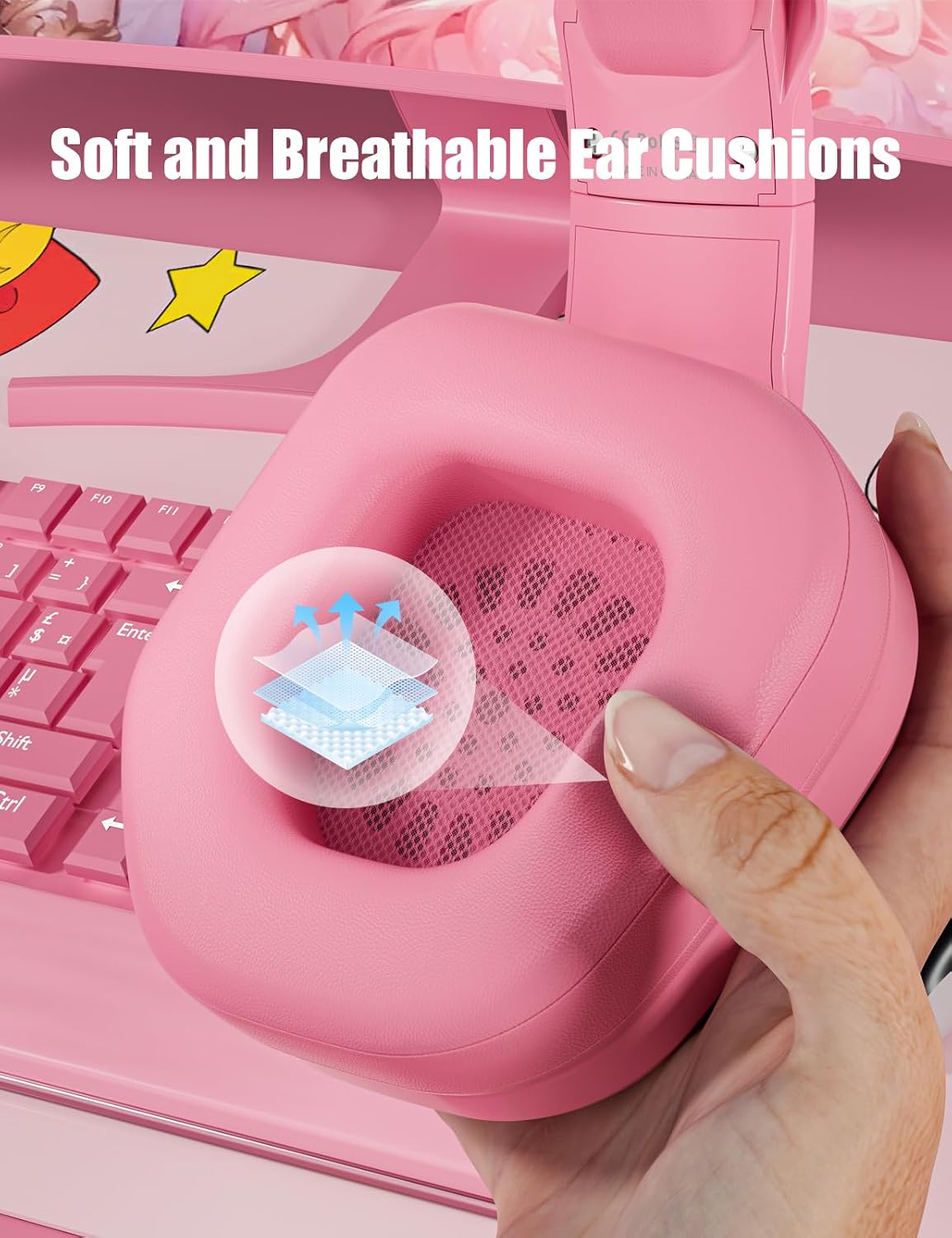
בילד: א דעטאַלירטע view of the ZIUMIER Z30 Gaming Headset's ear cushions, emphasizing their soft, breathable material for comfort during extended use.
טראָובלעשאָאָטינג
If you encounter issues with your ZIUMIER Gaming Headset, please refer to the following common solutions:
| פּראָבלעם | מעגלעך סיבה / לייזונג |
|---|---|
| קיין קלאַנג פֿון כעדסעט |
|
| מיקראָפאָן טוט נישט אַרבעטן |
|
| געפירט לייץ נישט ילומאַנייטינג |
|
| געזונט קוואַליטעט איז נעבעך אָדער פאַרקרימט |
|
ספּעסאַפאַקיישאַנז
Below are the technical specifications for the ZIUMIER Z30 Gaming Headset:
| שטריך | דעטאַל |
|---|---|
| מאָדעל נאָמען | Z30 Cat Ears Gaming Headset |
| קאַנעקטיוויטי טעכנאָלאָגיע | ווייערד |
| כעדפאָונז דזשאַק | 3.5 מם דזשאַק |
| אַודיאָ דרייווער טיפּ | דינאַמיש דרייווער |
| אַודיאָ דרייווער גרייס | 50 מילאַמיטערז |
| אָפטקייַט ענטפער | 20 הערץ - 20,000 הערץ |
| ימפּידאַנס | 32 Ohm |
| סענסיטיוויטי | 42 דב |
| ראַש קאָנטראָל | פּאַסיוו ראַש קאַנסאַליישאַן |
| Microphone Rotation | 120 דיגריז |
| קאָנטראָל טיפּ | Button Control, Remote (Inline) |
| קאַבלע שטריך | טאַנגלע פֿרייַ |
| אויער פּלייסמאַנט | איבער אויער |
| מאַטעריאַל | אַקרילאָניטרילע בוטאַדיענע סטירענע (אַבס) |
| קאָליר | ראָזעווע |
| פּונקט וואָג | 1.1 פונט (אומגעפער 0.5 ק"ג) |
| פּעקל דימענשאַנז | 8.35 X 7.87 X 4.45 אינטשעס |
| קאַמפּאַטאַבאַל דעוויסעס | Nintendo Switch, PC, Mac, PlayStation 5, PlayStation 4, Xbox One, Xbox Series S, Xbox Series X |

בילד: אן עקספלאדירטע view diagram illustrating the advanced 50mm sound drivers within the ZIUMIER Z30 Gaming Headset, designed for immersive audio performance.
וואָראַנטי און שטיצן
For information regarding warranty coverage and customer support for your ZIUMIER Gaming Headset, please refer to the warranty card included with your product or visit the official ZIUMIER webזייטל. איר קענט אויך קאָנטאַקטירן דעם פארקויפער גלייך דורך אייער קויפן פּלאַטפאָרמע פֿאַר הילף.
For additional resources and product information, you can visit the ZIUMIER Store on Amazon.
Ask a question about this manual
Ask about setup, troubleshooting, compatibility, parts, safety, or missing instructions. Manuals+ will review the question and use this page’s manual context to help answer it.