
1. פּראָדוקט איבערview
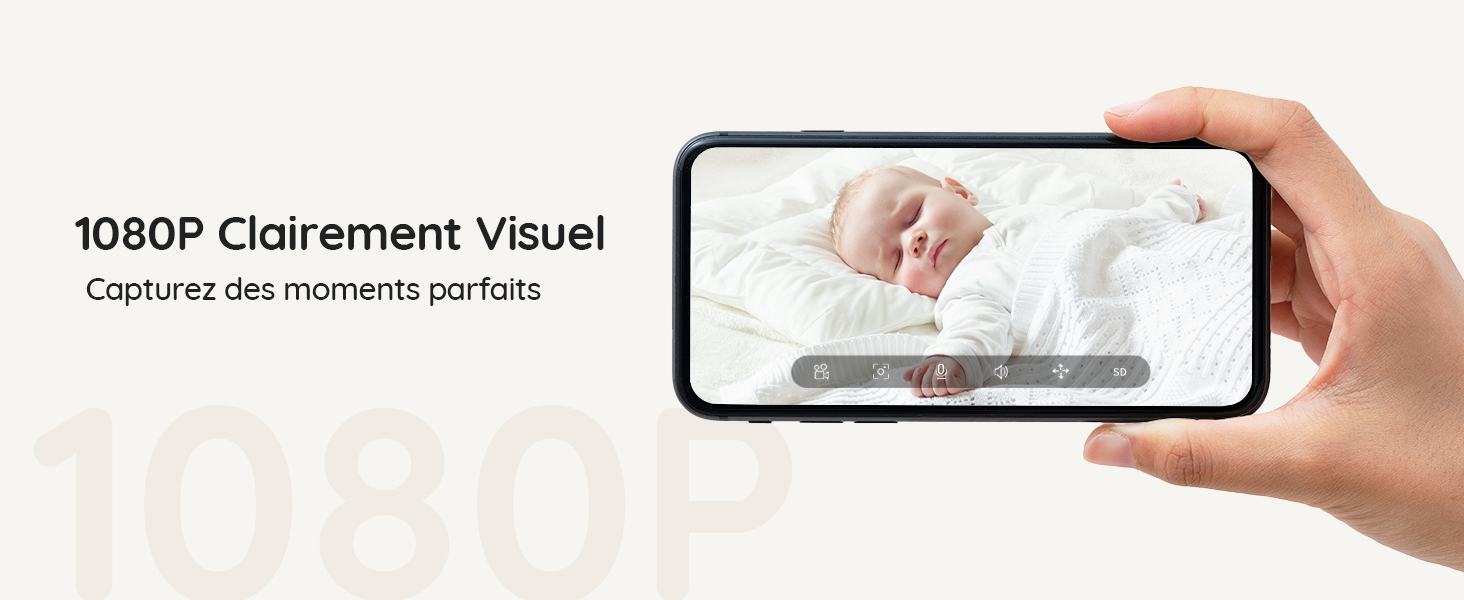
The BOIFUN Baby Monitor (Model Baby 7SM-2) provides comprehensive surveillance for your baby with its dual 1080P cameras and a 4.3-inch split screen monitor. It offers both mobile app and monitor control, ensuring you can keep an eye on your little one from anywhere. Key features include motion and sound detection, 4X digital zoom, invisible infrared night vision, and a customizable zone alarm.
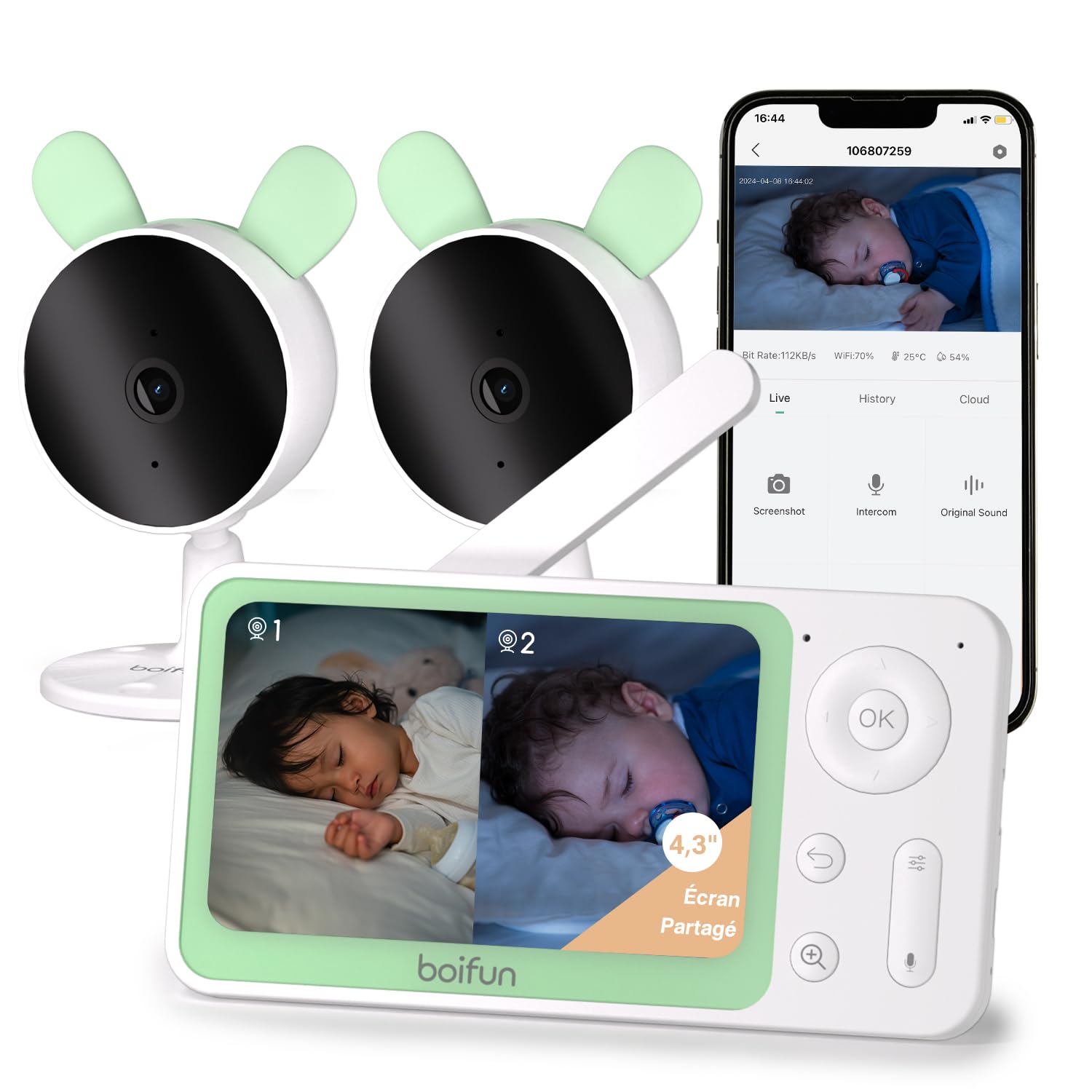
בילד 1: The BOIFUN Baby Monitor system, including the parent unit and two baby cameras.
2. פּעקל אינהאַלט
ביטע טשעק די פּאַקעט פֿאַר די פאלגענדע זאכן:
- 1 x פאָטער אַפּאַראַט (מאָניטאָר)
- 2 x בעיבי אַפּאַראַטן (קאַמעראַס)
- 3 x מאַכט אַדאַפּטערז (פֿאַר מאָניטאָר און קאַמעראַס)
- 1 x באַניצער מאַנואַל
3. סעטאַפּ אינסטרוקציעס
3.1 מאַכט אויף
- Connect the power adapter to the parent unit and plug it into a power outlet.
- Connect the power adapters to each baby unit and plug them into power outlets.
- די דעווייסעס וועלן זיך אויטאָמאַטיש אנצינדן.
3.2 Pairing Cameras with the Monitor
The cameras are usually pre-paired with the monitor. If re-pairing is needed or to add a new camera:
- אויף דער עלטערן־איינהייט, דריק די מעניו קנעפּל און נאַוויגירן צו די אַפּאַראַט management section.
- Select an empty camera slot or the camera you wish to re-pair.
- On the baby unit, press and hold the פּערינג קנעפּל (usually a small button on the back or bottom) until you hear a "BOOGU" beep.
- אויף דער עלטערן־איינהייט, דריק די OK button to initiate pairing. The monitor will display "Device is linked" upon successful pairing.
ווידעא באַשרייַבונג: This video demonstrates how to connect the BOIFUN baby monitor to the screen. It shows pressing the menu button, selecting the camera option, holding the pairing button on the camera until a beep is heard, and then pressing OK on the monitor to complete the pairing process. The video confirms successful linking of the device.
3.3 Connecting Cameras to the Mobile App (Wi-Fi 2.4 GHz)
To use the mobile app for monitoring, ensure your Wi-Fi network is 2.4 GHz. The camera does not support 5 GHz Wi-Fi.
- אָפּלאָדירן די BoifunCam אַפּ פֿון דיין סמאַרטפֿאָן'ס אַפּ סטאָר.
- Register or log in to your BoifunCam account.
- In the app, select to add a new device (e.g., "Baby Monitor Wi-Fi").
- On the baby unit, press and hold the באַשטעטיק קנעפּל (often located in a small hole, requiring a pin) for five seconds until you hear a "BOOGU" prompt. After 5-10 seconds, another beep will sound, and the red indicator light will flash.
- Follow the in-app instructions to connect to your 2.4 GHz Wi-Fi network and enter the password.
- The app will then prompt you to scan a QR code with your camera. Position your smartphone 5-8 inches from the camera lens. A tone will be heard upon successful scanning.
- The app will then connect the camera to your Wi-Fi network. Once connected, you can name the camera and assign it to a room.
ווידעא באַשרייַבונג: This video illustrates how to connect the BOIFUN baby monitor to a mobile phone. It shows pressing the reset button on the camera, then using the BoifunCam app to scan a QR code displayed on the phone with the camera. The video emphasizes that the camera only supports 2.4 GHz Wi-Fi and guides the user through the app's connection process.
4. אַפּערייטינג די מאָניטאָר
4.1 שפּאַלטן פאַרשטעלן פאַנגקשאַנאַליטי
With two cameras, you can view both feeds simultaneously on the 4.3-inch split screen.
- In split screen mode, press the Zoom (+) button to select which camera feed to view in full screen. The selected camera icon will flash.
- דרוק די OK button to switch to full screen view for the selected camera.
- דרוק די צוריקקומען button to go back to split screen mode.

בילד 2: The 4.3-inch monitor displaying a split screen view from two separate cameras, showing babies in different rooms.
4.2 Mobile App and Monitor Control
You can control and monitor your baby using either the dedicated parent unit or the BoifunCam mobile application.
בילד 3: The baby monitor can be controlled via both the dedicated parent unit and a smartphone application, offering flexibility for monitoring.
4.3 באַוועגונג און געזונט דעטעקציע
The monitor is equipped with advanced detection features to alert you to your baby's activity.
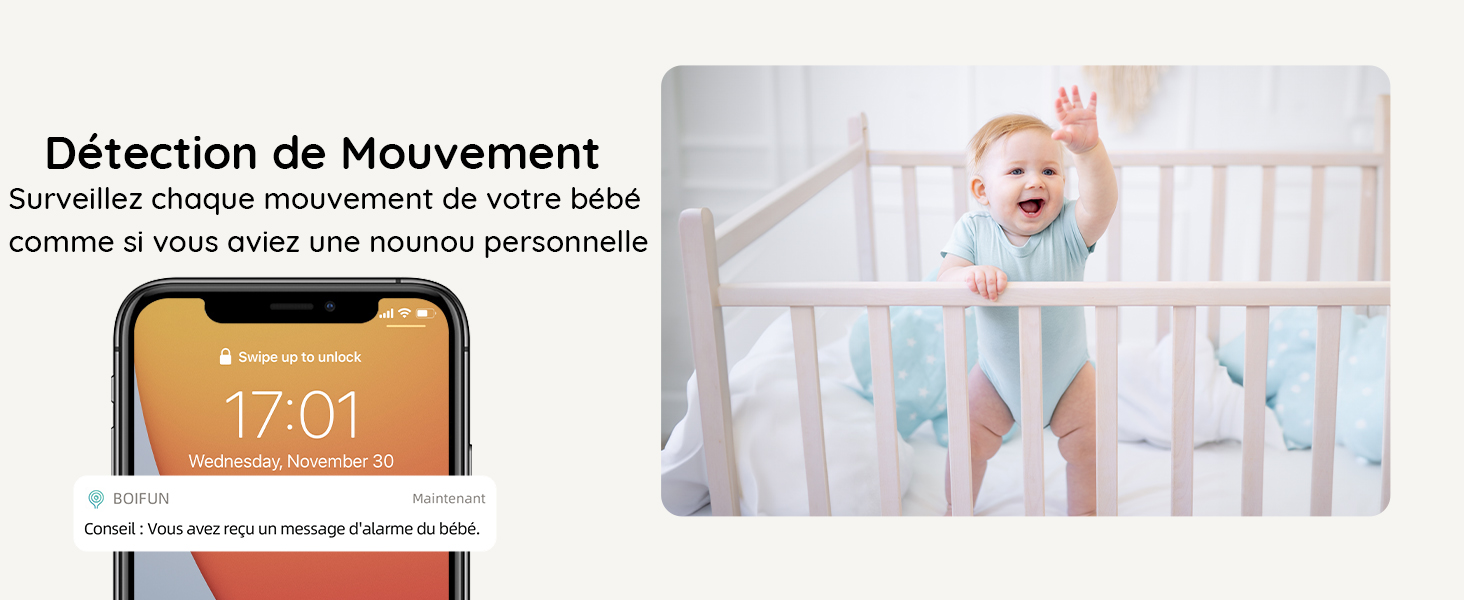
- באַוועגונג דעטעקשאַן: Receive immediate alerts on your phone when movement is detected in the camera's view.
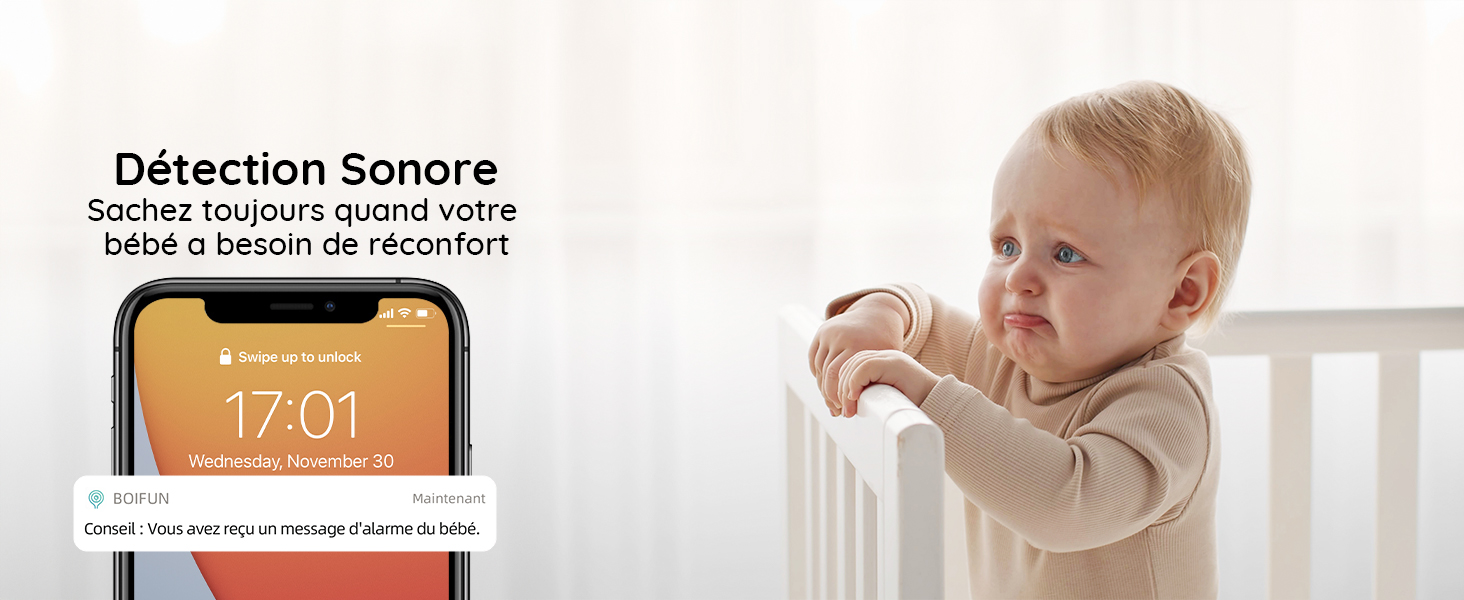
- געזונט דעטעקטיאָן: Get notified when your baby makes sounds, indicating they might need attention.
בילד 4: A smartphone displaying a notification for detected movement, with a baby in a crib in the background.
בילד 5: A smartphone displaying a notification for detected sound, with a crying baby in the background.
4.4 Customizable Zone Alarm
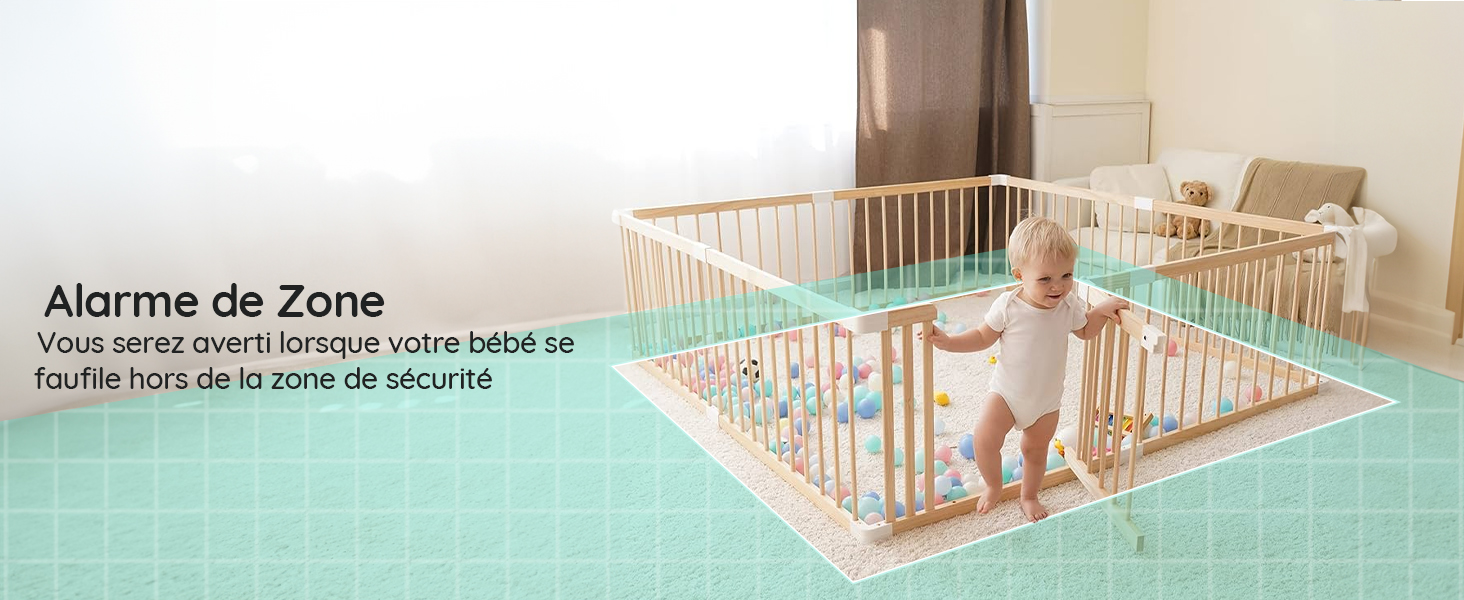
שטעלט איין ספעציפישע געביטן אין דער קאמערא'ס view to trigger an alarm if your baby enters or exits them.
בילד 6: A baby playing in a playpen, with a visual overlay indicating a configured zone alarm area.
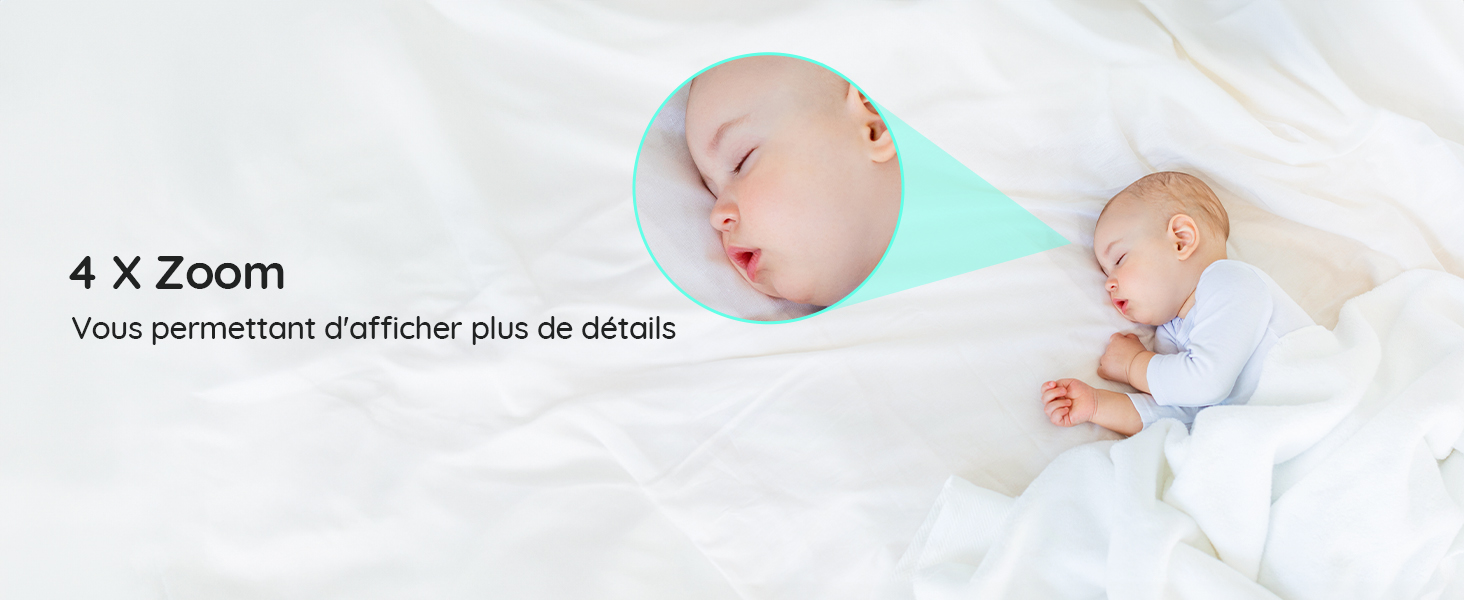
4.5 4X Digital Zoom
Zoom in on your baby to see more details without disturbing them.
בילד 7: A sleeping baby, with a magnified inset showing the baby's face in detail, demonstrating the 4X zoom feature.
4.6 Invisible Infrared Night Vision
Monitor your baby clearly in low-light conditions without disturbing their sleep with visible red lights.
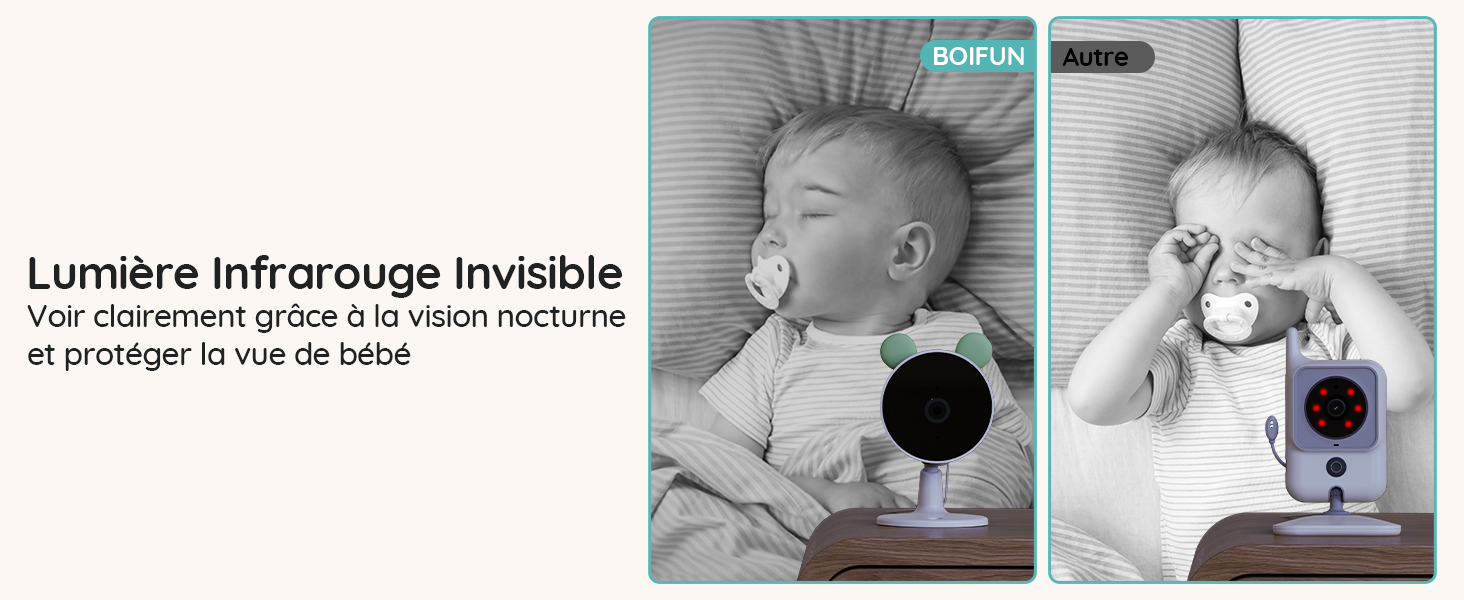
בילד 8: A comparison showing the BOIFUN camera's invisible infrared night vision on the left, and a standard camera with visible red IR lights on the right, both monitoring a sleeping baby.
4.7 סטאַטוס לייץ
The camera's status lights can be turned off to ensure a peaceful sleeping environment for your baby.
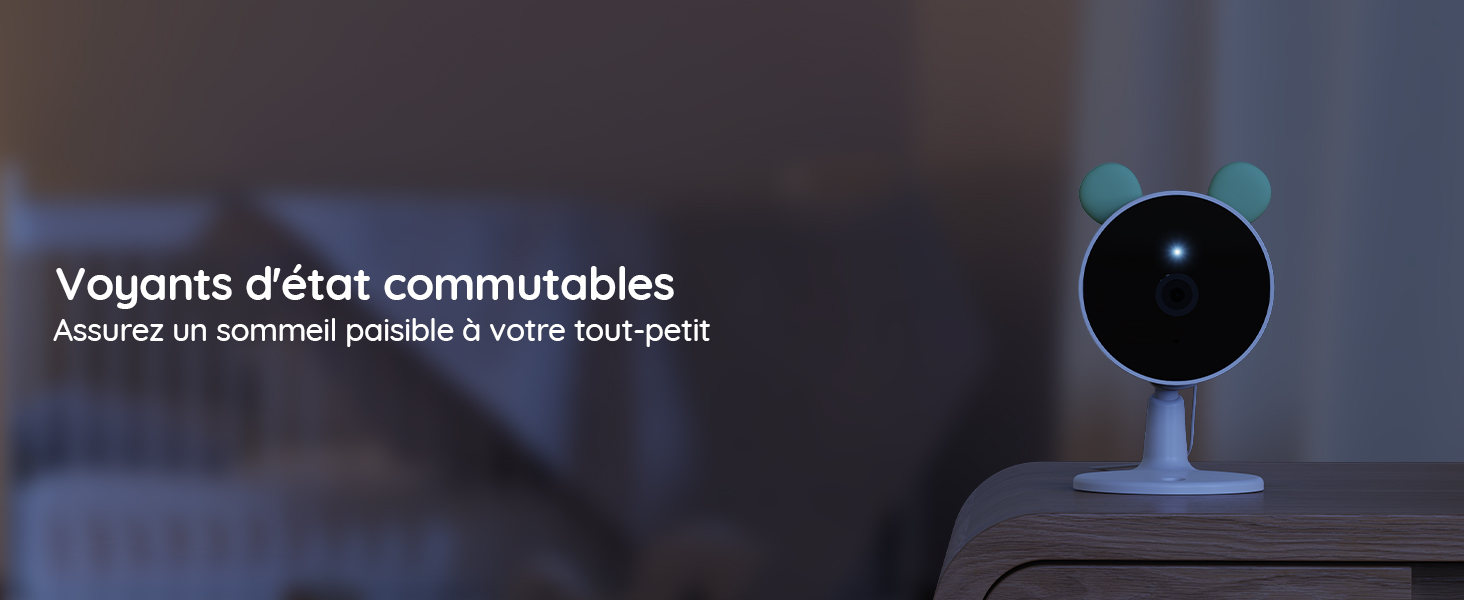
בילד 9: A baby camera monitoring a sleeping baby in a dark room, with its status light turned off to avoid disturbance.
4.8 לולאַביעס
Play soothing lullabies directly from the camera to help your baby fall asleep.
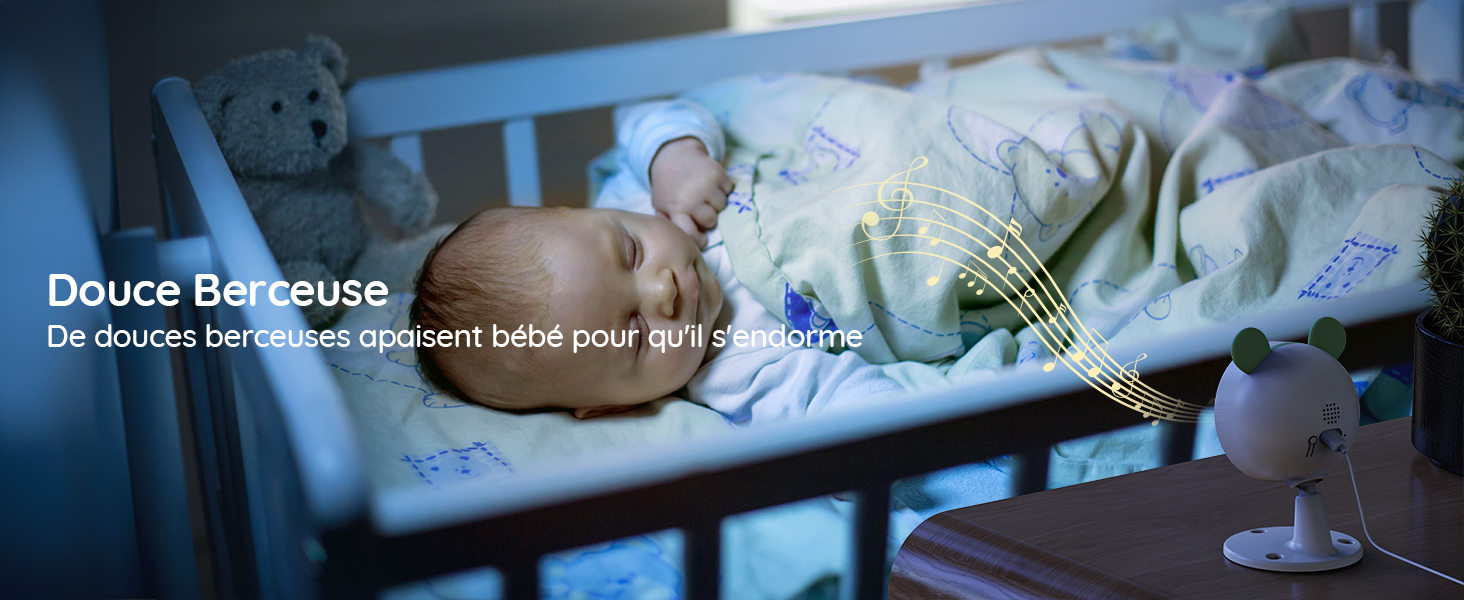
בילד 10: A baby sleeping peacefully in a crib, with musical notes emanating from the baby camera, indicating the lullaby feature.
4.9 צוויי-וועג אַודיאָ
Communicate with your baby through the monitor or app using the two-way audio feature.

בילד 11: A woman in a kitchen speaking into the baby monitor, with speech bubbles illustrating the two-way audio communication feature.
4.10 Feeding Reminders
Set up feeding reminders to help maintain your baby's feeding schedule.
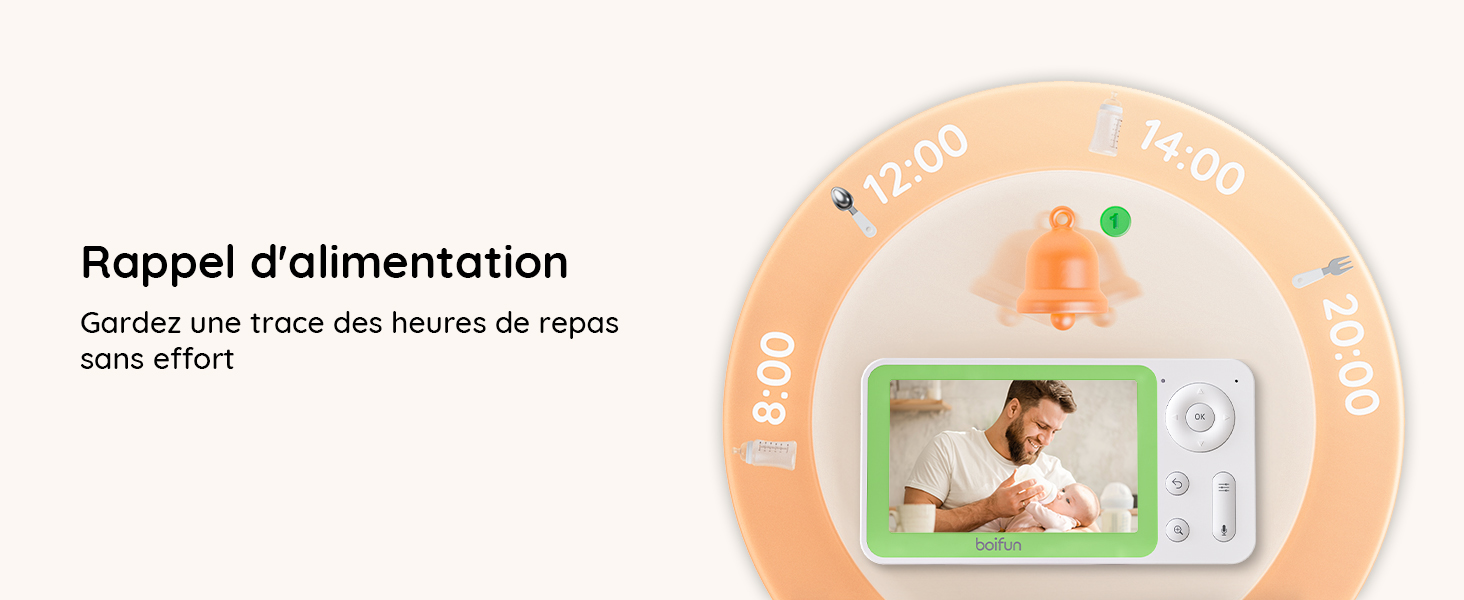
בילד 12: The baby monitor screen showing a visual representation of a feeding reminder schedule, with times and icons.
4.11 Manual Angle Adjustment
The camera's angle can be manually adjusted to achieve the desired viewינג געגנט.
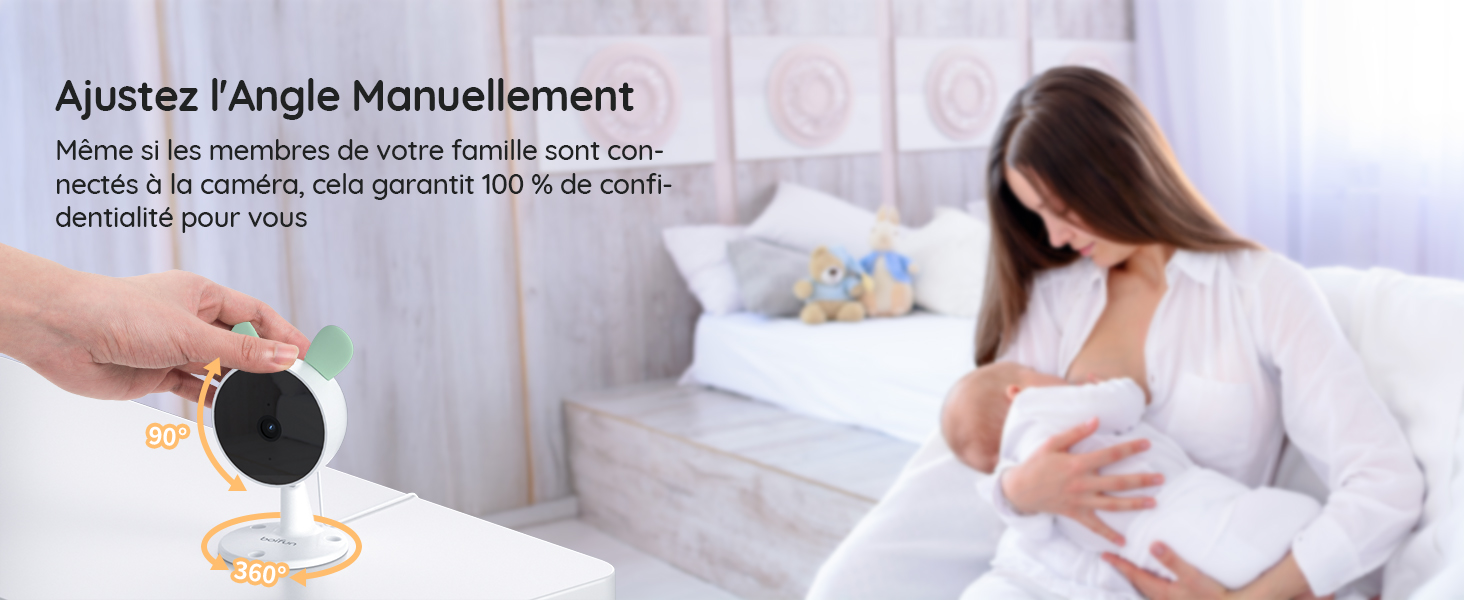
בילד 13: A hand manually adjusting the camera lens, demonstrating the camera's flexible positioning.
5. וישאַלט
5.1 רייניקונג
To clean the monitor and cameras, use a soft, dry cloth. Do not use liquid cleaners or aerosols. Ensure devices are powered off before cleaning.
5.2 באַטאַרייע לעבן
The parent unit features a long-lasting battery, providing approximately 6 hours of active monitoring and up to 4 days in standby mode.

בילד 14: The monitor displaying a full battery icon, indicating extended battery life for continuous monitoring.
6. טראָובלעשאָאָטינג
6.1 פֿאַרבינדונג פּראָבלעמען
- No signal on monitor: Ensure both cameras and the monitor are powered on and within range. Try re-pairing the cameras as described in Section 3.2.
- App connection failure: Verify your Wi-Fi network is 2.4 GHz. Ensure the camera is properly reset and follow the app pairing steps in Section 3.3 carefully. Check your Wi-Fi signal strength.
6.2 בילד קוואַליטעט
- בלערי בילד: Clean the camera lens with a soft cloth. Ensure there is adequate lighting (for day mode) or that night vision is active (for night mode).
- נאכט זעאונג ארבעט נישט: Ensure the room is dark enough for night vision to activate automatically. Check for any obstructions blocking the infrared sensors.
6.3 אַודיאָ ישוז
- קיין קול: Check the volume settings on the parent unit and your mobile app. Ensure the camera's microphone is not obstructed.
- Feedback/Static: Move the monitor further away from the camera to reduce interference.
7. ספּעסאַפאַקיישאַנז
| שטריך | דעטאַל |
|---|---|
| סאָרט | BOIFUN |
| מאָדעל נאָמען | Baby 7SM-2 |
| קאַנעקטיוויטי פּראָטאָקאָל | ווי-פי 2.4 גהז |
| ספּעציעלע פֿעיִקייטן | Motion Detector, Night Vision |
| קאַמפּאַטאַבאַל דעוויסעס | Monitor, Smartphones and Tablets |
| קאָליר | שוואַרץ |
| נומער פון זאכן | 1 (System includes 2 cameras) |
| פאָרם פאַקטאָר | קופּאָל |
| אינערלעכער מאַטעריאַל | אַקרילאָניטרילע בוטאַדיענע סטירענע (אַבס) |
| קאָנטראָל מעטאָד | אַפּפּליקאַטיאָן |
| באַטעריז פארלאנגט | יא |
| באַטאַרייע מאַכט | 2500 מיליampשעה (mAh) |
| פארגרעסער טיפּ | דיגיטאַל פארגרעסער |
| פארגרעסער פאַרהעלטעניש | 4X |
| נומער דימענשאַנז | 12.5 X 7.1 X 6.5 סענטימעטער |
| נאַכט וויזשאַן ראַנגע | 5 מעטער |
| נאַכט זעאונג טיפּ | Invisible Infrared (940 nm) |
8. וואָראַנטי און שטיצן
BOIFUN is committed to providing high-quality products and excellent customer service.
- וואָראַנטי: This product comes with a 3-year quality guarantee.
- קערט: Enjoy a 90-day free return policy.
- קונה שטיצן: Individual after-sales assistance and quick responses are available 24 hours a day.
פֿאַר קיין ינקוועריז אָדער שטיצן, ביטע קאָנטאַקט אונדז אין: admin@boifun.net


בילד 15: Icons representing professional after-sales support, 90-day free return policy, and a 3-year quality guarantee.