
Phomemo TP88
Phomemo TP88 Tattoo Transfer Stencil Printer User Manual
מאָדעל: TP88
1. פּראָדוקט איבערview
The Phomemo TP88 Tattoo Transfer Stencil Printer is a compact, portable thermal printer designed for tattoo artists and enthusiasts. It utilizes HD thermal technology to produce clear tattoo stencils without the need for ink. The device supports both A4 and US Letter size transfer paper and offers wide compatibility with smartphones (iOS and Android) via Bluetooth and PCs (Windows, Mac OS, Chrome OS, Linux) via USB connection. Its built-in 1200 mAh battery ensures long-lasting operation, capable of printing up to 140 sheets on a full charge.
שליסל פֿעיִקייטן אַרייַננעמען:
- ווירעלעסס קאַנעקטיוויטי: Bluetooth for smartphones and USB for PCs.
- טינטלאָז טערמאַל דרוקן: High-definition stencils without ink cartridges.
- פּאָרטאַטיוו פּלאַן: סאָליד און לייטווייט פֿאַר גרינג אַריבערפירן.
- Wide Paper Compatibility: Supports A4 and US Letter size tattoo transfer paper.
- Anti-Wrinkle Function: Designed to prevent paper rolling during printing.
- Powerful Mobile App: Features image editing, cropping, and tattoo preview פאַנגקשאַנז.
2. וואָס איז אין דער קעסטל
Upon unboxing your Phomemo TP88 Tattoo Transfer Stencil Printer, you should find the following items:
- 1x Phomemo TP88 Tattoo Transfer Stencil Printer
- 10x Thermal Transfer Paper sheets
- 1x טיפּ-C טשאַרדזשינג קאַבלע
- 1x Docking Station (USB-A to USB-C adapter)
- 1x Velvet Pouch for carrying
- 1 קס קוויק אָנהייב גייד

Image: The Phomemo TP88 printer shown with its accessories, including transfer paper, charging cable, adapter, and velvet pouch.
Video: An unboxing demonstration of the Phomemo TP88 tattoo machine, showcasinג אַלע אַרייַנגערעכנטע קאָמפּאָנענטן.
3. Setup and Paper Loading
Follow these steps to prepare your TP88 printer for use:
- מאַכט אויף: Press and hold the power button on the printer until the indicator light turns on.
- עפֿענען דרוקער: Press the two side buttons simultaneously to open the printer cover.
- Prepare Transfer Paper:
- Remove the yellow backing paper from the thermal transfer sheet.
- Carefully peel off the transparent protective paper.
- מאַסע פּאַפּיר: Insert the white transfer paper (with the white side facing up) into the printer's paper slot until it is gently gripped by the rollers. Ensure the paper is aligned straight to prevent misprints.

Image: Visual instructions demonstrating how to prepare and load the thermal transfer paper into the TP88 printer.
Video: A demonstration of preparing and loading Phomemo tattoo thermal paper into the printer.
4. אַפּערייטינג ינסטרוקטיאָנס
4.1. Printing from a Smartphone (Bluetooth)
- אראפקאפיע אַפּ: Download the "Phomemo" app from the App Store (iOS) or Google Play Store (Android).
- פאַרבינדן דורך בלועטאָאָטה: Open the Phomemo app and enable Bluetooth on your smartphone. זוכן פֿאַר and select "TP88" from the list of available devices to connect.
- Select/Edit Design: Within the app, you can choose from massive material templates, upload your own images, or use the free editing tools to adjust, crop, or splice designs. The app also allows you to convert pictures into transfer lines and preview tattoo patterns.
- דרוקן: Adjust print parameters as needed within the app, then initiate printing. The printer will feed the paper and create your stencil.

Image: A smartphone screen showing the Phomemo app interface with options for editing and printing, connected to the TP88 printer.
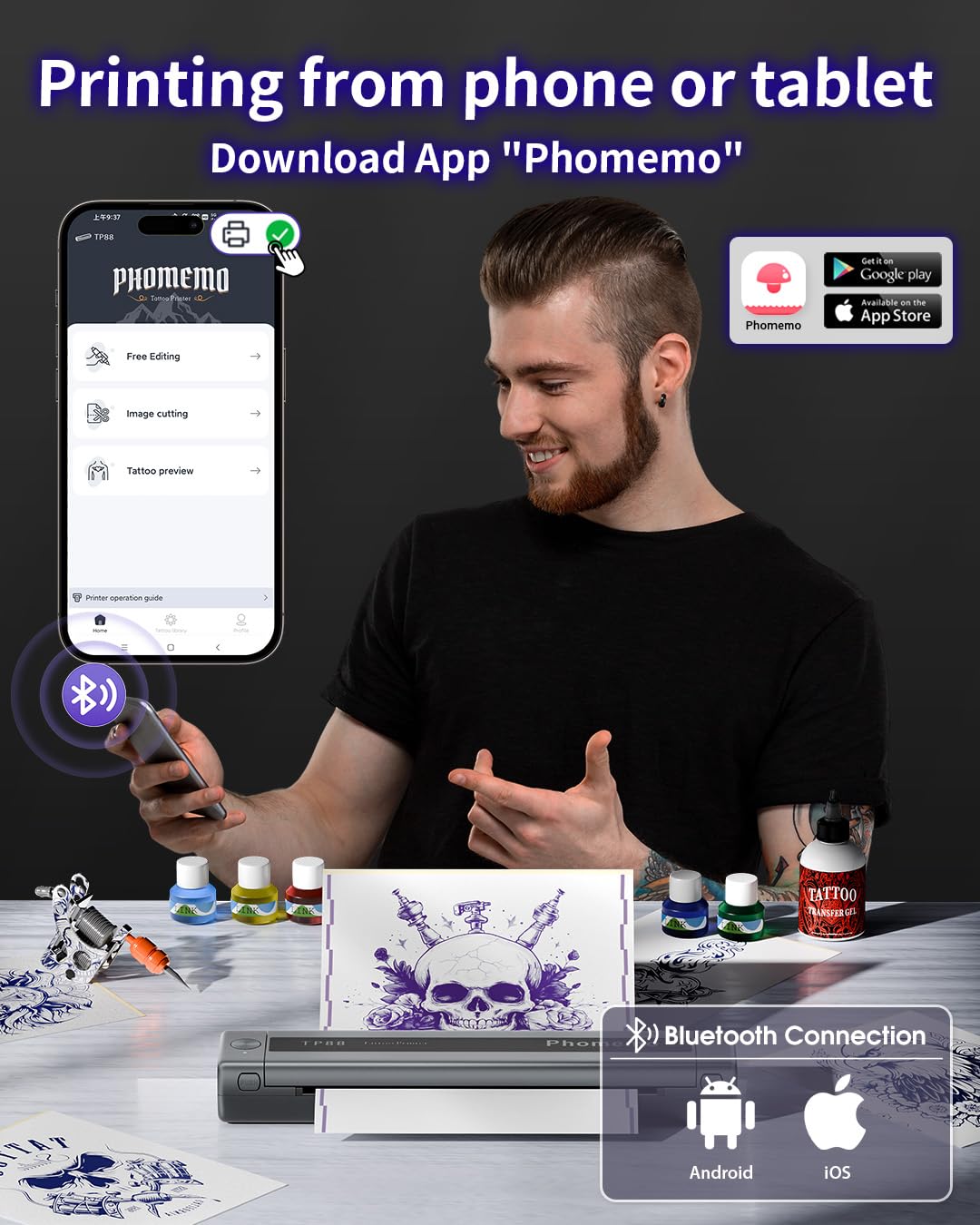
בילד: דעטאַלירט view of the Phomemo app's features, including tattoo library, image cutting, and tattoo preview.
4.2. Printing from a Computer (USB)
- אראפקאפיע דרייווער: Visit the official Phomemo website (pages.phomemo.com/#/TP88) to download the appropriate driver for your operating system (Windows, Mac OS, Chrome OS, or Linux).
- ינסטאַלירן דרייווער: Follow the on-screen instructions to install the printer driver on your computer.
- פֿאַרבינדן דרוקער: Connect the TP88 printer to your computer using the provided Type-C charging cable. If your computer lacks a USB-A port, use the included docking station (USB-A to USB-C adapter).
- דרוקן: Open your desired image or design on your computer, select the TP88 printer from your print options, and initiate printing.

Image: A laptop connected to the Phomemo TP88 printer, demonstrating the process of printing a tattoo stencil from a computer.
Video: A step-by-step guide on how to use the Phomemo TP88 tattoo machine to print stencils via a computer connection.
5. וישאַלט
To ensure the longevity and optimal performance of your Phomemo TP88 printer, regular maintenance is recommended:
- רייניקונג: Periodically clean the paper path and thermal print head with a soft, lint-free cloth. If necessary, use a small amount of isopropyl alcohol on the cloth for stubborn residue, ensuring the printer is powered off and disconnected from power.
- סטאָרידזש: האַלט דעם דרוקער אין אַ קיל, טרוקן אָרט אַוועק פון דירעקט זונשייַן און עקסטרעמע טעמפּעראַטורן.
- באַטערי זאָרגן: For extended storage, ensure the battery is charged to approximately 50-70% to maintain battery health. Avoid fully discharging the battery for long periods.
- פּאַפּיר האַנדלינג: Always use high-quality thermal transfer paper designed for stencil printers. Store paper in its original packaging to protect it from light and moisture.
6. טראָובלעשאָאָטינג
If you encounter issues with your Phomemo TP88 printer, consider the following common solutions:
- פּרינטער איז נישט פּאַוערינג: Ensure the printer is fully charged. Connect it to a power source using the provided Type-C cable and a standard 5V/2A (10W) charger.
- נעבעך דרוק קוואַליטעט:
- Check if the thermal transfer paper is loaded correctly (white side up).
- Ensure the paper is not wrinkled or damaged.
- Clean the thermal print head as described in the Maintenance section.
- Verify the image resolution and settings in the app or computer driver.
- פֿאַרבינדונג פּראָבלעמען (בלוטוט):
- Make sure Bluetooth is enabled on your smartphone and the printer is within range.
- ריסטאַרט ביידע דעם דרוקער און אייער סמאַרטפאָון.
- זיכער מאַכן אַז קיין אַנדערע דעוויסעס שטערן נישט די בלועטוט פֿאַרבינדונג.
- Re-pair the device through the Phomemo app.
- Connection Issues (USB):
- Verify that the USB cable is securely connected to both the printer and the computer.
- Ensure the correct printer driver is installed and updated for your operating system.
- פּרוּווט אַ אַנדערש וסב פּאָרט אָדער קאַבלע.
- פּאַפּיר דזשאַם: Power off the printer, gently open the cover, and carefully remove any jammed paper. Ensure no small pieces of paper remain inside before closing the cover and powering on.
7. ספּעסאַפאַקיישאַנז
| שטריך | דעטאַל |
|---|---|
| מאָדעל נומער | TP88 |
| פּראָדוקט דימענשאַנז | 12.2 X 1.57 X 2.64 אינטשעס |
| וואָג | 2.47 פונט |
| באַטערי | 1 Lithium Polymer battery (1200 mAh), included |
| דרוק טעכנאָלאָגיע | טערמיש (טינטלאָז) |
| פּאַפּיר קאָמפּאַטיביליטי | A4, US Letter size thermal transfer paper |
| קאַנעקטיוויטי | Bluetooth (iOS, Android), USB (Windows, Mac OS, Chrome OS, Linux) |
| אַרייַנגערעכנט קאַמפּאָונאַנץ | TP88 Tattoo Machine, 10x Thermal Transfer Paper, Type-C Charging Cable, Docking Station, Velvet Pouch |
| קאָליר | שוואַרץ |
| וואַסער קעגנשטעל מדרגה | ניט וואַסער קעגנשטעליק |
8. וואָראַנטי און שטיצן
For any product inquiries, technical support, or warranty claims, please contact Phomemo customer service:
- בליצפּאָסט: bestservice2012@outlook.com
- תּל: +1 833 879 0321 (טאָל פריי)
- ווהאַצאַפּפּ: +1 971 476 7804
- אָפיס שעה: Monday - Friday, 9 AM - 5 PM (EST)
ביטע זעט אייער קויף דאקומענטאציע פאר ספעציפישע וואראנטי דעטאלן.
Ask a question about this manual
Ask about setup, troubleshooting, compatibility, parts, safety, or missing instructions. Manuals+ will review the question and use this page’s manual context to help answer it.