
1. הקדמה
This manual provides detailed instructions for the installation, operation, and maintenance of your Vanxse VS-NXS612 2K 4MP PoE AI Box Bullet IP Security Camera. This camera features 4-megapixel resolution, a 6-12mm varifocal lens, Power over Ethernet (PoE) capability, and advanced AI functions for human and vehicle detection. Please read this manual thoroughly before using the product to ensure proper setup and functionality.
2. פּראָדוקט איבערview
שליסל פֿעיִקייטן:
- 2K 4MP Ultra HD Resolution: Provides clear 2304x1296 resolution for detailed surveillance.
- 6-12mm F1.6 Varifocal Lens: Allows for adjustable wide-angle to long-distance viewing.
- מאַכט איבער עטהערנעט (פּאָע): Simplifies installation by transmitting power and data through a single Ethernet cable.
- Advanced AI Detection: Supports human and vehicle motion detection, face record, and alerts.
- Multi-platform Remote Access: View live feeds and recordings via mobile app (Xmeye), PC client, or web בלעטערער.
- Compatible with NVRs: Works with multiple 4K PoE NVRs.
וואָס איז אין די קעסטל:
- 1x Vanxse VS-NXS612 Network Box Camera with 6-12mm Lens
- 1x USB Disk (contains CMS software and user manual)
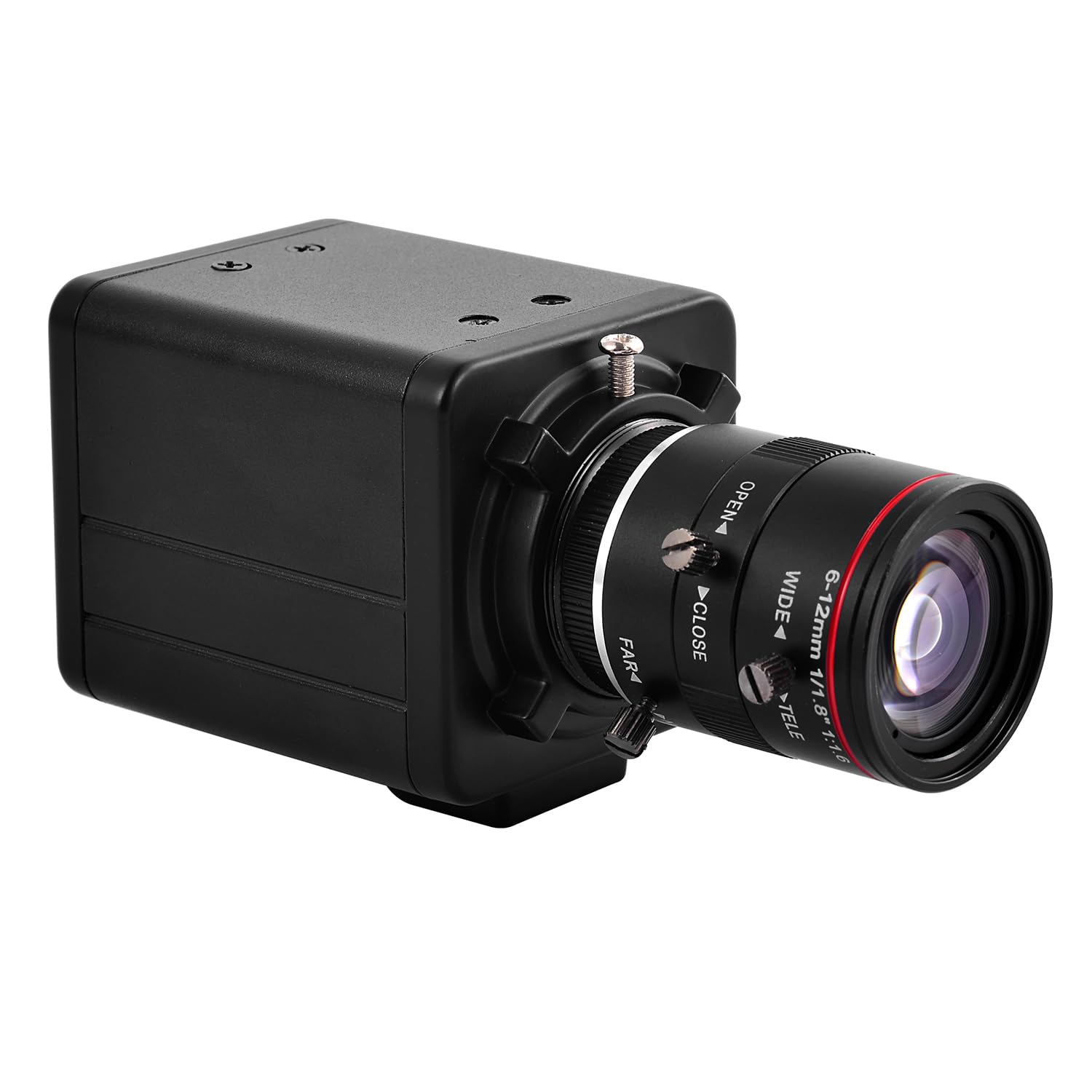
פיגורע 2.1: פראָנט view of the Vanxse VS-NXS612 camera with its varifocal lens.

פיגורע 2.2: איבערview of the camera's main features including human/vehicle detection, motion detection, PoE, and 2K 4MP resolution.
3. סעטאַפּ
3.1 גשמיות ינסטאַלירונג
The camera supports various mounting options including hoisting, wall mounting, and vertical mounting. The bracket hole installation block can be repositioned on the front or bottom of the camera for flexibility.

Figure 3.1: Camera dimensions for planning installation space.

Figure 3.2: Details on bracket installation and interface connections, including the DC 48V PoE Ethernet port and spare DC12V power input.
3.2 Power and Network Connection (PoE Plug and Play)
This camera supports Power over Ethernet (PoE), allowing both power and data transmission through a single Ethernet cable. This simplifies installation, especially in locations without a nearby power outlet. Connect the camera to a PoE NVR, PoE switch, or a router with a PoE injector.

Figure 3.3: Connection diagrams illustrating how to connect the camera with a PoE NVR, PoE switch, or a standard router.
3.3 מאָביל אַפּ פֿאַרבינדונג
פֿאַר ווייַט viewing and management, download the 'Xmeye' mobile application (or 'Linklemo' as shown in some diagrams) on your iPhone or Android smartphone. Follow the in-app instructions to register an account and add your camera.
- Download the 'Xmeye' or 'Linklemo' app from the App Store or Google Play.
- עפֿענען די אַפּ, רעגיסטרירן אַ חשבון און קלאָץ אין.
- Add devices by connecting the camera to your NVR or switch first.
- Successfully add the camera to enjoy live video.

Figure 3.4: Step-by-step guide for connecting the camera to the mobile application.
Download Linklemo for iOS: אַפּ סטאָר
Download Linklemo for Android: גוגל שפּיל
3.4 PC Client and Web בלעטערער אַקסעס
The camera can also be accessed via a PC client (CMS software provided on the USB disk) or through a web browser (e.g., IE, Chrome, Firefox) by typing www.star4live.com. The CMS software allows for managing multiple cameras in one place.

Figure 3.5: Remote access options including mobile app, PC client, and web בלעטערער.
4. אַפּערייטינג ינסטרוקטיאָנס
4.1 Adjusting Zoom and Focus
The camera features a 6-12mm varifocal lens, allowing you to manually adjust the zoom and focus to suit different installation positions and viewing requirements. This adjustment is done directly on the lens barrel.

פיגורע 4.1: נאָענט-אַרויף view of the 6-12mm varifocal lens, showing adjustment rings for wide/tele and near/far focus.

Figure 4.2: Illustrates how zoom and focus can be adjusted for different surveillance needs.
4.2 AI Human and Vehicle Motion Detection
The camera's advanced AI technology supports human and vehicle motion detection. When human or vehicle movements are detected, they are marked on the screen, and the camera sends alerts to your phone or mailbox. This feature helps reduce false alarms from non-relevant movements.

פיגורע 4.3: עקסample of a human detection alert displayed on a mobile phone, highlighting the detected human in a red box.
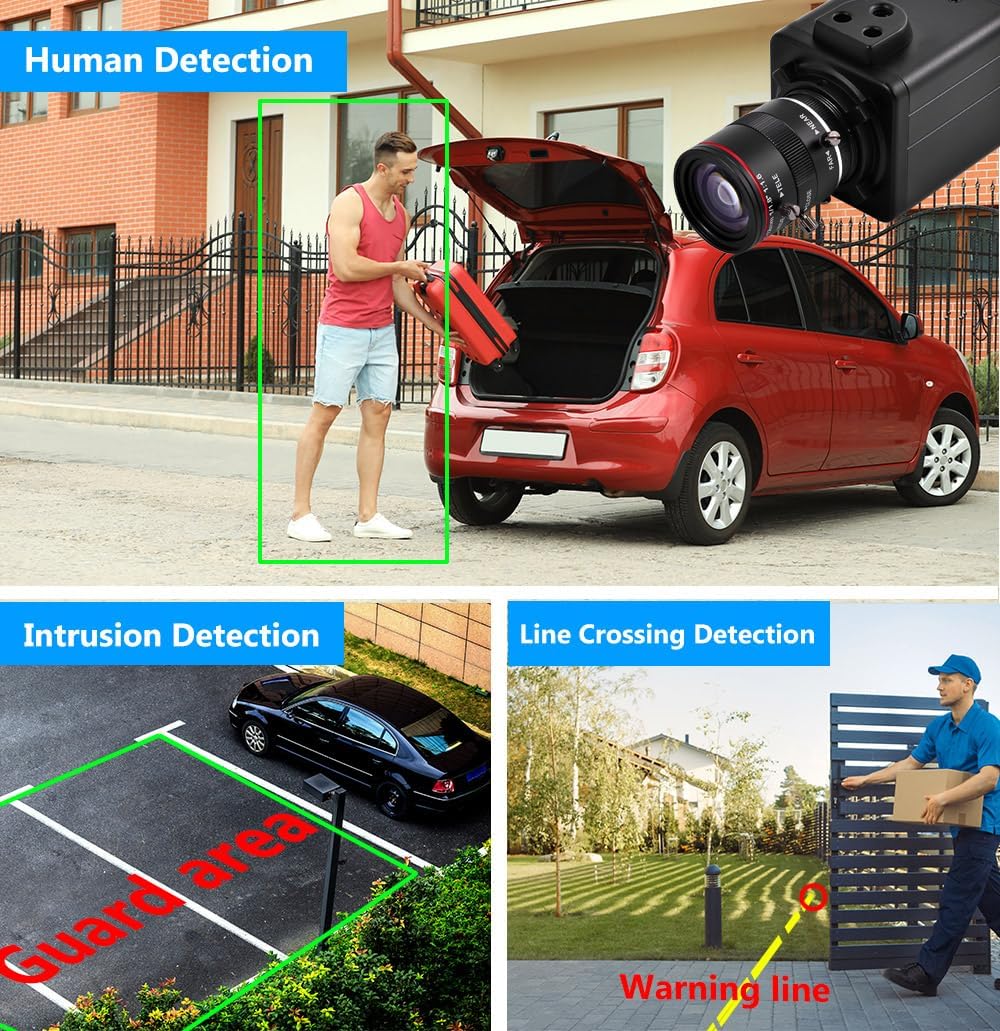
פיגור 4.4: וויזועלע ביישפילamples of human detection, intrusion detection (guard area), and line crossing detection.
4.3 Face Record and Playback
The camera supports face record functionality, allowing it to detect and record faces. This feature can be used for later playback and identification.

Figure 4.5: Demonstrates face detection and the ability to playback recorded video segments based on detected faces.
5. וישאַלט
רעגולערע אויפהאלטונג גאראנטירט אפטימאלע פאָרשטעלונג און לאַנגלעבעדיקייט פון אייער זיכערהייט קאַמעראַ.
- לענס רייניקונג: Gently clean the camera lens with a soft, lint-free cloth. For stubborn dirt, use a lens cleaning solution designed for optical surfaces. Avoid abrasive materials that could scratch the lens.
- הויז רייניקונג: Wipe the camera housing with a damp שטאָף. דו זאלסט נישט נוצן האַרב קעמיקאַלז אָדער סאָלוואַנץ.
- Firmware דערהייַנטיקונגען: קאָנטראָלירט פּעריִאָדיש דעם פאַבריקאַנט'ס website or app for available firmware updates. Keeping the firmware updated can improve performance, add new features, and enhance security.
- קאַבלע דורכקוק: קאָנטראָלירט רעגולער אַלע קייבלס פֿאַר יעדע סימן פֿון טראָגן, שאָדן, אָדער לויזע פֿאַרבינדונגען. מאַכט זיכער אַז אַלע פֿאַרבינדונגען זענען זיכער.
- ענוויראָנמענטאַל שוץ: While rated for indoor/outdoor use, ensure the camera is installed in a location that minimizes direct exposure to extreme weather conditions to prolong its lifespan.
6. טראָובלעשאָאָטינג
If you encounter issues with your Vanxse VS-NXS612 camera, refer to the following common troubleshooting steps.
6.1 No Video Feed / Offline Camera
- טשעק מאַכט: Ensure the camera is receiving power. If using PoE, verify the PoE NVR or switch is functioning correctly and the Ethernet cable is securely connected. If using a DC12V adapter, ensure it is plugged in and working.
- קוק נעץ קאַנעקשאַן: Confirm the Ethernet cable is properly connected to both the camera and the network device (NVR/switch/router). Test the cable if possible.
- נעץ קאַנפיגיעריישאַן: Verify the camera's IP address and network settings are correct and not conflicting with other devices on your network. Use the CMS software or ONVIF tools to check network parameters.
- ריסטאַרט דעוויסעס: Try restarting the camera, NVR/switch, and router.
6.2 Poor Image Quality / Unclear Video
- ריין לענס: Ensure the camera lens is clean and free from dust, smudges, or condensation.
- אַדזשאַסטירן פאָקוס און זום: Manually adjust the varifocal lens for optimal focus and desired zoom level.
- לייטינג טנאָים: Ensure adequate lighting in the surveillance area. The camera has WDR (Wide Dynamic Range) for challenging lighting, but extreme conditions can still affect quality.
- האַכלאָטע סעטטינגס: Check the video resolution settings in the app or CMS software to ensure it is set to 2K 4MP.
6.3 Motion Detection Not Working / False Alarms
- סענסיטיוויטי סעטטינגס: Adjust the motion detection sensitivity in the camera's settings via the app or CMS software.
- דעטעקשאַן זאָנעס: Configure specific detection zones to exclude areas with constant, irrelevant movement (e.g., trees swaying).
- AI Feature Activation: Ensure human and vehicle detection features are enabled in the settings.
6.4 Video Lag / Delay
- נעץ באַנדווידט: Check your network's bandwidth. Insufficient bandwidth can cause video lag, especially with high-resolution streams.
- נעץ קאַנדזשעסטשאַן: Reduce other network activities that might be consuming bandwidth.
- NVR/Viewing Device Performance: Ensure your NVR or viewing device has sufficient processing power to handle the 4MP video stream.
- פירמוואַרע: מאַכן זיכער אַז די אַפּאַראַט פירמוואַרע איז דערהייַנטיקט.
6.5 Web Interface Issues
- בלעטערער קאַמפּאַטאַבילאַטי: פּרוּווט אַקסעס די web interface with different browsers (e.g., IE, Chrome, Firefox). Some interfaces may require specific browser plugins.
- פּלוגין אינסטאַלאַציע: If prompted, install any necessary browser plugins or drivers for the web interface to function correctly.
- נעץ אַקסעס: Ensure the camera has proper network access and is not blocked by firewalls.
7. ספּעסאַפאַקיישאַנז
| מאָדעל נומער | VS-NXS612 |
| האַכלאָטע | 4 Megapixel (2304x1296) |
| לענס | 1/1.8" F1.6 6-12mm Varifocal Lens |
| קאַנעקטיוויטי | Ethernet, Wired, PoE |
| ספּעציעלע פֿעיִקייטן | 6-12mm Varifocal Lens, Face Recognize, HD Resolution, Mini Size, Motion Sensor, Human/Vehicle Detection, WDR |
| דרינענדיק / דרויסנדיק באַניץ | דרינענדיק, דרויסנדיק |
| קאַמפּאַטאַבאַל דעוויסעס | Desktop, Digital Video Recorder, Laptop, Smartphone, Tablet |
| קאָנטראָללער טיפּ | Xmeye |
| בארג טיפּ | Ceiling Mount/Wall Mount |
| פאָרם פאַקטאָר | קויל |
| פלינק טיפּ | בלויז באַוועגונג |
| עפעקטיוו נאָך האַכלאָטע | 4 מפּ |
| קאָנטראָל מעטאָד | ווייַט |
| ווירעלעסס טעכנאָלאָגיע | POE |
| ווידעא קאַפּטורע רעסאָלוטיאָן | 1920p (Note: Product title states 2K 4MP, 1920p is 2MP. Please refer to product packaging for exact resolution.) |
| מאַכט מקור | Corded Electric/POE |
| נומער דימענשאַנז | 4 X 1.8 X 1.8 אינטשעס |
| ווידעא קאַפּטורע פֿאָרמאַט | עמפּעג-4 |
8. וואָראַנטי און שטיצן
8.1 וואָראַנטי אינפֿאָרמאַציע
Warranty details for the Vanxse VS-NXS612 camera are typically provided at the point of purchase or included with the product packaging. Please retain your proof of purchase for warranty claims. For specific warranty terms and conditions, refer to the documentation provided by your retailer or contact Vanxse customer support.
8.2 קונה שטיצן
For technical assistance, troubleshooting, or any questions regarding your Vanxse security camera, please contact Vanxse customer support through their official website or the contact information provided in your product documentation. You may also find helpful resources and FAQs on the Vanxse brand store page on Amazon.