
הקדמה
This manual provides detailed instructions for the GAMFAMI TERIOS Wireless Controller. Please read this manual carefully before using the product to ensure proper operation and to maximize your gaming experience. This controller is designed for use with PlayStation 4, PS4 Pro, and PS4 Slim consoles.
פּראָדוקט פֿעיִקייטן
- האַל עפֿעקט דזשויסטיקס: Equipped with Hall joysticks to prevent drift and ensure a longer lifespan with smooth, precise control.
- מאַקראָ פּראָגראַממינג: Two programmable back buttons (M1, M2) allow mapping of various inputs (X, O, Triangle, Square, Up, Down, Left, Right, L3, R3, L1, R1, L2, R2) for enhanced gameplay.
- ווירעלעסס קאַנעקטיוויטי: Enjoy a seamless wireless gaming experience with Bluetooth technology.
- Dual Shock Vibration: Enhanced dual shock motors provide immersive haptic feedback for a realistic gaming experience.
- טורבאָ פונקציע: Activate the Turbo feature for rapid, repeated button presses, offering a competitive advantage.
- לאַנג-בלייַביק באַטערי: Features a 1000mAh rechargeable battery for extended play sessions.
- ערגאָנאָמיק פּלאַן: Lightweight and durable ABS construction with textured grips for comfortable handling.
- Built-in Speaker & 3.5mm Audio Jack: Provides high-quality audio directly from the controller and supports headset connection.
פּעקל אינהאַלט
ביטע טשעק די אינהאַלט פון די פּאַקעט ווען איר עפֿנט עס אויס:
- GAMFAMI TERIOS Wireless Controller
- וסב טשאַרדזשינג קאַבלע
- ינסטראַקשאַנז מאַנואַל
קאָנטראָללער אויסלייג
Familiarize yourself with the buttons and features of your GAMFAMI TERIOS Wireless Controller.
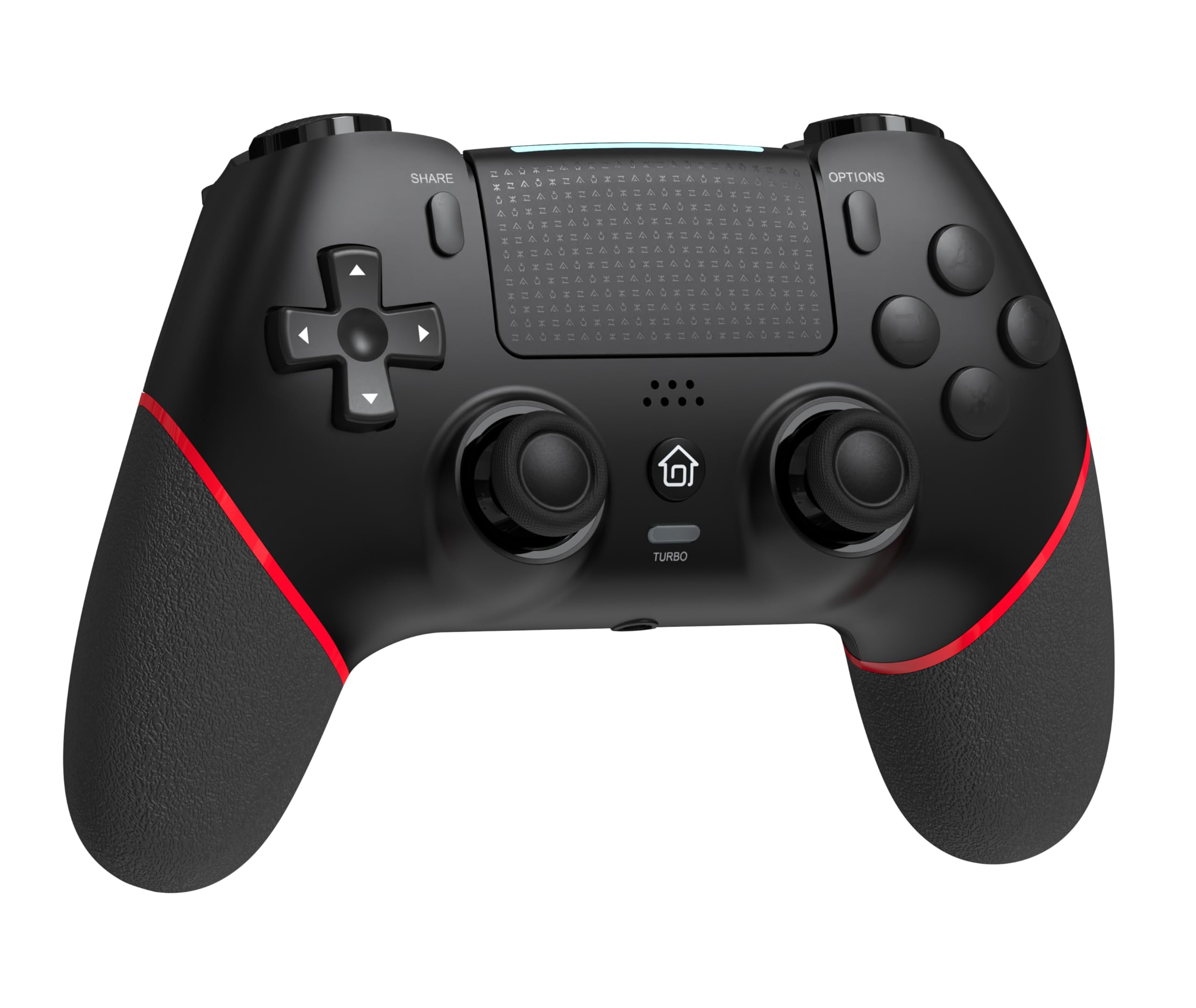
פראָנט view of the GAMFAMI TERIOS Wireless Controller, showing the joysticks, D-pad, action buttons, Share, Options, Home, and Turbo buttons, and the touchpad.
- ריכטונגס-פאד (די-פאד): פֿאַר דירעקציאָנעלער אינפֿוט.
- אַקציע קנעפּלעך (דרייעק, קרייז, קרייץ, קוואַדראַט): Standard PlayStation action buttons.
- לינקס/רעכטס אנאלאג שטעקנס: For precise movement and camera control. Features Hall Effect technology.
- טיילן קנעפּל: For sharing gameplay content.
- אָפּציעס קנעפּל: For in-game menus and options.
- PS Button (Home Button): To access the PS4 system menu.
- L1/R1 קנעפּלעך: אַקסל קנעפּלעך.
- L2/R2 טריגערס: Analog triggers.
- טאָוטשפּאַד: Multi-touch input area.
- M1/M2 קנעפּלעך: Programmable back buttons.
- TURBO קנעפּל: Activates/deactivates turbo function.
- 3.5 מם כעדסעט דזשאַק: For connecting a compatible headset.
- וסב- C פּאָרט: פֿאַר טשאַרדזשינג און דראָט פֿאַרבינדונג.

צוריק view of the controller, highlighting the M1 and M2 programmable buttons and product information.
סעטאַפּ און קאַנעקשאַן
Pairing with PS4/PS4 Pro/PS4 Slim
- זייט זיכער אז אייער PS4 קאנסאל איז אנגעצונדן.
- Connect the controller to your PS4 console using the included USB charging cable.
- Press the PS button on the controller. The light bar will flash, indicating it is pairing.
- Once the light bar turns solid, the controller is successfully paired and ready for use.
- You can now disconnect the USB cable for wireless play.
Reconnecting to PS4
After initial pairing, simply press the PS button on the controller to reconnect wirelessly to your PS4 console.
אַפּערייטינג ינסטראַקשאַנז
ניצן די טורבאָ פֿונקציע
- דריקן און האַלטן די TURBO קנעפּל.
- בשעת האלטן TURBO, press the action button (e.g., Cross, Circle, Square, Triangle, L1, R1, L2, R2) you wish to apply the turbo function to.
- Release both buttons. The selected action button will now rapidly repeat its input when held down.
- To disable turbo for a specific button, repeat the process: hold TURBO and press the turbo-enabled action button.
- To disable turbo for all buttons, press and hold the TURBO קנעפּל פֿאַר 5 סעקונדעס.
Macro Programming (M1/M2 Buttons)
The M1 and M2 buttons on the back of the controller can be programmed to replicate other button inputs.
- דריקן און האַלטן די ייַנטיילן קנעפּל און די M1 or M2 button simultaneously for 3 seconds until the light bar flashes rapidly. This indicates macro programming mode.
- Press the button(s) you wish to map to M1 or M2 (e.g., X, O, Triangle, Square, Up, Down, Left, Right, L3, R3, L1, R1, L2, R2). You can map a single button or a sequence of buttons.
- דרוק די M1 or M2 button again to save the macro. The light bar will stop flashing rapidly and return to its normal state.
- To clear a macro, repeat step 1, then press the M1 or M2 button twice without pressing any other buttons.

Illustration of the advanced buttons and their programming capabilities.
טשאַרדזשינג און באַטאַרייע פאַרוואַלטונג
דער קאָנטראָללער איז אויסגעשטאַט מיט אַ 1000mAh ריטשאַרדזשאַבאַל באַטאַרייע.
טשאַרדזשינג די קאָנטראָללער
- Connect the included USB charging cable to the USB-C port on the controller.
- Connect the other end of the cable to a USB port on your PS4 console (when powered on or in rest mode) or a compatible USB wall adapter (5V/1A recommended).
- The light bar on the controller will slowly pulse orange while charging.
- Once fully charged, the light bar will turn off.
באַטערי מדרגה ינדיקאַטיאָן
The controller's light bar will indicate battery status. A low battery will cause the light bar to flash red. It is recommended to charge the controller when this occurs.
וישאַלט
- רייניקונג: ניצט אַ ווייכע, טרוקענע שטאָף צו רייניקן דעם קאָנטראָללער. ניצט נישט קיין שאַרפע כעמיקאַלן אָדער אַברייסיוו מאַטעריאַלן.
- סטאָרידזש: האַלט דעם קאָנטראָללער אין אַ קיל, טרוקן אָרט אַוועק פון דירעקט זונשייַן און עקסטרעמע טעמפּעראַטורן.
- ויסמיידן טראפנס: באַשיצן דעם קאָנטראָללער פֿון פֿאַלן און קלאַפּן, וואָס קענען שעדיקן אינעווייניקסטע קאָמפּאָנענטן.
טראָובלעשאָאָטינג
| פּראָבלעם | לייזונג |
|---|---|
| Controller does not connect/pair. |
|
| Controller experiences input lag or disconnection. |
|
| Joysticks exhibit drift. |

Illustration of Hall Effect joystick technology, designed to prevent drift. |
| Controller does not charge. |
|
ספּעסאַפאַקיישאַנז
| מאָדעל נאָמען | TERIOS |
| סאָרט | GAMFAMI |
| קאַמפּאַטאַבאַל דעוויסעס | PS4, PS4 Pro, PS4 Slim |
| קאָנטראָללער טיפּ | גאַמעפּאַד |
| קאַנעקטיוויטי טעכנאָלאָגיע | בלועטאָאָטה (וויירלעסס) |
| מאַכט מקור | באַטאַרייע פּאַוערד |
| באַטאַרייע קאַפּאַציטעט | 1000 מאַה |
| פּונקט וואָג | 0.37 קילאָגראַמס |
| קאָליר | שוואַרץ רויט |
וואָראַנטי און שטיצן
For warranty information and technical support, please refer to the documentation included with your purchase or visit the official GAMFAMI webזייטל. האַלט אייער קויף קוויטל ווי אַ באַווייַז פון קויפן פֿאַר קיין וואָראַנטי קליימז.
For further assistance, please contact GAMFAMI customer service through their official channels.