
1. הקדמה
This manual provides essential information for setting up, operating, maintaining, and troubleshooting your TRIGKEY Mini PC S7 Pro AMD Ryzen 7 7840HS. Please read this manual thoroughly before using the device to ensure optimal performance and longevity.
2. פּעקל אינהאַלט
באַשטעטיקן אַז אַלע זאכן זענען פאַראַן אין פּעקל:
- 1 x TRIGKEY Mini PC S7 Pro
- 1 x Power Adapter (EU plug)
- 1 x באַניצער מאַנואַל
- 1 x וועסאַ מאָונט
- 2 x HDMI Cables (100 cm and 25 cm)
3. פּראָדוקט איבערview
Familiarize yourself with the ports and features of your Mini PC.

פיגור 3.1: פראָנט פּאַנעל איבערview
This image displays the front panel of the TRIGKEY Mini PC S7 Pro, highlighting the power button, audio jack, and USB ports for easy access.
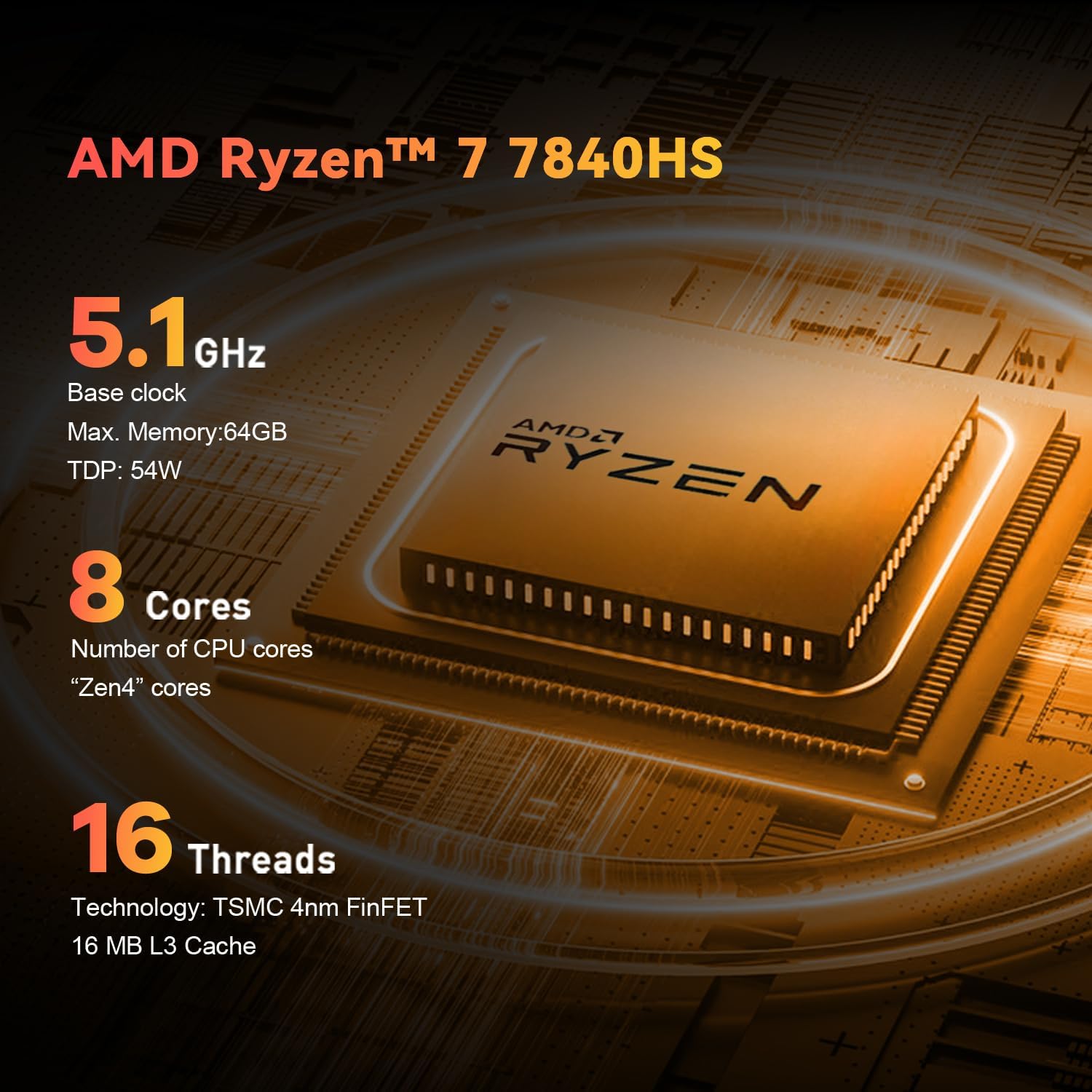
Figure 3.2: Rear Panel Overview
This image illustrates the rear panel of the TRIGKEY Mini PC S7 Pro, detailing the power input, HDMI, DisplayPort, USB, and Ethernet connections.
3.1. פראָנט פּאַנעל פּאָרץ
- מאַכט קנעפּל: דרוק צו מאַכט אויף / אַוועק די מיטל.
- 3.5 מם אַודיאָ דזשאַק: פֿאַר כעדפאָונז אָדער מיקראָפאָנען.
- Type-C (10Gbps): הויך-גיכקייט דאַטן אַריבערפירן און אַרויסווייַזן רעזולטאַט.
- USB 3.2 (10Gbps) x2: הויך-גיכקייט דאַטן אַריבערפירן פֿאַר פּעריפעראַלס.
- CLR CMOS: Button to clear CMOS settings (use with caution).
3.2. הינטערשטע פּאַנעל פּאָרטן
- DC Jack: פאַרבינדן די מאַכט אַדאַפּטער דאָ.
- HDMI 2.0 (4K 60Hz): פאַרבינדן צו אַ אַרויסווייַזן.
- DP 1.4 (Max 4K 144Hz): פאַרבינדן צו אַ אַרויסווייַזן.
- USB 2.0 (480Mbps): For standard peripherals.
- USB4 (40Gbps/DP1.4): High-speed data, display output, and power delivery.
- RJ45 2.5G: פֿאַר אַ דראָטיקער נעץ פֿאַרבינדונג.
4. סעטאַפּ אינסטרוקציעס
4.1. קאַנעקטינג פּעריפעראַלס
- Connect your monitor(s) to the HDMI, DisplayPort, or USB4 ports using the provided HDMI cables or compatible cables.
- פֿאַרבינדט אייער קלאַוויאַטור און מויז צו אַלע פֿאַראַן USB פּאָרץ.
- For wired internet, connect an Ethernet cable to the RJ45 port.
4.2. פּאַוערינג אויף
- Connect the power adapter to the DC Jack on the Mini PC.
- צאַפּן די מאַכט אַדאַפּטער אין אַ מאַכט ווענטיל.
- Press the Power Button on the front panel. The power LED will illuminate.
4.3. Initial Operating System Setup
The Mini PC comes with an activated OS Pro system. Upon first boot, follow the on-screen instructions to complete the initial setup, including language, region, and user account creation. The device also supports other operating systems like WOS and Ubuntu, which can be installed by the user if desired.
5. אַפּערייטינג ינסטרוקטיאָנס
5.1. מולטי-דיספּליי קאָנפיגוראַציע
The TRIGKEY Mini PC S7 Pro supports up to three displays simultaneously, with resolutions up to 4K at 120Hz/160Hz, utilizing the HDMI, DisplayPort, and USB4 outputs. This allows for enhanced productivity and immersive visual experiences.

Figure 5.1: Triple Display Support
This image demonstrates the capability of the Mini PC to connect to and drive three independent displays, enhancing multitasking and visual workspace.
5.2. נעץ קאַנעקטיוויטי
- Wi-Fi 6: פֿאַרבינדט זיך צו וויירלעס נעטוואָרקס פֿאַר הויך-גיכקייט אינטערנעט אַקסעס.
- בלועטאָאָטה 5.2: Pair with wireless peripherals such as keyboards, mice, and audio devices.
- 2.5G Ethernet: For stable and high-bandwidth wired network connections.
5.3. אַוואַנסירטע פֿעיִקייטן
- Network Wake-up (Wake-on-LAN): Allows the Mini PC to be powered on remotely via the network.
- Power Wake-up: Configurable to automatically power on the device at a scheduled time or after a power loss.
6. וישאַלט און ופּגראַדעס
6.1. רייניקונג
Regularly clean the exterior of the Mini PC with a soft, dry cloth. Use compressed air to clear dust from ventilation openings to maintain optimal airflow and cooling efficiency. Ensure the device is powered off and unplugged before cleaning.

Figure 6.1: CPU Silent Fan and Heat Sink
This diagram illustrates the internal cooling components, including the silent fan, heat pipe, and heat fins, designed for efficient heat dissipation.
6.2. ראַם אַפּגרעיד
The Mini PC supports DDR5 5600MHz RAM and has two SO-DIMM slots, allowing for a maximum of 64GB RAM (32GB per slot). To upgrade, carefully open the chassis, locate the RAM slots, and install compatible DDR5 SO-DIMM modules.

Figure 6.2: DDR5 5600MHz RAM Upgrade
This image highlights the DDR5 5600MHz RAM modules, indicating the upgrade potential for system memory.
6.3. Storage Upgrade
The device features dual PCIe 4.0 NVMe SSD slots for high-speed storage. You can upgrade or add additional M.2 2280 NVMe SSDs to expand storage capacity or improve performance. Ensure new SSDs are compatible with the PCIe 4.0 standard.

Figure 6.3: Dual PCIe 4.0 NVMe SSDs
This image illustrates the dual PCIe 4.0 NVMe SSD slots, emphasizing the high-speed and low-latency storage capabilities.
7. טראָובלעשאָאָטינג
If you encounter issues with your Mini PC, refer to the following common troubleshooting steps:
- קיין מאַכט: זיכער מאַכן אַז דער מאַכט אַדאַפּטער איז זיכער פארבונדן צו ביידע די מיני פּיסי און אַ אַרבעטנדיק מאַכט אַוטלעט. פּרוּווט אַן אַנדער אַוטלעט.
- קיין ווייַז: Check all display cable connections (HDMI, DP, USB4) to the monitor and the Mini PC. Ensure the monitor is set to the correct input source. Try connecting to a different display or using a different cable.
- קיין אינטערנעט פֿאַרבינדונג: For wired connections, check the Ethernet cable and router status. For Wi-Fi, ensure Wi-Fi is enabled in the operating system and you are connected to the correct network with the correct password.
- פּעריפעראַל נישט דעטעקטירט: פרובירט צו פארבינדן דעם פּעריפערישן קאָמפּיוטער צו אַן אַנדערן USB פּאָרט. זיכערט זיך אַז דרייווערס זענען אינסטאַלירט אויב דאָס פּעריפערישע קאָמפּיוטער פארלאנגט עס.
- סיסטעם פארלאנגזאמונג: Check for background applications consuming resources. Ensure sufficient free storage space. Consider upgrading RAM or SSD if performance issues persist.
- איבערהייצונג: Ensure the Mini PC has adequate ventilation and is not placed in an enclosed space. Clean dust from the vents.
- BIOS/CMOS Reset: If experiencing boot issues, use the CLR CMOS button on the front panel (refer to section 3.1) to reset BIOS settings to default. Power off and unplug the device before performing this action.
8. ספּעסאַפאַקיישאַנז
Detailed technical specifications for the TRIGKEY Mini PC S7 Pro AMD Ryzen 7 7840HS.

Figure 8.1: Gaming Performance Overview
This image presents benchmark results for various games, demonstrating the Mini PC's graphical capabilities and expected frame rates.
| שטריך | באַשרייַבונג |
|---|---|
| מאָדעל נאָמען | S7 Pro 7840HS |
| נומער מאָדעל נומער | S6 6600H |
| פּראַסעסער | AMD Ryzen 7 7840HS (8 קערנס, 16 פֿעדעם, ביז 5.1 GHz) |
| גראַפיקס | Integrated AMD Radeon 780M (12 CUs, 2700 MHz) |
| באַראַן | 32GB DDR5 (5600MHz), 2 SO-DIMM slots, Max 64GB |
| סטאָרידזש | 500GB PCIe 4.0 NVMe SSD, Dual M.2 2280 slots |
| אָפּערייטינג סיסטעם | OS Pro (activated), supports WOS, Ubuntu |
| ווירעלעסס קאַנעקטיוויטי | Wi-Fi 6 (802.11ax), בלועטוט 5.2 |
| ווייערד קאַנעקטיוויטי | RJ45 2.5G Ethernet |
| ווידעא רעזולטאַט | HDMI 2.0 (4K 60Hz), DisplayPort 1.4 (Max 4K 144Hz), USB4 (DP1.4) |
| וסב פּאָרץ | 2 x USB 3.2 Gen2 (10Gbps), 1 x USB 2.0 (480Mbps), 1 x USB4 (40Gbps) |
| אַודיאָ פּאָרץ | 1 x 3.5 מ״מ אַודיאָ דזשעק (HP&MIC) |
| דימענשאַנז | 16 X 13.9 X 10.2 סענטימעטער |
| וואָג | 1.13 קג |
| קאָאָלינג אופֿן | לופט קאָאָלינג |
9. וואָראַנטי און שטיצן
TRIGKEY provides comprehensive support for your Mini PC:
- וואָראַנטי: איין יאָר לימיטעד וואָראַנטי פֿון די דאַטע פון קויפן.
- קונה סערוויס: 24/7 personalized customer service.
- טעכניש שטיצן: Lifetime technical support is available for all TRIGKEY products.
For technical assistance or warranty claims, please refer to the contact information provided on the TRIGKEY official webוועבזייטל אדער אייער קויפן דאקומענטאציע.