
BSP D9
BSP D9 Game Controller User Manual
מאָדעל: D9
1. הקדמה
The BSP D9 Game Controller is a versatile gaming accessory designed to enhance your mobile and PC gaming experience. It supports a wide range of devices including iPhones, iPads, Android phones and tablets, PCs, Nintendo Switch, and PlayStation consoles. Featuring advanced Hall Effect joysticks and triggers, programmable back buttons, and a stretchable design, the D9 controller provides precise control and comfortable gameplay across various platforms.
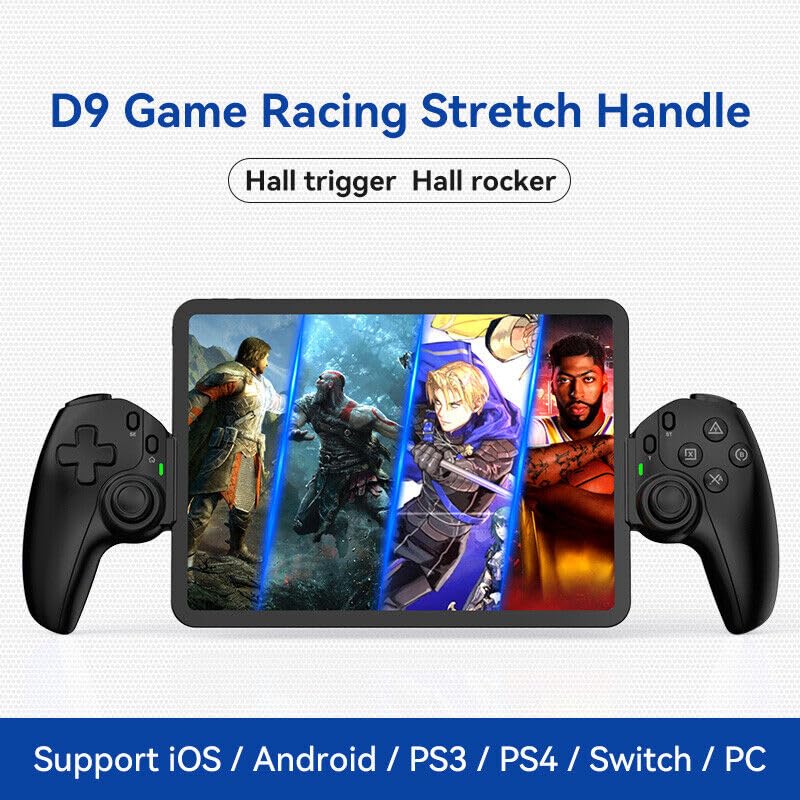
Figure 1.1: The BSP D9 Game Controller attached to a tablet, showcasing its design and compatibility with mobile gaming.
2. פּראָדוקט איבערview: Key Details
Familiarize yourself with the various buttons and components of your D9 Game Controller.

Figure 2.1: Detailed diagram of the D9 controller's button layout, including the Cross Key, SELECT, HOME, START, A/B/X/Y buttons, L1/R1, L2/R2 triggers, M1/M2 back buttons, Left/Right Sticks (L3/R3), Status Indicator, and Charging Indicator.
- Cross Key (D-Pad): ריכטונגס-איינגאב.
- Left Stick/L3: Left analog joystick, press down for L3.
- SELECT קנעפּל: Function button, typically for menu selection.
- HOME קנעפּל: Power on/off, mode switching, return to home screen.
- סטאַטוס ינדיקאַטאָר: Shows connection status and mode.
- טשאַרדזשינג ינדיקאַטאָר: Displays battery charging status.
- Right Stick/R3: Right analog joystick, press down for R3.
- A/B/X/Y קנעפּלעך: נאָרמאַלע אַקציע קנעפּלעך.
- אָנהייב קנעפּל: Function button, typically for pausing or starting games.
- TURBO קנעפּל: Activates/deactivates turbo function for assigned buttons.
- L1/R1 קנעפּלעך: אַקסל קנעפּלעך.
- L2/R2 טריגערס: Analog triggers.
- M1/M2 קנעפּלעך: Programmable back buttons.
3. פֿעיִקייטן
3.1 Hall Effect Triggers and Joysticks
The D9 controller is equipped with advanced Hall Effect technology for both its triggers and joysticks. This provides superior precision and durability compared to traditional potentiometers.

Figure 3.1: Explanation of Hall Effect Triggers and Joysticks, highlighting 0.1mm accuracy for triggers and benefits like no drift issues, no dead zone, long lifespan, and precise control for joysticks.
- האַל עפֿעקט טריגערס: Provide 0.1mm accuracy for precise micro-operations in games.
- האַל עפֿעקט דזשויסטיקס: Eliminate drift issues, maintain stable trajectory, offer precise positioning, and provide a smooth feel without stuttering.
3.2 טורבאָ פונקציע
The Turbo function allows you to set automatic rapid firing for specific buttons, giving you an advantage in fast-paced games.

Figure 3.2: The Turbo function allows setting A/B/X/Y, L1/R1, L2/R2 buttons for rapid fire. Three adjustable turbo speeds are available: 8 shots/s, 15 shots/s, and 25 shots/s.
3.3 מאַקראָ פּראָגראַמירן פונקציע
The M1 and M2 back buttons can be programmed to execute complex key combinations with a single press, reducing repetitive actions and extending controller lifespan.

Figure 3.3: Instructions for setting and canceling macro programming on the M1 and M2 back buttons. Macros can be assigned to A/B/X/Y/L1/R1/L2/R2/Cross Key combinations.
3.4 Stretchable Design
The controller features a stretchable design to accommodate a wide range of smartphones and tablets, ensuring a secure fit and comfortable grip.

Figure 3.4: The controller supports device lengths from 130mm to 280mm (5-11 inches) and a maximum thickness of 13mm. It is perfectly compatible with iPhone 15 series and supports silicone & clear phone cases.
4. קאַמפּאַטאַבילאַטי
The BSP D9 Game Controller offers broad compatibility with various operating systems and gaming platforms, transforming your mobile device into a portable gaming console.

Figure 4.1: The controller supports streaming & cloud gaming (PS Remote Play, Xbox Game Pass, Steam Link, Rainway, NVIDIA GeForce NOW, Moonlight Game Streaming, Apple Arcade), direct play on iOS devices (Genshin Impact, Call of Duty Mobile, Diablo Immortal, Minecraft, Roblox), and direct play on Android devices (Call of Duty Mobile, Diablo Immortal, Minecraft, NBA 2K, Asphalt).
- אַפּערייטינג סיסטעמס: iOS, Android, Windows (PC).
- קאָנסאָלעס: Nintendo Switch, PlayStation (PS3, PS4, PS5 via remote play).
- וואָלקן גיימינג: Supports services like Xbox Game Pass, PS Remote Play, Steam Link, NVIDIA GeForce NOW, and more.
- Direct Play: Compatible with popular mobile games on both iOS and Android.
5. סעטאַפּ
5.1 טשאַרדזשינג די קאָנטראָללער
- Connect the provided USB-C charging cable to the charging port on the controller.
- פֿאַרבינדט דעם אַנדערן עק פֿונעם קאַבל צו אַ USB מאַכט מקור (למשל, קאָמפּיוטער USB פּאָרט, וואַנט אַדאַפּטער).
- The Charging Indicator light will illuminate during charging and turn off when fully charged.
5.2 Inserting Your Device
- Gently pull the two sides of the controller apart to extend the stretchable mechanism.
- Carefully place your smartphone or tablet into the central slot, ensuring it is securely seated. The controller supports devices with lengths between 130mm and 280mm and a maximum thickness of 13mm.
- The controller is designed to accommodate devices with slim cases.
5.3 Connecting to Your Device (Bluetooth Pairing)
The connection method varies slightly depending on your device's operating system.
פֿאַר אַנדרויד דעוויסעס:
- דריקן און האַלטן די היים button until the Status Indicator light begins to flash rapidly, indicating pairing mode.
- אויף אייער אַנדרויד מיטל, גייט צו סעטטינגס > בלועטאָאָטה און אַקטיווירן בלועטוט.
- זוכן פֿאַר available devices and select "BSP-D9" or similar from the list.
- Once connected, the Status Indicator light on the controller will become solid.
פֿאַר יאָס דעוויסעס:
- דריקן און האַלטן די היים button until the Status Indicator light begins to flash rapidly.
- אויף אייער iOS דעווייס, גייט צו סעטטינגס > בלועטאָאָטה און אַקטיווירן בלועטוט.
- זוכן פֿאַר available devices and select "Xbox Wireless Controller" or "DUALSHOCK 4 Wireless Controller" (depending on the mode the D9 emulates for iOS compatibility) from the list.
- Once connected, the Status Indicator light on the controller will become solid.
For PC/Switch/PS (Wired/Wireless):
Refer to the specific connection instructions provided with your controller for PC, Switch, or PS modes, as these may involve different button combinations or wired connections.
6. אַפּערייטינג ינסטרוקטיאָנס
6.1 גרונטלעכע קנעפּל פונקציעס
Refer to Section 2, "Product Overview: Key Details," for the layout and basic functions of all buttons (Cross Key, A/B/X/Y, L1/R1, L2/R2, Joysticks, SELECT, START, HOME).
6.2 ניצן די טורבאָ פונקציע
- דריקן און האַלטן די TURBO קנעפּל.
- בשעת האלטן TURBO, press the button you wish to assign the turbo function to (e.g., A, B, X, Y, L1, R1, L2, R2). The button will now have turbo enabled.
- To adjust the turbo speed, press and hold TURBO and then press the Right Stick (R3) up or down to cycle through the 3 available speeds (8, 15, 25 shots/s).
- To cancel the turbo function for a specific button, press and hold TURBO and press the assigned button again.
- To clear all turbo settings, press and hold TURBO and then press the SELECT button.
6.3 Programming Macro Buttons (M1/M2)
The M1 and M2 back buttons can be programmed to store a sequence of button presses.
How to Set a Macro:
- דריקן און האַלטן די אויסקלייַבן קנעפּל און די M1 (or M2) key for 2 seconds. The LED indicator light will flash quickly.
- Press the key(s) you want to set for the macro programming function (e.g., A+B+X+Y).
- After setting the sequence, press the M1 (or M2) key again. The LED light will become solid, indicating that the setting is complete.
- Once set, pressing M1 (or M2) will automatically execute the programmed key combination.
How to Cancel a Macro:
- דריקן און האַלטן די אויסקלייַבן קנעפּל און די M1 (or M2) key for 2 seconds. The LED indicator light will flash quickly.
- דרוק די M1 (or M2) key again to clear the macro programming. (Note: Do not press other buttons at this time). The LED light will remain solid to confirm the setting is cleared.
7. וישאַלט
- רייניקונג: ניצט אַ ווייכע, טרוקענע שטאָף צו רייניקן דעם קאָנטראָללער. ניצט נישט קיין שרײַבנדיקע רייניגערס אדער סאָלווענטן.
- סטאָרידזש: האַלט דעם קאָנטראָללער אין אַ קיל, טרוקן אָרט אַוועק פון דירעקט זונשייַן און עקסטרעמע טעמפּעראַטורן.
- באַטערי זאָרגן: כדי צו פארלענגערן די לעבן פון די באַטעריע, זאָלט איר נישט אָפט אויסלאָדן דעם קאָנטראָללער. לאָדט עס אָפט אויף, אפילו אויב עס ווערט נישט גענוצט פאר לענגערע צייטן.
- ויסמיידן טראפנס: באַשיצן דעם קאָנטראָללער פֿון פֿאַלן און קלאַפּן, וואָס קענען שעדיקן אינעווייניקסטע קאָמפּאָנענטן.
8. טראָובלעשאָאָטינג
| פּראָבלעם | מעגלעך סיבה | לייזונג |
|---|---|---|
| קאָנטראָללער טוט נישט מאַכט אויף. | נידעריק באַטאַרייע. | Charge the controller for at least 30 minutes. |
| נישט מעגלעך צו פאַרבינדן דורך בלוטוט. | Controller not in pairing mode; Bluetooth interference; device Bluetooth off. | Ensure controller is in pairing mode (flashing LED). Turn off and on Bluetooth on your device. Move closer to the device. |
| קנעפּלעך אדער דזשויסטיקס רעאַגירן נישט. | פֿאַרבינדונג פּראָבלעם; ווייכווארג גליטש; פֿיזישע שעדיקן. | Reconnect the controller. Restart your device. If problem persists, contact customer support. |
| Device does not fit in the controller. | Device dimensions exceed supported limits. | Ensure your device length is between 130-280mm and thickness is max 13mm. Remove bulky cases. |
9. ספּעסאַפאַקיישאַנז
- מאָדעל: D9
- סאָרט: בספּ
- קאַנעקטיוויטי: Bluetooth, Wired (for PC/Switch/PS, specific modes may vary)
- Supported Device Length: 130 מ״מ - 280 מ״מ (5 - 11 אינטשעס)
- Supported Device Thickness: אַרויף צו 13 מם
- Joystick/Trigger Technology: האַלל אַפעקט
- פּראָגראַממאַבלע קנעפּלעך: M1, M2 (back buttons)
- טורבאָ פונקציע: Yes, with 3 adjustable speeds
- פאַבריקאַנט: ShenZhen ShanWan Technology Co., Ltd.
- ערשטער פאַראַנען דאַטע: 30 מערץ 2024
10. וואָראַנטי און שטיצן
For warranty information and technical support, please refer to the documentation included with your purchase or visit the official BSP product support webזייטל. האַלט דיין קויפן באַווייַז פֿאַר וואָראַנטי קליימז.
באַמערקונג: ספּעציפֿישע וואָראַנטי טערמינען און שטיצע קאָנטאַקט דעטאַילס קענען זיין אַנדערש לויט געגנט.
Ask a question about this manual
Ask about setup, troubleshooting, compatibility, parts, safety, or missing instructions. Manuals+ will review the question and use this page’s manual context to help answer it.