
1. זיכערקייַט אינפֿאָרמאַציע
Please read all instructions carefully before installation and operation. Failure to follow these instructions may result in damage to the product, vehicle, or personal injury. Keep this manual for future reference.
- Ensure the vehicle's ignition is off and the negative battery terminal is disconnected before installation to prevent electrical shorts.
- באַראַטן זיך מיט אַ פאַכמאַן פֿאַר ינסטאַלירונג אויב איר זענט נישט זיכער וועגן קיין שריט.
- ניצט נישט דעם אפאראט אויף א וועג וואס זאל אייך אפlenken פונעם דרייווינג. שטעלט שטענדיג אין פריאריטעט פאר וועג זיכערהייט.
- פֿאַרמײַדן אויסצושטעלן דעם אַפּאַראַט צו עקסטרעמע טעמפּעראַטורן, דירעקטע זונשײַן, אָדער פֿײַכטקייט.
- Use only specified power cables and accessories.
2. פּעקל אינהאַלט
באַשטעטיקן אַז אַלע זאכן זענען פאַראַן אין פּעקל איידער איר גייט ווייטער מיט דער אינסטאַלאַציע.

Image: Components included in the UNITOPSCI A3612A3 package, including the main unit, wiring harnesses, and accessories.
- UNITOPSCI A3612A3 Car Stereo Unit
- Power Cable & Speaker Cable Harnesses
- סטירינג ראָד קאָנטראָל ווייַט
- מיקראָפאָן
- 12LED Rear Camera
- אַנטענע
- באַניצער מאַנואַל (דעם דאָקומענט)
- מאַונטינג בראַקאַץ
3. ינסטאַלירונג
Proper installation is crucial for optimal performance. Refer to the wiring diagram and consult a professional if needed.
3.1 וויירינג דיאַגראַמע

Image: Detailed wiring connections for the car stereo unit.
Connect the power and speaker cables according to the diagram. Ensure all connections are secure to prevent malfunctions.
- רויט (ACC): Connect to ignition switch +12V.
- Yellow (BATTERY+): Connect to constant +12V.
- שוואַרץ (GND): Connect to vehicle ground.
- Blue (ANT): Connect to antenna power.
- Orange (ILLUMINATION): Connect to vehicle illumination wire.
- Pink (REVERSE): Connect to reverse light signal for backup camera activation.
- Brown (KEY): Connect to steering wheel control wire.
- Speaker wires (White, Gray, Green, Purple) should be connected to corresponding vehicle speakers (Front Left, Front Right, Rear Left, Rear Right).
3.2 מאָונטינג די אַפּאַראַט
Use the provided mounting brackets to secure the double din unit into your vehicle's dashboard opening. Ensure a snug fit to prevent vibrations.
3.3 Backup Camera Installation
Mount the backup camera at the rear of your vehicle. Connect its video output to the 'CAM IN' input on the stereo and its power to the reverse light circuit.
4. סעטאַפּ
4.1 ערשט מאַכט אויף
After installation, reconnect the vehicle battery. Turn on the ignition. The unit should power on and display the main interface.
4.2 יקערדיק סעטטינגס
Navigate to the 'Settings' menu to configure basic parameters such as language, time, and date.
4.3 Display Backlight Adjustment
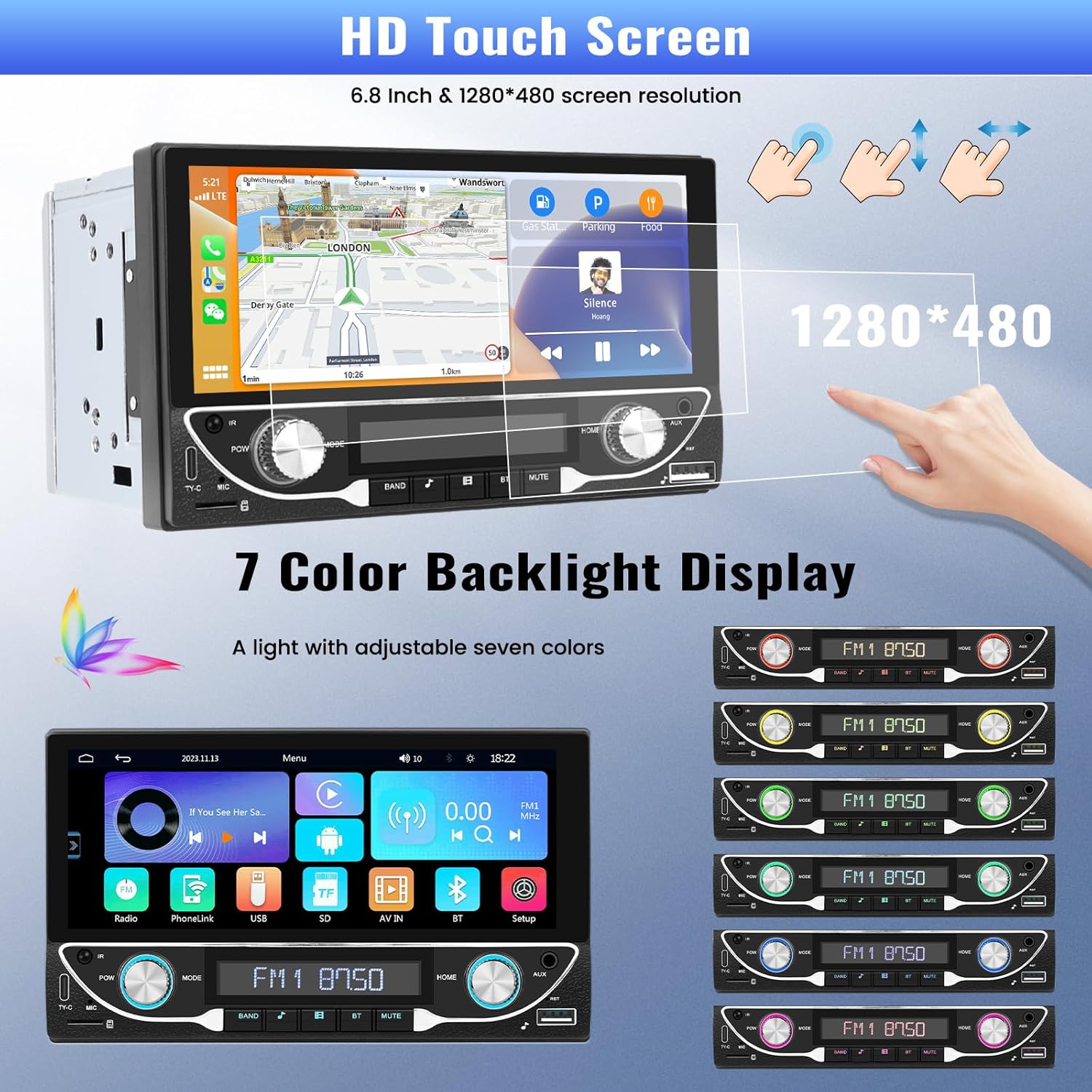
Image: The HD touchscreen and customizable 7-color backlight display options.
Access the display settings to adjust brightness and select from 7 available backlight colors for the physical buttons.
5. אַפּערייטינג ינסטרוקטיאָנס
5.1 וויירלעס עפּל קאַרפּליי און אַנדרויד אויטאָ
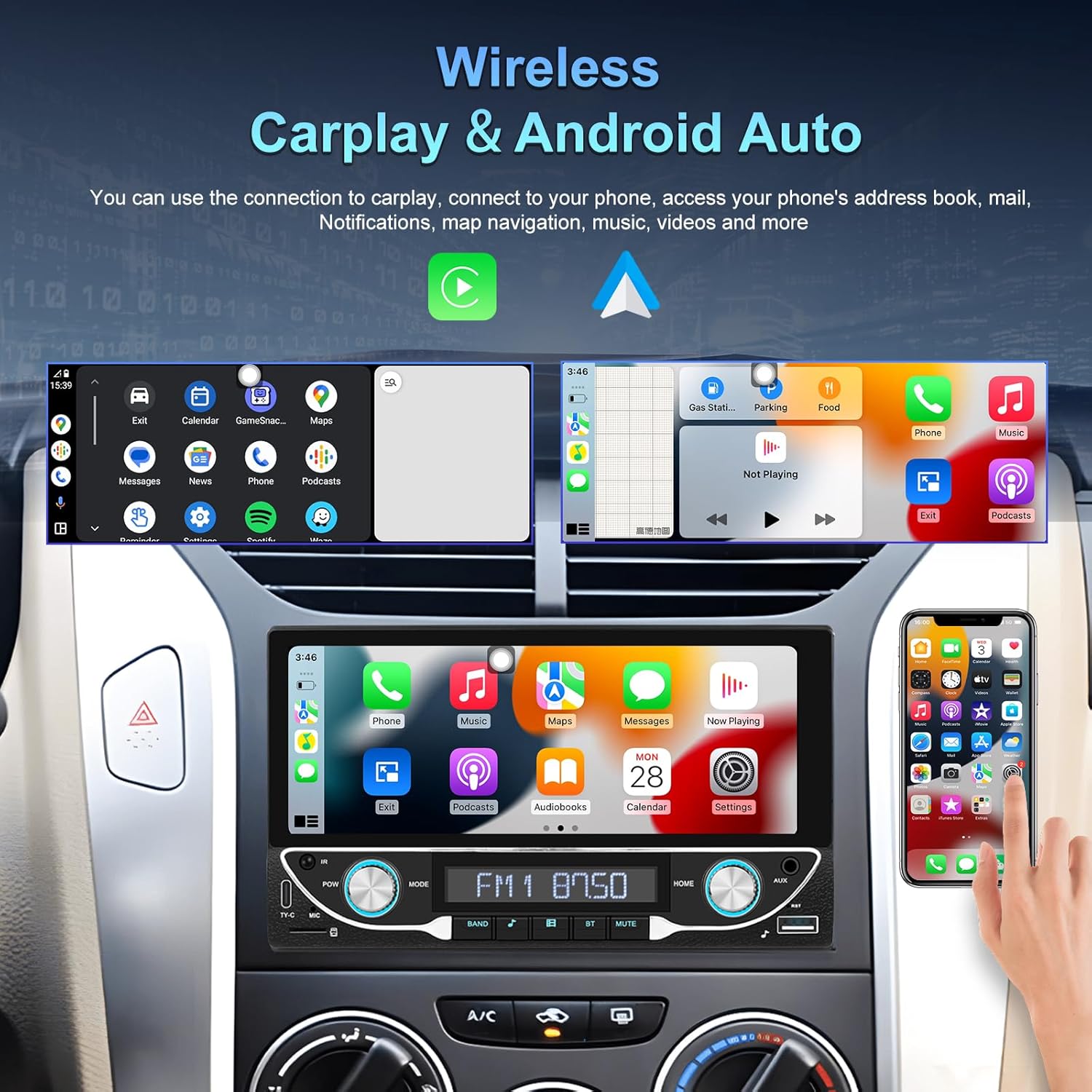
Image: The car stereo displaying both Apple CarPlay and Android Auto interfaces.
Connect your smartphone wirelessly to access Apple CarPlay or Android Auto. This allows for navigation, music, calls, and messages directly from the car stereo display.
- מאַכן זיכער אַז בלועטאָאָטה און Wi-Fi זענען ענייבאַלד אויף דיין סמאַרטפאָנע.
- On the car stereo, select the CarPlay or Android Auto icon.
- Follow the on-screen prompts to pair your device.
5.2 בלועטוט 5.1 קאָנעקטיוויטי
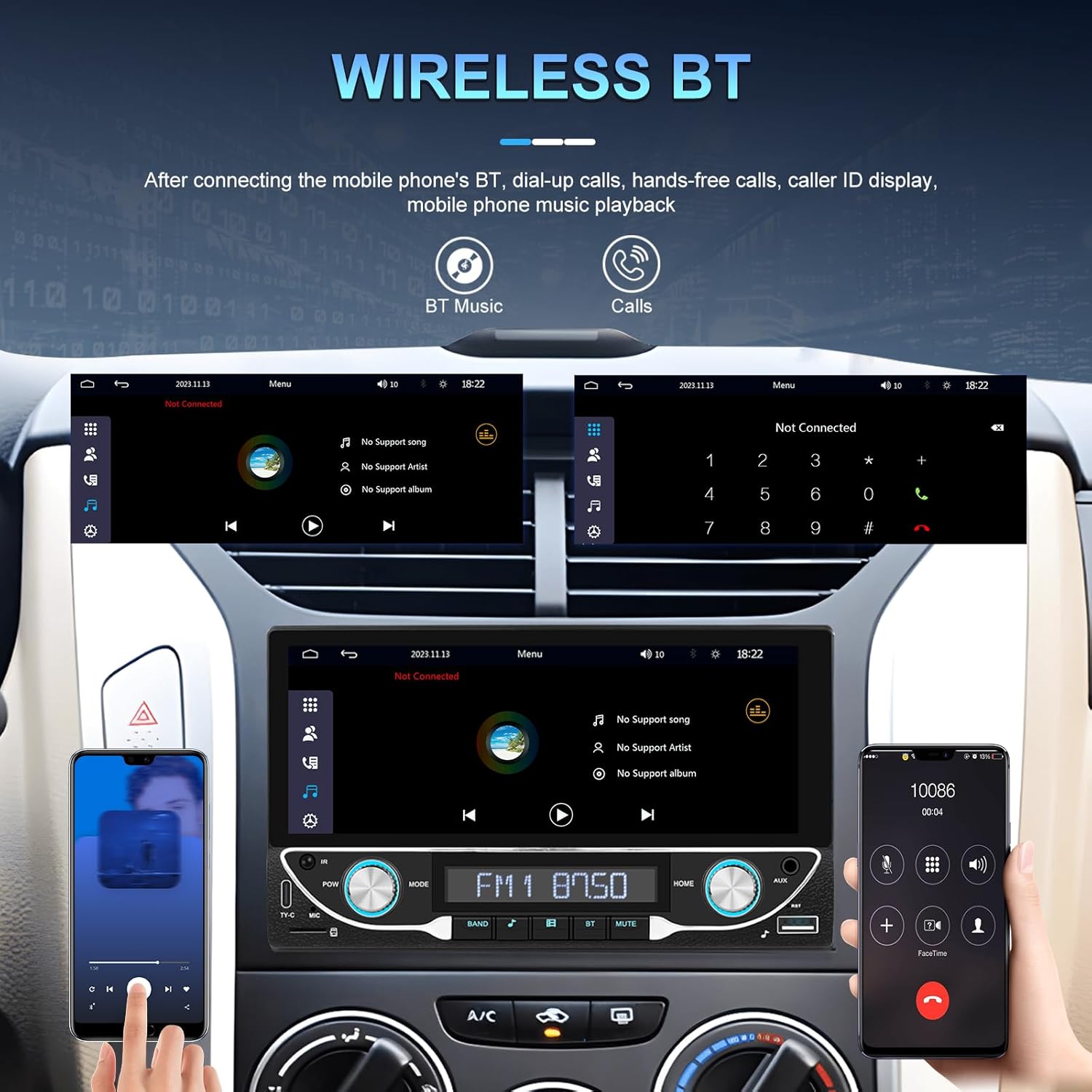
Image: Bluetooth interface for hands-free calling and music streaming.
Pair your phone via Bluetooth for hands-free calling and wireless audio streaming.
- Go to the 'Bluetooth' menu on the stereo.
- אַקטיווירן בלועטוט אויף אייער טעלעפאָן און זוכן פֿאַר בנימצא דעוויסעס.
- Select 'UNITOPSCI A3612A3' (or similar name) from your phone's list and confirm pairing.
- Use the built-in microphone for calls and stream music from your phone.
5.3 FM ראַדיאָ אָפּעראַציע

Image: FM radio interface with frequency display and sound quality DSP/EQ settings.
Select the 'FM' icon to access the radio tuner. Use the on-screen controls or physical buttons to scan for stations, save presets, and adjust frequency.
5.4 Audio & Video Playback (USB/TF/AUX/Type-C)

Image: Available input options for audio and video playback: USB, TF Card, Type-C, and AUX-in.
The unit supports various media inputs for audio and video playback:
- וסב ינפּוט: Connect a USB drive with media files.
- טף קאַרד שפּעלטל: Insert a TF (MicroSD) card with media files.
- AUX ינפּוט: Connect external audio devices using a 3.5mm audio cable.
- טיפּ-C פּאָרט: For charging compatible devices and potentially data transfer.
Select the corresponding input source from the main menu to access your media.
5.5 סטירינג ראָד קאָנטראָל

Image: Steering wheel control setup interface on the car stereo.
If your vehicle supports steering wheel controls, connect the 'KEY' wire during installation. Access the 'Steering Wheel Control' settings to program the buttons for functions like volume, track change, and mode selection.
5.6 דערציען View Camera / HD Reversing Video
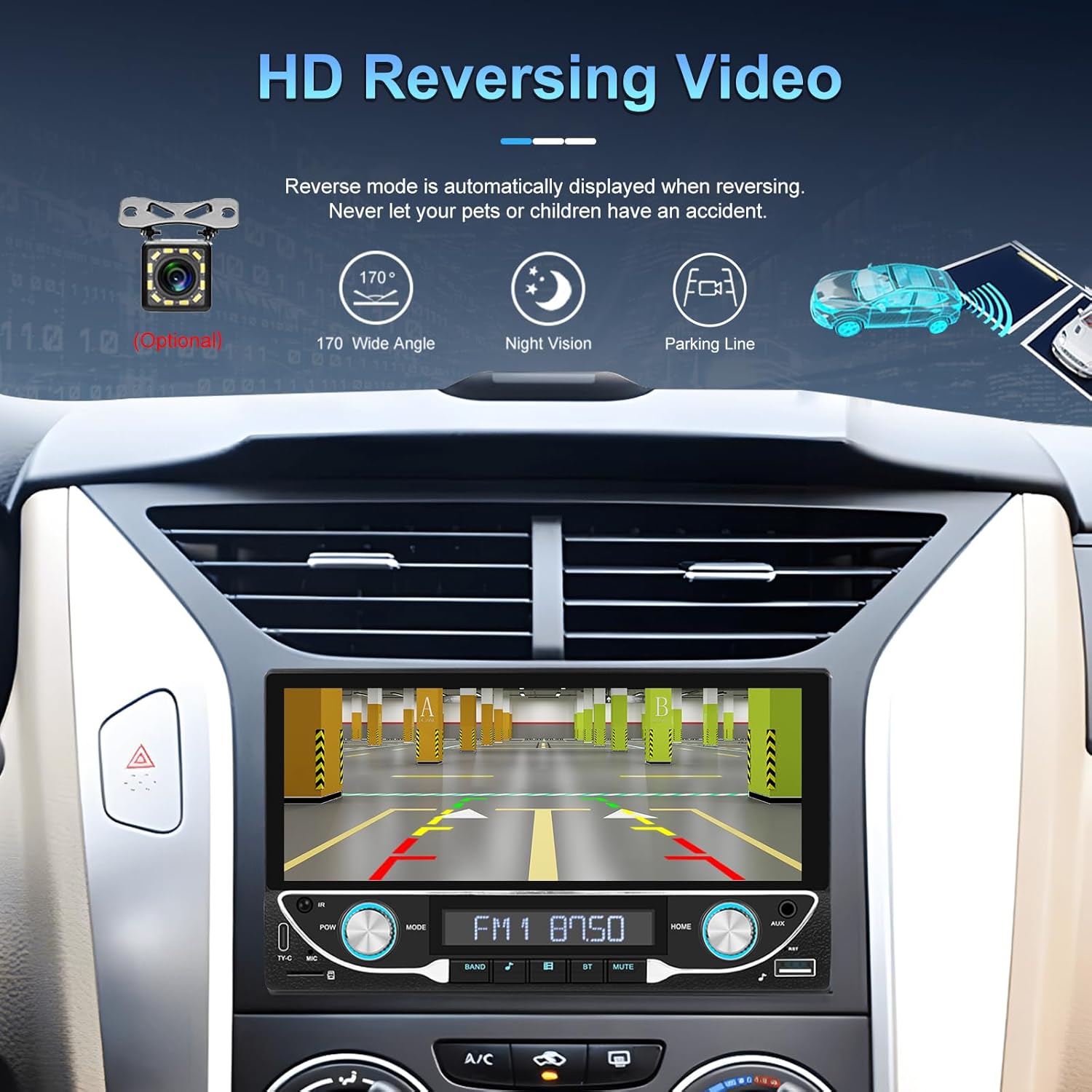
Image: High-definition reversing video display with parking guidelines.
When the vehicle is shifted into reverse, the stereo automatically displays the rear view camera feed. The included camera offers a 170-degree wide angle and night vision capabilities, along with parking lines for assistance.
5.7 DVR Function Support
The unit supports an optional DVR (Digital Video Recorder) function. Connect a compatible USB DVR camera to the dedicated USB input on the rear of the car radio to record driving footage.
5.8 שפּיגל לינק פונקציע
Use the Mirror Link function to display your smartphone's screen directly on the car stereo. This feature is compatible with both Android and iOS devices, allowing you to view apps and content from your phone on the larger display.
5.9 שטימע קאנטראל און דזשי-פי-עס נאַוויגאַציע
When connected via Apple CarPlay or Android Auto, you can utilize voice commands (e.g., Siri, Google Assistant) for navigation, making calls, sending messages, and controlling music, enhancing driving safety and convenience.
5.10 Sound Quality (DSP & EQ)
The built-in Digital Sound Processor (DSP) and Equalizer (EQ) allow for precise audio customization. Access the 'EQ Setup' menu to adjust bass, treble, and other frequency bands to match your audio preferences. Pre-set EQ modes (e.g., Jazz, Rock, Pop) are also available.
6. וישאַלט
כדי צו זיכער מאַכן די לאַנגלעבעדיקייט און אָפּטימאַלע פאָרשטעלונג פון דיין מאַשין סטערעאָ, נאָכפאָלגן די וישאַלט גיידליינז:
- רייניקונג די פאַרשטעלן: Use a soft, lint-free cloth to gently wipe the touchscreen. Avoid abrasive cleaners or solvents that could damage the display.
- אַלגעמיינע רייניקונג: Keep the unit free from dust and debris. Use a soft brush or compressed air for hard-to-reach areas.
- ווייכווארג דערהייַנטיקונגען: קאָנטראָלירט פּעריִאָדיש דעם פאַבריקאַנט'ס webזייטל פֿאַר אַלע בנימצא פירמווער דערהייַנטיקונגען צו פֿאַרבעסערן פאָרשטעלונג און לייגן נייַע פֿעיִקייטן.
- ויסמיידן ליקווידס: Do not spill liquids on the unit. If accidental spillage occurs, power off the unit immediately and allow it to dry completely before use.
7. טראָובלעשאָאָטינג
If you encounter issues with your UNITOPSCI A3612A3 car stereo, refer to the following common problems and solutions:
| פּראָבלעם | מעגלעך סיבה | לייזונג |
|---|---|---|
| קיין מאַכט | אומריכטיקע וויירינג; דורכגעבלאָזן פיוז; לויזע פֿאַרבינדונג. | Check power cable connections (ACC, BATTERY+, GND). Verify vehicle fuse and unit's fuse. Ensure all wires are securely connected. |
| קיין געזונט | Speaker wires disconnected; Volume too low; Mute function active; Incorrect audio source. | Check speaker wire connections. Increase volume. Deactivate mute. Select correct audio source (FM, USB, BT, etc.). |
| בלועטאָאָטה ניט קאַנעקטינג | Bluetooth off on phone/stereo; Device not in pairing mode; Interference. | Ensure Bluetooth is enabled on both devices. Put stereo in pairing mode. Delete previous pairings and try again. Move closer to the unit. |
| CarPlay/Android Auto Not Working | Wi-Fi/Bluetooth off; Phone not compatible; App issues. | Ensure Wi-Fi and Bluetooth are active on your phone. Restart phone and stereo. Check phone's settings for CarPlay/Android Auto permissions. |
| הינטערשטע קאַמעראַ ווײַזט זיך נישט | Camera not powered; Video cable loose; Reverse trigger wire not connected. | Check camera power connection. Ensure video cable is securely connected to 'CAM IN'. Verify Pink (REVERSE) wire connection. |
| טאָוטשסקרעען ניט ריספּאַנסיוו | סיסטעם איינפרירט; שמוץ אויפן עקראַן. | Restart the unit (if possible, by briefly disconnecting power). Clean the screen. |
If the problem persists after trying these solutions, please contact UNITOPSCI customer support for further assistance.
8. ספּעסאַפאַקיישאַנז
Key technical specifications for the UNITOPSCI A3612A3 car stereo:
- מאָדעל נומער: A3612A3
- ווייַז גרייס: 6.86 אינטשעס
- ווייַז האַכלאָטע: 1280 X 480 בילדצעלן
- רעזולטאַט וואָסtage: 180 Watts (4 channels)
- בלועטאָאָטה ווערסיע: 5.1
- שטיצט אינטערנעט באַדינונגס: Maps (via CarPlay/Android Auto)
- אַודיאָ רעזולטאַט טיפּ: אינערלעכער
- שטיצט מעדיע פאָרמאַץ: AVI, WAV, WMA
- ינפּוץ: USB, TF Card, AUX, Type-C
- פֿעיִקייטן: Wireless Apple CarPlay, Wireless Android Auto, FM Radio, Mirror Link, DSP, EQ, Steering Wheel Control, Backup Camera Input, DVR Function Support, 7-Color Backlight.
Image: Front, rear, and side dimensions of the UNITOPSCI A3612A3 car stereo.
דימענשאַנז (דערנאַכט):
- Front Panel: 17.8cm (7.0in) width x 10.3cm (4.0in) height
- Chassis: 17.8cm (7.0in) width x 10.0cm (3.9in) height x 11cm (4.3in) depth
9. וואָראַנטי און שטיצן
UNITOPSCI products are designed for reliability and performance. For warranty information and technical support, please refer to the warranty card included in your package or visit the official UNITOPSCI webפּלאַץ.
When contacting support, please have your product model number (A3612A3) and purchase details ready.