
הקדמה
Welcome to the FightBox M1-PC All Button Leverless Arcade Fight Stick Game Controller instruction manual. This guide provides essential information for setting up, operating, and maintaining your new arcade controller. Please read this manual thoroughly to ensure optimal performance and longevity of your device.

Image: The FightBox M1-PC controller, featuring a red ball-top joystick and an array of red and black buttons on a black casing.
פּראָדוקט פֿעיִקייטן
- Traditional Detachable Arcade Joystick and All Button LeverLess Layout Are Combined
- Traditional Arcade Joystick Size, Large Size Is More Stable
- Large 30mm Sanwa Brand Push Buttons For Traditional Joysticks As Action Buttons
- Professional Fighting Board Extreme Speed Minimized Delay
- SOCD Supported The Tournament Standard For All Button Leverless Style Game Controller

בילד: א ווינקלדיקע view of the FightBox M1-PC controller, showcasing the joystick and button layout.

Image: Close-up of Sanwa brand joystick (JLF-TP-8YT) and push buttons (OBSF-24, OBSF-30) used in the controller.
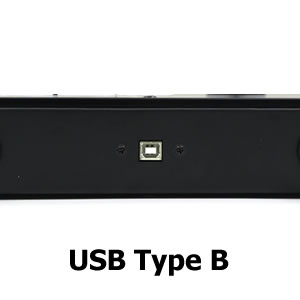
Image: The RetroArcade Crafts arcade joystick board, indicating the internal components.
סעטאַפּ
To set up your FightBox M1-PC controller, connect the USB Type-B port on the controller to your PC, PS3, or Nintendo Switch using a compatible USB cable. The device is plug-and-play for most systems, requiring no additional drivers for basic functionality.

בילד: זייט view of the controller highlighting the USB Type-B port for connection.

בילד: אונטן view of the FightBox M1-PC controller, showing the 'FIGHTBOX' branding and rubber feet for stability.
אַפּערייטינג ינסטראַקשאַנז
קנעפּל אויסלייג
The FightBox M1-PC features a standard arcade button layout with a detachable joystick and additional leverless buttons. Refer to the diagram below for button assignments and functions.

Image: Diagram illustrating the button layout for the PC version of the FightBox M1-PC, showing HOME, MODE, R3, L3, START, SELECT, and action buttons (X, Y, A, B, R1, R2, L1, L2).
מאָדע סוויטשינג
- די היים button is used to switch between PC360 mode (default) and other modes.
- די מאָדע button is used to switch between the cross keys (D-pad) and the left/right stick inputs.
SOCD מאָדעס
The controller supports three types of Simultaneous Opposing Cardinal Directions (SOCD) modes, which are crucial for competitive play in fighting games. These modes determine how simultaneous opposing directional inputs are registered.
- Up priority SOCD mode (Default): If Up and Down are pressed simultaneously, Up input is prioritized.
- Neutral (CAPCOM) SOCD mode: If opposing directions are pressed simultaneously, all inputs are cancelled, resulting in a neutral input.
- Last win SOCD mode: The last directional input pressed is registered.

Image: Table detailing the three SOCD modes (Up priority, Neutral (CAPCOM), Last win) and their corresponding outputs for various directional inputs.
פּראָדוקט דעמאַנסטריישאַן
Video: A demonstration of the FightBox M1-PC All Button Leverless Arcade Game Controller, showcasing its design and in-game performance with gameplay footage.
וישאַלט
- רייניקונג: ניצט אַ ווייכע, טרוקענע שטאָף צו רייניקן די ייבערפלאַך פון דעם קאָנטראָללער. פֿאַרמייַדט אַברייסיוו רייניגער אָדער סאָלווענטן.
- סטאָרידזש: האַלט דעם קאָנטראָללער אין אַ קיל, טרוקן אָרט אַוועק פון דירעקט זונשייַן און עקסטרעמע טעמפּעראַטורן.
- האַנדלינג: Avoid dropping the controller or exposing it to excessive force, which could damage internal components.
טראָובלעשאָאָטינג
- Controller not recognized: Ensure the USB cable is securely connected to both the controller and the device (PC, PS3, Switch). Try a different USB port or cable.
- קנעפּלעך נישט ריספּאַנד: Check the mode settings using the HOME and MODE buttons. Ensure the correct input mode is selected for your game.
- אַרייַנשרייַב לאַג: Ensure you are using a direct USB connection. Avoid USB hubs if possible, or use a powered USB hub.
- Detachable joystick issues: Ensure the joystick is properly seated and secured if you are using it.
ספּעסאַפאַקיישאַנז
| שטריך | דעטאַל |
|---|---|
| ASIN | B0CXMYH9SF |
| פּראָדוקט דימענשאַנז | 15.75 X 8.66 X 1.97 אינטשעס |
| פּונקט וואָג | 6.16 פונט |
| פאַבריקאַנט | FightBox |
| ערשטער דאַטע בנימצא | 25 יאנואר 2024 |
| קאַמפּאַטאַבילאַטי | PC, PS3, Nintendo Switch |

Image: Diagram showing the dimensions of the FightBox M1-PC controller: 40cm length, 22cm width, 5cm height, and 2.0 KG weight.
וואָראַנטי און שטיצן
For warranty information and technical support, please refer to the official FightBox webזייטל אדער קאנטאקט דעם פארקויפער וואו איר האט געקויפט דאס פראדוקט. האלט אייער באווייז פון קויפן פאר יעדע גאראנטיע טענות.