
1. הקדמה
א דאנק פארן קויפןasing the FightBox B3-PC All Button Leverless Arcade Fight Stick Game Controller. This manual provides essential information for setting up, operating, and maintaining your new controller. Please read this manual thoroughly before use to ensure optimal performance and longevity of your device.
2. פּראָדוקט איבערview
The FightBox B3-PC is a high-performance all-button leverless arcade fight stick designed for precision and speed in fighting games. It features a compact, ultra-thin design for portability and is compatible with PC, PlayStation 3, and Nintendo Switch platforms.
שליסל פֿעיִקייטן:
- All-button leverless layout with an additional button.
- Portable and ultra-thin design for easy transport.
- Equipped with Cherry MX Black key switches, supporting hot-swapping.
- Professional arcade fighting board for extreme speed and minimized delay.
- Supports SOCD (Simultaneous Opposing Cardinal Directions) cleaning, adhering to tournament standards.

פיגור 2.1: ווינקלדיק view of the FightBox B3-PC controller, showcasinג זײַן קאָמפּאַקטן דיזײַן און קנעפּל אויסלייג.

פיגורע 2.2: זייַט view of the FightBox B3-PC controller, highlighting its ultra-thin profile.

פיגור 2.3: פון אויבן אַראָפּ view of the FightBox B3-PC controller, showing the full button arrangement.
3. סעטאַפּ אינסטרוקציעס
The FightBox B3-PC controller is designed for plug-and-play functionality across supported platforms.
Connecting to your Device:
- Locate the USB Type-B port on the back of the FightBox B3-PC controller.
- Connect one end of the provided USB cable to the controller's USB Type-B port.
- Connect the other end of the USB cable to an available USB port on your PC, PlayStation 3 console, or Nintendo Switch dock.
- The controller should be automatically recognized by your system. For PC, drivers may install automatically.
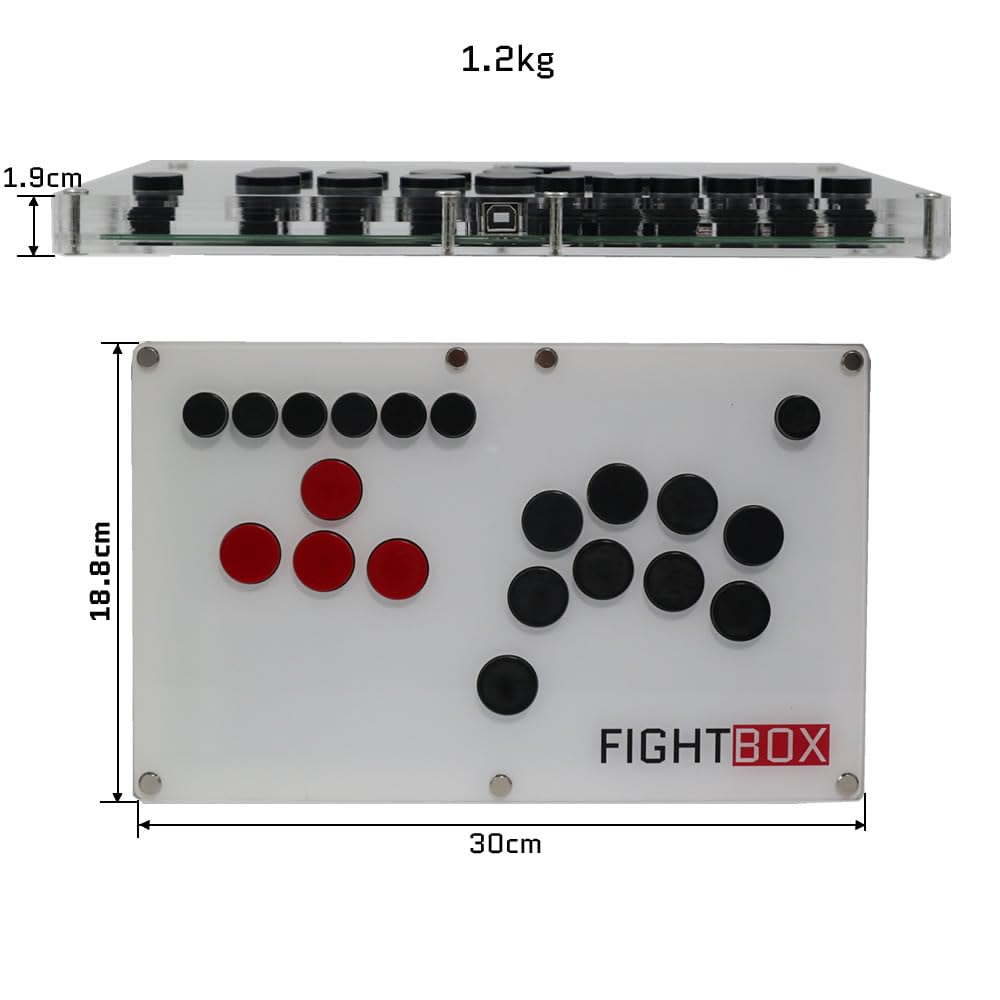
Figure 3.1: The USB Type-B port on the FightBox B3-PC controller for connecting to your gaming system.
4. אַפּערייטינג ינסטרוקטיאָנס
The FightBox B3-PC features a standard arcade button layout with additional function buttons for enhanced control.
קנעפּל פאַנגקשאַנז:
- ריכטונג קנעפּלעך: The four red buttons on the left serve as directional inputs (Up, Down, Left, Right).
- קאַמף קנעפּלעך: The black buttons on the right correspond to standard action inputs (X, Y, R1, B, R2, A, L1, L2).
- HOME קנעפּל: Used to switch between PC360 mode (default) and other modes.
- מאָדע קנעפּל: Used to switch between the cross keys (D-pad) and the left/right stick inputs.
- R3/L3 Buttons: Additional function buttons.
- אָנהייב/סעלעקט קנעפּלעך: נאָרמאַל שפּיל קאָנטראָל קנעפּלעך.
- TURBO קנעפּל: אַקטיוויזירט טורבאָ פונקציע פֿאַר שנעלע קנעפּל דריקונגען.

Figure 4.1: Layout of the FightBox B3-PC buttons with their corresponding PC version labels and functions.
SOCD מאָדעס:
The FightBox B3-PC supports three SOCD (Simultaneous Opposing Cardinal Directions) modes, which are crucial for competitive fighting games to prevent conflicting directional inputs. These modes comply with tournament standards.
- Up Priority SOCD Mode (Default): If Up and Down are pressed simultaneously, Up input is prioritized. If Left and Right are pressed, Neutral is output.
- Neutral (CAPCOM) SOCD Mode: If opposing directions (e.g., Up+Down, Left+Right) are pressed simultaneously, a Neutral input is output.
- Last Win SOCD Mode: The last directional input pressed takes priority. For example, if Left is held and then Right is pressed, Right will be the active input.

Figure 4.2: Detailed explanation of SOCD modes and their behavior.
פּראָדוקט דעמאַנסטראַציע:
Video 4.1: An official product video demonstrating the FightBox B3-PC All Button Leverless Arcade Game Controller in use, highlighting its features and responsiveness.
5. וישאַלט
Proper care will extend the life and performance of your FightBox B3-PC controller.
רייניקונג:
- ווישט די ייבערפלאַך פון דעם קאָנטראָללער מיט אַ ווייכן, טרוקענעם שטאָף.
- פֿאַר פאַרביסן שמוץ, נוצן אַ ביסל דamp שטאָף מיט מילדער זייף, און דערנאָך ווישן טרוקן גלייך.
- Avoid using harsh chemicals, abrasive cleaners, or excessive moisture, as these can damage the acrylic and internal components.
Key Switch Care:
The FightBox B3-PC uses Cherry MX Black key switches, which are hot-swappable. This allows for easy replacement or customization without soldering.
- If a switch becomes unresponsive, it can be carefully removed and replaced. Refer to specialized guides for hot-swapping mechanical keyboard switches if you are unfamiliar with the process.
- Ensure the controller is disconnected from power before attempting any switch replacement.

Figure 5.1: A Cherry MX Black key switch, used in the FightBox B3-PC controller.
6. טראָובלעשאָאָטינג
If you encounter issues with your FightBox B3-PC, refer to the following common solutions:
קאָנטראָללער נישט דערקענט:
- קוק די USB קאַנעקשאַן: Ensure the USB cable is securely connected to both the controller and your device. Try a different USB port.
- ריסטאַרט דיווייס: Sometimes, a simple restart of your PC or console can resolve connection issues.
- Try Another Cable: If available, test with a different USB Type-A to Type-B cable to rule out a faulty cable.
- פּלאַטפאָרמע קאַמפּאַטאַבילאַטי: Ensure your device is running a compatible operating system (Windows for PC, or the correct firmware for PS3/Switch).
קנעפּלעך ניט ריספּאַנדינג:
- טעסט אלע קנעפלעך: Use a controller testing utility on PC to verify individual button inputs.
- טשעק שפּיל סעטטינגס: Ensure the game's control settings are correctly configured for an arcade stick or gamepad.
- Inspect Key Switches: If a specific button is unresponsive, the key switch might be faulty. Consider hot-swapping it as described in the Maintenance section.
Incorrect Directional Input (SOCD):
- Verify SOCD Mode: Ensure the controller is set to your desired SOCD mode. Refer to the Operating Instructions for details on SOCD modes.
7. ספּעסאַפאַקיישאַנז
| שטריך | דעטאַל |
|---|---|
| מאָדעל נאָמען | B3-PC |
| סאָרט | FightBox |
| קאַמפּאַטאַבאַל דעוויסעס | Android, Nintendo Switch, PC, Windows, PlayStation 3 |
| קאַנעקטיוויטי טעכנאָלאָגיע | יו-עס-בי 2.0 (מיט אַ שנור) |
| קאָנטראָללער טיפּ | וסב |
| קנעפּל קוואַנטיטעט | 19 |
| שליסל סוויטטשעס | Cherry MX Black (Hot-swappable) |
| נומער דימענשאַנז (L X W X H) | 11.81 X 7.4 X 0.75 אינטשעס (30 X 18.8 X 1.9 סענטימעטער) |
| פּונקט וואָג | 1.75 קילאָגראַם (1.2 ק"ג לויט בילד) |
| קאָליר | ווייַס |
| UPC | 766683159496 |
Figure 7.1: Physical dimensions and weight of the FightBox B3-PC controller.
8. וואָראַנטי און שטיצן
FightBox products are manufactured with quality and reliability in mind. For specific warranty information, please refer to the documentation included with your purchase or visit the official FightBox webפּלאַץ.
קונה שטיצן:
If you require technical assistance or have questions regarding your FightBox B3-PC controller, please contact our customer support team through the vendor's contact information provided at the point of purchase or on the official FightBox webפּלאַץ.