
amazon basics B0CX226DLQ
amazon basics Wireless Bluetooth Keyboard User Manual
Model: B0CX226DLQ
הקדמה
This manual provides essential information for the setup, operation, and maintenance of your amazon basics Wireless Bluetooth Keyboard. Designed for seamless multi-device connectivity, this keyboard allows you to effortlessly switch between up to three devices running on iOS, Windows, or Android operating systems. Its compact and lightweight design, combined with noiseless keys and a built-in rechargeable battery, makes it an ideal solution for versatile typing needs on the go.

בילד: פון אויבן אַראָפּ view of the amazon basics Wireless Bluetooth Keyboard, showcasing its compact layout and grey and black color scheme.
פּעקל אינהאַלט
ביים עפענען דעם פעקל, זיכער מאכן אז אלע פאלגנדע זאכן זענען דא:
- 1 x amazon basics Wireless Bluetooth Keyboard
- 1 רענטגענ וסב טיפּ- C טשאַרדזשינג קאַבלע
- 1 x באַניצער מאַנואַל (דאָס דאָקומענט)
סעטאַפּ
1. אויפלאָדן די קלאַוויאַטור
The keyboard features a built-in rechargeable battery. Before first use, it is recommended to fully charge the keyboard.
- Locate the Type-C charging port on the side of the keyboard.
- Connect one end of the provided USB Type-C charging cable to the keyboard's charging port.
- פֿאַרבינדט דעם אַנדערן עק פֿונעם קאַבל צו אַ USB מאַכט מקור (למשל, קאָמפּיוטער USB פּאָרט, USB וואַנט אַדאַפּטער).
- די טשאַרדזשינג אינדיקאַטאָר ליכט וועט זיך אָנצינדן. אַמאָל גאָר אָנגעלאָדן, קען די ליכט טוישן קאָליר אָדער זיך אויסלעשן, לויטן מאָדעל.

בילד: א נאנטע זייט view of the keyboard, highlighting the Type-C charging port and the ON/OFF power switch.
2. פּאָווערינג אויף / אויסגעלאשן
To power on the keyboard, slide the ON/OFF switch located on the side of the keyboard to the "ON" position. To power off, slide it to the "OFF" position.
3. בלועטאָאָטה פּערינג
The keyboard supports connection to up to three devices simultaneously. Follow these steps to pair your devices:
- פאַרזיכערן די קלאַוויאַטור איז פּאַוערד אויף.
- דרוק די Fn קנעפּל גלײַכצײַטיק מיט איינעם פֿון די בלוטוט קאַנאַל קנעפּלעך (BT1, BT2, אָדער BT3) for approximately 3-5 seconds until the corresponding indicator light flashes rapidly. This indicates the keyboard is in pairing mode.
- אויף אייער דעווייס (סמאַרטפאָן, טאַבלעט, לאַפּטאָפּ), גייט צו בלועטוט סעטטינגס און אַקטיווירט בלועטוט.
- זוכן פֿאַר available devices. The keyboard will appear as "amazon basics Keyboard" or similar.
- Select the keyboard from the list to connect. If prompted, enter the displayed code on the keyboard and press אַרייַן.
- אַמאָל פארבונדן, וועט די אינדיקאַטאָר ליכט אויפהערן צו בלינקען און בלייבן פעסט פֿאַר אַ פּאָר סעקונדעס איידער עס וועט זיך אויסלעשן.
- Repeat these steps for up to two additional devices using the other BT channel keys.

Image: The keyboard positioned between a laptop, tablet, and smartphone, visually representing its multi-device connectivity feature.
אַפּערייטינג די קלאַוויאַטור
1. וועקסלען צווישן דעווייסעס
After pairing multiple devices, you can easily switch between them:
- פשוט דריקן די Fn key simultaneously with the desired Bluetooth channel key (BT1, BT2, אָדער BT3) to switch to the corresponding paired device.
- The keyboard will automatically connect to the selected device.
2. אַפּערייטינג סיסטעם קאָמפּאַטיביליטי
The keyboard is designed to be compatible with various operating systems. Some keys may have dual functions or specific behaviors depending on the OS.
- יאָס: Compatible with iPhones and iPads.
- Windows: Fully functional with Windows PCs and laptops.
- אַנדרויד: Works seamlessly with Android smartphones and tablets.
- מעק אַס: Compatible with MacBooks and iMacs.
- קראָום אַס: Supports Chrome OS devices.
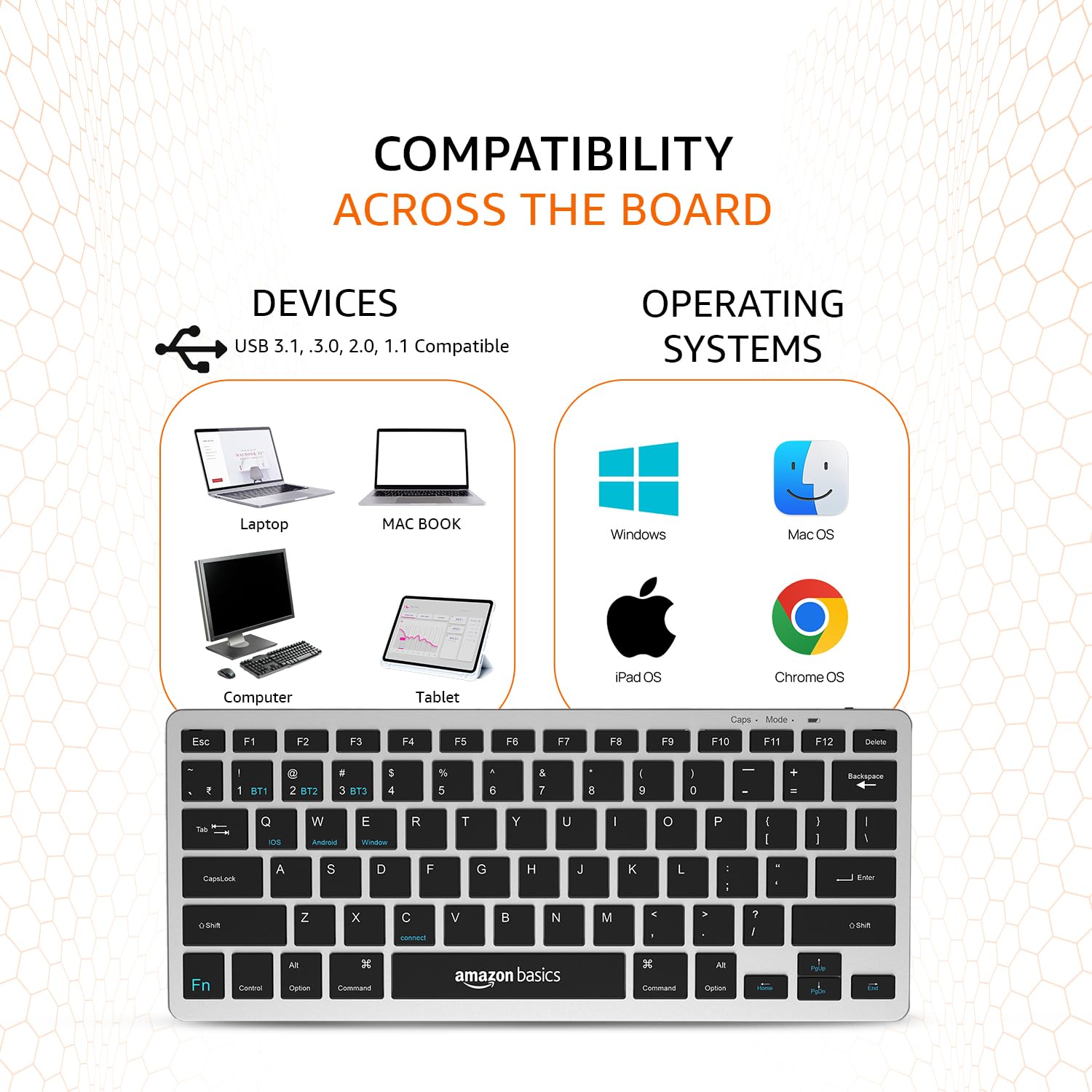
Image: A visual representation of the keyboard's broad compatibility, showing various device types and operating system logos it supports.
3. Special Function Keys
The keyboard features a dedicated Fn key that, when pressed in combination with other keys, activates special functions. Refer to the keycap legends for specific functions (e.g., media controls, volume, screen brightness).
וישאַלט
געהעריגע אויפהאלטונג גאראנטירט די לאנגעוויטי און אפטימאלע פאָרשטעלונג פון אייער קלאַוויאַטור.
- רייניקונג: ניצט אַ ווייכע, טרוקענע, לינט-פֿרייע שטאָף צו ווישן די קלאַוויאַטור ייבערפלאַך. פֿאַר שווערע שמוץ, אַ ביסל ווישןampווישט דעם שטאָף מיט וואַסער אָדער אַ מילדן, נישט-שרייַבנדיקן רייניגער. פֿאַרמייַדט איבעריקע פֿײַכטקייט.
- באַטערי זאָרגן: To preserve battery life, avoid fully discharging the keyboard frequently. If storing for an extended period, charge the battery to about 50% and power off the keyboard.
- סטאָרידזש: Store the keyboard in a cool, dry place away from direct sunlight, extreme temperatures, and corrosive materials.
- האַנדלינג: פֿאַרמײַדט צו לאָזן אַראָפּפֿאַלן די קלאַוויאַטור אָדער זי אויסשטעלן צו שטאַרקע קלאַפּן. פּרוּווט נישט צו צענעמען די קלאַוויאַטור, ווײַל דאָס וועט בטל מאַכן די וואָראַנטי.
טראָובלעשאָאָטינג
If you encounter issues with your amazon basics Wireless Bluetooth Keyboard, refer to the following common troubleshooting steps:
- קלאַוויאַטור נישט פֿאַרבינדן/פֿאַרבינדט זיך נישט:
- זייט זיכער אַז די קלאַוויאַטור איז אנגעצונדן און גאָר אויפגעלאָדן.
- מאַכן זיכער אַז בלועטאָאָטה איז ענייבאַלד אויף דיין מיטל.
- Move the keyboard closer to your device to ensure it's within range.
- Forget or remove the keyboard from your device's Bluetooth list and attempt to re-pair it.
- Try pairing with a different device to rule out an issue with your primary device's Bluetooth.
- Keys Not Responding or Double Typing:
- Check the keyboard's battery level and recharge if low.
- Ensure the keyboard is properly connected to your device. Try switching to another BT channel and back.
- Clean the keys and surrounding areas to remove any debris that might be obstructing key presses.
- ריסטאַרט ביידע די קלאַוויאַטור (אויסלאָשן/אײַנשטעלן) און אײַער פֿאַרבונדענע מיטל.
- פֿאַרשפּעטיקונג אָדער פֿאַרשפּעטיקטע רעאַקציע:
- Ensure there are no other strong wireless signals or devices interfering with the Bluetooth connection.
- פארקלענערן די דיסטאַנץ צווישן די קלאַוויאַטור און דיין מיטל.
- Check for any pending software updates on your device that might improve Bluetooth performance.
- טשאַרדזשינג ישוז:
- Verify that the Type-C cable is securely connected to both the keyboard and the power source.
- פּרוּווט ניצן אַ אַנדערש וסב פּאָרט אָדער מאַכט אַדאַפּטער.
- זיכער מאַכן אַז דער טשאַרדזשינג קאַבל איז נישט געשעדיגט.
If the issue persists after trying these steps, please contact amazon basics customer support for further assistance.
ספּעסאַפאַקיישאַנז
| שטריך | דעטאַל |
|---|---|
| סאָרט | אַמאַזאָן באַסיקס |
| מאָדעל | Wireless Bluetooth Keyboard (B0CX226DLQ) |
| קאַנעקטיוויטי טעכנאָלאָגיע | בלועטאָאָטה |
| שליסל אויסלייג | 78-קנעפל קאָמפּאַקט אויסלייג |
| שליסל טיפּ | Noiseless Keys |
| קאַמפּאַטאַבאַל דעוויסעס | לאַפּטאַפּ, טאַבלעט, סמאַרטפאָנע |
| אַפּערייטינג סיסטעם קאַמפּאַטאַבילאַטי | iOS, Windows, Android, Mac OS, Chrome OS |
| באַטערי טיפּ | Built-in Rechargeable Lithium Polymer |
| באַטעריע ענערגיע אינהאַלט | 1.48 וואט שעה |
| טשאַרדזשינג פּאָרט | וסב טיפּ-C |
| מאַטעריאַל | הויך-קוואַליטעט ABS |
| פּראָדוקט דימענשאַנז (LxWxH) | 28.5 סענטימעטער X 12 סענטימעטער X 1.45 סענטימעטער |
| פּונקט וואָג | 290 ג |
| לאַנד פון אָריגין | אינדיע |
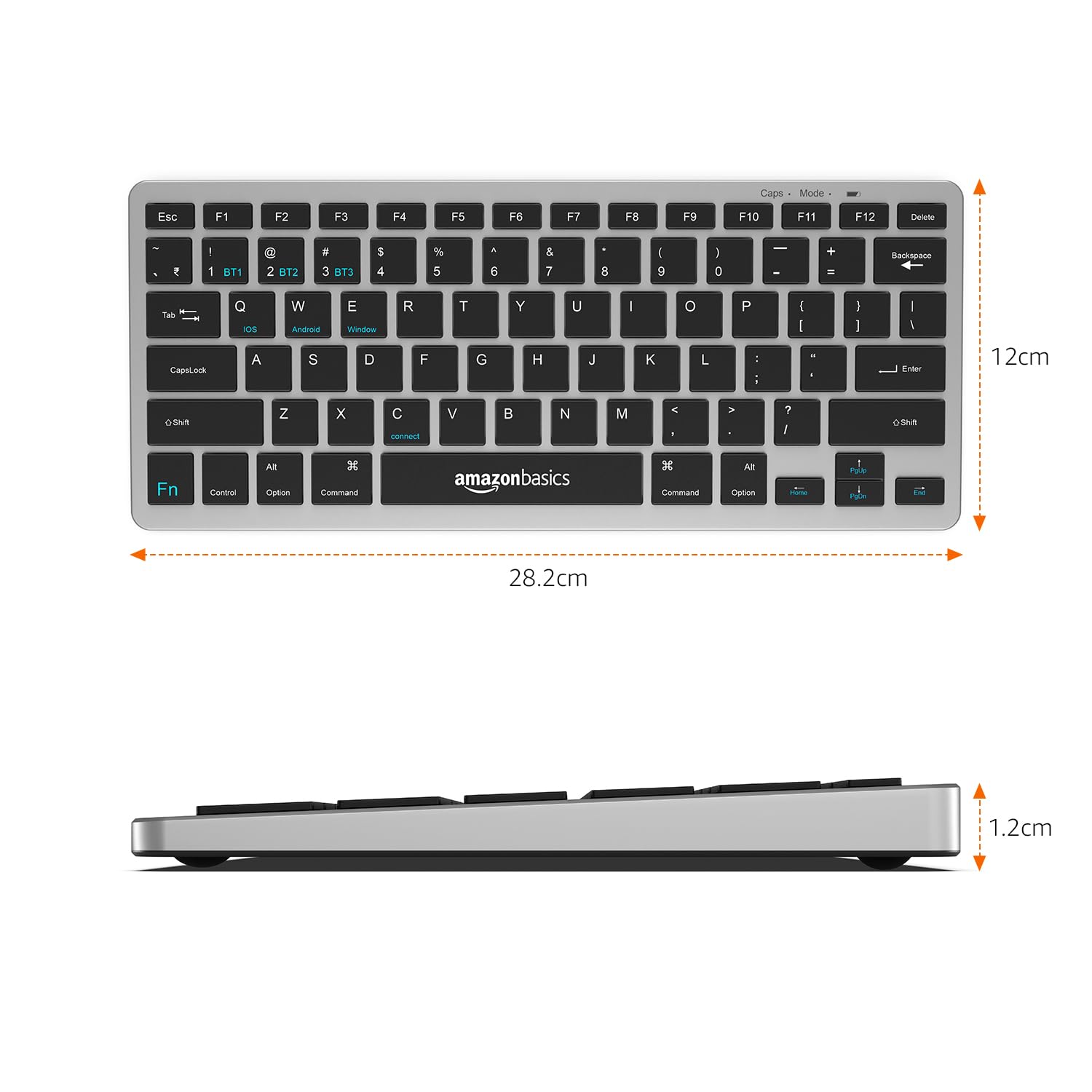
Image: The keyboard with overlaid measurements indicating its length (28.5 cm), width (12 cm), and thickness (1.2 cm).
וואָראַנטי און שטיצן
For information regarding the product warranty, please refer to the warranty card included in your package or contact amazon basics customer support directly. Warranty terms and conditions may vary by region and purchase date.
If you require further assistance, have questions, or need to report an issue that cannot be resolved using the troubleshooting guide, please contact amazon basics customer support through their official webפּלאַץ אָדער די קאָנטאַקט אינפֿאָרמאַציע צוגעשטעלט מיט דיין קויפן.
For the latest support information and FAQs, visit the official amazon basics support page.
Ask a question about this manual
Ask about setup, troubleshooting, compatibility, parts, safety, or missing instructions. Manuals+ will review the question and use this page’s manual context to help answer it.