
1. הקדמה
Thank you for choosing the Mecer 23.8 Inch Full HD LED Monitor. This manual provides essential information for setting up, operating, and maintaining your monitor. Please read it thoroughly before use to ensure proper functionality and longevity of your device.
This monitor features a 23.8-inch Full HD (1920 x 1080) display, offering crisp and clear visuals. It incorporates TFT LED panel technology for energy efficiency and vibrant colors, with a 16:9 aspect ratio suitable for widescreen viewing. Connectivity options include VGA and HDMI, making it compatible with various devices. Built-in speakers provide basic audio, and wide 178° viewing angles ensure comfortable use. With a 2ms response time, it is suitable for general computing and multimedia consumption.
2. זיכערקייַט אינפֿאָרמאַציע
- מאַכט מקור: ניצט נאָר דעם מאַכט אַדאַפּטער וואָס קומט מיטן מאָניטאָר. מאַכט זיכער אַז די מאַכט אַוטלעט איז ריכטיק געערדט.
- ווענטילאַטיאָן: בלאָקירט נישט די ווענטילאַציע עפענונגען. לאָזט גענוג פּלאַץ אַרום דעם מאָניטאָר פֿאַר געהעריקן לופטפלוס צו פאַרמייַדן איבערהיצונג.
- אָרט: שטעלט דעם מאָניטאָר אויף אַ סטאַבילן, פלאַכן אויבערפלאַך. פֿאַרמייַדט עס צו שטעלן אין דירעקטער זון, לעבן היץ-קוואַלן, אָדער אין סביבות מיט צו פיל שטויב אָדער פֿײַכטקייט.
- רייניקונג: Disconnect the power cord before cleaning. Use a soft, dry cloth for the screen and a slightly damp cloth for the casinז. פֿאַרמײַדן ניצן אַברייסיוו רייניגער אָדער סאָלווענטן.
- פליסיק ויסשטעלן: Keep liquids away from the monitor. If liquid enters the monitor, disconnect power immediately and contact qualified service personnel.
- דיסאַססעמבלי: פרובירט נישט צו צענעמען אדער פאררעכטן דעם מאָניטאָר אליין. לאָזט איבער אַלע סערוויסינג צו קוואַליפֿיצירטע סערוויס פּערסאָנעל.
3. פּעקל אינהאַלט
ביטע טשעקט די אינהאַלט פון די פּאַקעט צו זיכער מאַכן אַז אַלע זאכן זענען דאָרט:
- Mecer 23.8 Inch LED Monitor
- מאָניטאָר שטאַנד (באַזע און האַלדז)
- מאַכט אַדאַפּטער און קאַבלע
- HDMI קאַבלע
- ווגאַ קאַבלע
- באַניצער מאַנואַל (דעם דאָקומענט)
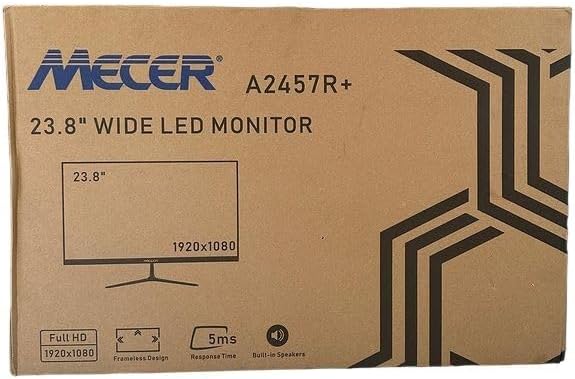
בילד 3.1: The monitor packaging box, indicating the model A2457R+ and key features like 23.8" display, Full HD 1920x1080 resolution, frameless design, 5ms response time, and built-in speakers.
4. סעטאַפּ
4.1. צוזאמענשטעלן דעם מאָניטאָר שטאַנד
- נעמט פֿאָרזיכטיק אַרויס דעם מאָניטאָר און שטאַנד קאָמפּאָנענטן פֿון דער פּאַקאַדזשינג.
- באַפעסטיקט דעם שטאַנד האַלדז צום מאָניטאָר פּאַנעל דורך צופּאַסן די טאַבס און פעסט דריקן ביז עס קליקט אין פּלאַץ.
- Attach the stand base to the stand neck, securing it with the provided screw (usually hand-tightened).
- שטעלט דעם צוזאַמענגעשטעלטן מאָניטאָר אויף אַ סטאַבילער, גלאַטער ייבערפלאַך.

בילד 4.1: פראָנט view of the Mecer 23.8 Inch LED Monitor with its stand assembled, ready for connection.
4.2. קאַנעקטינג צו אַ קאָמפּיוטער
The monitor supports both HDMI and VGA connections. Choose the appropriate cable for your computer.
- HDMI קשר: Connect one end of the HDMI cable to the HDMI port on your computer's graphics card and the other end to the HDMI port on the monitor. HDMI transmits both video and audio signals.
- VGA קשר: Connect one end of the VGA cable to the VGA port on your computer's graphics card and the other end to the VGA port on the monitor. VGA transmits only video signals.

בילד 4.2: דערציען view of the Mecer 23.8 Inch LED Monitor, showing the input ports including HDMI and VGA, as well as the power input.
4.3. מאַכט קאַנעקשאַן
- Connect the power adapter cable to the DC IN port on the back of the monitor.
- צאַפּן די מאַכט אַדאַפּטער אין אַ וואַנט ווענטיל.
5. אַפּערייטינג ינסטרוקטיאָנס
5.1. פּאָווערינג אויף / אויסגעלאשן
Press the power button, typically located on the bottom right side or rear of the monitor, to turn the monitor on or off. The power indicator light will illuminate when the monitor is on.
5.2. אַרייַנשרייַב מקור סעלעקציע
If you have multiple devices connected, you may need to manually select the input source. Use the monitor's control buttons (usually located near the power button) to navigate to the input selection menu and choose between HDMI or VGA.
5.3. אויף-סקרין ווייַז (אָסד) מעניו
The OSD menu allows you to adjust various display settings. Use the monitor's control buttons to:
- אַקסעס די OSD מעניו.
- Navigate through menu options (e.g., Brightness, Contrast, Color Settings, Input Source).
- אַדזשאַסטירן ווערטן אדער אויסקלייבן אָפּציעס.
- אַרויסגאַנג די OSD מעניו.
געוויינטלעכע אַדזשאַסטאַבאַל סעטטינגס אַרייַננעמען:
- ברייטנאַס / קאַנטראַסט: אַדזשאַסטירן די אַלגעמיינע לומינאַנס און דעם חילוק צווישן ליכטיקע און טונקעלע געביטן.
- קאָליר סעטטינגס: Adjust color temperature, RGB values, or select preset color modes.
- אַספּעקט פאַרהעלטעניש: Change between 16:9, 4:3, or other available options.
- אַודיאָ: Adjust volume for the built-in speakers.
5.4. געבויט-אין ספּיקערז
The monitor includes built-in speakers for basic audio output. If using an HDMI connection, audio will be transmitted automatically. For VGA connections, ensure your computer's audio output is configured correctly. Adjust the volume through the OSD menu or your computer's operating system.
6. וישאַלט
6.1. רייניקונג די מאָניטאָר
- שטענדיק ארויסנעמען דעם מאָניטאָר פֿון דער עלעקטרישער אַוטלעט איידער איר רייניגט.
- פאַרשטעלן: ווישט אָפּ דעם עקראַן מיט אַ ווייכן, לינט-פֿרײַעם שטאָף. פֿאַר שווערע פֿלעקן, ווישט לײַכט.ampen the cloth with water or a specialized screen cleaner (ensure it's alcohol-free and ammonia-free) and wipe carefully. Do not spray liquid directly onto the screen.
- Casing: ניצט אַ ווייכע, טרוקענע שטאָף צו ווישן דעם מאָניטאָרasing. If necessary, a slightly damp א שטאָף קען גענוצט ווערן, און דערנאך א טרוקענעם שטאָף.
6.2. סטאָרידזש
אויב איר לייגט אפ דעם מאָניטאָר פאר א לענגערע צייט, זאָלט איר אָפּשטעקן אַלע קאַבלען, אייַנפּאַקן עס אין זײַן אָריגינעלער פּאַקעט (אויב פֿאַראַן), און עס אַוועקלייגן אין אַ קיל, טרוקן אָרט, ווײַט פֿון דירעקטער זון און עקסטרעמע טעמפּעראַטורן.
7. טראָובלעשאָאָטינג
אויב איר טרעפט פּראָבלעמען מיט אייער מאָניטאָר, זעט די פאלגענדע געוויינטלעכע פּראָבלעמען און לייזונגען:
- קיין מאַכט:
- זיכער מאַכן אַז דער מאַכט קאַבל איז זיכער פארבונדן צום מאָניטאָר און די וואַנט אַוטלעט.
- איבערצייגט אז די עלעקטרישע ווענטיל ארבעט דורך אריינשטעקן אן אנדער דעווייס.
- Check if the power adapter is working correctly.
- קיין סיגנאַל:
- Ensure the video cable (HDMI or VGA) is securely connected to both the monitor and the computer.
- באַשטעטיקן אַז די ריכטיקע אַרייַנגאַנג מקור איז אויסגעקליבן אויף דעם מאָניטאָר (דורך די OSD מעניו).
- Check if your computer is powered on and outputting a video signal.
- פרובירט אן אנדערן ווידעא קאבל אויב פאראן.
- בילד איז פארשוואומען אדער פארדרייט:
- Ensure the monitor's resolution is set to its native resolution (1920 x 1080) in your computer's display settings.
- Adjust the monitor's OSD settings for brightness, contrast, and sharpness.
- For VGA connections, use the 'Auto Adjust' function in the OSD menu if available.
- קיין אַודיאָ פֿון איינגעבויטע רעדנערס:
- זיכער מאַכן אַז די מאָניטאָר'ס וואָלומען איז נישט שטיל אָדער געשטעלט צו נידעריק אין די OSD מעניו.
- קאָנטראָלירט אייער קאָמפּיוטער'ס אַודיאָ אַרויסגאַנג סעטטינגס צו זיכער מאַכן אַז דער מאָניטאָר איז אויסגעקליבן ווי די פּלייבאַק מיטל.
- If using VGA, ensure your computer's audio is routed to an external speaker system, as VGA does not carry audio.
8. ספּעסאַפאַקיישאַנז
| שטריך | באַשרייַבונג |
|---|---|
| סאָרט | Mecer |
| מאָדעל נומער | A2457R+ |
| ווייַז גרייס | 23.8 אינטשעס |
| האַכלאָטע | 1920 רענטגענ 1080 פּיקסעלס (פול הד) |
| ווייַז טיפּ | LED (TFT LED Panel) |
| אַספּעקט פאַרהעלטעניש | 16:9 |
| ענטפער צייט | 2 מיליסעקאַנדז |
| דערפרישן קורס | 75 הז |
| Viewאין אַנגלעס | 178° האָריזאָנטאַל / 178° ווערטיקאַל |
| קאַנעקטיוויטי | 1x HDMI, 1x VGA |
| געבויט-אין ספּיקערז | יא |
| קאָליר | שוואַרץ |
| פּראָדוקט דימענשאַנז (ד רענטגענ וו רענטגענ ה) | 560D x 42W x 410H millimetres |
| ספּעציעלע פֿעיִקייטן | High performance intelligent multi-frequency scanning, Micro Computer digital technology control, no radiation, no glare, Comply with VESA DPMS international power saving regulation, Support DDC 1/2B and Windows PNP Plug and Play |
9. וואָראַנטי און שטיצן
This Mecer monitor comes with a 1 יאָר לימיטעד וואָראַנטי פֿון דעם קויף־דאַטום. ביטע באַהאַלטן אייער קויף־באַווייַז פֿאַר גאַראַנטיע־קליימז.
For technical support, service, or warranty inquiries, please contact your retailer or the authorized Mecer service center in your region. Do not attempt to repair the product yourself, as this may void your warranty.