
MAXHUB MaxHub Interactive Flat Panel 75" | OPS
MAXHUB Interactive Flat Panel 75" User Manual
Model: MaxHub Interactive Flat Panel 75" | OPS
1. הקדמה
This manual provides comprehensive instructions for the setup, operation, maintenance, and troubleshooting of your MAXHUB Interactive Flat Panel 75". Please read this manual thoroughly before using the product to ensure proper functionality and safety.

פיגורע 1.1: פראָנט view of the MAXHUB Interactive Flat Panel 75". This image shows the large display screen with a digital clock and icons for folders, settings, notes, and more, indicating its interactive capabilities.
2. זיכערקייַט אינפֿאָרמאַציע
שטענדיק האַלטן זיך צו די פאלגענדע זיכערהייט גיידליינז צו פאַרמייַדן שעדיקן צו די פּראָדוקט אָדער שאָדן צו זיך און אַנדערע:
- Do not expose the panel to water or excessive humidity.
- Ensure proper ventilation around the panel.
- ניצן בלויז די מאַכט אַדאַפּטער סאַפּלייד מיט די מיטל.
- Avoid placing heavy objects on the panel.
- אָפּשטעקן די מאַכט איידער איר רייניקן אָדער דורכפירן וישאַלט.
3. פּראָדוקט קאָמפּאָנענטן און פֿעיִקייטן
The MAXHUB Interactive Flat Panel 75" is designed with several key features for enhanced usability and durability.
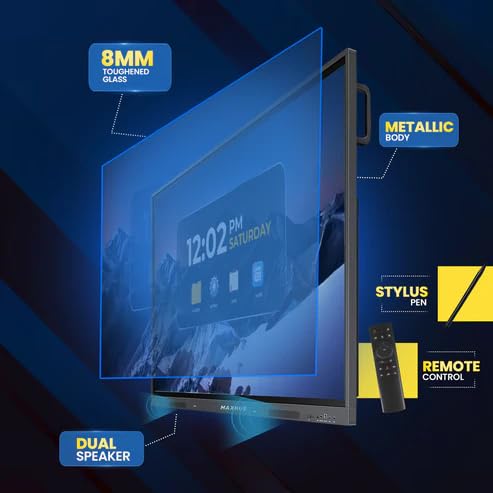
פיגורע 3.1: עקספּלאָדעד view diagram highlighting key components. This image illustrates the 8mm toughened glass, metallic body, dual speakers, stylus pen, and remote control that come with the interactive flat panel.
- 8mm Toughened Glass: Provides durability and protection for the display.
- Metallic Body: Ensures structural integrity and a premium finish.
- צווייענדיק ספּיקערז: Delivers clear audio output.
- סטילוס פעדער: For precise interaction and writing on the screen.
- ווייַט קאָנטראָל: פֿאַר באַקוועם אָפּעראַציע פון אַ ווייַטקייט.
פיגורע 3.2: זייַט view detailing connectivity options. This image shows the power supply input, VGA connection, OPS slot, connecting port, and front connectors for easy access.
- OPS Slot: For integrating an optional OPS (Open Pluggable Specification) module.
- VGA קשר: For traditional video input.
- מאַכט צושטעלן: הויפּט מאַכט אַרייַנגאַנג.
- פראָנט קאַנעקטערז: Easily accessible ports for peripherals.
4. סעטאַפּ און ייַנמאָנטירונג
Follow these steps for proper installation of your MAXHUB Interactive Flat Panel:
- אויספּאַקן: Carefully remove the panel from its packaging. Retain all packaging materials for future transport or storage.
- מאָונטינג: Securely mount the panel using a compatible VESA wall mount or floor stand (sold separately). Ensure the mounting surface can support the weight of the panel.
- קאַנעקטינג מאַכט: Connect the power cable to the panel's power input and then to a grounded electrical outlet.
- קאַנעקטינג פּעריפעראַלס: Connect any necessary peripherals such as computers, cameras, or external storage devices to the appropriate ports (HDMI, USB, USB Type-C). The versatile USB Type-C integrates 65-watt power charge, video, audio, touch, and internet access features into one interface.
- ערשט מאַכט אויף: Press the power button on the panel or remote control to turn on the device.
5. אַפּערייטינג ינסטרוקטיאָנס
The MAXHUB Interactive Flat Panel offers a user-friendly interface and advanced features for various applications.
5.1 יקערדיק אָפּעראַציע
- מאַכט אויף / אַוועק: Use the power button on the panel or remote.
- מקור סעלעקציע: Navigate through input sources (HDMI, VGA, OPS) using the input button on the remote or on-screen menu.
- Touch Interaction: Use your finger or the provided stylus for direct interaction with the screen. The panel features less than 40ms writing latency for a natural writing experience.
5.2 אַוואַנסירטע פֿעיִקייטן
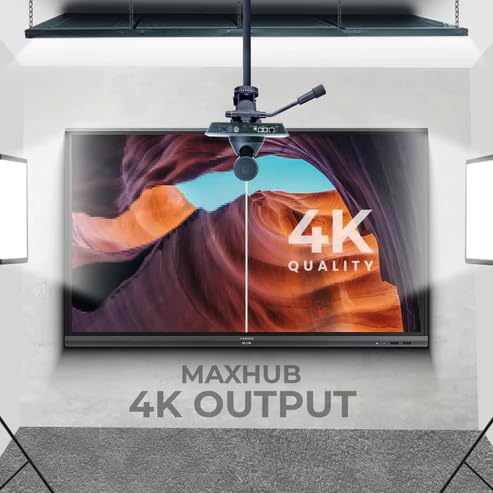
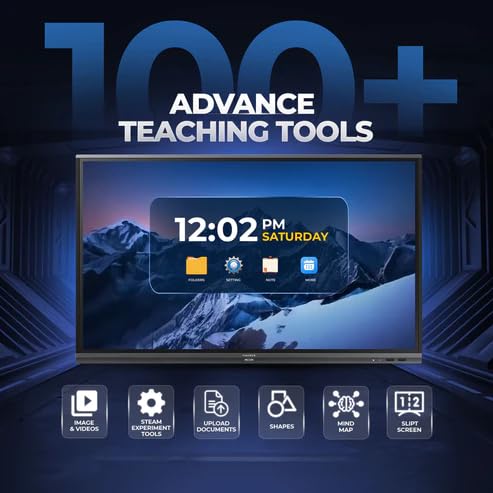
Figure 5.1: Display showing a variety of advanced teaching tools. This image highlights features like image and video integration, STEAM experiment tools, document upload, shapes, mind mapping, and split screen functionality.
- Professional 4K Display: Experience high color accuracy (AE≤2) and NTSC 72% wide color gamut for vivid visuals.
- Pre-installed Course Delivery Apps: Utilize built-in applications and widgets for productive teaching and presentations.
- אויג קער טעכנאָלאָגיע: Features TUV Low Blue light and TUV Flicker-free with an ambient light sensor and anti-glare glass to reduce eye strain.
- Responsive Hardware: Equipped with a powerful built-in 2.0Ghz quad-core CPU and 4GB RAM, along with a high-speed 1000Base-T network adapter for smooth performance.
- היגיעניק פּלאַן: Incorporates SGS-certified antibacterial components for a cleaner environment.

Figure 5.2: The interactive flat panel being used in a hybrid teaching environment. This image demonstrates its suitability for both in-person and online educational settings.
6. וישאַלט און קער
Regular maintenance ensures the longevity and optimal performance of your interactive flat panel.
- רייניקונג די פאַרשטעלן: ניצן אַ ווייך, לינט-פֿרייַ שטאָף אַ ביסל דampened with a non-abrasive, screen-safe cleaner. Do not spray cleaner directly onto the screen.
- רייניקונג דעם גוף: Wipe the exterior with a dry, soft cloth. Avoid harsh chemicals.
- ווענטילאַטיאָן: Ensure ventilation slots are clear of dust and debris to prevent overheating.
- ווייכווארג דערהייַנטיקונגען: Periodically check for and install software updates to ensure optimal performance and security.
7. טראָובלעשאָאָטינג
This section addresses common issues you might encounter with your MAXHUB Interactive Flat Panel.
| פּראָבלעם | מעגלעך סיבה | לייזונג |
|---|---|---|
| קיין מאַכט | שטראָם קאַבל אָפּגעטרעקט; שטראָם אַוטלעט פּראָבלעם. | קאָנטראָלירט די פֿאַרבינדונג פֿון דער מאַכט קאַבל; פּרוּווט אַן אַנדער ווענטיל. |
| קיין ווייַז | Incorrect input source selected; Cable connection issue. | Verify input source; Check HDMI/VGA/USB-C cable connections. |
| טאָוטשסקרעען ניט ריספּאַנסיוו | Calibration needed; Software glitch. | Recalibrate touchscreen via settings; Restart the panel. |
| נעבעך בילד קוואַליטי | Resolution mismatch; Dirty screen. | Adjust display resolution on connected device; Clean the screen. |
8. טעכניש ספּעסאַפאַקיישאַנז
| שטריך | באַשרייַבונג |
|---|---|
| סאָרט | MAXHUB |
| מאָדעל נומער | MaxHub Interactive Flat Panel 75" | OPS |
| ווייַז גרייס | 75 אינטשעס |
| ווייַז טעכנאָלאָגיע | לקד |
| ווייַז האַכלאָטע | 3840 רענטגענ 2160 (4K UHD) |
| ענטפער צייט | 40 מיליסעקאַנדז |
| קפּו | 2.0Ghz Quad-core |
| באַראַן | 4 גיגאבייט |
| קאַנעקטיוויטי | Wi-Fi, USB Type-C, HDMI, USB 3.0 |
| ספּעציעלע פֿעיִקייטן | Ultrawide Screen, TUV Low Blue Light, TUV Flicker-free, Anti-glare glass, SGS-certified antibacterial components |
| פּעקל דימענשאַנז | 180 X 114 X 20 סענטימעטער |
9. וואָראַנטי אינפֿאָרמאַציע
The MAXHUB Interactive Flat Panel 75" comes with a standard manufacturer's warranty. Please refer to the warranty card included with your product for specific terms and conditions, including coverage duration and limitations.
An extended warranty option may be available. For details, please contact your retailer or visit the official MAXHUB webפּלאַץ.
10. קונה שטיצן
For technical assistance, service, or further inquiries, please contact MAXHUB customer support through the following channels:
- Webפּלאַץ: Visit the official MAXHUB webזייטל פֿאַר אָפֿט געשטעלטע פֿראַגעס, דרייווערס און שטיצע רעסורסן.
- בליצפּאָסט: Refer to your product documentation for the support email address.
- טעלעפֿאָן: Contact the customer service hotline provided in your product's packaging.
When contacting support, please have your product model number (MaxHub Interactive Flat Panel 75" | OPS) and serial number ready.
Ask a question about this manual
Ask about setup, troubleshooting, compatibility, parts, safety, or missing instructions. Manuals+ will review the question and use this page’s manual context to help answer it.