
AUN AUN M98 Y9
AUN 4K Android TV Stick User Manual
Model: AUN M98 Y9
בראַנד: AUN
הקדמה
This user manual provides comprehensive instructions for the AUN 4K Android TV Stick (Model: M98 Y9). It covers product features, setup, operation, maintenance, and troubleshooting to ensure optimal performance and user experience. The AUN TV Stick transforms any compatible display into a smart TV, offering access to a vast array of streaming content and applications.
וואָס איז אין די קעסטל
ביים אויספּאַקן דעם קעסטל, ביטע זיכער מאַכן אַז אַלע די פאלגענדע זאכן זענען אַרייַנגערעכנט:
- 1 x 4K Android TV Stick (AUN M98 Y9)
- 1 x רימאָוט קאָנטראָל
- 1 x מאַכט אַדאַפּטער
- 1 X טיפּ C קאַבלע
- 1 x IR Cable
- 1 x HDMI Extender Cable
- 1 x באַניצער מאַנואַל

Image: All components included in the AUN 4K Android TV Stick package, laid out for clear viewing. This includes the TV stick, its remote control, power adapter, Type-C cable, IR cable, HDMI extender cable, and the user manual.
פּראָדוקט איבערview
The AUN M98 Y9 Android TV Stick is a compact device designed to provide smart TV functionalities to any display with an HDMI input. It features a sleek design and intuitive controls.
מיטל קאַמפּאָונאַנץ
- HDMI קאַנעקטער: Plugs directly into your TV's HDMI port.
- USB צובינד: For connecting external storage devices or peripherals.
- Power Hole (Type-C): פֿאַר קאַנעקטינג די מאַכט אַדאַפּטער.
- פּילאָט לamp: ינדיקייץ מיטל סטאַטוס.

Image: The AUN 4K Android TV Stick and its accompanying remote control. The stick is a compact, black rectangular device, and the remote is an ergonomic black controller with various buttons for navigation and voice control.
ווייַט קאָנטראָל
The included remote control allows for easy navigation and interaction with the TV Stick. It supports voice search for quick content discovery.
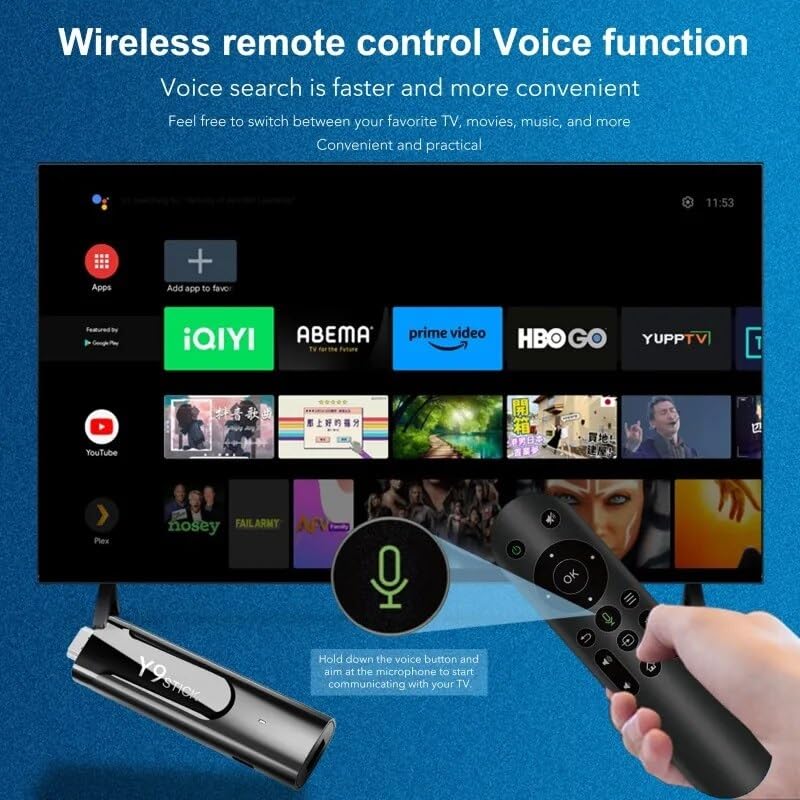
Image: A hand holding the AUN TV Stick remote control, with a visual overlay indicating the voice search button and microphone icon. The image illustrates the ease of using voice commands to interact with the TV stick's interface, which is displayed on a television screen in the background.
סעטאַפּ גייד
Follow these steps to set up your AUN 4K Android TV Stick:
- פֿאַרבינדן דעם טעלעוויזיע שטעקן: Plug the AUN TV Stick directly into an available HDMI port on your television or projector. If space is limited, use the provided HDMI extender cable.
- פאַרבינדן מאַכט: Connect the Type-C cable to the "Power Hole" on the TV Stick and the other end to the provided power adapter. Plug the power adapter into a wall outlet.
- Connect IR Cable (Optional): If the TV Stick is hidden behind the TV or in a cabinet, connect the IR cable to the TV Stick and position the IR receiver in a location where it has a clear line of sight to your remote control.
- סעלעקטירן HDMI אַרייַנשרייַב: Turn on your TV or projector and select the corresponding HDMI input source to which the TV Stick is connected.
- ערשט סעטאַפּ: Follow the on-screen instructions to complete the initial setup, including language selection, Wi-Fi network connection, and Google account login.
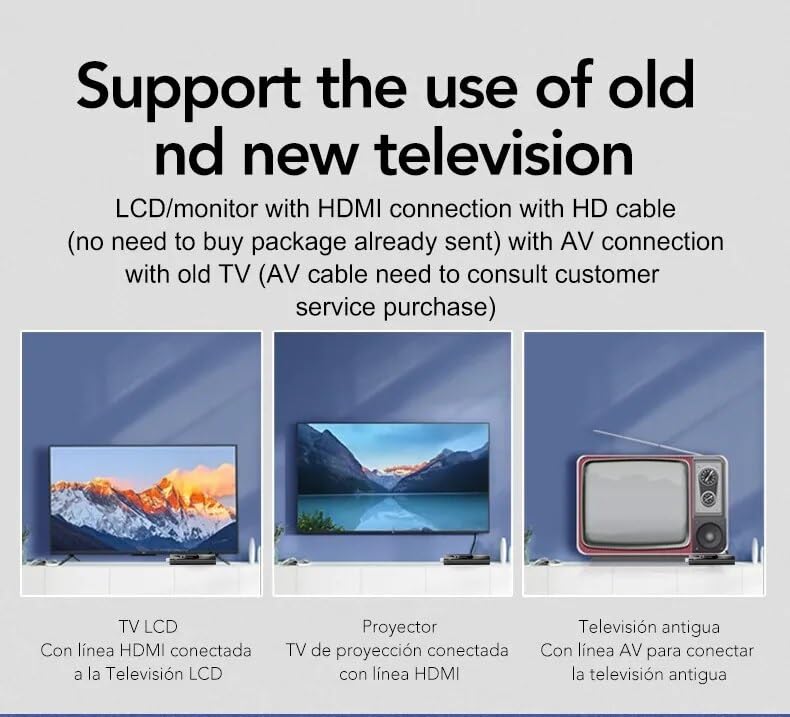
Image: This diagram illustrates the versatility of the AUN TV Stick, showing its compatibility with modern LCD TVs and projectors via HDMI, and older televisions using an AV connection (AV cable sold separately). It highlights the ease of connecting the device to various display types.
אַפּערייטינג ינסטראַקשאַנז
נאַוויגאַציע די צובינד
Use the directional pad and "OK" button on the remote control to navigate through the Android TV interface. The "Back" button returns to the previous screen, and the "Home" button takes you to the main home screen.
קאַנעקטינג צו Wi-Fi
- פֿון דער היים־עקראַן, נאַוויגירט צו סעטטינגס.
- אויסקלייַבן נעץ & אינטערנעט.
- קלייַבט אייער געוואונטשענע Wi-Fi נעץ פֿון דער רשימה.
- Enter the Wi-Fi password using the on-screen keyboard and select פאַרבינדן.
The AUN TV Stick supports dual-band Wi-Fi (2.4G/5G) for stable and fast wireless connectivity.

Image: This visual demonstrates the AUN TV Stick's support for both 2.4G and 5G dual-band Wi-Fi, ensuring smooth high-speed graphics and streaming. It also shows the capability to mirror content from a mobile phone to the TV screen, enhancing the viewינג דערפאַרונג.
ינסטאָלינג אַפּפּליקאַטיאָנס
Access the Google Play Store from the home screen to download and install your favorite streaming apps (e.g., Netflix, Prime Video, Disney+ Hotstar) and games. A Google account is required for Play Store access.
Using Voice Search
Press the dedicated voice button on your remote control and speak into the microphone to search for content, open apps, or get information. Voice search is faster and more convenient.
שליסל פֿעיִקייטן
- 4K Ultra HD האַכלאָטע: Supports stunning 4K resolution for crisp, clear visuals and an immersive viewינג דערפאַרונג.
- HDR 10+ Support: Enhanced dynamic range for vibrant colors and greater contrast.
- Widevine L1 Certified: Enables streaming of high-definition content from premium services like Netflix and Prime Video.
- אַנדרויד 13 אָפּערייטינג סיסטעם: Provides a smooth, user-friendly interface with access to a vast ecosystem of apps.
- Amlogic S905Y4 Quad A35 CPU: High-performance processor for seamless streaming and gaming.
- 2GB RAM & 16GB Storage: Sufficient memory for smooth operation and ample space for apps and media.
- צוויי-באַנד Wi-Fi (2.4G/5G): Ensures stable and fast internet connectivity.
- בלועטאָאָטה 5: For connecting wireless headphones, game controllers, and other Bluetooth accessories.
- Dolby Audio & DTS Digital Support: Delivers rich, immersive sound quality.
- USB & Memory Card Ports: Allows for external storage expansion and media playback.
- Miracast שטיצן: Enables screen mirroring from compatible devices.

Image: This image highlights the superior image quality of the AUN TV Stick, emphasizing its 4K Ultra HD and HDR capabilities. The vibrant colors and sharp details demonstrate the immersive visual experience provided by the device.

Image: This image emphasizes the generous memory configuration of the AUN TV Stick, featuring 2GB of DDR3 RAM and 16GB of eMMC storage. This combination ensures smooth operation and ample space for applications and media content.
טראָובלעשאָאָטינג
If you encounter issues with your AUN 4K Android TV Stick, refer to the following common problems and solutions:
- קיין מאַכט/אַפּאַראַט טוט זיך נישט אָן:
- Ensure the power adapter is securely connected to the TV Stick and a working power outlet.
- פּרוּווט אַ אַנדערש מאַכט ווענטיל.
- קיין סיגנאַל אויף טעלעוויזיע עקראַן:
- זיכער מאַכן אַז דער טעלעוויזיע סטיק איז פעסט אַרייַנגעשטעקט אין דעם HDMI פּאָרט.
- קאָנטראָלירט אַז אייער טעלעוויזיע איז איינגעשטעלט צו די ריכטיקע HDMI אַרייַנגאַנג מקור.
- פרובירט אן אנדערן HDMI פארט אויף אייער טעלעוויזיע.
- If using the HDMI extender, ensure it is properly connected.
- רימאָוט קאָנטראָל ניט ריספּאַנדינג:
- Ensure there are no obstructions between the remote and the TV Stick (or IR receiver).
- קוקט אויב די באַטעריעס פון די ווײַט קאָנטראָל דאַרפֿן געטוישט ווערן.
- If using the IR cable, ensure it is properly connected and positioned.
- Wi-Fi קאַנעקשאַן ישוז:
- ריסטאַרט דיין Wi-Fi ראַוטער.
- זיכער מאַכן אַז דער טעלעוויזיע סטיק איז אין דער ראַוטער פֿון אייער Wi-Fi ראַוטער.
- Re-enter the Wi-Fi password to ensure it is correct.
- Try connecting to the 2.4GHz band if you are on 5GHz, or vice-versa.
- App Crashing/Slow Performance:
- שליסן הינטערגרונט אַפּליקאַציעס.
- Clear the cache of the problematic app via Settings > Apps.
- Restart the TV Stick by unplugging and re-plugging the power.
- זייט זיכער אַז איר האָט גענוג פרייען סטאָרידזש פּלאַץ.
ספּעסאַפאַקיישאַנז
| שטריך | דעטאַל |
|---|---|
| סאָרט | אַון |
| מאָדעל | AUN M98 Y9 |
| אָפּערייטינג סיסטעם | אַנדרויד 13 |
| פּראַסעסער | אמלאָגיק ס905י4 קוואַד אַ35 |
| באַראַן | 2 גיגאבייט |
| סטאָרידזש | 16 גיגאבייט |
| האַכלאָטע | 4K |
| ספּעציעלע פֿעיִקייטן | Widevine L1, HDR 10+, AV1, Dolby Audio, DTS Digital, Miracast |
| קאַנעקטיוויטי | 2.4G/5G Dual WiFi, Bluetooth 5 |
| פּאָרץ | USB, Memory Card, HDMI, Type-C Power |
| קאַמפּאַטאַבאַל דעוויסעס | Television, Projectors |
| פּראָדוקט דימענשאַנז | 8 X 3 X 2 סענטימעטער |
| פּונקט וואָג | 300 ג |

Image: This graphic illustrates the core technical specifications of the AUN TV Stick, highlighting its Amlogic S905Y4 Quad A35 CPU, OpenGL ES 3.2 GPU, H.265 video decoder supporting up to 4K@60fps, and HDMI 2.0 output for 4K@60fps display.
וישאַלט
To ensure the longevity and optimal performance of your AUN 4K Android TV Stick, follow these maintenance guidelines:
- רייניקונג: ניצט אַ ווייכע, טרוקענע שטאָף צו רייניקן דעם אַפּאַראַט. ניצט נישט קיין פליסיקע רייניגער אָדער אַעראָזאָלן.
- ווענטילאַטיאָן: Ensure the device is placed in a well-ventilated area to prevent overheating. Do not cover ventilation openings.
- סטאָרידזש: ווען נישט אין באַנוץ פֿאַר לענגערע פּעריאָדן, זאָל מען דאָס אַפּאַראַט אויפֿהיטן אין אַ קיל, טרוקן אָרט, אַוועק פֿון דירעקטער זון און עקסטרעמע טעמפּעראַטורן.
- ווייכווארג דערהייַנטיקונגען: Regularly check for and install system updates to ensure the device has the latest features and security patches.
וואָראַנטי און שטיצן
The AUN 4K Android TV Stick comes with a 6-חודש וואָראַנטי from the date of purchase. This warranty covers manufacturing defects and malfunctions under normal use. Please retain your purchase receipt as proof of purchase.
For technical support, warranty claims, or any other inquiries, please contact Megaa Electronics using the following details:
- בליצפּאָסט: support@megaaelectronics.com or megaaelectronics@gmail.com
- ווהאַצאַפּפּ: 8328671337
Please provide your product model (AUN M98 Y9) and a detailed description of the issue when contacting support.
Ask a question about this manual
Ask about setup, troubleshooting, compatibility, parts, safety, or missing instructions. Manuals+ will review the question and use this page’s manual context to help answer it.