
הקדמה
The Yada ROADCAM AI PLUS is an advanced dashcam system designed to enhance road safety and provide comprehensive recording of your journeys. This system includes a TRUE 4K front dashcam and a 1080p rear camera, offering extensive coverage. It features AI driver assistance, G-sensor event recording, and integrated GPS for detailed journey tracking. This manual provides essential information for the proper installation, operation, and maintenance of your device.
פּעקל אינהאַלט
ביטע באַשטעטיקן אַז אַלע זאכן וואָס זענען אויסגערעכנט אונטן זענען פאַראַן אין אייער פּעקל:
- Yada ROADCAM AI PLUS Front Dashcam
- Rear Camera (1080p)
- Power Cable (USB connectivity)
- Front Camera Windshield Mount
- Rear Camera License Plate Mount
- דערציען אַפּאַראַט קאַנעקשאַן קאַבלע
- באַניצער מאַנואַל
זיכערקייַט אינפֿאָרמאַציע
Read all safety instructions before using the device to prevent injury or damage. Keep the device away from water and extreme temperatures. Do not attempt to disassemble or repair the device yourself. Ensure cables are routed safely and do not obstruct the driver's view אדער אויטאָ קאָנטראָלס.
סעטאַפּ
1. Front Dashcam Installation
- Clean the windshield area where the dashcam will be mounted.
- Attach the windshield mount to the dashcam.
- שאָלט אַראָפּ די פּראַטעקטיוו פילם פֿון די קלעפּיקע פּאַד אויף דער מאָונט.
- Press the mount firmly onto the windshield, ensuring it does not obstruct your view. Position it centrally, behind the rearview mirror if possible.
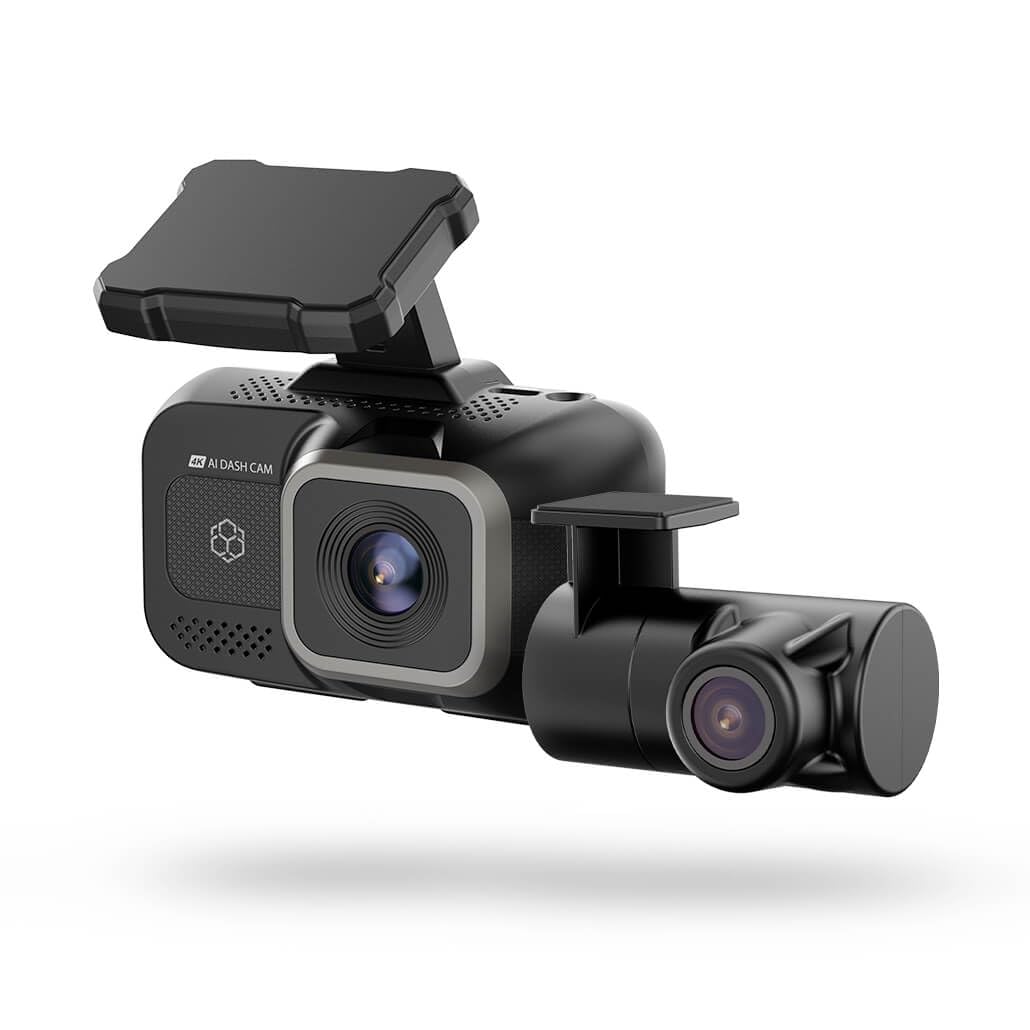
Image: The Yada ROADCAM AI PLUS Front Dashcam shown mounted on a car windshield, illustrating its compact design and placement.
2. דערציען אַפּאַראַט ינסטאַלירונג
- The rear camera is designed for license plate mounting. Securely attach the rear camera to your vehicle's license plate area using the provided mount and hardware.
- Route the rear camera connection cable from the rear of the vehicle to the front dashcam. Ensure the cable is tucked away neatly and does not interfere with vehicle operation or passenger movement.
- Connect the rear camera cable to the designated port on the front dashcam.
3. מאַכט קאַנעקשאַן
- Insert a compatible microSD card (not included) into the dashcam's card slot.
- Connect the power cable to the dashcam's USB power input.
- שטעקט אריין דעם אנדערן עק פונעם עלעקטרישן קאבל אין אייער אויטא'ס 12V עלעקטרישן אויסגאס (ציגארעטן-לייכטער סאקעט).
- Start your vehicle. The dashcam should power on automatically.
4. ערשט סעטאַפּ
- Upon first power-on, the dashcam may prompt you to set the date, time, and language. Follow the on-screen instructions using the touch control interface.
- It is recommended to format the microSD card through the dashcam's settings menu before first use to ensure optimal performance.
אַפּערייטינג ינסטראַקשאַנז
1. גרונטלעכע רעקאָרדירונג
- אָטאַמאַטיק רעקאָרדינג: The dashcam automatically begins recording when the vehicle's ignition is turned on.
- שלייף רעקאָרדינג: Footage is recorded in continuous loops. When the memory card is full, the oldest unlocked files זענען אָוווערריטאַן.
- מאַנואַל רעקאָרדינג: Press the designated button on the dashcam to manually start or stop recording, or to lock the current recording segment.
2. AI Driver Assistance Features
The AI driver assistance system provides audio alerts to enhance road safety. These features may include:
- ווארענונג פון ליין אָפּפאָר: Alerts if the vehicle drifts out of its lane without signaling.
- וואָרענונג וועגן פאָרווערטס קאָליזיע: Alerts if the vehicle is approaching a preceding vehicle too quickly.
Refer to the dashcam's settings menu to enable or disable specific AI assistance features and adjust their sensitivity.
3. G-Sensor Functionality
The built-in G-sensor detects sudden impacts or rapid acceleration/deceleration. When such an event occurs, the dashcam automatically locks the current video segment, preventing it from being overwritten by loop recording. This ensures critical event footage איז פּרעזערווירט.
4. GPS and Map Features
The integrated GPS module records your vehicle's location, speed, and route data. This information can be viewed alongside your recorded video footage using the dedicated playback software or mobile application, providing a comprehensive review פון דיין רייזע.
5. App Connectivity (Wireless)
The dashcam supports wireless connectivity, allowing you to connect it to a smartphone or tablet via a dedicated mobile application. Through the app, you can:
- View לעבן פאָאָtagע פון ביידע קאַמעראַס.
- פּלייבאַק רעקאָרדעד ווידיאס.
- אָפּלאָדירן ווידעא fileס צו דיין רירעוודיק מיטל.
- Adjust dashcam settings.
Download the official Yada Roadcam app from your device's app store and follow the in-app instructions to connect to your dashcam.
וישאַלט
1. רייניקונג
- Regularly clean the camera lenses with a soft, dry, lint-free cloth to ensure clear video quality.
- Wipe the dashcam body with a slightly damp cloth if necessary, avoiding direct contact with water or cleaning solutions.
2. פירמוואַרע דערהייַנטיקונגען
Periodically check the Yada website or the mobile application for available firmware updates. Keeping your dashcam's firmware up-to-date ensures optimal performance and access to new features.
3. סטאָרידזש מאַנאַגעמענט
To maintain optimal recording performance, it is recommended to format the microSD card once a month. This can be done through the dashcam's settings menu or via the mobile application. Back up any important files איידער פאָרמאַטטינג.
טראָובלעשאָאָטינג
| פּראָבלעם | מעגלעך לייזונג |
|---|---|
| די דאַשקאַם גייט נישט אָן. | Ensure the power cable is securely connected to both the dashcam and the vehicle's 12V power outlet. Check if the vehicle's 12V outlet is functioning. |
| די אויפנאמע שטעלט זיך אפ אומגעריכט. | Check if the microSD card is full or corrupted. Format the card or replace it with a new, compatible one. Ensure the card meets the required speed class. |
| נעבעך ווידעא קוואַליטעט. | Clean the camera lenses. Ensure the protective film has been removed from the lenses. Check video resolution settings. |
| דזשי-פי-עס טרעקט נישט די לאקאציע. | זיכער מאַכן אַז די דאַשקאַם האט אַ קלאָרע view of the sky. It may take a few minutes for the GPS signal to be acquired, especially after initial setup or in areas with poor signal. |
| די הינטערשטע קאַמעראַ ווײַזט זיך נישט. | Verify that the rear camera cable is securely connected to both the rear camera and the front dashcam. Check for any damage to the cable. |
ספּעסאַפאַקיישאַנז
- מאָדעל נאָמען: BT533642-6/2
- Front Camera Video Capture Resolution: אמת 4 ק
- Rear Camera Video Capture Resolution: 1080 פּ
- פעלד פון View: 150 דיגריז
- ספּעציעלע פֿעיִקייטן: Built-In GPS, G-Sensor, AI Driver Assistance
- קאַנעקטיוויטי טעכנאָלאָגיע: וסב, ווירעלעסס
- מאַונטינג טיפּ: Windshield Mount (Front), License Plate Mount (Rear)
- קאָנטראָל אופֿן: ריר
- נומער וואָג: 1.7 פונט
- קאָליר: שוואַרץ
וואָראַנטי אינפֿאָרמאַציע
Yada products are covered by a limited warranty from the date of purchase. This warranty covers defects in materials and workmanship under normal use. It does not cover damage caused by misuse, accident, unauthorized modification, or external causes. Please retain your proof of purchase for warranty claims. For specific warranty terms and conditions, refer to the warranty card included with your product or visit the official Yada webפּלאַץ.
קונה שטיצן
If you encounter any issues or have questions regarding your Yada ROADCAM AI PLUS, please contact our customer support team. You can find contact information, FAQs, and additional resources on the official Yada website. Please have your product model number (BT533642-6/2) and proof of purchase ready when contacting support.