
FMOUSE B0CSPT61TF
FMOUSE Transparent Wireless Mouse User Manual
Model: B0CSPT61TF
1. הקדמה
This user manual provides detailed instructions for the FMOUSE Transparent Wireless Mouse (Model: B0CSPT61TF). This device features a unique transparent design, multi-mode connectivity, and customizable settings for enhanced user experience.
שליסל פֿעיִקייטן:
- טריי-מאָד קאַנעקטיוויטי: Supports Dual Bluetooth 5.1 and 2.4GHz wireless connections, allowing connection to up to three devices.
- Transparent Magnetic Shell: Unique design with a removable magnetic cover for easy access to receivers.
- Rechargeable with LED Lighting: Built-in rechargeable battery with Type-C charging port and cool LED light ring.
- אַדזשאַסטאַבאַל דפּי: Four adjustable DPI levels (800/1200/1600/2400) for precise cursor control.
- שטילע קליקן: דיזיינד פֿאַר שטילער אָפּעראַציע.
- ברייט קאַמפּאַטאַבילאַטי: Compatible with Windows XP, Vista, 7, 8, 10, 11, Windows ME, Mac OS, and more.
2. סעטאַפּ
2.1 וואָס איז אין דער קעסטל
ביים עפענען דעם פעקל, זיכער מאכן אז אלע קאמפאנענטן זענען דא:
- 1 x Wireless Bluetooth Tri-mode Mouse
- 1 x USB Receiver (USB-A)
- 1 רענטגענ טיפּ-C ופנעמער
- 1 x וסב טשאַרדזשינג קאַבלע (טיפּ-C)
- 1 x באַניצער מאַנואַל
2.2 אויפלאָדן די מויז
The mouse is equipped with a built-in rechargeable battery. Before first use, or when the battery indicator shows low power, charge the mouse using the provided USB Type-C cable.
- געפינט דעם טיפ-C טשאַרדזשינג פּאָרט אויף דער פראָנט פון דער מויז.
- Connect one end of the USB charging cable to the mouse and the other end to a USB power source (e.g., computer USB port, USB wall adapter).
- The LED lights on the mouse will indicate charging status. A full charge typically takes approximately 2 hours and can provide 5-10 days of heavy use.

Image: The FMOUSE Transparent Wireless Mouse connected to a USB-C charging cable, illustrating the charging process.
Video: Demonstrates the charging process and various features of the FMOUSE Wireless Bluetooth transparent mouse.
2.3 Connecting the Mouse (Tri-mode)
The mouse supports three connection modes: 2.4GHz wireless (via USB-A or Type-C receiver) and two separate Bluetooth 5.1 connections (BT1 and BT2).
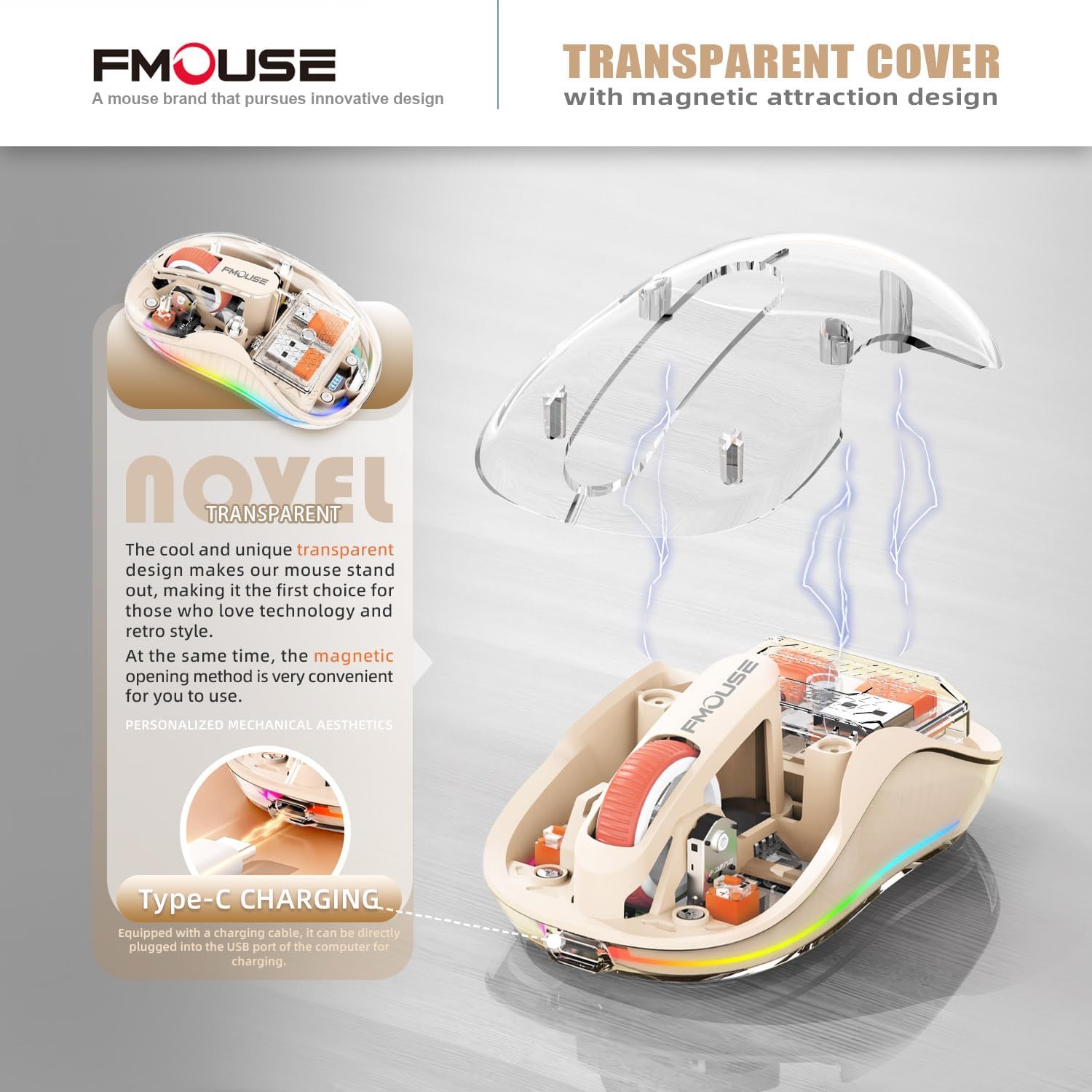
Image: A visual representation of the mouse's tri-mode connectivity, highlighting the USB-A, Type-C, and Bluetooth options for connecting to multiple devices.

בילד: אן עקספלאדירטע view of the mouse showing the internal storage for the USB-A and Type-C receivers, which are magnetically held under the transparent cover.
2.3.1 2.4GHz ווירעלעס פֿאַרבינדונג
- Open the magnetic transparent cover of the mouse to access the USB-A and Type-C receivers.
- Select the appropriate receiver (USB-A or Type-C) for your device and plug it into an available port on your computer or laptop.
- קער אויף די מויז ניצן די מאַכט באַשטימען אויף די דנאָ.
- Switch the mode button on the bottom of the mouse to the "2.4G" position. The mouse should automatically connect to your device.
2.3.2 בלועטוט פֿאַרבינדונג (BT1 / BT2)
- קער אויף די מויז ניצן די מאַכט באַשטימען אויף די דנאָ.
- Switch the mode button on the bottom of the mouse to either "BT1" or "BT2" position.
- For first-time pairing, press and hold the mode button for approximately 3-5 seconds until the LED lights on the mouse start flashing rapidly, indicating pairing mode.
- On your device (computer, laptop, tablet, or smartphone), go to Bluetooth settings and search for new devices.
- Select "FMOUSE" or a similar name from the list of available devices to pair.
- Once paired, the LED lights on the mouse will stop flashing and remain solid.
- To switch between paired Bluetooth devices or the 2.4G connection, simply press the mode button on the bottom of the mouse to cycle through BT1, BT2, and 2.4G.
3. אַפּערייטינג ינסטרוקטיאָנס
3.1 פונקציע קנעפּלעך איבערview
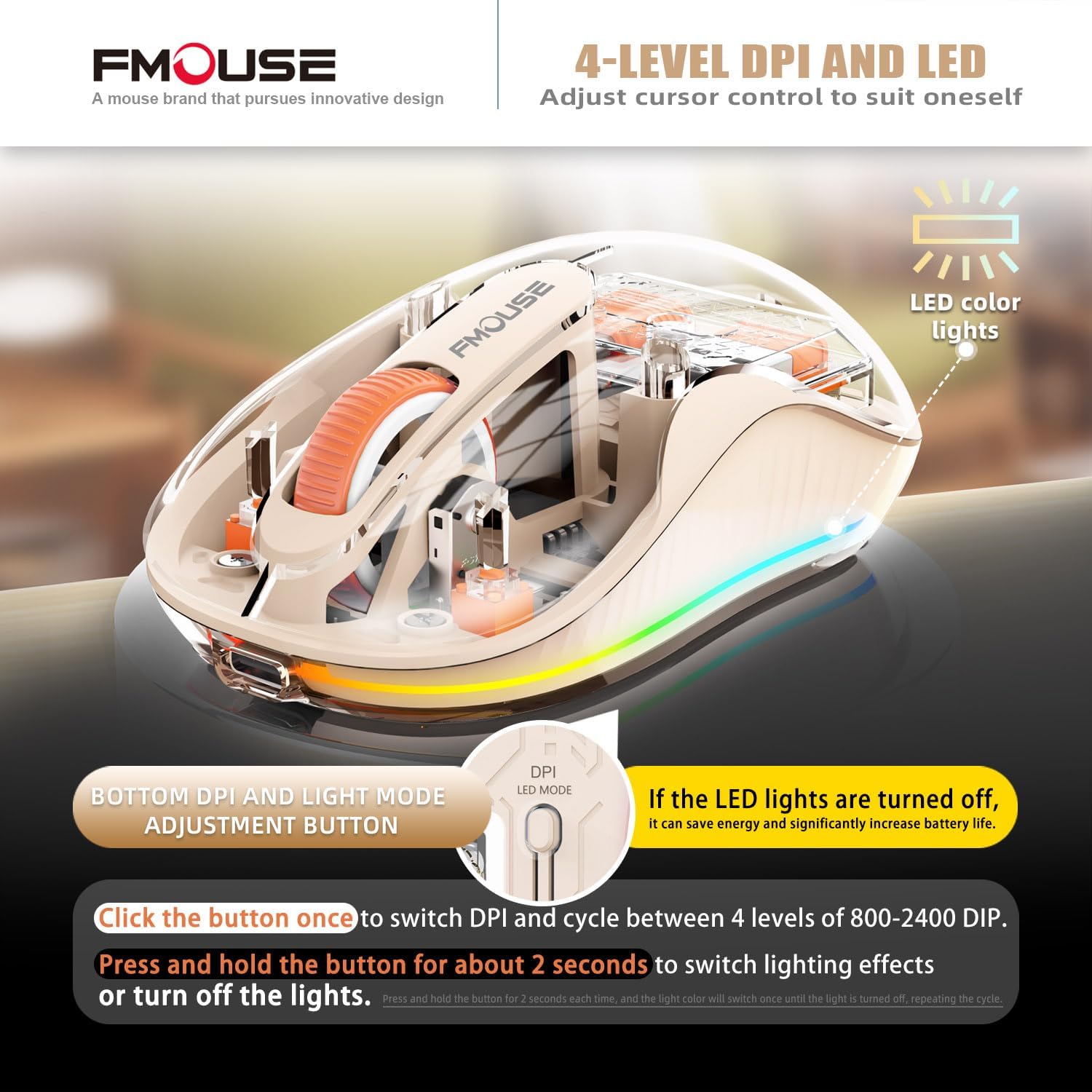
Image: The underside of the mouse, highlighting the power switch, the tri-mode connection switch, and the DPI/LED mode adjustment button.
- מאַכט סוויטש: Located on the bottom, slides to ON/OFF.
- Tri-mode Switching Button: Located on the bottom, allows quick switching between 2.4G, BT1, and BT2 connections.
- DPI/LED Mode Adjustment Button: Located on the bottom, near the power indicator.
3.2 אַדזשאַסטירן DPI (סענסיטיוויטי)
The mouse offers four adjustable DPI levels to suit different tasks and preferences.
- Press the DPI/LED Mode Adjustment button once to cycle through the DPI settings: 800, 1200, 1600, and 2400 DPI.
- Each press will change the cursor speed, allowing you to find your preferred sensitivity.
3.3 קאָנטראָלירן LED ליכט
The mouse features a cool LED light ring that illuminates when the mouse is stationary and turns off when it moves to conserve battery.
- To turn off the LED lights completely and extend battery life, press and hold the DPI/LED Mode Adjustment button for approximately 2 seconds.
- Repeat the action to turn the LED lights back on.
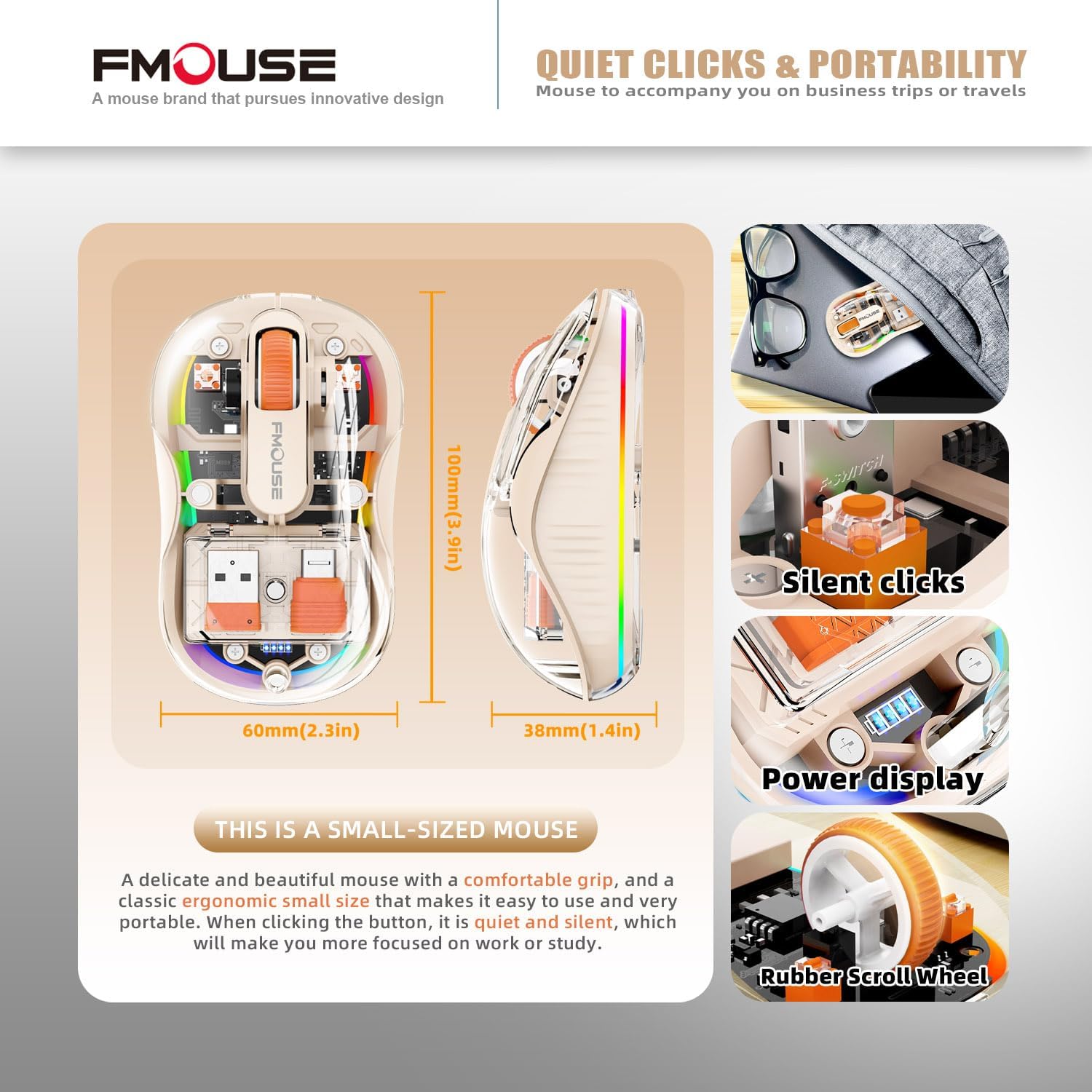
Image: The mouse demonstrating its LED lighting effects and the button used to control them, emphasizing the option to turn lights off for battery saving.
3.4 שטילע קליקן
The mouse is designed with silent click technology, minimizing noise during use. This feature is integrated into the mouse's buttons and does not require specific activation.
3.5 Surface Compatibility
The optical sensor technology allows the mouse to operate effectively on a variety of surfaces without the need for a mouse pad.
- Compatible surfaces include wood, metal, leather, glass, and fabric.

Image: The mouse shown on different surfaces (wood, metal, leather, fabric) to illustrate its broad surface compatibility without a mouse pad.
4. וישאַלט
Proper maintenance ensures the longevity and optimal performance of your FMOUSE Transparent Wireless Mouse.
- רייניקונג: Use a soft, dry, lint-free cloth to wipe the exterior of the mouse. For stubborn dirt, slightly dampווייקט דעם שטאָף מיט וואַסער. פֿאַרמייַדט ניצן שטרענגע כעמיקאַלן, סאָלווענטן, אָדער אַברייסיוו רייניגער.
- סענסאָר זאָרגן: האַלט דעם אָפּטישן סענסאָר אויף דער אונטערשטער טייל פון דער מויז ריין און פריי פון שטויב אָדער דעבריס צו ענשור פּינקטלעכע טראַקינג.
- סטאָרידזש: When not in use for extended periods, store the mouse in a cool, dry place. The included cloth carrying bag is ideal for travel and protection.
- באַטערי זאָרגן: Avoid fully discharging the battery frequently. Charge the mouse when the power indicator shows low battery.
5. טראָובלעשאָאָטינג
If you encounter issues with your mouse, refer to the following common troubleshooting steps:
| פּראָבלעם | מעגלעך סיבה | לייזונג |
|---|---|---|
| מויז ניט ריספּאַנדינג | Low battery; Incorrect connection mode; Receiver not properly plugged in (2.4G); Bluetooth not paired. |
|
| קורסאָר באַוועגונג איז נישט סטאַביל אָדער פּאַמעלעך | Dirty optical sensor; Unsuitable surface; Low battery; Incorrect DPI setting. |
|
| געפירט לייץ נישט ארבעטן | LEDs turned off; Low battery. |
|
| קענען ניט פאַרבינדן דורך בלועטאָאָטה | מויז נישט אין פּערינג מאָדע; מיטל בלועטוט אויסגעלאָשן; שטערונג. |
|
6. ספּעסאַפאַקיישאַנז
| שטריך | דעטאַל |
|---|---|
| פּראָדוקט דימענשאַנז | 3.94 X 2.36 X 0.1 אינטשעס |
| פּונקט וואָג | 2.68 אונסעס |
| קאַנעקטיוויטי טעכנאָלאָגיע | Bluetooth 5.1 (Dual), 2.4GHz Wireless |
| באַוועגונג דעטעקשאַן טעכנאָלאָגיע | אָפּטיש |
| דפּי לעוועלס | 800 / 1200 / 1600 / 2400 |
| באַטערי טיפּ | 1 ליטהיום יאָן באַטאַרייע (אַרייַנגערעכנט) |
| טשאַרדזשינג פּאָרט | טיפּ-C |
| ווירעלעסס ראַנגע | Up to 10m (33ft) for Bluetooth |
| קאַמפּאַטאַבילאַטי | Windows XP/Vista/7/8/10/11, Windows ME, Mac OS, etc. |
| ספּעציעלע פֿעיִקייטן | Transparent magnetic shell, Cool LED Lights, Silent Clicks, USB-A & Type-C Receivers |
7. שטיצע און ווייטערדיקע אינפֿאָרמאַציע
For additional support or detailed documentation, please refer to the official user guide or contact FMOUSE customer service.
- אפיציעלע באַניצער גייד (PDF): אראפקאפיע פּדף
- FMOUSE Store: Visit FMOUSE Store on Amazon
פֿאַרבונדענע דאָקומענטן - B0CSPT61TF
 |
FMOUSE M501 וויירלעס גיימינג מויז אינסטרוקציע מאַנואַל א פולשטענדיגע אינסטרוקציע מאנואל פאר די FMOUSE M501 וויירלעס גיימינג מויז, מיט פרטים וועגן איר טרי-מאָד קאַנעקטיוויטי (2.4GHz, בלועטוט 3.0, בלועטוט 5.0), ערגאָנאָמישן דיזיין, אַדזשאַסטאַבאַל DPI, און ריטשאַרדזשאַבאַל פֿעיִקייטן. |
 |
FMOUSE M333 ווירעלעס מויז אינסטרוקציע מאַנואַל באַניצער גייד פֿאַר די FMOUSE M333 וויירלעס מויז, מיט RGB לייטינג, שטילע קליקן, טראַנספּאַרענטן פּלאַן, און צווייפאַכע קאָנעקטיוויטי (בלוטעט 5.1, 2.4GHz USB/טיפּ-C). לערנט וועגן DPI סעטטינגס, פּראָדוקט פֿעיִקייטן, און באַניץ. |
 |
FMOUSE Wireless Mouse User Manual User manual for the FMOUSE 2.4G Dual-Mode Wireless Bluetooth Mouse, covering setup, charging, connection instructions, and product specifications. |
 |
FMOUSE M303 ווירעלעס מויז אינסטרוקציע מאַנואַל User manual for the FMOUSE M303 wireless mouse, detailing specifications, installation, usage, and troubleshooting. Includes FCC compliance information. |
 |
700 מויז באַניצער מאַנואַל און פּראָדוקט אינפֿאָרמאַציע א פולשטענדיגע באַניצער מאַנואַל פֿאַר די 700 MOUSE וויירלעס מויז, וואָס דעקט פֿעיִקייטן, אָפּעראַציע אינסטרוקציעס פֿאַר 2.4G און בלועטוט מאָדעס, ינסטאַלירונג, טראָובלעשווטינג, באַטאַרייע און לאַזער זיכערהייט וואָרענונגען, וואָראַנטי אינפֿאָרמאַציע, און FCC קאַנפאָרמאַטי. |
 |
Shenzhen FMOUSE Technology Co., Ltd. Wireless Mouse+M235 Simplified EU Declaration of Conformity This document provides the Simplified EU Declaration of Conformity for the Shenzhen FMOUSE Technology Co., Ltd. Wireless Mouse+M235, confirming compliance with Directive 2014/53/EU. The full text of the declaration is available online at http://ewm.lktouch.com/fvqb. |
Ask a question about this manual
Ask about setup, troubleshooting, compatibility, parts, safety, or missing instructions. Manuals+ will review the question and use this page’s manual context to help answer it.