
Hysoon HS71-60
Hysoon Cash Register User Manual
מאָדעל: HS71-60
1. הקדמה
This manual provides comprehensive instructions for the setup, operation, maintenance, and troubleshooting of your Hysoon Cash Register, Model HS71-60. Please read this manual thoroughly before using the device to ensure proper functionality and longevity.
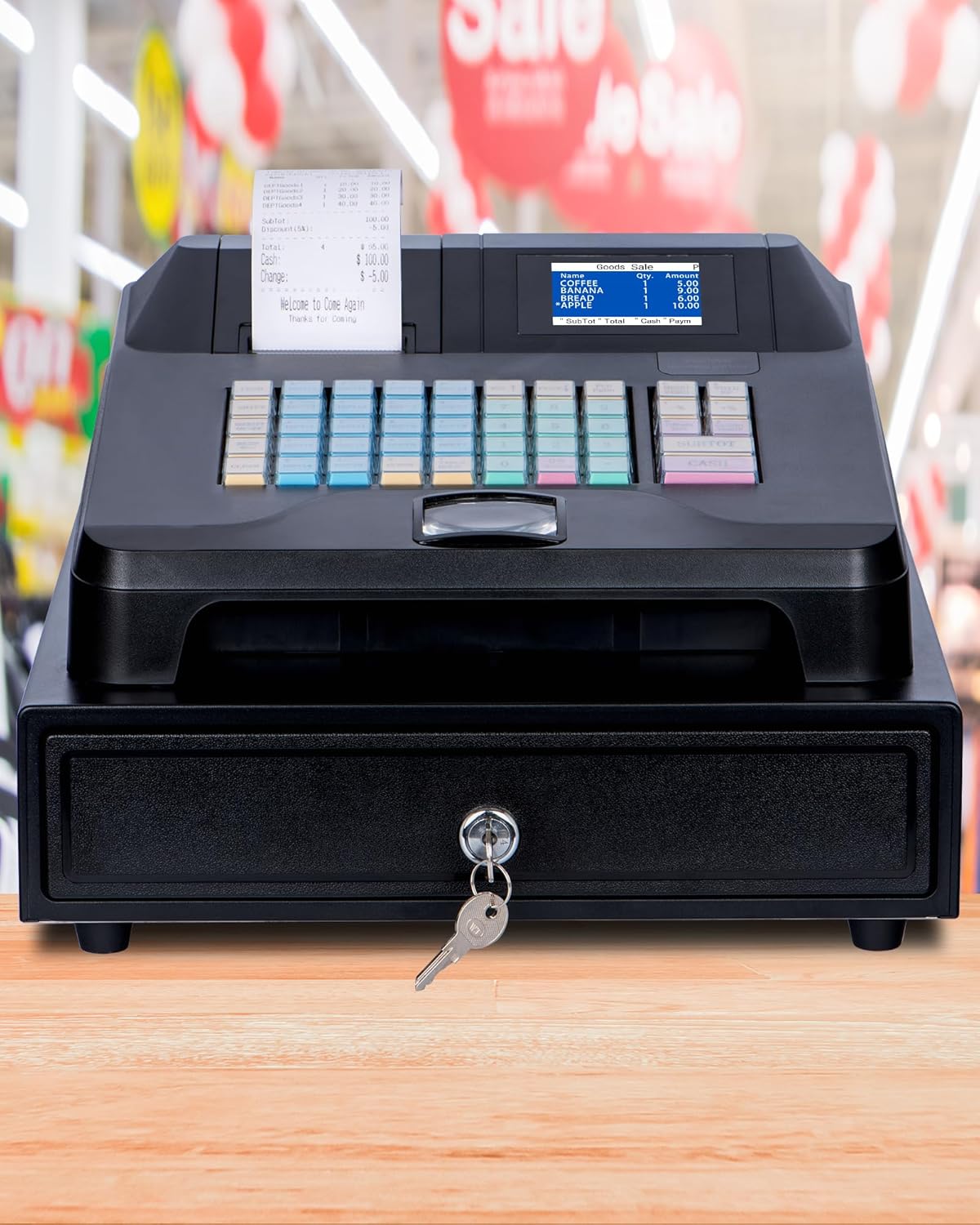
Figure 1.1: The Hysoon Cash Register, Model HS71-60, featuring an integrated cash drawer and receipt printer, designed for small businesses.
2. פּראָדוקט פֿעיִקייטן
The Hysoon Cash Register is designed with several key features to enhance efficiency and ease of use in various business environments:
- Integrated Cash Drawer & Printer: Comes with a 4-bill, 5-coin automatic cash drawer and a built-in receipt printer, streamlining operations and reducing the need for separate purchases.
- צוויי-דיספּליי סקרינז: Equipped with a 2.8-inch TFT LCD display for the cashier and an 8-digit display for the customer, ensuring clear transaction visibility for both parties.
- Multifunctional External Interfaces: Includes two RS232 ports for external receipt printers and barcode scanners, a USB port for computer software connection, and a PS2 interface for keyboard input, offering versatile connectivity.
- One-Click Tax Exemption: Features a quick tax exemption function for applicable transactions. Refer to the tax settings section in this manual for configuration details.
- גרויסע קאַפּאַציטעט סטאָרידזש: Supports configuration for up to 50 cashiers, 100 sales, 36 departments, and 60,000 storage records, suitable for diverse business needs.
- Management Software Support: Compatible with management software for goods, receipts, and other data entry, facilitating comprehensive business management.

Figure 2.1: Key components of the Hysoon Cash Register, highlighting the built-in receipt printer, 2.8-inch color display, and integrated cash drawer.
3. סעטאַפּ און ערשטע קאָנפיגוראַציע
3.1 אַנפּאַקינג און דורכקוק
Carefully unpack all components from the box. Verify that all items listed below are present and undamaged:
- 1 x Hysoon Cash Register with Cash Drawer
- קסנומקס רענטגענ וסב קאַבלע
- 1 x מאַכט קאַבלע
- קסנומקס רענטגענ טערמאַל פּאַפּיר זעמל
- 2 x Cash Drawer Keys
אויב קיין זאכן זענען פעלנדיק אָדער דאַמידזשד, ביטע קאָנטאַקט קונה שטיצן מיד.

Figure 3.1: Contents included in the Hysoon Cash Register package.
3.2 Connecting the Cash Register
- שטעלט די קאַסע אויף אַ סטאַבילן, גלאַטן ייבערפלאַך.
- Connect the power cable to the power input port on the back of the cash register and plug it into a standard electrical outlet.
- Insert the thermal paper roll into the built-in receipt printer. Ensure the paper feeds correctly.
- If connecting to a computer for software management, use the provided USB cable to connect the cash register to your computer.
- For external devices like barcode scanners or additional printers, use the appropriate RS232 ports. A PS2 interface is available for keyboard input.

Figure 3.2: Rear panel connections for external devices, including RS232 ports for barcode scanners and printers, USB for computer software, and PS2 for keyboard.
4. אַפּערייטינג ינסטרוקטיאָנס
4.1 יקערדיק אָפּעראַציע
The Hysoon Cash Register is designed for ease of use. Simply plug it in, and it is ready for basic transactions.
- מאַכט אויף: Ensure the power cable is connected and the power switch (located on the rear panel) is in the 'ON' position.
- Cashier Display: The 2.8-inch TFT LCD display will show transaction details for the cashier.
- Customer Display: The 8-digit display provides transaction information to the customer.
4.2 קיפּאַד פאַנגקשאַנז
The keypad is intuitively designed for quick and efficient operation:
- בלוי קנעפּלעך: Represent departments. These can be used as separate product entries or as categories.
- Green Buttons: Represent product codes. These can also be scanned using a barcode scanner.
- Red and Yellow Buttons: Function keys for various operations (e.g., SUBTOTAL, CASH, CLEAR).

פיגורע 4.1: דעטאַילעד view of the user-friendly keypad layout, indicating the purpose of different colored keys.
4.3 Tax Settings
The cash register includes a one-click tax exemption feature. For detailed instructions on setting up and managing tax rates, please refer to the dedicated tax settings section within the management software or contact technical support.
4.4 Management Software
The Hysoon Cash Register supports connection to management software for advanced control over goods, receipts, and other data. This software allows for:
- מאַשין מאַנאַגעמענט
- דאַטאַ מאַנאַגעמענט
- Report Center
Connect the cash register to your computer via the USB port to utilize these features.

Figure 4.2: The Hysoon Cash Register connected to a computer running the intelligent management software.
5. וישאַלט
5.1 רייניקונג
The cash register features a waterproof and oil-proof design, making it easy to clean.
- ניצן אַ ווייך, דamp א שטאָף צו ווישן די אויסערלעכע ייבערפלאַכן.
- פֿאַרמײַדן ניצן אַברייסיוו רייניגער אָדער סאָלווענטן, ווײַל די קענען שאַטן די ענדיקונג.
- Ensure no liquids enter the internal components or ports.

Figure 5.1: The cash register's waterproof and oil-proof design allows for easy cleaning with a simple wipe.
5.2 טערמישע פּאַפּיר פאַרבייַט
When the thermal paper roll is depleted, replace it with a new 57mm thermal paper roll. Follow the instructions provided with the paper roll or refer to the printer section of the management software for guidance.
5.3 Cash Drawer Maintenance
The cash drawer is designed for durability. Keep the coin and bill slots clean and free of debris. Use the provided keys for secure locking and unlocking.

Figure 5.2: The cash drawer features 4 bill slots and 5 coin slots for organized cash management.
6. טראָובלעשאָאָטינג
This section addresses common issues you might encounter with your Hysoon Cash Register. For problems not listed here, please contact technical support.
| פּראָבלעם | מעגלעך סיבה | לייזונג |
|---|---|---|
| Register does not power on. | Power cable not connected; Power switch off; Power outlet issue. | Ensure power cable is securely connected. Check power switch position. Test power outlet with another device. |
| Receipt printer not printing. | No thermal paper; Paper jammed; Printer error. | Replace thermal paper. Clear any paper jams. Check printer status on display or management software. |
| Cash drawer not opening. | Not properly connected; Key not used correctly; Obstruction. | Ensure cash drawer cable is connected. Use the correct key and turn fully. Check for any obstructions inside the drawer. |
| External device (scanner/printer) not recognized. | Incorrect port; Driver issue; Device not powered. | Verify connection to the correct RS232 port. Install necessary drivers if using management software. Ensure external device is powered on. |
7. פּראָדוקט ספּעסאַפאַקיישאַנז
Below are the detailed specifications for the Hysoon Cash Register, Model HS71-60:
| שטריך | באַשרייַבונג |
|---|---|
| מאָדעל נומער | HS71-60 |
| דימענסיעס (L X W X H) | 13.19 Inches x 15.28 Inches x 8.27 Inches (335 mm x 388 mm x 210 mm) |
| וואָג | בעערעך 5.99 קג |
| Cashier Capacity | אַרויף צו 50 |
| Sales Capacity | אַרויף צו 100 |
| Department Capacity | אַרויף צו 36 |
| פּראָדוקט קאַפּאַציטעט | אַרויף צו 10000 |
| סטאָרידזש רעקאָרדס | אַרויף צו 60000 |
| אָפּעראַטאָר ווייַז | 2.8-inch Color Display (TFT LCD) |
| קונה ווייַז | 8-digit Display |
| קלאַוויאַטור | 48 Keys with Dust Proof Cap |
| Printing Specific | 57MM Thermal Printing |
| פונדרויסנדיק ינטערפייסיז | 2 x RS232 (for external receipt printer & barcode scanner), 1 x USB (for computer software), 1 x PS2 (for keyboard input) |
| געלט שופלאָד | 4 Bill Slots, 5 Coin Slots |

Figure 7.1: Physical dimensions and key specifications of the Hysoon Cash Register.
8. וואָראַנטי און שטיצן
Hysoon provides comprehensive support for your cash register:
- וואָראַנטי: One-year warranty service from the date of purchase.
- טעכניש שטיצן: 24-hour technical support is available. If you have any questions or require assistance, please refer to the contact information provided in the user manual (if available) or on the product packaging.
- קיין כוידעשלעך פיז: This product does not require any monthly fees, contract fees, or software fees for its operation.
Ask a question about this manual
Ask about setup, troubleshooting, compatibility, parts, safety, or missing instructions. Manuals+ will review the question and use this page’s manual context to help answer it.