
הקדמה
This manual provides detailed instructions for the setup, operation, and maintenance of your Prechen 10.1 inch Portable Touchscreen Monitor, Model HD-101. Please read this manual thoroughly before using the device to ensure proper functionality and to prevent damage.
פּראָדוקט פֿעיִקייטן
- Portable Touchscreen: This 10.1-inch monitor is compact and lightweight, designed for portability. The touchscreen functionality allows for intuitive navigation and interaction, enhancing productivity on the go.
- הויך-רעזאָלוציע IPS דיספּליי: Features a 1920x1200 resolution with a 16:10 aspect ratio, delivering clear and vibrant visuals. IPS technology provides wide viewing angles and accurate color reproduction, suitable for various applications.
- ווערסאַטאַל קאַנעקטיוויטי: Equipped with HDMI and USB-C ports, offering flexible connection options. It can be easily connected to Windows PCs, laptops, and gaming consoles like Xbox. Note: USB-C is for touch functionality and power.
- ינאַגרייטיד ספּיקערז: Built-in speakers provide clear and dynamic audio, eliminating the need for external speakers during media consumption, gaming, or virtual meetings.
- VESA בארג קאַמפּאַטאַבאַל: The monitor supports VESA mounting standards, allowing for attachment to compatible stands or arms for customized workspace setups and comfortable viewינג אַנגלעס.
סעטאַפּ
פּעקל אינהאַלט
באַשטעטיקן אַז אַלע זאכן זענען פאַראַן אין פּעקל:
- Prechen 10.1 inch Portable Touchscreen Monitor
- HDMI קאַבלע
- וסב-C צו וסב-C קאַבלע
- USB-A to USB-C Cable (for power/touch)
- מאַכט אַדאַפּטער
- באַניצער מאַנואַל (דעם דאָקומענט)
קאַנעקטינג די מאָניטאָר
- מאַכט קשר: Connect the provided power adapter to the DC Power Port on the monitor and plug it into a power outlet. Alternatively, if your device supports power delivery, connect a USB-C to USB-C cable to the USB-C (Power & Touch) port for both power and signal.
- ווידעא קשר:
- הדמי: Connect one end of the HDMI cable to the HDMI port on the monitor and the other end to the HDMI output of your computer or device.
- USB-C (DisplayPort Alternate Mode): If your device supports DisplayPort Alternate Mode over USB-C, connect a USB-C to USB-C cable to the USB-C (Power & Touch) port on the monitor and your device. This single cable can provide video, power, and touch functionality.
- ריר פאַנגקשאַנאַליטי: For touch functionality, ensure the USB-C (Power & Touch) port is connected to your device. If using HDMI for video, you will also need to connect a USB-A to USB-C cable from your device's USB-A port to the monitor's USB-C (Power & Touch) port.
- אַודיאָ רעזולטאַט: If you wish to use external headphones or speakers, connect them to the 3.5mm Audio Port on the monitor.
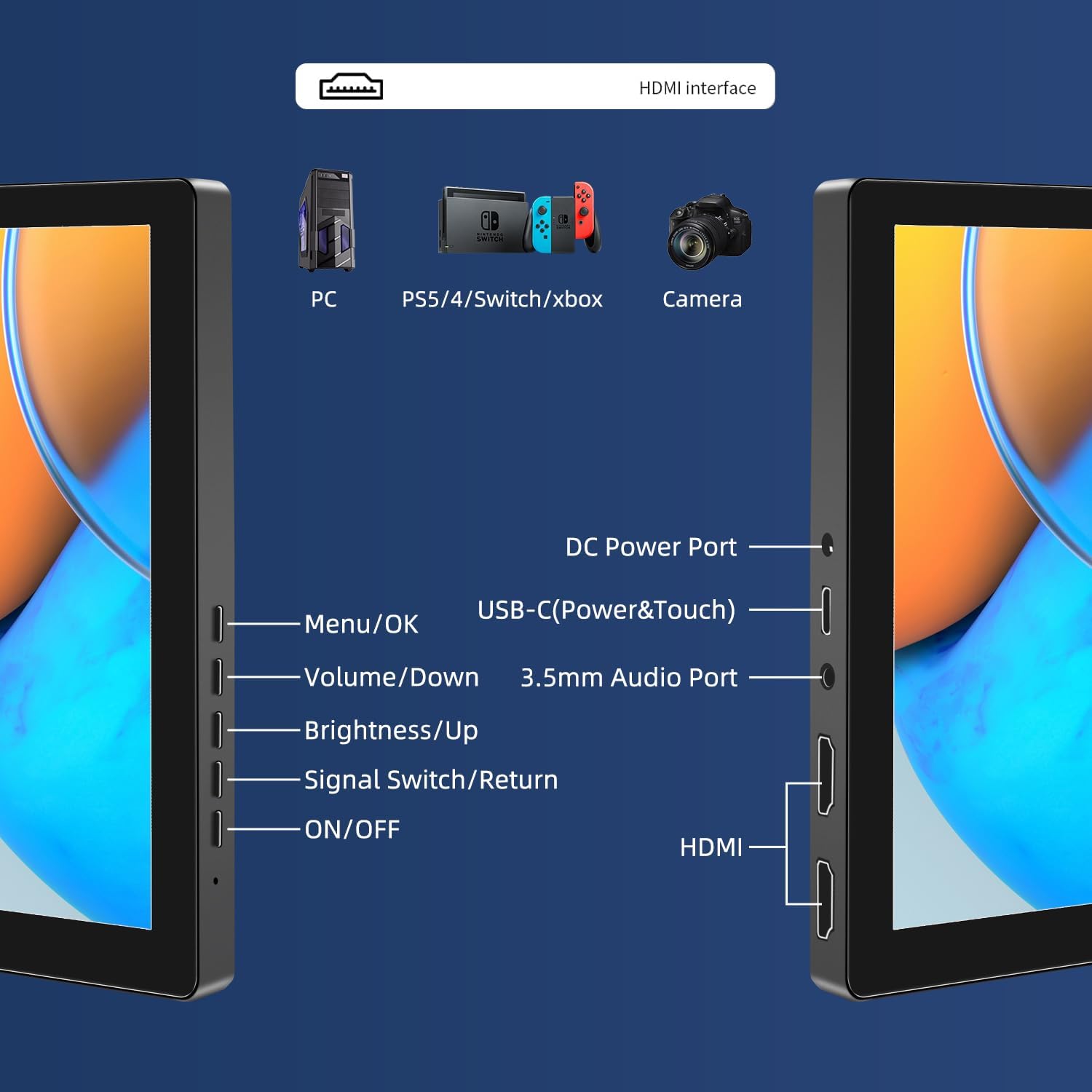
בילד: איבערview of the monitor's ports including DC Power, USB-C (Power & Touch), 3.5mm Audio, HDMI, and control buttons.
אַפּערייטינג ינסטראַקשאַנז
מאַכט אויף / אַוועק
- To power on the monitor, press the ON/OFF קנעפּל.
- צו האַלטן אַוועק, דריקן און האַלטן די ON/OFF קנעפּל פֿאַר אַ פּאָר סעקונדעס ביז דער עקראַן שליסט זיך אויס.
ניצן די OSD מעניו אויף דעם פאַרשטעלן
The OSD menu allows you to adjust various display settings.
- דרוק די מעניו / גוט קנעפּל צו עפענען דעם OSD מעניו.
- ניצן די באנד/אַראָפּ און ברייטנאַס/אַרויף קנעפּלעך צו נאַוויגירן דורך מעניו אָפּציעס.
- דרוק מעניו / גוט צו אויסקלייבן אַן אָפּציע אָדער באַשטעטיקן אַ סעטינג.
- דרוק די Signal Switch/Return button to go back to the previous menu or exit the OSD.
Adjusting Display Modes
The monitor supports multiple display modes when connected to a computer:
- דופּליקאַט מאָדע: ווײַזט דעם זעלבן אינהאַלט אויף ביידע אײַער הויפּט עקראַן און דעם פּאָרטאַטיוון מאָניטאָר.
- פאַרברייטערן מאָדע: פארברייטערט אייער דעסקטאַפּ איבער ביידע סקרינס, צושטעלנדיק מער אַרבעטספּלאַץ.
- צווייטע סקרין מאָדע: ניצט נאָר דעם פּאָרטאַטיוון מאָניטאָר ווי דער דיספּליי.
These modes are typically configured through your operating system's display settings (e.g., Windows Display Settings, macOS System Preferences).
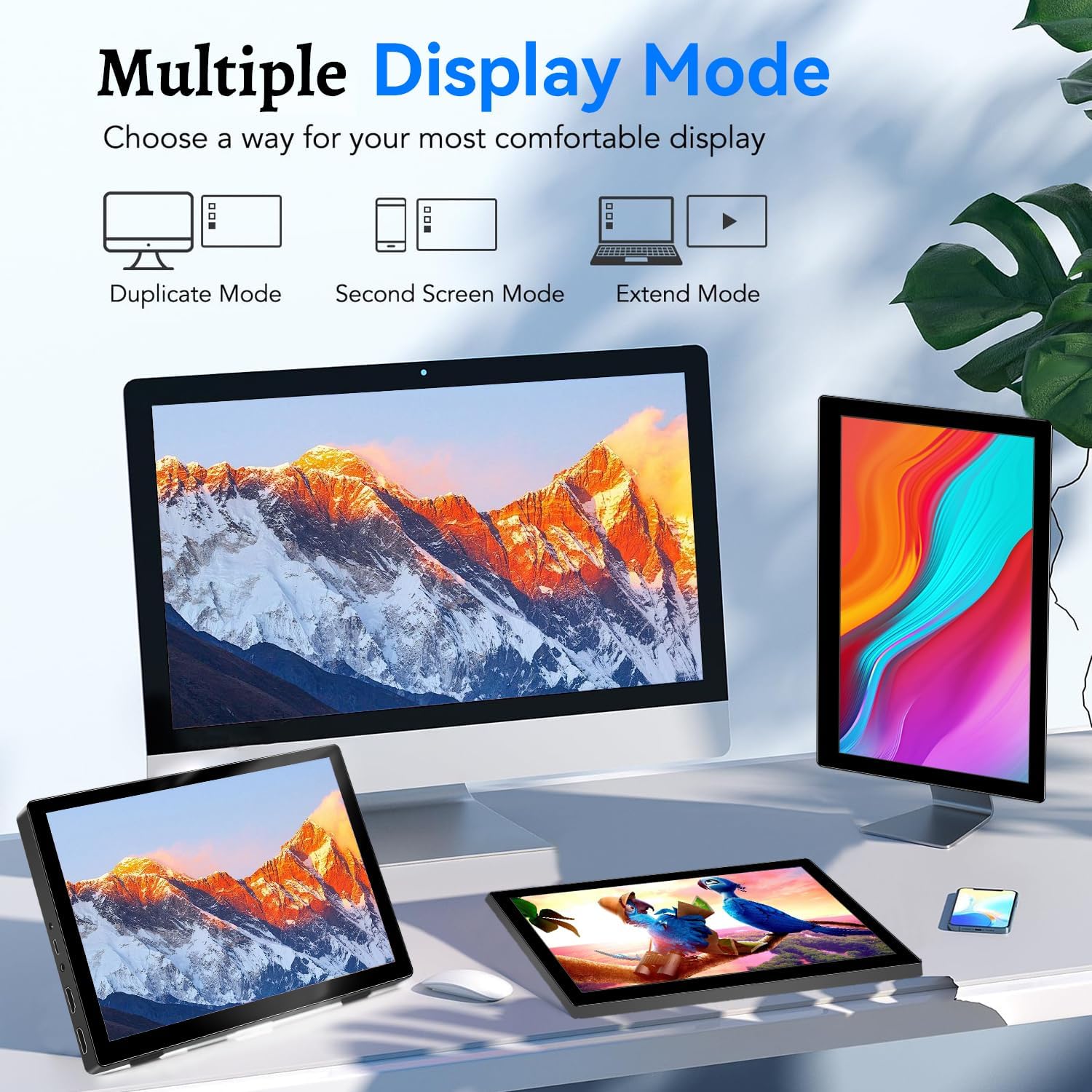
Image: Visual representation of Duplicate, Second Screen, and Extend display modes.
Using Touchscreen Functionality
The monitor supports 10-point touchscreen technology. Ensure the USB-C (Power & Touch) port is correctly connected to your device for touch input to function.

בילד: עקסamples of 10-point touchscreen gestures for interaction.
וישאַלט
- רייניקונג די פאַרשטעלן: ניצן אַ ווייך, לינט-פֿרייַ שטאָף אַ ביסל דampגעוואשן מיט וואַסער אָדער אַ נישט-אַבראַוויזיוו פאַרשטעלן רייניגער. שפּריצט נישט די רייניגער גלייך אויף דעם פאַרשטעלן.
- רייניקונג פון די Casing: ווישט אויס דעם מאָניטאָר casing with a soft, dry cloth. Avoid using strong detergents or solvents.
- סטאָרידזש: ווען נישט אין באַנוץ, האַלט דעם מאָניטאָר אין אַ קיל, טרוקן אָרט, אַוועק פון דירעקט זונשייַן און עקסטרעמע טעמפּעראַטורן.
- האַנדלינג: פֿאַרמײַדט צו לאָזן פֿאַלן דעם מאָניטאָר אָדער אויסשטעלן אים צו שטאַרקע קלאַפּן. שטעלט נישט קיין שווערע זאַכן אויף דעם מאָניטאָר.
טראָובלעשאָאָטינג
| פּראָבלעם | מעגלעך סיבה | לייזונג |
|---|---|---|
| קיין עקראַן/שוואַרצער עקראַן |
|
|
| טאָוטשסקרעען ריספּאַנד נישט |
|
|
| קיין אַודיאָ פֿון רעדנערס |
|
|
| Image quality issues (blurry, distorted) |
|
|
ספּעסאַפאַקיישאַנז
| שטריך | דעטאַל |
|---|---|
| סאָרט | פּרעטשען |
| מאָדעל נומער | הד-101 |
| פאַרשטעלן גרייס | 10.1 אינטשעס |
| האַכלאָטע | 1920 x 1200 (UXGA Wide) |
| אַספּעקט פאַרהעלטעניש | 16:10 |
| טאַפליע טיפּ | IPS |
| דערפרישן קורס | 60 הז |
| ענטפער צייט | 1 מיז |
| קאַנעקטיוויטי | 1x HDMI, 1x USB-C (Power & Touch), 1x 3.5mm Audio Jack, 1x DC Power Port |
| דימענסיעס (L X W X H) | 21.8 X 15.8 X 1.4 סענטימעטער |
| וואָג | 990 גראַמז |
| פאַבריקאַנט | Shenzhen Kenowa Electronics Co., LTD |
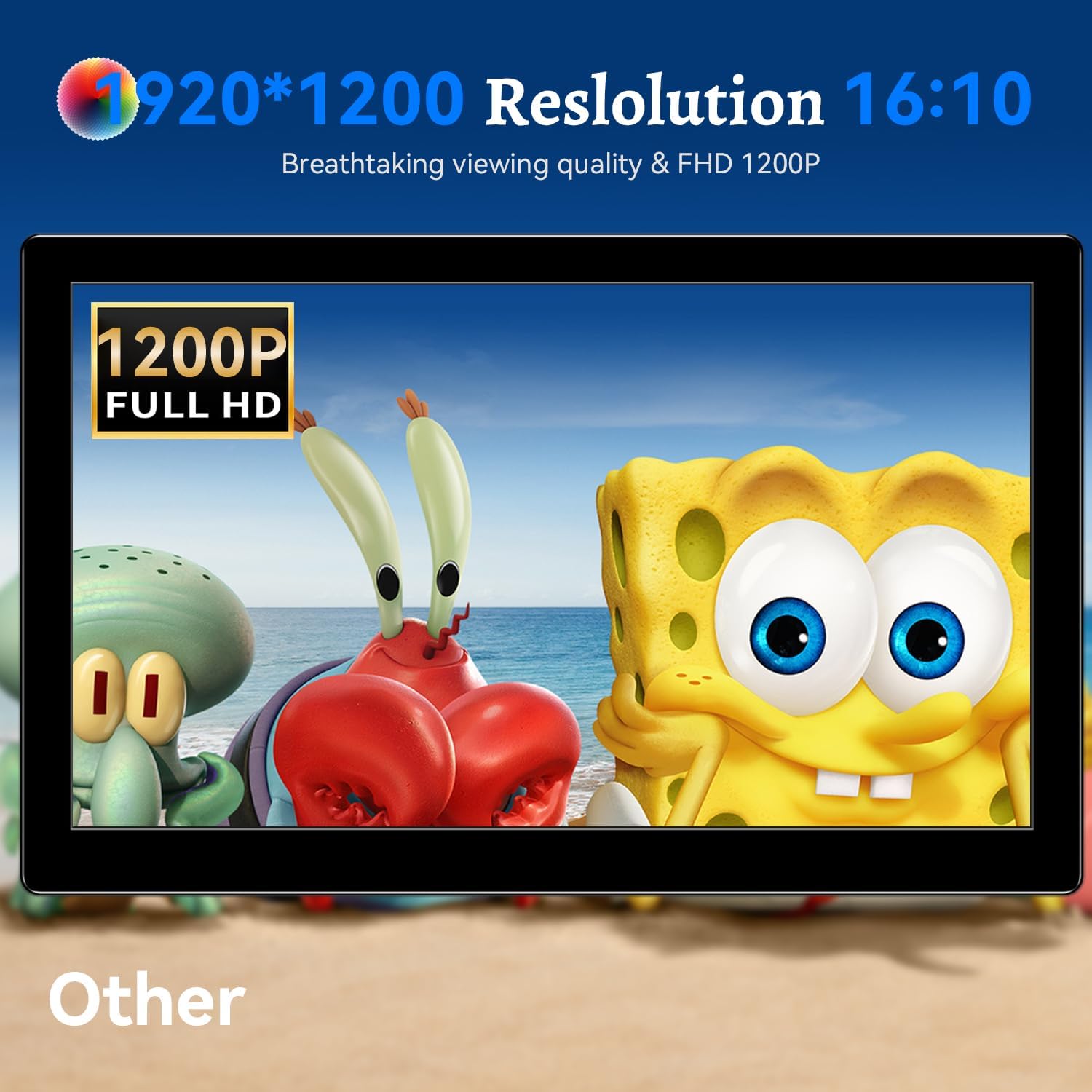
בילד: דער מאָניטאָר ווייזטasing its 1920x1200 Full HD resolution.

Image: The monitor's IPS panel offering wide viewing angles and rich colors.
וואָראַנטי און שטיצן
For warranty information and technical support, please refer to the warranty card included with your product or contact Prechen customer service through their official website. Please have your model number (HD-101) and purchase details ready when contacting support.