
1. הקדמה
Thank you for choosing the Joso D9 Universal Wireless Game Controller. This device is designed to enhance your gaming experience across multiple platforms, including smartphones, tablets, PCs, and gaming consoles. This manual provides detailed instructions for setup, operation, and maintenance to ensure optimal performance.
2. פּראָדוקט פֿעיִקייטן
- Hall Effect Joysticks and Triggers: Provides precise control and extended durability.
- פּראָגראַמירבאַרע צוריק קנעפּלעך: Two customizable M1/M2 buttons for advanced gameplay.
- טורבאָ פונקציע: Adjustable auto-fire settings for rapid input.
- מולטי-פּלאַטפאָרם קאַמפּאַטאַבילאַטי: Supports iOS, Android, PC, Nintendo Switch, PS3, and PS4.
- 6-אַקס גיראָ סענסאָר: High-sensitivity motion control for compatible games.
- Dual Motors Vibration: Enhances game immersion with tactile feedback.
- USB-C טשאַרדזשינג: באַקוועם און שנעל טשאַרדזשינג.

Image: The Joso D9 controller demonstrating its 6-axis gyro sensor for precise motion control and dual motors for enhanced vibration feedback, shown with a game displayed on a screen.
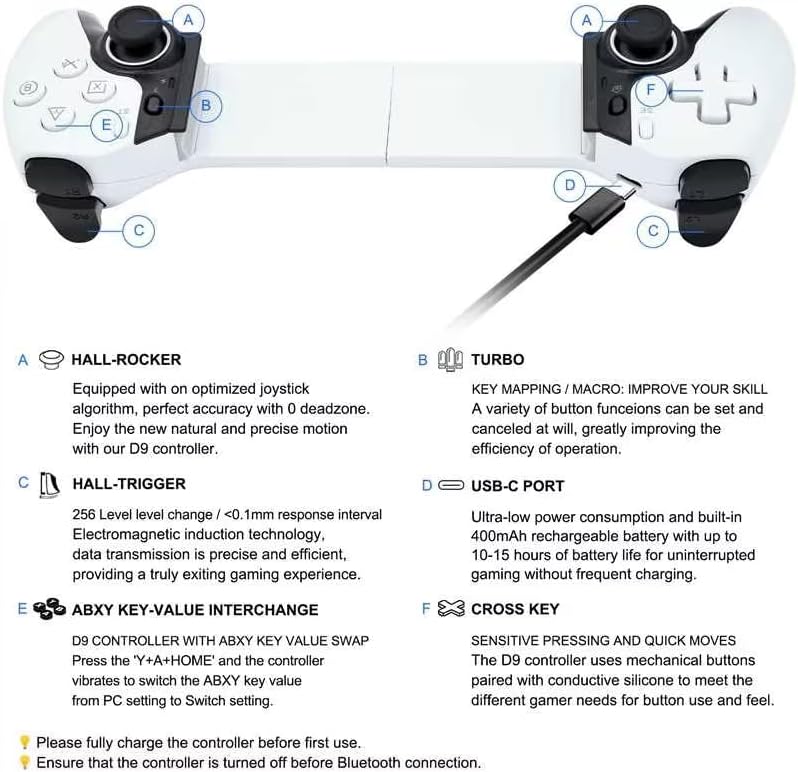
Image: A detailed diagram highlighting key features of the Joso D9 controller, including Hall-Rocker joysticks, Hall-Triggers, USB-C charging port, ABXY key value interchange, and the sensitive Cross Key.
3. סעטאַפּ גייד
3.1 טשאַרדזשינג די קאָנטראָללער
Before first use, fully charge the controller. Connect the provided USB-C charging cable to the controller's USB-C port and the other end to a power source (e.g., USB wall adapter, computer USB port). The indicator light will show charging status and turn off when fully charged.
3.2 מאַכט אויף / אַוועק
To power on, press and hold the Home button. To power off, press and hold the Home button until the indicator lights turn off.
3.3 פּאָרינג אינסטרוקציעס
Ensure the controller is turned off before initiating Bluetooth connection.
- For iOS (iPhone/iPad iOS 13.0+):
דריקן און האַלטן די A + Home buttons simultaneously until the indicator light flashes rapidly. On your iOS device, go to Bluetooth settings and select "D9 Controller" to pair. - For Android (Android 6.0+ phones/tablets):
דריקן און האַלטן די X + Home buttons simultaneously until the indicator light flashes rapidly. On your Android device, go to Bluetooth settings and select "D9 Controller" to pair. - פֿאַר נינטענדאָו סוויטש:
On the Switch console, go to "Controllers" > "Change Grip/Order". Press and hold the Y + Home buttons simultaneously on the D9 controller until the indicator light flashes rapidly. The Switch will detect and pair with the controller. - For PC (Windows 10+ Laptops via Bluetooth):
דריקן און האַלטן די X + Home buttons simultaneously until the indicator light flashes rapidly. On your PC, go to Bluetooth settings, add a new device, and select "D9 Controller" to pair. The controller will be recognized as an Xbox controller. - For PS3/PS4/PS5 (Wired Connection):
Connect the controller to the PS3/PS4/PS5 console using the USB-C cable. The controller will automatically connect and function as a wired controller. For wireless PS4/PS3 gameplay, some games may require initial wired connection or specific in-game settings.

Image: The Joso D9 controller shown with various compatible devices, illustrating its stretchable design to accommodate different phone and tablet sizes, and its broad compatibility with iOS, Android, PC, PS, and Switch platforms.
4. אַפּערייטינג ינסטרוקטיאָנס
4.1 קנעפּל אויסלייג
The Joso D9 controller features standard gamepad buttons including A, B, X, Y, D-Pad, Left/Right Joysticks, L1/R1 (bumpers), L2/R2 (triggers), Home, Start, Select, and two programmable back buttons (M1, M2).
4.2 Programmable Back Buttons (M1/M2)
The M1 and M2 buttons on the back of the controller can be programmed to replicate other button inputs for quick access during gameplay. Up to 16 buttons can be mapped.
- דריקן און האַלטן די שטעלן button (usually a small button on the back or bottom) until the indicator light starts flashing.
- Press the M1 or M2 button you wish to program.
- Press the button(s) you want to assign to M1/M2 (e.g., A, B, X, Y, L1, R1, L2, R2, D-Pad directions).
- דרוק די שטעלן button again to save the mapping. The indicator light will stop flashing.

Image: The Joso D9 controller highlighting the M1 and M2 programmable back buttons, which allow users to assign up to 16 button functions for improved control.
4.3 טורבאָ פונקציע
The Turbo function allows a button to be pressed repeatedly as long as it is held down, useful for rapid-fire actions.
- צו אַקטאַווייט טורבאָ: דריקן און האַלטן די TURBO button, then press the desired action button (A, B, X, Y, L1, R1, L2, R2). The button will now have Turbo enabled.
- צו סטרויערן טורבאָ גיכקייַט: דרוק די TURBO button and then press the Right Joystick Up or Down to cycle through 8, 15, or 25 shots/second.
- To deactivate Turbo: דריקן און האַלטן די TURBO button, then press the action button again.
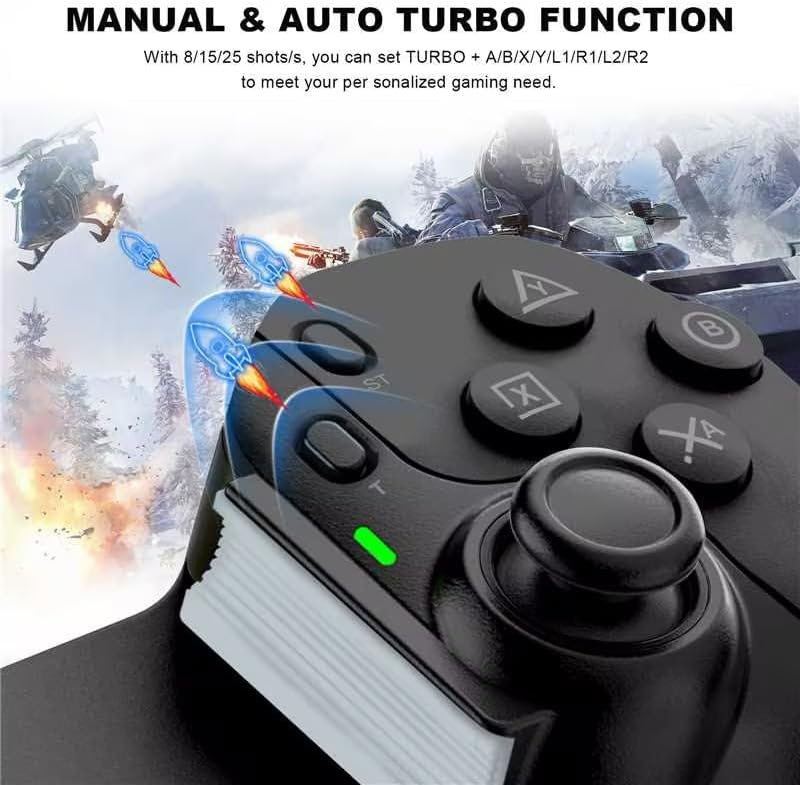
Image: A close-up of the Joso D9 controller's buttons, illustrating the manual and auto turbo function with adjustable speeds (8/15/25 shots/s) for buttons like A, B, X, Y, L1, R1, L2, R2.
4.4 ABXY Key Value Interchange
The D9 controller supports swapping the ABXY key values to match different platform layouts (e.g., Nintendo Switch vs. Xbox/PC). Press the 'Y' + 'A' + HOME buttons simultaneously to switch the ABXY key value from PC setting to Switch setting.
4.5 ווייבריישאַן אַדזשאַסטמאַנט
To adjust the vibration intensity of the dual motors, press the TURBO שליסל, און דריקן די RIGHT ROCKER key up or down to increase or decrease the vibration level.
5. קאַמפּאַטאַבילאַטי
The Joso D9 controller offers extensive compatibility with various gaming devices and platforms:
- Direct Play: Supports Bluetooth connection for iPhone/iPad (iOS 13.0+) and Android phones/tablets (Android 6.0+) for direct game play.
- נינטענדאָו סוויטש: Bluetooth connection for playing Switch games.
- פּיסי: Bluetooth connectivity for Windows 10+ laptops, recognized as an Xbox controller.
- פּלייסטיישאַן: Wired connection for PS3/PS4/PS5 consoles to play PS4/PS3 games.
- וואָלקן גיימינג: Supports cloud gaming services on iOS/Android devices, including Arcade, Google Play Pass, Game Pass (Xbox Cloud), GeForce Now, Rainway, and Luna.
- Console/PC Streaming: Supports streaming from Xbox/PS5/PS4 consoles and PC via mobile applications like Xbox/PS Remote Play and Steam Link on iOS/Android devices.
ספּעציעלע באַמערקונג:
- Only stream Xbox games via the Xbox mobile app. Direct play of Xbox games via Xbox console is not supported.
- Only play PS5 games via PS Remote Play app. Direct support for PS5 games via PS5 console is not available.

Image: A comprehensive chart detailing the Joso D9 controller's compatibility with various gaming platforms and services, including direct play for App Store, Google Play, and Steam, streaming for Xbox, PS4/PS5, and Steam, and cloud gaming for Arcade, Google Play Pass, GeForce Now, and Luna.
6. וישאַלט
6.1 רייניקונג
צו רייניקן דעם קאָנטראָללער, ניצט אַ ווייכן, טרוקענעם שטאָף. פֿאַר שווערן שמוץ, ניצט אַ ביסלamp cloth can be used, but ensure no liquid enters the controller. Do not use harsh chemicals or abrasive cleaners.
6.2 סטאָרידזש
האַלט דעם קאָנטראָללער אין אַ קיל, טרוקן אָרט אַוועק פון דירעקט זונשייַן און עקסטרעמע טעמפּעראַטורן. פֿאַרמייַדט צו שטעלן שווערע זאַכן אויף דעם קאָנטראָללער.
6.3 באַטערי קער
To prolong battery life, avoid fully discharging the controller frequently. If storing for an extended period, charge the controller to about 50% every few months.
7. טראָובלעשאָאָטינג
- קאָנטראָללער פֿאַרבינדט זיך נישט: Ensure the controller is charged. Verify the correct pairing mode is selected for your device (e.g., A+Home for iOS, X+Home for Android/PC, Y+Home for Switch). Turn off and restart both the controller and the device.
- קנעפּלעך נישט ריספּאַנד: Check if the controller is properly paired. If using a wired connection, ensure the cable is securely connected. Test in a different game or application.
- אַרייַנשרייַב לאַג: Ensure your device's Bluetooth is not interfered with by other wireless signals. Try moving closer to your device.
- ווייבריישאַן אַרבעט נישט: Check in-game settings to ensure vibration is enabled. Verify the vibration adjustment setting on the controller.
- קאָנטראָללער לאָדט נישט אויף: Ensure the USB-C cable is functional and connected correctly to a working power source.
- Controller feels loose with device: The D9 controller stretches from 130-280mm. Ensure your device fits within this range. For smaller devices, use the included pads for a snug fit.
8. ספּעסאַפאַקיישאַנז
| שטריך | באַשרייַבונג |
|---|---|
| מאָדעל נומער | D9 |
| סאָרט | Joso |
| דימענשאַנז (פּאַקאַץ) | 27.8 X 11.5 X 7.4 סענטימעטער |
| וואָג | 350 גראַמז |
| קאַנעקטיוויטי טעכנאָלאָגיע | בלועטאָאָטה, וסב |
| קאָנטראָללער טיפּ | גאַמעפּאַד |
| קאַמפּאַטאַבאַל דעוויסעס | iPhone, iPad, Android Phone, Android Tablet, PC, Nintendo Switch, PS4 |
| קאָליר | שוואַרץ |
| ספּעציעלע שטריך | ווירעלעסס |
| נומער פון קנעפּלעך | 16 |
| ייַזנוואַרג פּלאַטפאָרמע | Gaming Console, Smartphone, Tablet, Television |
9. וואָראַנטי און שטיצן
The Joso D9 Universal Wireless Game Controller comes with a standard manufacturer's warranty. For detailed warranty information, technical support, or service inquiries, please refer to the contact information provided with your purchase or visit the official Joso webפּלאַץ.