
1. הקדמה
This manual provides comprehensive instructions for the ACASIS 4K60fps Video Capture Card (Model VC-007PRO). This device is designed for capturing and streaming high-quality video and audio from various sources, including gaming consoles and cameras, to a computer for live broadcasting or recording. It supports 4K60fps video capture, VRR, and features ultra-low latency.
2. פּעקל אינהאַלט
באַשטעטיקט אַז אַלע זאכן זענען פאַראַן אין אייער פּראָדוקט פּאַקעט:
- ACASIS 4K60fps Video Capture Card (VC-007PRO)
- HDMI קאַבלע
- וסב-C צו וסב-א קאַבלע
- ינסטאַללאַטיאָן גייד (דעם דאָקומענט)
3. פּראָדוקט איבערview
The ACASIS 4K60fps Video Capture Card is a compact device with multiple ports for connectivity. Understanding its layout is crucial for proper setup and operation.

בילד: פראָנט view of the ACASIS 4K60fps Video Capture Card, showing the HDMI In and HDMI Out ports, and the USB-C port for connection to a computer.
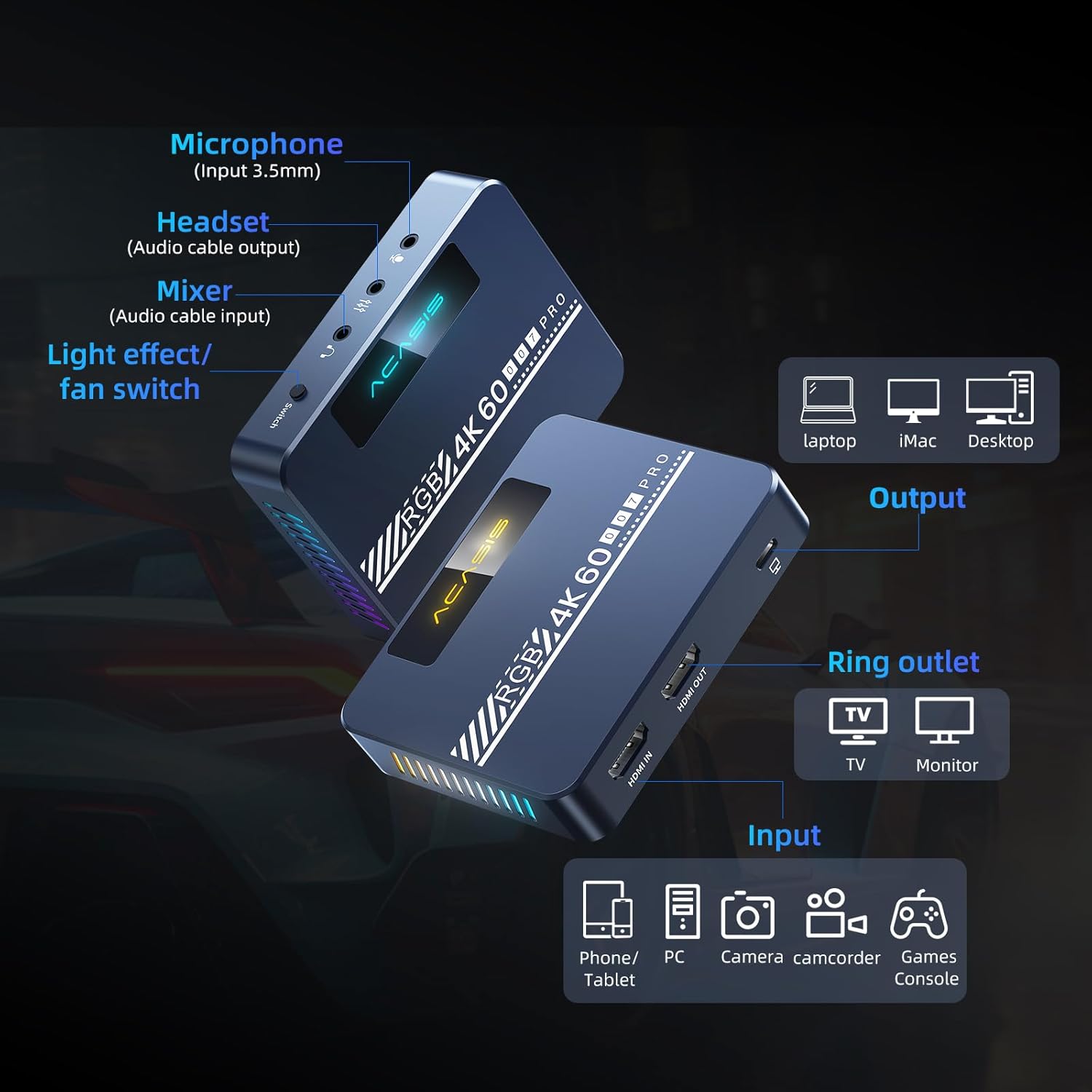
Image: Detailed diagram illustrating the various input and output ports on the capture card, including Microphone (Input 3.5mm), Headset (Audio cable output), Mixer (Audio cable input), Light effect/fan switch, HDMI IN, HDMI OUT, and USB-C output to PC/Mac.
שליסל קאַמפּאָונאַנץ:
- HDMI ין: Connects to the source device (e.g., game console, camera).
- HDMI אויס: Connects to a display (e.g., TV, monitor) for pass-through viewing.
- USB-C רעזולטאַט: Connects to your computer (PC/Mac) for data transfer and power.
- Microphone Input (3.5mm): פֿאַר קאַנעקטינג אַ פונדרויסנדיק מיקראָפאָן.
- Headset Output (3.5mm): For connecting headphones or a headset for audio monitoring.
- Mixer Input (3.5mm): For connecting an audio mixer.
- Light Effect/Fan Switch: Controls the RGB lighting and cooling fan.
4. סעטאַפּ גייד
Follow these steps to connect your ACASIS 4K60fps Video Capture Card to your devices.
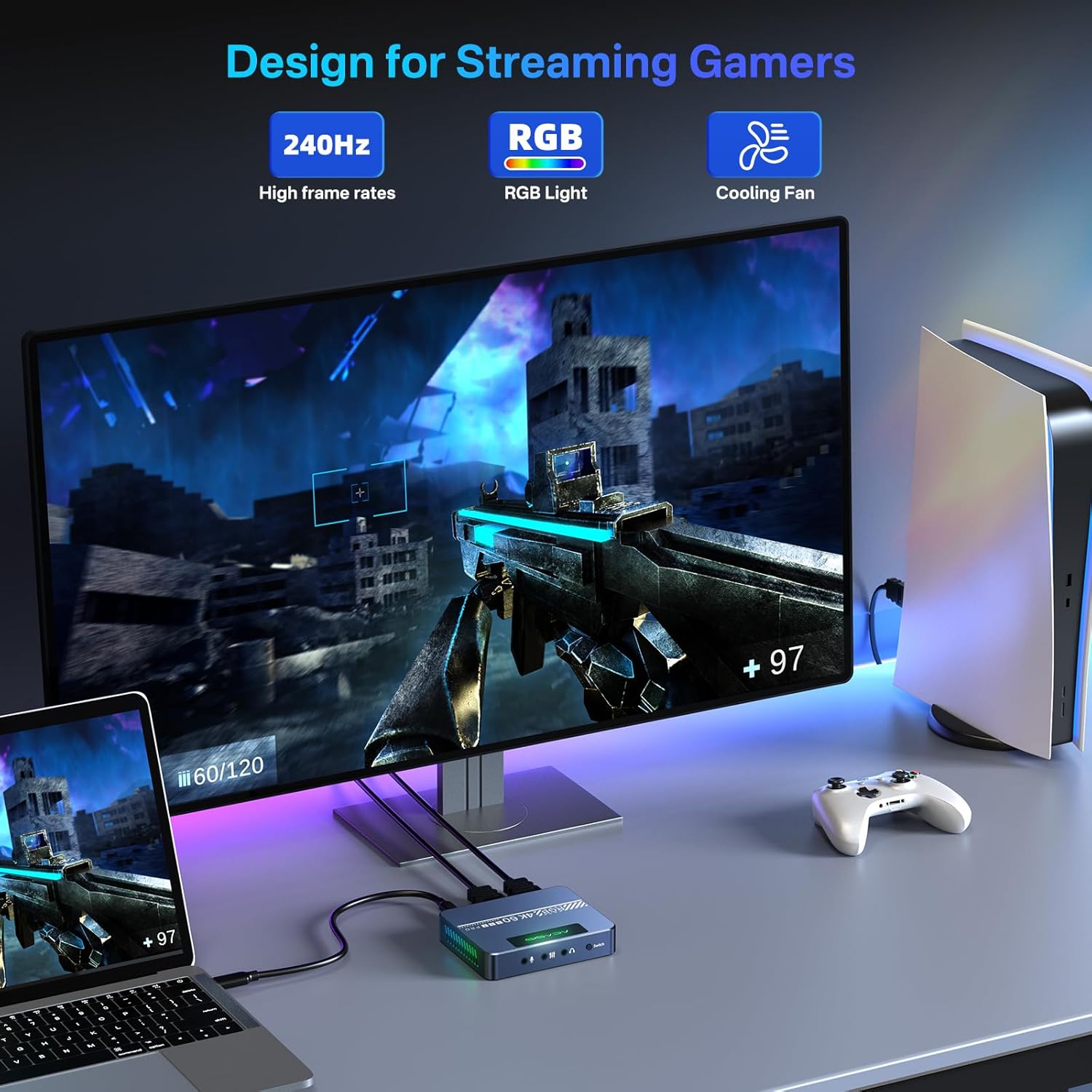
Image: A typical setup showing a game console (PS5) connected via HDMI to the capture card's HDMI IN, the capture card's HDMI OUT connected to a monitor, and the capture card's USB-C port connected to a laptop for streaming/recording.
קשר סטעפּס:
- קאָננעקט מקור מיטל: Use an HDMI cable to connect your source device (e.g., Xbox Series X/S, Xbox One, PS5, PS4/Pro, PC, camera) to the HDMI ין פּאָרט אויף דער קאַפּטשער קאַרטל.
- פֿאַרבינדן דעם עקראַן (אָפּציאָנעל): Use another HDMI cable to connect your display (e.g., TV, monitor) to the HDMI OUT port on the capture card. This allows for pass-through viewing of your source device.
- פאַרבינדן צו קאָמפּיוטער: Connect the provided USB-C to USB-A cable (or a USB-C to USB-C cable if your computer supports it) from the capture card's וסב-C רעזולטאַט port to an available USB port on your computer (PC/Mac). The device is plug-and-play and typically does not require driver installation.
- פֿאַרבינדן אַודיאָ דעוויסעס (אָפּציאָנאַל):
- For microphone input, connect your 3.5mm microphone to the מיקראָפאָן אַרייַנשרייַב פּאָרט.
- For audio monitoring, connect your 3.5mm headset or headphones to the כעדסעט רעזולטאַט פּאָרט.
- For external audio mixing, connect your audio mixer to the Mixer Input פּאָרט.
5. אַפּערייטינג ינסטרוקטיאָנס
This section details how to use the capture card with streaming and recording software, using OBS Studio as an example.
Software Setup (OBS Studio Exampלאַ):
The ACASIS capture card is compatible with various platforms and applications, including OBS, Streamlabs, Vmix, Zoom, and Microsoft Teams. For streaming and recording, OBS Studio is a commonly used application.
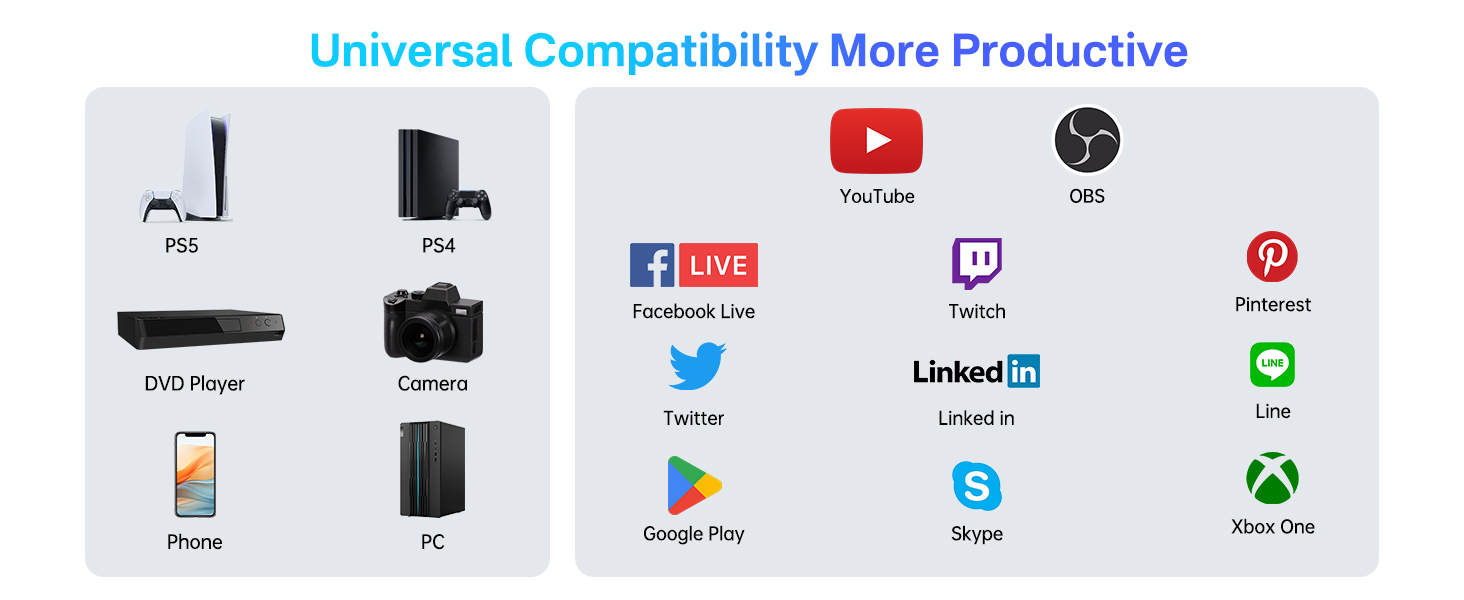
Image: A five-step guide for adding the video capture device in OBS Studio. Steps include opening OBS, clicking '+' in Sources, selecting 'Video Capture Device', creating a new source, and configuring properties.
- Open OBS Software: Launch OBS Studio on your computer.
- לייג צו ווידעא מקור: In the 'Sources' panel, click the '+' איקאָן.
- Select Video Capture Device: From the list, choose 'ווידעא קאַפּטורע דיווייס'.
- Create/Select Source: You can create a new source or select an existing device name. Click 'OK'.
- Configure Properties: In the properties window for the video capture device, set the following:
- האַכלאָטע / FPS טיפּ: Set to 'מנהג'.
- רעזאלוציע: אויסקלייבן '1920x1080' (or desired resolution up to 4K).
- FPS: Set to '60'.
- ווידעא פֿאָרמאַט: אויסקלייבן 'YUY2'.
- קאָליר פּלאַץ: אויסקלייבן 'רעק.709'.
- קאָליר קייט: אויסקלייבן 'פול'.
Recording and Streaming Settings (OBS Studio):
For optimal performance, adjust your OBS output settings. These settings are optional if you are not recording or streaming.

Image: A screenshot of OBS Studio's output settings for recording, highlighting video bitrate, encoder, audio bitrate, recording quality, and format.

Image: A screenshot of OBS Studio's output settings for streaming, showing where to enter the stream key and start streaming.
- אַקסעס סעטטינגס: In OBS, go to 'סעטטינגס' (usually in the bottom right corner).
- Output Settings (Recording): Navigate to the 'רעזולטאַט' tab and then 'רעקאָרדינג'.
- רעקאָרדינג קוואַליטעט: Set to 'Indistinguishable Quality, Large File גרייס' for high-quality recordings.
- רעקאָרדינג פֿאָרמאַט: 'mp4' is generally recommended for compatibility.
- ענקאָדער: ניצן 'Hardware (NVENC)' if available for better performance, otherwise 'Software (x264)'.
- ווידעא ביטראַטע: Adjust based on desired quality and storage space (e.g., 8000 Kbps for 1080p).
- אַודיאָ ביטראַטע: Set to '128' or higher.
- Output Settings (Streaming): Navigate to the 'רעזולטאַט' tab and then 'סטרימינג'.
- ווידעא ביטראַטע: Adjust according to your internet upload speed and platform recommendations.
- ענקאָדער: ניצן 'Hardware (NVENC)' if available.
- אַודיאָ ביטראַטע: Set to '128' or higher.
- ווידעא סעטטינגס: In the 'ווידעא' tab, ensure 'Base (Canvas) Resolutionאוןרעזולטאַט (סקיילד) האַכלאָטע' are set appropriately (e.g., 1920x1080). Set 'פּראָסט FPS וואַלועס' to '60'.
6. VRR Support
The ACASIS capture card supports Variable Refresh Rate (VRR), which helps eliminate screen tearing and stuttering for a smoother visual experience, especially in gaming. Ensure your source device and display also support VRR for this feature to function.

Image: A side-by-side comparison demonstrating the visual difference between VRR Open (smooth image) and VRR Close (image with tearing artifacts) on a gaming display.
When VRR is active, the display's refresh rate dynamically adjusts to match the frame rate output by the source device, resulting in a more fluid and responsive experience.
7. Cooling Fan and RGB Lighting
The capture card features an upgraded cooling fan to prevent overheating during extended use, ensuring stable performance. It also includes customizable RGB lighting effects.

בילד: אן אינערליכע view of the capture card highlighting the integrated cooling fan, designed to dissipate heat and maintain optimal operating temperatures.
קאָנטראָלס:
- די 'Light Effect/Fan Switch' button on the device controls both the cooling fan and the RGB lighting.
- A single press typically toggles the fan on/off.
- Double-clicking the button may cycle through RGB lighting modes or turn the lighting on/off.
8. קאַמפּאַטאַבילאַטי
The ACASIS 4K60fps Video Capture Card offers broad compatibility with various hardware and software platforms.

Image: A chart illustrating the universal compatibility of the capture card with various input devices (PS5, PS4, DVD Player, Camera, Phone, PC) and output platforms/applications (YouTube, OBS, Facebook Live, Twitch, Pinterest, Twitter, LinkedIn, Line, Google Play, Skype, Xbox One).
שטיצט האַרדוואַרע:
- Gaming Consoles: Xbox Series X/S, Xbox One, PS5, PS4/Pro, Nintendo Switch
- Computers: PC (Windows), Mac (macOS)
- Cameras: DSLR, Camcorders, Action Cams
- Other HDMI Sources: DVD Players, Tablets, Phones (with appropriate adapters)
Supported Software/Platforms:
- OBS סטודיאָ
- Streamlabs OBS
- וומיקס
- פארגרעסער
- מייקראָסאָפֿט טימז
- יאָוטובע
- טוויטש
- פייסבוק גיימינג
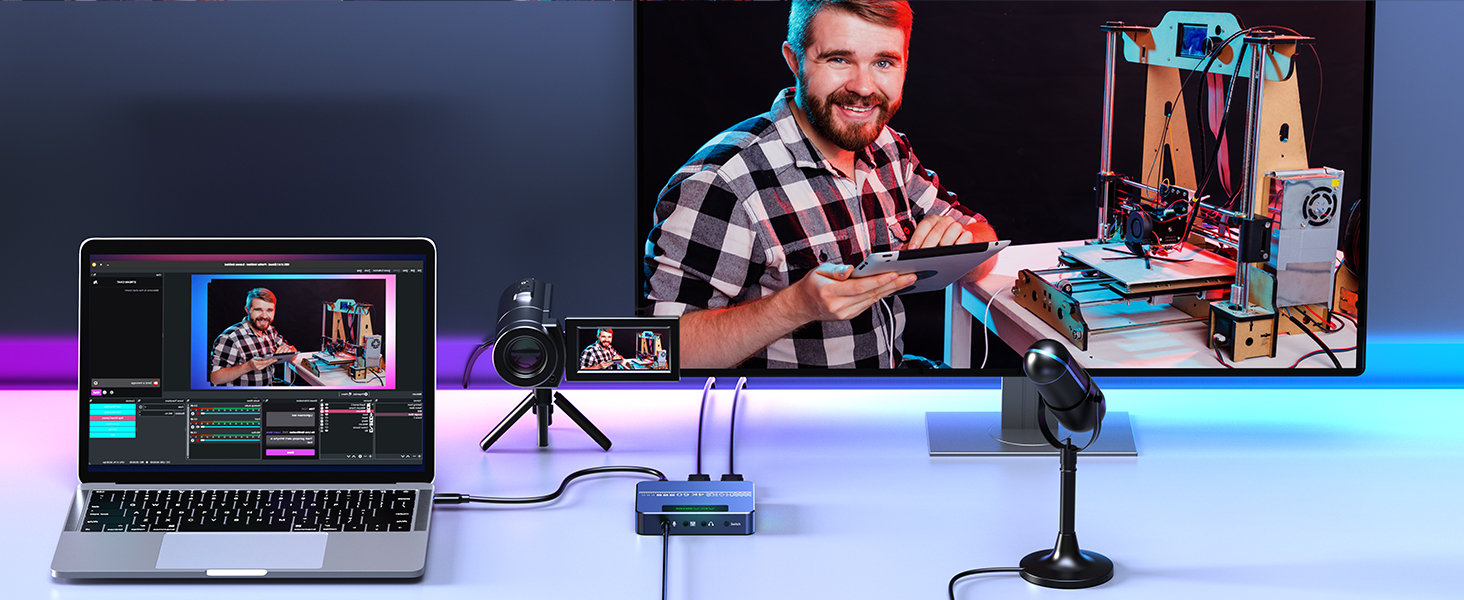
Image: A setup demonstrating the capture card's use in a video conferencing scenario, connecting a camera to a computer for enhanced video input.
9. טראָובלעשאָאָטינג
די סעקציע באהאנדלט אלגעמיינע פראבלעמען וואס איר קענט באגעגענען און גיט מעגלעכע לייזונגען.
קיין סיגנאַל / שוואַרצער עקראַן:
- טשעק קאַנעקשאַנז: Ensure all HDMI and USB cables are securely connected.
- HDCP Content: דעם מיטל DOES NOT SUPPORT HDCP. If your source device is outputting HDCP-protected content (e.g., certain streaming services, Blu-ray players), you will not get a signal. Disable HDCP on your source device if possible, or use a non-HDCP source.
- 4K Display Requirement: To achieve 4K resolution, ensure your display and source device are 4K compatible.
- קאַבלע קוואַליטעט: Use high-quality HDMI cables that support 4K60fps transmission. Lower quality cables may cause signal issues or limit resolution/frame rate.
- ווייכווארג קאָנפיגוראַטיאָן: Verify that the capture card is correctly selected as the video source in your streaming/recording software (e.g., OBS) and that resolution/FPS settings are appropriate.
אַודיאָ ישוז:
- Check Audio Settings: In your computer's sound settings and streaming software, ensure the correct audio input (from the capture card) and output devices are selected.
- Microphone/Headset Connections: Confirm external audio devices are properly plugged into the capture card's 3.5mm ports.
לעיטענסי/לעג:
- וסב פּאָרט: Ensure the capture card is connected to a USB 3.0 (or higher) port on your computer for optimal bandwidth. USB 2.0 ports may introduce higher latency.
- קאָמפּיוטער פאָרשטעלונג: Ensure your computer meets the minimum system requirements for streaming/recording at your desired resolution and frame rate. Close unnecessary applications.
- ווייכווארג סעטטינגס: Adjust buffer settings in your streaming software (e.g., OBS) if available.
4K Resolution Not Working:
- 4K Monitor/Device: As noted, 4K output requires a 4K compatible monitor or device.
- Source Device Settings: Ensure your source device (e.g., console) is configured to output 4K resolution.
- OBS Settings: Double-check that the resolution in OBS is set to 4K (e.g., 3840x2160) if your system supports it.
10. ספּעסאַפאַקיישאַנז
Technical specifications for the ACASIS 4K60fps Video Capture Card (Model VC-007PRO).
| שטריך | באַשרייַבונג |
|---|---|
| סאָרט | ACASIS |
| מאָדעל נומער | VC-007PRO |
| ייַזנוואַרג צובינד | וסב טיפּ C |
| ווידעא קאַפּטורע רעסאָלוטיאָן | 4K 60fps (Input/Pass-through), 4K 60fps (Recording) |
| אַפּערייטינג סיסטעם שטיצן | Windows, macOS |
| ייַזנוואַרג פּלאַטפאָרמע | Xbox Series X/S, Xbox One, PS5, PS4/Pro, PC/Mac |
| פּונקט וואָג | 4.2 אונסעס |
| פּעקל דימענשאַנז | 6.14 X 4.57 X 2.44 אינטשעס |
| VRR Support | יא |
| HDCP סופּפּאָרט | ניין |
11. וישאַלט
To ensure the longevity and optimal performance of your ACASIS 4K60fps Video Capture Card, follow these maintenance guidelines:
- רייניקונג: ניצט אַ ווייכע, טרוקענע שטאָף צו רייניקן די אויסערלעכע זייט פון דעם אַפּאַראַט. פֿאַרמייַדט ניצן פֿליסיקע רייניקונגס־מיטלען אָדער אַברייסיוו מאַטעריאַלן.
- ווענטילאַטיאָן: Ensure the device's ventilation openings are not obstructed to allow proper airflow for the cooling fan.
- סטאָרידזש: Store the capture card in a cool, dry place away from direct sunlight and extreme temperatures when not in use.
- האַנדלינג: Handle the device with care to avoid physical damage to ports or the casing.
12. וואָראַנטי און שטיצן
For technical assistance, warranty information, or any inquiries regarding your ACASIS 4K60fps Video Capture Card, please contact ACASIS customer support.
- E- בריוו שטיצן: support@acasis.com
- אָנליין סערוויס: 7x24 hours online support is available.
Please refer to the official ACASIS webזייטל אדער אייער קויפן דאקומענטאציע פאר די מערסט אקטועלע גאראנטיע באדינגונגען.