
LC-Power LC-POWER
LC-M27-QHD-180 - 27" PC Monitor User Manual
Brand: LC-Power | Model: LC-POWER
פּראָדוקט איבערview
The LC-M27-QHD-180 is a 27-inch (68.58 cm) PC monitor designed to deliver a high-quality visual experience. It features a QHD resolution of 2560 x 1440 pixels, providing sharp and detailed images. The IPS panel ensures an ultra-fast 1 ms response time, excellent color accuracy, and wide viewing angles. With a refresh rate of 180 Hz, content display is very fluid, making it suitable for fast-paced applications and gaming.
Key features include Adaptive Sync for smooth gameplay, Picture-by-Picture (PbP) and Picture-in-Picture (PiP) for multi-source viewing, and a height-adjustable stand with integrated cable management for ergonomic use. The monitor also supports a pivot feature, allowing it to be rotated 90 degrees for vertical document viewing.
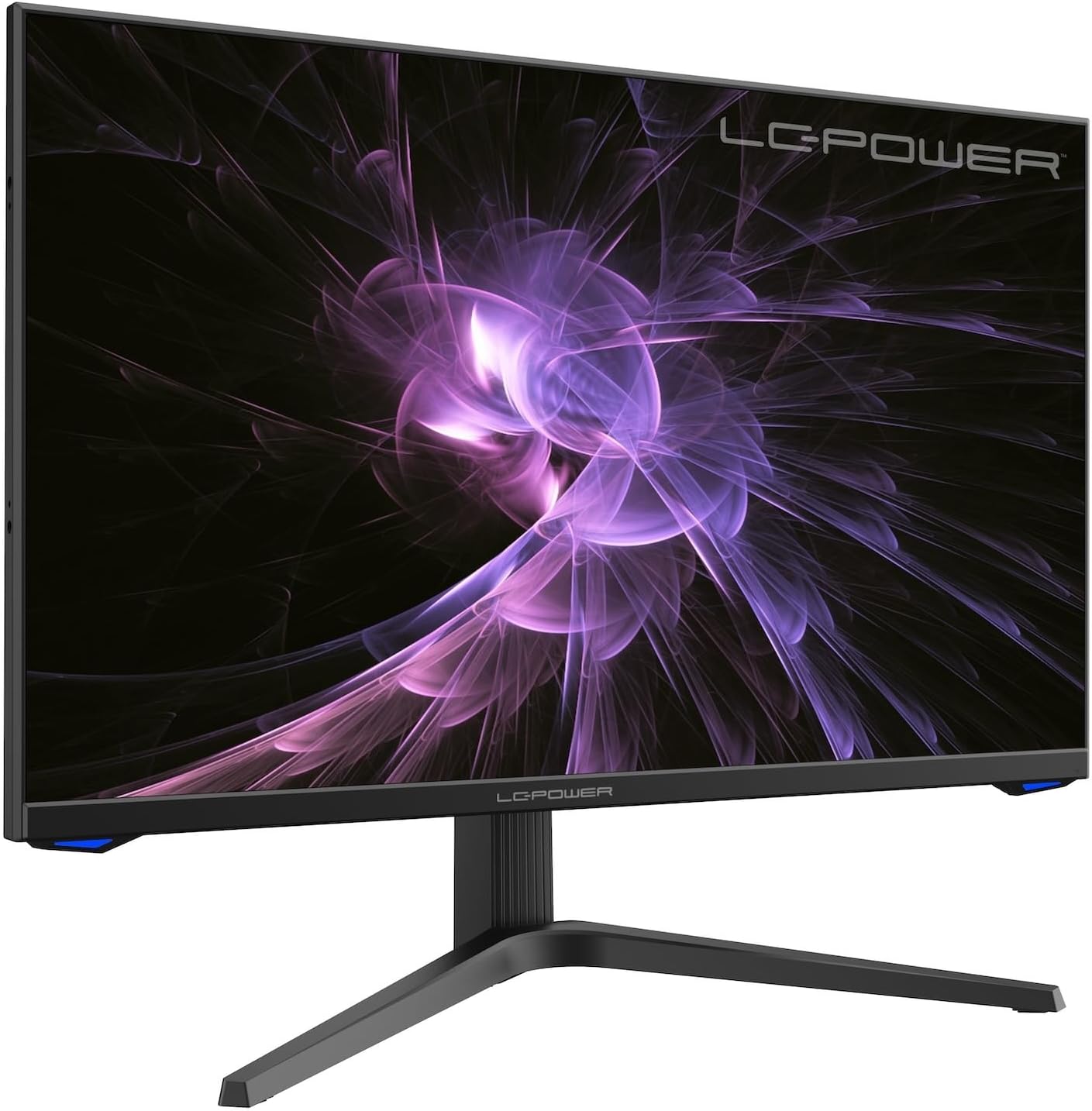
בילד: פראָנט view of the LC-M27-QHD-180 monitor, showcasinג זײַן אַרויסווײַז און גלאַטן דיזײַן.
סעטאַפּ גייד
1. אויספּאַקן און אינהאַלט
Carefully remove all components from the packaging. Please verify that all items listed below are present:
- LC-M27-QHD-180 Monitor
- מאָניטאָר באַסע
- HDMI קאַבלע
- מאַכט אַדאַפּטער
- מאַונטינג מאַטעריאַל
- באַניצער מאַנואַל (דעם דאָקומענט)
2. פֿאַרזאַמלונג
אַטאַטשינג די באַזע:
- לייגט דעם מאָניטאָר־עקראַן מיטן פּנים אַראָפּ אויף אַ ווייכער, ריינער ייבערפלאַך כּדי צו פֿאַרמייַדן קראַצן.
- Align the stand arm with the slot on the back of the monitor.
- באַפֿעסטיקן דעם שטאַנד אָרעם צום מאָניטאָר מיט די צוגעשטעלטע שרויפֿן.
- Attach the base plate to the stand arm and tighten the screws.
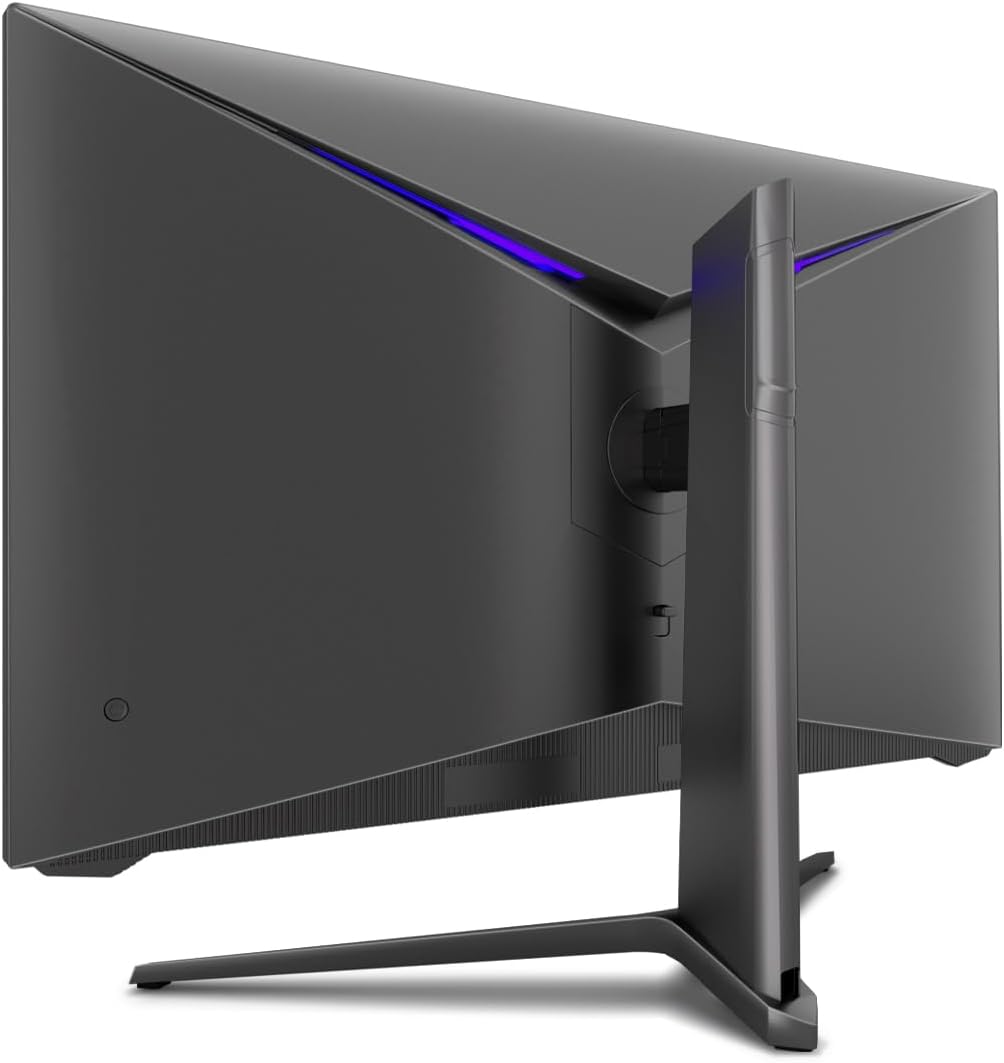
בילד: הינטערשטע view of the monitor, illustrating the stand assembly area and cable management design.
VESA מאַונטינג: The monitor is VESA compatible. If you intend to use a VESA mount, remove the stand arm after assembly and attach your VESA mount according to its instructions.
3. קאַנעקטינג די מאָניטאָר
- מאַכט קשר: Connect the power adapter to the monitor's power input and then plug the power adapter into a wall outlet.
- ווידעא קשר: Connect one end of the provided HDMI cable to the HDMI port on your computer's graphics card and the other end to an HDMI input port on the monitor.
- מאַכן זיכער אַז אַלע קאַנעקשאַנז זענען זיכער.
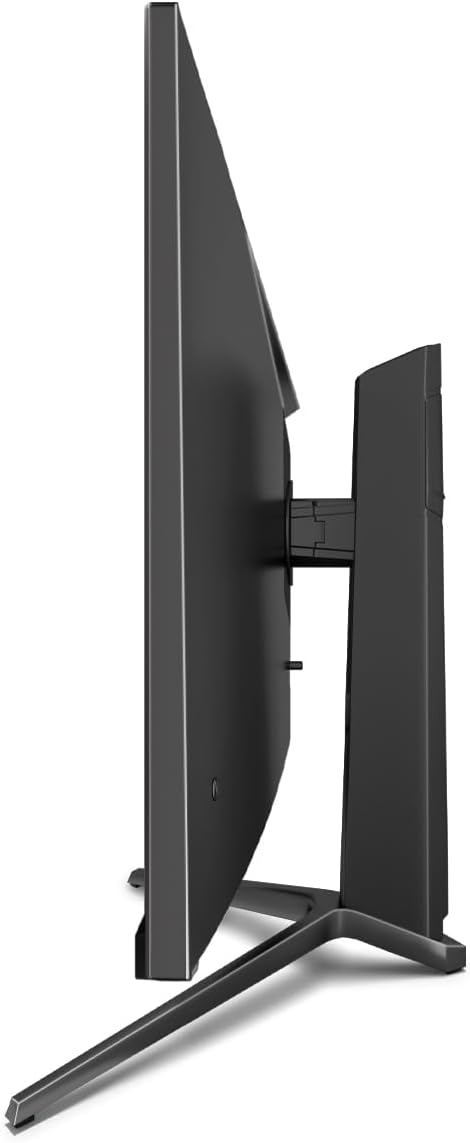
בילד: זייט view of the monitor, showing its slim design and connectivity ports.
4. ערשטע איינשאַלטונג
Press the power button on the monitor. The power indicator light should illuminate. Your computer should automatically detect the new display. If not, adjust display settings in your operating system.
אַפּערייטינג ינסטראַקשאַנז
אויף-סקרין ווייַז (אָסד) מעניו
The monitor features an On-Screen Display (OSD) menu for adjusting various settings. Use the control buttons located on the monitor (typically on the back or bottom edge) to navigate the OSD menu.
הויפּט פֿעיִקייטן און סעטטינגס
- אַדאַפּטיוו סינק: This technology synchronizes the monitor's refresh rate with your graphics card's frame rate, reducing screen tearing and stuttering for a smoother gaming experience. Enable this feature in your graphics card settings and on the monitor's OSD if applicable.
- איבערדרייען: Overdrive pre-calculates and accelerates specific pixels, significantly reducing response times for both black-and-white and color nuance changes, resulting in clearer motion.
- נידעריק בלוי ליכט: The Low Blue Light filter reduces the emission of harmful blue light from the screen, minimizing eye strain and fatigue during prolonged use. This feature can be adjusted via the OSD menu.
- Picture-by-Picture (PbP) / Picture-in-Picture (PiP):
- PbP: Allows you to display content from two different input sources side-by-side on the same screen.
- פּיפּ: Displays the image from a second source as a smaller, scalable window (up to 25% of original size) that can be positioned anywhere on the main screen.
- FPS / RTS Modes: Dedicated display modes optimized for First Person Shooter (FPS) and Real-Time Strategy (RTS) games. These modes enhance visibility and provide a better gaming experience by adjusting display parameters.
- פּיוואָט שטריך: The monitor can be rotated 90 degrees to a vertical (portrait) orientation. This is particularly useful for reading documents, coding, or web בראַוזינג.

Image: Diagram illustrating the monitor's ability to pivot 90 degrees for vertical viewing.
Note: After physically rotating the monitor, you must adjust the display orientation settings within your operating system (e.g., Windows Display Settings) to match the new physical orientation.
- Height Adjustable Stand & Cable Management: The integrated stand allows for height adjustment to achieve an ergonomic viewing position. Cables can be neatly routed through the stand's built-in cable management system to maintain a tidy workspace.

Image: Close-up of the monitor's stand, highlighting the integrated cable management feature.
וישאַלט
כדי צו זיכער מאַכן די לאַנגלעבעניש און אָפּטימאַלע פאָרשטעלונג פון דיין מאָניטאָר, נאָכפאָלגן די וישאַלט גיידליינז:
- רייניקונג די פאַרשטעלן: ווישט אָפּ דעם עקראַן מיט אַ ווייכן, לינט-פֿרײַעם שטאָף ספּעציעל געמאַכט פֿאַר עלעקטראָניק. פֿאַר שווערע פֿלעקן, ווישט לײַכטampen the cloth with water or a non-abrasive, monitor-safe cleaning solution. Do not spray liquid directly onto the screen.
- רייניקונג פון די Casing: ניצט אַ ווייכע, טרוקענע שטאָף צו רייניקן די מאָניטאָר'ס סיסטעם.asinז. פֿאַרמײַדן ניצן שאַרפֿע כעמיקאַלן אָדער אַברייסיוו מאַטעריאַלן.
- ווענטילאַטיאָן: זיכערט זיך אז די ווענטילאציע עפענונגען אויפן מאָניטאָר זענען נישט פארשטאפט צו פארמיידן איבערהיצונג.
- מאַכט אַוועק: Always power off the monitor and unplug it from the power outlet before cleaning or if it will not be used for an extended period.
- ויסמיידן דירעקט זונשייַן: שטעלט נישט אויס דעם מאָניטאָר צו דירעקטער זון אדער איבערגעטריבענער היץ.
טראָובלעשאָאָטינג
If you encounter issues with your LC-M27-QHD-180 monitor, please refer to the following common troubleshooting steps:
| פּראָבלעם | מעגלעך סיבה | לייזונג |
|---|---|---|
| קיין בילד אויף פאַרשטעלן | Monitor not powered on; video cable loose or disconnected; incorrect input source selected. | Ensure power cable is securely connected and monitor is turned on. Check video cable connections (HDMI). Select the correct input source via the OSD menu. |
| בילד איז פארשוואומען אדער פארדרייט | Incorrect resolution setting; video cable issue. | Set the display resolution to 2560 x 1440 pixels in your computer's display settings. Try a different HDMI cable if available. |
| קיין קלאַנג (אויב מאָניטאָר האט רעדנערס/אַודיאָ אַרויס) | אַודיאָ קאַבל נישט פארבונדן; באַנד צו נידעריק; אומרעכטע אַודיאָ אַרויסגאַנג אויסגעקליבן אויף קאָמפּיוטער. | Ensure audio cable (if used) is connected. Adjust monitor volume via OSD. Select the monitor as the default audio output device in your computer's sound settings. |
| סקרין פליקער | Refresh rate mismatch; faulty cable; graphics driver issue. | Ensure refresh rate is set to 180 Hz in display settings. Try a different video cable. Update your graphics card drivers. |
For more detailed troubleshooting or persistent issues, please consult the full user manual or contact LC-Power customer support.
ספּעסאַפאַקיישאַנז
| שטריך | דעטאַל |
|---|---|
| מאָדעל נומער | LC-POWER (LC-M27-QHD-180) |
| פאַרשטעלן גרייס | 27 אינטשעס (68.58 סענטימעטער) |
| האַכלאָטע | QHD Wide 1440p (2560 x 1440 pixels) |
| אַספּעקט פאַרהעלטעניש | 16:9 |
| דערפרישן קורס | 180 הז |
| ענטפער צייט | 1 מיז |
| טאַפליע טיפּ | IPS |
| פאַרשטעלן ייבערפלאַך | Flach (Flat) |
| פּראָדוקט דימענשאַנז (L x W x H) | 28.74 X 18.9 X 8.66 אינטשעס |
| פּונקט וואָג | 17.73 פונט |
| פאַבריקאַנט | LC Power |
| ASIN | B0CQJNV3YR |
| ערשטער דאַטע בנימצא | 31 מאי 2024 |

Image: EU Energy Label for the LC-M27-QHD-180 monitor. For more details, scan the QR code or visit eprel.ec.europa.eu/qr/1758049.
וואָראַנטי און שטיצן
The LC-M27-QHD-180 monitor is manufactured by LC Power.
- אַלגעמיינע וואָראַנטי: The product comes with a 3-year general warranty from the date of purchase.
- Guaranteed Availability of Spare Parts: Spare parts are guaranteed to be available for 7 years from the date of placing the product on the market.
- גאַראַנטירטע פּראָדוקט שטיצע: Product support is guaranteed for 7 years.
For technical support, warranty claims, or service inquiries, please contact LC-Power customer support through their official channels. Refer to the packaging or the brand's official webוועבזייטל פֿאַר ספּעציפֿישע קאָנטאַקט אינפֿאָרמאַציע.
Ask a question about this manual
Ask about setup, troubleshooting, compatibility, parts, safety, or missing instructions. Manuals+ will review the question and use this page’s manual context to help answer it.