
Docooler 14 Inch 2-in-1 Touchscreen Laptop
Docooler 14 Inch 2-in-1 Touchscreen Laptop User Manual
Model: 14 Inch 2-in-1 Touchscreen Laptop
1. פּראָדוקט איבערview
The Docooler 14 Inch 2-in-1 Touchscreen Laptop is a versatile computing device designed for both productivity and entertainment. Featuring a 4K UHD IPS display and a 360-degree convertible design, it adapts to various usage scenarios, from traditional laptop mode to tablet mode. Powered by an Intel N95 processor, it offers efficient performance for daily tasks.

Image: The Docooler 14 Inch 2-in-1 Touchscreen Laptop in its tent configuration, showcasing its flexible design and vibrant display.
2. פּעקל אינהאַלט
ביטע באַשטעטיקן אַז אַלע זאכן זענען פאַראַן אין דעם פּעקל:
- Docooler 14 Inch 2-in-1 Touchscreen Laptop
- טשאַרדזשינג קאַבלע
- באַניצער מאַנואַל
3. געטינג סטאַרטעד
3.1 ערשט סעטאַפּ
- לאָדנט דעם לאַפּטאָפּ: Before first use, connect the charging cable to the laptop's USB-C port and plug it into a power outlet. Allow the battery to charge fully.
- מאַכט אויף: Press and hold the power button located on the side of the laptop until the screen illuminates.
- Windows סעטאַפּ: Follow the on-screen prompts to complete the Windows 11 initial setup, including language selection, network connection, and user account creation.
4. Understanding Your Laptop
4.1 שליסל פֿעיִקייטן
- ווייַז: 14-inch 4K UHD (3840x2160) IPS touchscreen with 500 Nits brightness for a clear visual experience.
- פּראַסעסער: Equipped with the 12th Gen Intel N95 CPU (4-core, 4-thread, up to 3.4GHz) for efficient performance.
- זכּרון און סטאָרידזש: 12GB LPDDR5 4800MHz high-frequency memory and 512GB/1TB NVMe SSD for fast operation and ample סטאָרידזש.
- קאָנווערטיבלע פּלאַן: 360-degree flip-and-fold design allows for multiple modes of use.
- טאָוטשסקרעען: 10-level multi-touch screen with gravity sensing for intuitive interaction.
- זיכערהייט: Fingerprint unlock for quick and secure access.
- קלאַוויאַטור: Backlit keyboard for comfortable typing in various lighting conditions.
- קאַנעקטיוויטי: Dual-band Wi-Fi (2.4G/5.0G Hz 802.11ac) and Bluetooth for stable wireless connections.

Image: Visual representation of the laptop's 4K UHD display capabilities, highlighting its high resolution and brightness.

Image: Illustration of the Intel N95 12th Generation processor, emphasizing its role in the laptop's performance.
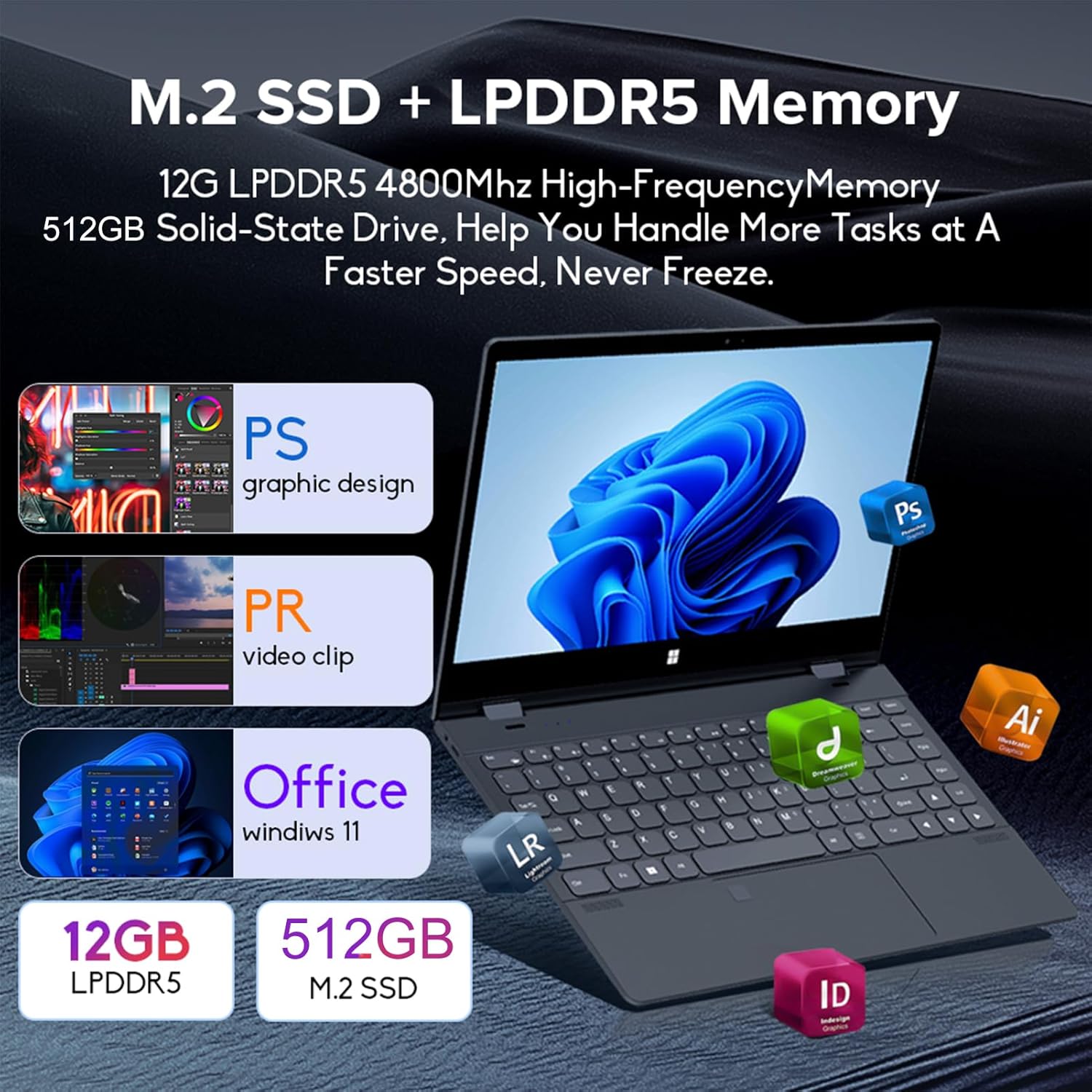
Image: Depiction of the laptop's memory and storage, showing 12GB LPDDR5 RAM and 512GB/1TB M.2 SSD, suitable for various applications.
4.2 פּאָרץ און קאַנעקטערז
מאַכט זיך באַקאַנט מיט די פאַראַן פּאָרטן אויף דיין לאַפּטאַפּ:
- יו-עס-בי-סי (פול-פיטשערד): Supports audio, video, data transmission, and PD2.0 fast charging.
- וסב 3.0: פֿאַר פֿאַרבינדן USB דעוויסעס.
- אַודיאָ אין: פֿאַר כעדפאָונז אָדער עקסטערנע רעדנערס.
- DC אין: Power input (if applicable, though USB-C is primary charging).
- TF קאַרד לייענער: פֿאַר זכּרון קאַרטלעך.

בילד: א דעטאַלירטע view of the laptop's side ports, including USB-C, USB 3.0, audio jack, and TF card slot.
4.3 קאָנווערטאַבאַל מאָדעס
The 360-degree hinge allows the laptop to transform into four distinct modes:
- Notebook Mode: Traditional laptop experience for typing and productivity.
- טאַבלעט מאָדע: Fold the screen back completely for a tablet experience, ideal for touch-based applications and gaming.
- Viewing Mode (Tent Mode): Stand the laptop in a tent shape for watching videos or presentations.
- Conference Mode (Stand Mode): Flip the keyboard under the screen to share content easily in a group setting.

Image: Visual guide demonstrating the four convertible modes of the laptop: Notebook, Tablet, Viewing, and Conference.
5. אָפּעראַציע
5.1 ניצן די טאָוטשסקרעען
The 10-point multi-touch screen allows for intuitive navigation. Use gestures similar to a smartphone or tablet. The gravity sensing feature enhances the experience, especially in tablet mode.

Image: Demonstrates the ease of touchscreen operation and the benefit of gravity sensing for gaming.
5.2 Using the Backlit Keyboard and Fingerprint Unlock
- באַקלייט קלאַוויאַטור: Press the Function (Fn) key combined with the appropriate F-key (usually F3 or F4, check keyboard icons) to toggle the keyboard backlight on/off or adjust its brightness.
- ופשליסן פינגערפּרינט: Set up your fingerprint in Windows Settings > Accounts > Sign-in options. Once configured, you can unlock your laptop quickly by placing your registered finger on the fingerprint sensor.
5.3 פֿאַרבינדן זיך צו Wi-Fi און בלועטוט
The laptop supports dual-band Wi-Fi (2.4G/5.0G Hz 802.11ac) and Bluetooth for wireless connectivity.
- ווי-פי: Click the Wi-Fi icon in the taskbar, select your desired network, enter the password if prompted, and click Connect.
- בלועטאָאָטה: Go to Windows Settings > Bluetooth & devices. Ensure Bluetooth is turned on, then click 'Add device' to pair with Bluetooth peripherals like headphones or mice.

Image: Visual representation of the laptop's dual-band Wi-Fi and Bluetooth connectivity features.
6. וישאַלט און קער
- רייניקונג: ניצן אַ ווייך, לינט-פֿרייַ שטאָף אַ ביסל דampגעוואשן מיט וואַסער אָדער אַ פאַרשטעלן רייניגער צו רייניקן דעם עקראַן. פֿאַר די קלאַוויאַטור און שאַסי, ניצט אַ טרוקן, ווייך שטאָף. פֿאַרמייַדן שטרענג כעמיקאַליעס.
- באַטערי זאָרגן: כדי צו פארלענגערן די לעבן פון די באַטעריע, זאָלט איר נישט אָפט אויסלאָדן די באַטעריע. האַלט דעם לאַפּטאָפּ אין אַ קילן, טרוקענעם אָרט ווען איר ניצט עס נישט פֿאַר לענגערע צייטן.
- ווענטילאַטיאָן: זיכערט זיך אז די לעפטאפ'ס ווענטילאציע עפענונגען זענען נישט פארשטאפט כדי צו פארמיידן איבערהיצונג. ניצט דעם לעפטאפ אויף א הארטער, גלייכער אויבערפלאך.
- ווייכווארג דערהייַנטיקונגען: רעגולער אַפּדייט אייער אָפּערייטינג סיסטעם און דרייווערס צו ענשור אָפּטימאַל פאָרשטעלונג און זיכערהייט.
7. טראָובלעשאָאָטינג
| פּראָבלעם | מעגלעך לייזונג |
|---|---|
| דער לאַפּטאָפּ גייט נישט אָן. | Ensure the charging cable is securely connected and the power outlet is functional. Allow the laptop to charge for at least 30 minutes before attempting to power on again. |
| Wi-Fi פֿאַרבינדונג פּראָבלעמען. | Restart your router and modem. On the laptop, disable and re-enable Wi-Fi. Ensure you are within range of the Wi-Fi signal. |
| דער טאָוטשסקרין רעאַגירט נישט. | Restart the laptop. Check for any physical obstructions on the screen. Ensure Windows updates are current. |
| קלאַוויאַטור באַקלייט אַרבעט נישט | Press Fn + F-key (check keyboard icon) to toggle or adjust backlight brightness. Ensure drivers are up to date. |
| דער לאַפּטאָפּ אַרבעט שטייט. | Close unnecessary applications. Check for background processes. Ensure sufficient free storage space. Run a system scan for malware. |
8. טעכניש ספּעסאַפאַקיישאַנז
| שטריך | באַשרייַבונג |
|---|---|
| פאַרשטעלן גרייס | 14 אינטשעס |
| האַכלאָטע | 3840 רענטגענ 2160 בילדצעלן (4K UHD) |
| פּראַסעסער | Intel N95 (up to 3.4GHz) |
| ראַם זכּרון אינסטאַלירט גרייס | 12 גיגאבייט LPDDR5 |
| שווער דיסק באַשרייַבונג | 512GB/1TB NVMe SSD |
| אָפּערייטינג סיסטעם | Windows 11 היים |
| גראַפיקס קאָופּראַסעסער | אינטעל UHD גראַפיקס (אינטעגרירט) |
| ווירעלעסס קאַנעקטיוויטי | 2.4G/5.0G Hz 802.11ac Wi-Fi, Bluetooth |
| גאַנץ וסב פּאָרץ | 2 (including 1 full-featured USB-C) |
| קאָליר | זילבער גרוי |
| פּונקט וואָג | 3.46 פונט (1570 גראַמז) |
| פּעקל דימענשאַנז | 15.35 X 9.84 X 3.35 אינטשעס |
| לאַנד פון אָריגין | כינע |
9. וואָראַנטי און שטיצן
For warranty information and technical support, please refer to the documentation provided with your purchase or visit the official Docooler webזייטל. האַלט דיין קויפן באַווייַז פֿאַר וואָראַנטי קליימז.
Docooler is committed to providing quality products and customer satisfaction. For further assistance, please contact Docooler customer service.
Note: Protection plans may be available for extended coverage. Please check with your retailer for details.
Ask a question about this manual
Ask about setup, troubleshooting, compatibility, parts, safety, or missing instructions. Manuals+ will review the question and use this page’s manual context to help answer it.