
1. הקדמה
This manual provides detailed instructions for the installation, operation, and maintenance of your UNITOPSCI Android Car Stereo, Model A7321A2516KTA3. Please read this manual thoroughly before use to ensure proper functionality and safety.

Figure 1.1: UNITOPSCI Android Car Stereo with accessories.
2. קאָמפּאַטאַביליטי און וויכטיקע הערות
This UNITOPSCI Android Car Stereo is specifically designed for the following vehicle models:
- Subaru Legacy (2010, 2011, 2012, 2013, 2014)
- Subaru Outback (2010, 2011, 2012, 2013, 2014)
וויכטיקע קאָמפּאַטאַביליטי נאָטיץ:
- דעם אַפּאַראַט איז ניט קאַמפּאַטאַבאַל with vehicles equipped with the original Harman Kardon Sound System. If your vehicle has this system, please contact customer support for guidance on suitable wiring harnesses.
- For vehicles without an OEM sound system, the provided wire harness is typically plug-and-play.
- This unit is suitable for vehicles with a small original screen. If your vehicle has a large original screen, a different frame may be required.

Figure 2.1: Vehicle compatibility overview.
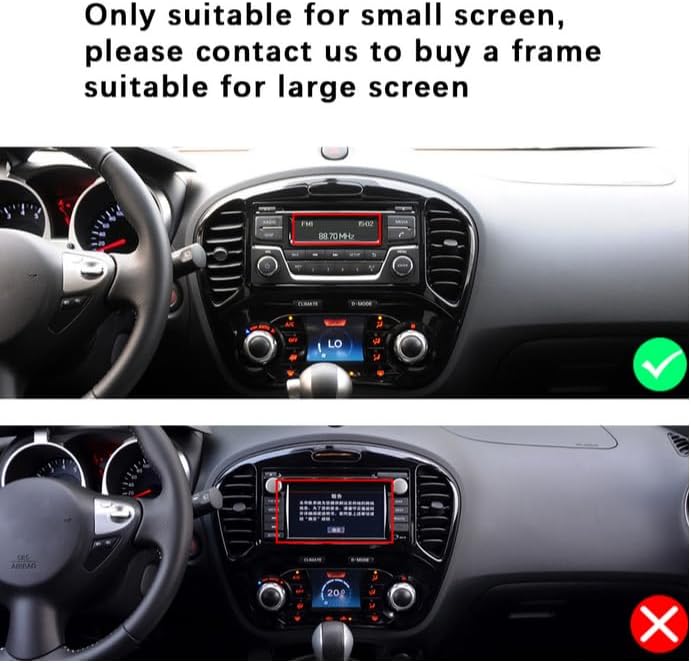
Figure 2.2: Visual guide for screen size compatibility.
3. פּעקל אינהאַלט
ביטע באַשטעטיקן אַז אַלע זאכן וואָס זענען ליסטעד אונטן זענען אַרייַנגערעכנט אין דיין פּעקל:
- Android Car Stereo Unit (9-inch display)
- דערציען View Camera (12 LEDs, night vision, waterproof, 170-degree angle)
- רקאַ קאַבלע
- מאַכט קאַבלע
- ייַנמאָנטירונג טול
- אַפּאַראַט אַרייַנשרייַב קאַבלע
- גפּס אַנטענע
- USB Cables (6-pin and 4-pin)
- באַניצער מאַנואַל (דעם דאָקומענט)

Figure 3.1: Package contents and product dimensions.
4. ינסטאַללאַטיאָן גייד
Professional installation is recommended. Ensure the vehicle's battery is disconnected before beginning installation.
4.1. פאַר-אינסטאַלאַציע קאָנטראָל
- Verify vehicle compatibility (refer to Section 2).
- Confirm all package contents are present.
4.2. Removal of Original Unit
- Carefully remove the trim panels surrounding the original car stereo.
- Unscrew and detach the original stereo unit.
- Disconnect all wiring harnesses and antenna cables from the original unit.
4.3. Installing the New Unit
- Connect the provided power cable and other necessary harnesses to the UNITOPSCI Android Car Stereo.
- Connect the GPS antenna and route it to a suitable location (e.g., dashboard, A-pillar) for optimal signal reception.
- If installing the backup camera, route its cable from the rear of the vehicle to the head unit's camera input. Refer to Section 4.4 for wiring details.
- Carefully slide the new stereo unit into the dashboard opening.
- Secure the unit with screws and reattach the trim panels.

Figure 4.1: Visual comparison of dashboard before and after installation.

Figure 4.2: Installation comparison for proper fitment.
4.4. דערציען View אַפּאַראַט וויירינג דיאַגראַמע
To connect the backup camera:
- Connect the camera's video output to the head unit's 'CAM IN' or 'REVERSE IN' port.
- Connect the camera's power wire (red) to the vehicle's reverse light positive (+12V).
- Connect the camera's ground wire (black) to a suitable chassis ground (GND).
- Connect the trigger wire (labeled 'back' or 'reverse' on the power cable) from the head unit to the reverse light positive. This signals the head unit to switch to the camera view ווען פאַרקערט גאַנג איז פאַרקנאַסט.

פיגורע 4.3: דערציען View קאַמעראַ וויירינג דיאַגראַמע.
5. ערשט סעטאַפּ
After installation, turn on your vehicle's ignition to power on the stereo. The unit will boot into the Android operating system.
- שפּראַך און צייט סעטטינגס: Navigate to 'Settings' to set your preferred language, time zone, and date.
- Wi-Fi קאַנעקשאַן: Go to 'Settings' > 'Network & Internet' > 'Wi-Fi' to connect to an available Wi-Fi network. This is necessary for online maps, app downloads, and internet browsing.
- GPS Configuration: Ensure the GPS antenna is properly connected. The system should automatically detect GPS signals. You can verify this in the GPS settings.
- שטיר-ראד קאנטראל לערנען: If your vehicle supports steering wheel controls, go to 'Settings' > 'Steering Learn' to program the buttons. Follow the on-screen instructions to assign functions to each button.
6. אַפּערייטינג ינסטרוקטיאָנס
6.1. בלועטאָאָטה פֿונקציע
The built-in Bluetooth 4.2 module allows for hands-free calling and audio streaming.
- פּאָרינג: On your mobile device, search for Bluetooth devices and select 'UNITOPSCI' (or similar name). Confirm the pairing code if prompted.
- הענט-פריי רופן: Once paired, you can make and receive calls directly from the stereo's touch screen. The unit supports automatic phone book download.
- אַודיאָ סטרימינג: Play music from your paired phone through the car stereo speakers.

פיגור 6.1: בלועטוט צובינד פֿאַר רופן און מוזיק.

Figure 6.2: Bluetooth handsfree calling in use.
6.2. דזשי-פי-עס נאַוויגאַציע
The unit comes with built-in GPS and preloaded offline maps. Online navigation is also supported via Wi-Fi.
- אָפפליין מאַפּעס: The stereo includes free offline maps. You can download additional maps via Wi-Fi using applications like 'Here WeGo'.
- Online Navigation: Connect to Wi-Fi to use online navigation apps for real-time traffic updates and more detailed mapping.

Figure 6.3: GPS Navigation in action.

Figure 6.4: Built-in WiFi and GPS Navigation features.
6.3. ווי-פי קאַנעקטיוויטי
Connect the stereo to a Wi-Fi hotspot (e.g., from your phone) to access online features.
- Browse the internet, watch real-time TV shows, use social media, and download apps from the app store.
6.4. שפּיגל לינק פונקציע
Mirror Link allows you to display your smartphone's screen on the car stereo.
- For iPhone (iOS): One-way operation via Wi-Fi. The phone screen is mirrored to the stereo.
- פֿאַר אַנדרויד פאָנעס: Two-way operation via Wi-Fi or USB. You can control your phone from the stereo's touch screen.

פיגור 6.5: שפּיגל לינק פאַנגקשאַנאַליטי.

Figure 6.6: Mirror Link for iOS and Android devices.
6.5. FM/RDS ראַדיאָ
Access local radio stations and enjoy news, music, and weather broadcasts.
- The unit supports FM radio with 18 preset stations.
- RDS (Radio Data System) provides additional information like station name and song title where available.

Figure 6.7: FM/RDS Radio interface.
6.6. שטיר-ראד קאנטראל (SWC)
Control basic functions of the stereo using your vehicle's existing steering wheel buttons for convenience and safety.
- Refer to Section 5 for initial setup of SWC.
- Functions typically include volume control, track skipping, mode switching, and answering/ending calls.

Figure 6.8: Steering Wheel Control setup.
6.7. באַקקופּ קאַמעראַ אַרייַנשרייַב
The included 12LEDs rear view אַפּאַראַט גיט אַ קלאָר view ווען ריווערסינג.
- The stereo automatically switches to display the HD reversing image when the vehicle is put into reverse gear.
- Features include night vision, a 170-degree viewing angle, and waterproof design for enhanced parking safety.

Figure 6.9: Backup camera view on the stereo screen.

Figure 6.10: Parking Assistant features.
6.8. EQ Audio Settings
Adjust the audio output to your preference using the built-in equalizer.
- The digital chip allows adjustment of delay time, loudness, equalizer settings (e.g., Jazz, Pop, Rock, Classical), and balance.

Figure 6.11: EQ Sound Settings interface.
6.9. שפּאַלטן סקרין פֿונקציע
The unit supports split-screen display, allowing you to run two applications simultaneously.
- פֿאַר עקסample, use navigation on one side and music playback on the other.

Figure 6.12: Split Screen functionality.
7. טראָובלעשאָאָטינג
If you encounter issues, please refer to the following common problems and solutions before contacting support.
| פּראָבלעם | מעגלעך סיבה | לייזונג |
|---|---|---|
| Head unit not turning on when car starts | Pink wire or KEY 1 blocking electricity. | Locate the pink wire or KEY 1 wire. Cut it off and ensure it is isolated. This wire may be designed to prevent operation while driving, but can interfere with normal power-on. |
| קיין אַודיאָ רעזולטאַט | Incorrect wiring; volume too low; mute function active; incompatible sound system. | Check all speaker wire connections. Ensure volume is up and not muted. Verify compatibility with your vehicle's sound system (especially Harman Kardon). Check EQ settings. |
| בלועטאָאָטה קשר ישוז | Phone not paired; interference; unit/phone software glitch. | Ensure Bluetooth is enabled on both devices. Delete previous pairings and re-pair. Restart both the stereo and your phone. |
| GPS signal weak or inaccurate | GPS antenna placement; environmental interference. | Ensure the GPS antenna is mounted in a clear, unobstructed location (e.g., dashboard, not under metal). Check antenna connection. |
| באַקאַפּ קאַמעראַ ווייזט זיך נישט | Incorrect wiring; camera malfunction. | Verify all camera wiring connections, especially the trigger wire and power supply to the reverse light. Check camera for damage. |
8. ספּעסאַפאַקיישאַנז

Figure 8.1: Core system specifications.
| שטריך | דעטאַל |
|---|---|
| מאָדעל נומער | A7321A2516KTA3 |
| אָפּערייטינג סיסטעם | אַנדרויד |
| קפּו | קוואַד קאָר |
| באַראַן | 1 גיגאבייט |
| ראַם | 32 גיגאבייט |
| ווייַז גרייס | 9 אינטשעס |
| האַכלאָטע | 1024 X 600 |
| מאַכט רעזולטאַט | קסנומקס רענטגענ קסנומקסוו |
| בלועטאָאָטה ווערסיע | 4.2 |
| קאַנעקטיוויטי טעכנאָלאָגיע | ווייערלעס (Wi-Fi, בלועטוט) |
| ספּעציעלע פֿעיִקייטן | Backup Camera Input, Bluetooth, FM Radio, Mirror Link, Touchscreen, GPS Navigation, Steering Wheel Control |
| אַודיאָ רעזולטאַט מאָדע | סטערעאָ |
| פּונקט וואָג | 3.78 פונט |
| פּעקל דימענשאַנז | 16.73 X 13.07 X 4.06 אינטשעס |

Figure 8.2: Display resolution comparison.
9. וואָראַנטי און שטיצן
UNITOPSCI is committed to providing high-quality products and satisfactory services.
- וואָראַנטי: דער פּראָדוקט קומט מיט אַ 1 יאָר וואָראַנטי.
- פאַרבייַט פּאָליטיק: Replacement available within 24 months for eligible issues.
- צוריקקער פּאָליטיק: 60-day no-worry return period.
- טעכניש שטיצן: Lifetime after-sales consultation and technical support are provided.
- קאָנטאַקט שטיצן: For any inquiries or technical assistance, please contact UNITOPSCI customer support via email at UNITOPSCI@126.com. Expect a quick response within 16 hours.

Figure 9.1: UNITOPSCI Customer Support Information.