
הקדמה
Thank you for choosing the MoKo Bluetooth AZERTY Keyboard. This manual provides detailed instructions to help you set up, operate, and maintain your keyboard, ensuring optimal performance with your Microsoft Surface Pro device. Please read this manual thoroughly before use.
קאַמפּאַטאַבילאַטי
This keyboard is specifically designed for the following Microsoft Surface Pro models:
- Surface Pro 7 Plus (2021)
- Surface Pro 7 (2019)
- Surface Pro 6
- Surface Pro 5 (Pro 2017)
- Surface Pro 4
- Surface Pro 3
The keyboard dimensions are approximately 29.5 cm (11.6 inches) in length, 21.7 cm (8.54 inches) in width, and 0.6 cm (0.23 inches) in height, providing a similar typing experience to official Surface Pro keyboards.
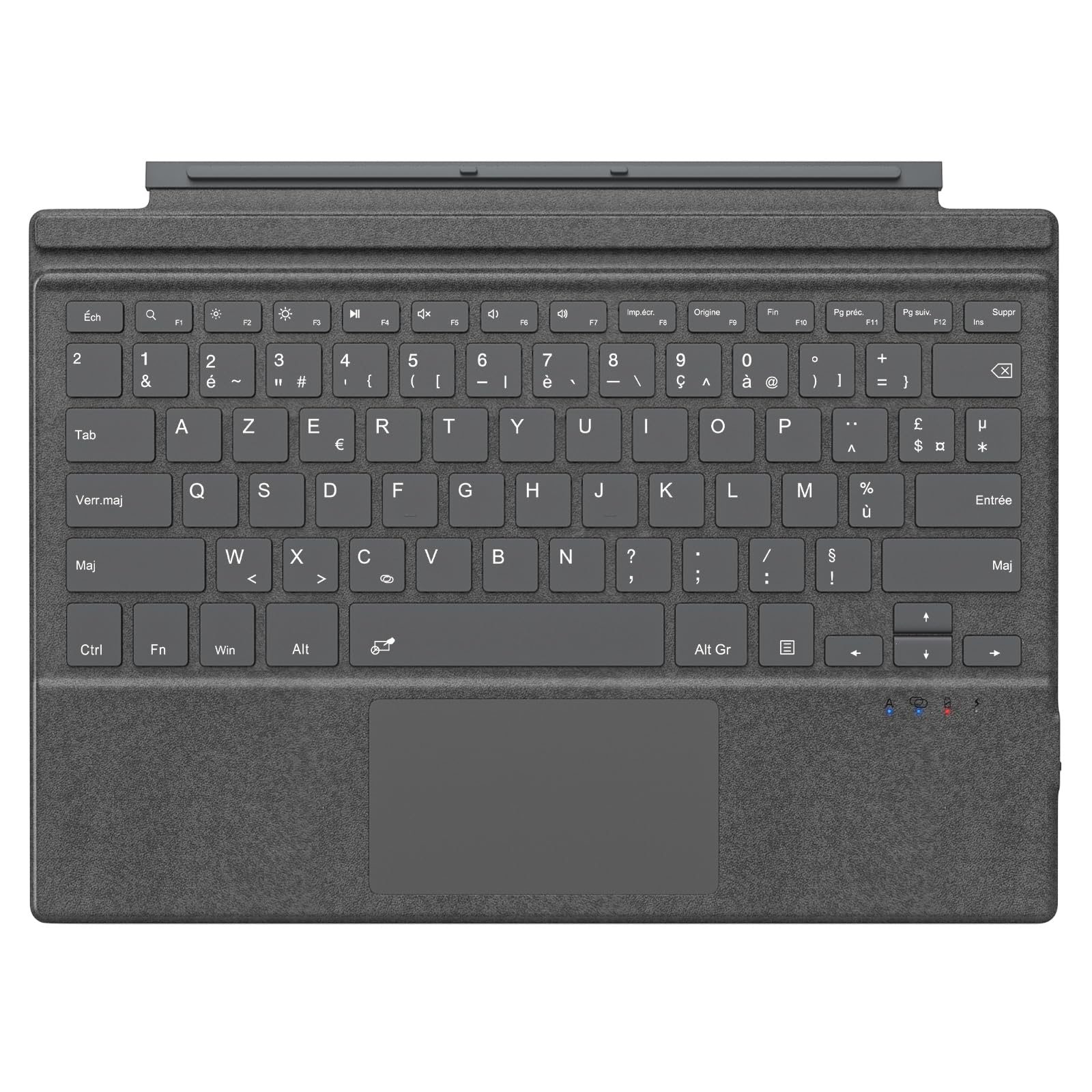
Image: The MoKo Bluetooth AZERTY Keyboard shown with several Microsoft Surface Pro models, illustrating compatibility.
וואָס איז אין די קעסטל
ביים אויספּאַקן, ביטע זיכער מאַכן אַז אַלע זאכן זענען פאַראַן:
- MoKo Bluetooth AZERTY Keyboard
- וסב טשאַרדזשינג קאַבלע
סעטאַפּ
1. אויפלאָדן די קלאַוויאַטור
The keyboard is equipped with a built-in 520mAh lithium battery. Before initial use, or when the battery is low, charge the keyboard using the provided USB cable.
- Connect the small end of the USB charging cable to the charging port on the keyboard.
- Connect the larger end of the USB cable to a USB power source (e.g., computer, wall adapter).
- די טשאַרדזשינג אינדיקאַטאָר ליכט וועט זיך אָנצינדן. אַמאָל גאָר אָנגעלאָדן, קען די ליכט טוישן קאָליר אָדער זיך אויסלעשן.
א פולע אָפּצאָל גיט בערך 25 שעה פון קעסיידערדיק נוצן.

בילד: א נאָענטע בילד view of the keyboard's charging port with a USB cable connected, indicating the charging process.
2. בלועטאָאָטה פּערינג
To connect your keyboard to your Surface Pro:
- זייט זיכער אז די קלאַוויאַטור איז אויפגעלאָדן און אנגעצונדן.
- אויף אייער סורפֿאַס פּראָ, גייט צו סעטטינגס > דיווייסאַז > בלועטאָאָטה און אנדערע דעוויסעס.
- קער אויף בלועטאָאָטה.
- דרוק די Fn שליסל און די C key simultaneously on the keyboard to enter pairing mode. The Bluetooth indicator light on the keyboard will flash.
- On your Surface Pro, click לייג בלועטאָאָטה אָדער אנדערע מיטל > בלועטאָאָטה.
- Select "MoKo Keyboard" (or similar name) from the list of available devices.
- Follow any on-screen prompts to complete the pairing process. The Bluetooth indicator light on the keyboard will stop flashing once connected.
The keyboard can be used attached to your Surface Pro or detached for flexible positioning. The effective Bluetooth connection range is approximately 10 meters (33 feet).

Image: A Surface Pro tablet with the MoKo keyboard detached, illustrating the wireless Bluetooth connection capability.
אַפּערייטינג ינסטראַקשאַנז
Keyboard Layout and Keys
This keyboard features an AZERTY layout with 105 keys, providing a full-size typing experience. The keys utilize a scissor-switch mechanism for comfortable and responsive typing.

בילד: א דעטאַלירטע view of the keyboard's AZERTY layout, highlighting the scissor-switch keys and integrated trackpad.
Trackpad Functionality
The integrated trackpad allows for precise navigation and control of your Surface Pro. To activate or deactivate the trackpad, press the Fn שליסל און די ספּאַסעבאַר סיימאַלטייניאַסלי.
באַמערקונג: Please remove any protective film from the trackpad surface before use to ensure proper functionality.
אַדזשאַסטאַבאַל טייפּינג ווינקלען
The keyboard's design allows for two different typing angles, providing an ergonomic and comfortable experience whether you are working on a desk, lap, or other surface.

Image: A Surface Pro with the keyboard attached, demonstrating the two possible ergonomic typing angles.
מאַכט מאַנאַגעמענט
אָטאַמאַטיק סליפּ מאָדע
To conserve battery life, the keyboard will automatically enter sleep mode after 10 minutes of inactivity. The Bluetooth connection will automatically disconnect during this period.
Reconnecting After Sleep
To wake the keyboard and re-establish the Bluetooth connection, simply press any key. The keyboard will automatically attempt to reconnect to the last paired device.

Image: An illustration of the keyboard's power management, including automatic sleep mode and USB-C charging.
וישאַלט
To ensure the longevity and optimal performance of your MoKo keyboard, follow these maintenance guidelines:
- רייניקונג: ניצט אַ ווייכע, טרוקענע, לינט-פֿרייע שטאָף צו רייניקן די קלאַוויאַטור ייבערפלאַך. פֿאַר שווערע שמוץ, אַ ביסל ווישןampווייקט דעם שטאָף מיט וואַסער אָדער אַ מילדער רייניקונג לייזונג. פֿאַרמייַדט איבעריקע פֿײַכטקייט.
- סטאָרידזש: ווען נישט אין באַנוץ, האַלט די קלאַוויאַטור אין אַ קיל, טרוקן אָרט אַוועק פון דירעקט זונשייַן און עקסטרעמע טעמפּעראַטורן.
- ויסמיידן ליקווידס: Do not expose the keyboard to liquids. It is not waterproof.
- שעפּן מיט זאָרג: פֿאַרמײַדט צו לאָזן פֿאַלן די קלאַוויאַטור אָדער אויסשטעלן זי צו שטאַרקע קלאַפּן.
טראָובלעשאָאָטינג
אויב איר טרעפט פּראָבלעמען מיט אייער קלאַוויאַטור, זעט די פאלגענדע געוויינטלעכע לייזונגען:
| פּראָבלעם | לייזונג |
|---|---|
| קלאַוויאַטור טוט נישט קער אויף | זיכער מאַכן אַז די קלאַוויאַטור איז אָנגעלאָדן. פֿאַרבינדט עס צו אַ מאַכט מקור מיטן USB קאַבל. |
| נישט מעגלעך צו פארבינדן דורך בלוטוט | 1. Ensure the keyboard is in pairing mode (Fn + C). 2. Make sure Bluetooth is enabled on your Surface Pro. 3. Delete any previous keyboard pairings on your Surface Pro and try again. 4. Ensure the keyboard is within the 10-meter range. |
| קלאַוויאַטור דיסקאָנעקט זיך אָפט | 1. Ensure the keyboard is charged. 2. Avoid placing obstacles between the keyboard and your Surface Pro. 3. Reconnect the Bluetooth connection manually if needed. |
| טרעקפּאַד רעאַגירט נישט | 1. Ensure the trackpad is activated (Fn + Spacebar). 2. Remove any protective film from the trackpad surface. 3. Restart the keyboard and try again. |
| שליסלען ריספּאַנד נישט | 1. Ensure the keyboard is properly connected via Bluetooth. 2. Check battery level and charge if necessary. 3. Restart your Surface Pro and the keyboard. |
ספּעסאַפאַקיישאַנז
| שטריך | דעטאַל |
|---|---|
| סאָרט | מאָקאָ |
| מאָדעל נאָמען | Clavier Français |
| מאָדעל נומער | B0CPLZXMFK |
| קאַנעקטיוויטי טעכנאָלאָגיע | בלועטאָאָטה |
| קלאַוויאַטור באַשרייַבונג | ינטעגראַטעד |
| ספּעציעלע שטריך | ערגאָנאָמיק |
| קאָליר | גרוי |
| קלאַוויאַטור אויסלייג | AZERTY |
| נומער פון קיז | 105 |
| באַשטימען טיפּ | שער סוויטש |
| מאַכט מקור | Battery Powered (520mAh Lithium) |
| פּראָדוקט דימענשאַנז (L x W x H) | 29.5 סענטימעטער X 21.7 סענטימעטער X 0.6 סענטימעטער (11.6 X 8.54 X 0.23 אינטשעס) |
| פּונקט וואָג | 10.93 אונס |
| מאַטעריאַל | אַקרילאָניטרילע בוטאַדיענע סטירענע (אַבס) |
| קאַמפּאַטאַבאַל אַס | Windows (Minimum Windows 10) |

Image: A technical diagram illustrating the precise dimensions of the MoKo Bluetooth AZERTY Keyboard.
וואָראַנטי און שטיצן
For warranty information or technical support, please refer to the documentation provided with your purchase or contact MoKo customer service directly through their official webפּלאַץ אָדער די זיצער ווו די פּראָדוקט איז פּערטשאַסט.