
הקדמה
This manual provides detailed instructions for the installation, operation, and maintenance of your Hikity D6021 1-DIN Car Stereo. This unit features a 6.86-inch touch screen, wireless Apple CarPlay, wireless Android Auto, Bluetooth 5.0, Mirror Link, FM/RDS radio, and support for a rear camera. Please read this manual thoroughly before using the product to ensure proper functionality and safety.
וואָס איז אין די קעסטל
פֿאָרזיכטיק אויספּאַקן דעם אינהאַלט און זיכער מאַכן אַז אַלע זאַכן זענען דאָרט:
- קאַר סטערעאָ אַפּאַראַט
- מאַכט קאַבלע
- 3.5 mm Microphone (MIC)
- שטיר-ראד קאנטראלן (SWC)
- 12 LED Rear Camera
- אַנטענע
- באַניצער מאַנואַל

Image: Contents of the Hikity D6021 package, showing the car stereo, power cable, antenna, rear camera, user manual, steering wheel control, and microphone.
פּראָדוקט פֿעיִקייטן
דראָטלאָז קאַרפּליי און אַנדרויד אויטאָ
The car stereo supports both wireless and wired Apple CarPlay and Android Auto via Bluetooth or USB. This allows seamless integration with your smartphone for navigation, calls, messages, and music. Voice control features like "Hey Siri" or "OK Google" are supported for hands-free operation.

Image: The car stereo screen displaying both Apple CarPlay and Android Auto interfaces, highlighting wireless and wired connectivity options.
שפּיגל לינק פאַנגקשאַנאַליטי
The Mirror Link feature allows you to project your smartphone screen onto the car stereo display via a USB connection. This enables viewing of all phone applications on the larger screen, complementing apps not natively supported by CarPlay or Android Auto.

Image: Illustration of Mirror Link, showing two hands holding smartphones connected to the car stereo, mirroring their screens.
Bluetooth 5.0 and FM/RDS Radio
Equipped with stable Bluetooth 5.0, the unit facilitates hands-free calling and wireless audio streaming from your phone. The FM radio automatically searches and stores up to 6 radio stations. An integrated equalizer allows for sound quality adjustments.

Image: The car stereo displaying Bluetooth connectivity for phone calls and music playback, alongside the FM radio interface and sound equalizer settings.
גפּס נאַוויגאַציע
The unit supports GPS navigation, allowing you to use map applications for guidance directly on the touch screen. This feature is integrated through CarPlay or Android Auto, utilizing your smartphone's navigation capabilities.

Image: The car stereo screen displaying a detailed GPS navigation map with a highlighted route and icons for different navigation applications.
שטיר-ראָד קאָנטראָל (SWC)
The car stereo is compatible with original steering wheel controls, enhancing safety and convenience by allowing you to manage functions without taking your hands off the wheel. An external microphone and remote control are included for improved voice control clarity.
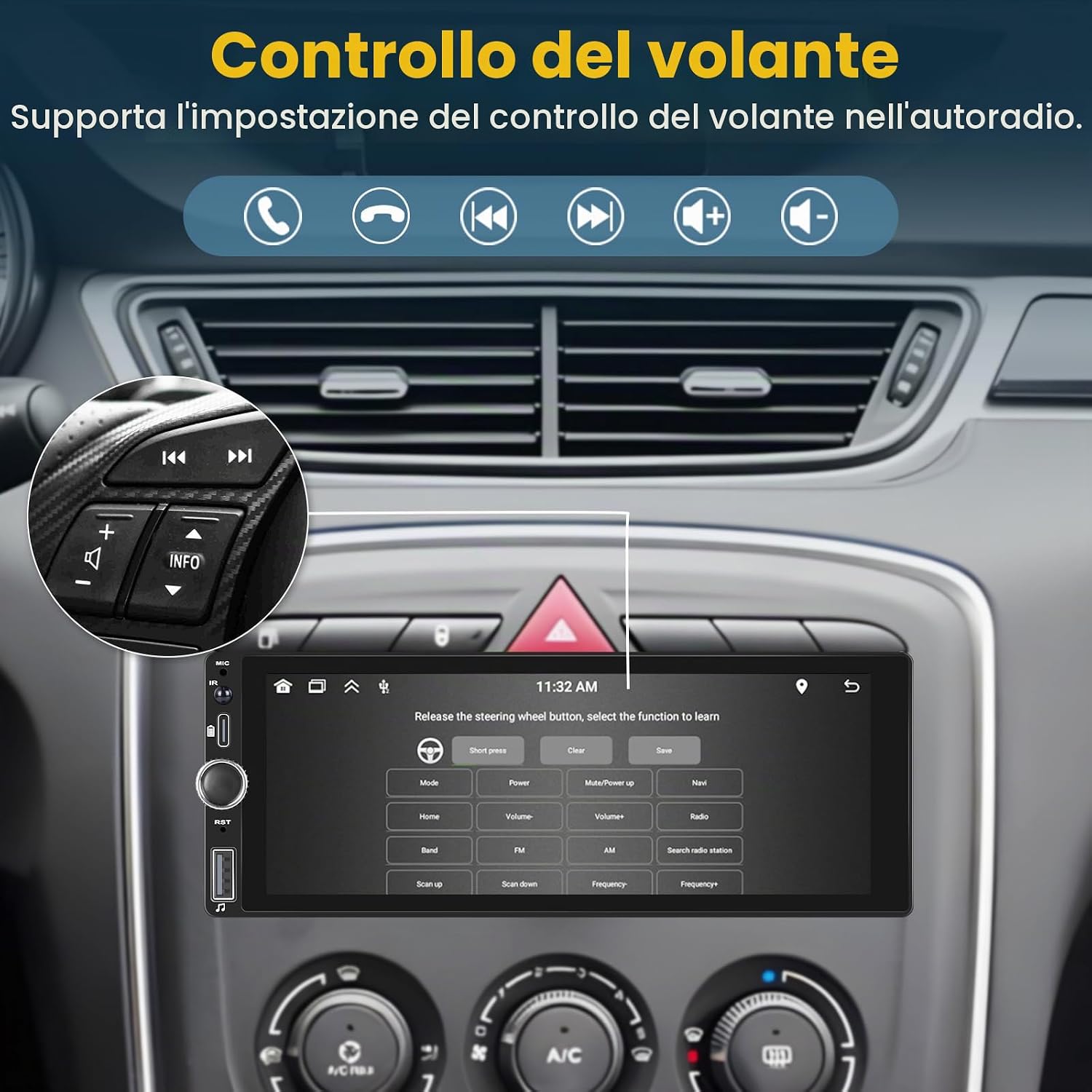
בילד: א view inside a car, showing the steering wheel with integrated controls and the car stereo screen displaying the steering wheel control configuration menu.
שטיצע פון הינטערשטע קאַמעראַ
The unit includes a 12-LED waterproof night vision rear camera. When reverse gear is engaged, the 6.86-inch touchscreen automatically displays the rear view, assisting with parking and maneuvering.

Image: A diagram illustrating the wiring connection for the included 12-LED rear camera to the car stereo, with the reverse image displayed on the screen.
סעטאַפּ און ינסטאַלירונג
וויירינג אינסטרוקציעס
Proper wiring is crucial for the correct operation of your car stereo. Refer to the diagram below for detailed connections. Ensure all connections are secure and insulated to prevent short circuits.
- מאַכט קשר: Connect the yellow wire to +12V constant power, the red wire to +12V ignition switch (ACC), and the black wire to ground (GND).
- רעדנער קאַנעקשאַנז: Connect the speaker wires according to the color codes for front left, front right, rear left, and rear right speakers. Ensure correct polarity (+/-).
- דערציען אַפּאַראַט: Connect the camera's video output to the CVBSIN port. The camera's red power wire connects to the reversing lamp, and the black wire to GND.
- סטירינג ראָד קאָנטראָל: Connect the brown wire to the steering wheel control line.
- אַנטענע: Connect the radio antenna and WiFi antenna to their respective ports.

Image: Comprehensive wiring diagram showing connections for power, speakers, rear camera, steering wheel control, and antennas.
גשמיות ינסטאַלירונג
The Hikity D6021 is a 1-DIN unit. Ensure your vehicle's dashboard opening is compatible with 1-DIN dimensions (approximately 188mm x 58mm). Secure the unit using the provided mounting brackets and screws. After installation, double-check all connections before powering on the device.
אַפּערייטינג ינסטראַקשאַנז
מאַכט אויף / אַוועק
Press the power button on the unit or the remote control to turn the stereo on or off. The unit will automatically power on when the vehicle's ignition is switched on (if wired correctly).
ריר סקרין צובינד
Navigate through menus and functions by touching the icons on the 6.86-inch display. Swipe gestures may be used for certain functions.
קאַרפּלייַ / אַנדרויד אַוטאָ קאַנעקשאַן
- ווירעלעסס: Enable Bluetooth and Wi-Fi on your smartphone. Pair your phone with the car stereo via Bluetooth. Once paired, the unit should prompt you to start CarPlay or Android Auto wirelessly.
- ווייערד: Connect your smartphone to the car stereo's USB port using a certified USB cable. The unit will automatically detect your phone and launch CarPlay or Android Auto.
Mirror Link Usage
Connect your smartphone to the car stereo's USB port. Select the 'Mirror Link' option on the stereo's interface. Follow the on-screen prompts to establish the connection and mirror your phone's display.
בלועטאָאָטה פּערינג
- Go to the Bluetooth menu on the car stereo.
- געבן בלועטאָאָטה אויף דיין סמאַרטפאָנע און זוכן פֿאַר בנימצא דעוויסעס.
- Select 'Hikity D6021' (or similar name) from your phone's list.
- באַשטעטיקן דעם פּערינג קאָד אויף ביידע דעוויסעס אויב געבעטן.
עפעם ראַדיאָ אָפּעראַציע
Select the 'Radio' application. Use the touch screen to scan for stations, manually tune, or select from saved presets. The RDS function provides station information where available.
גלייכמאַכער (EQ) סעטטינגס
Access the 'Sound Settings' or 'EQ' menu to adjust audio parameters such as bass, treble, balance, and fader. Preset EQ modes may also be available.
סטירינג וויל קאָנטראָל קאָנפיגוראַטיאָן
If your vehicle supports SWC, navigate to the 'Steering Wheel Control' settings in the stereo's menu. Follow the instructions to map your vehicle's steering wheel buttons to the stereo's functions (e.g., volume up/down, track skip, mode).
וישאַלט
רייניקונג די אַפּאַראַט
Use a soft, dry cloth to clean the touch screen and exterior of the unit. For stubborn smudges, a slightly damp cloth with a mild, non-abrasive cleaner can be used, ensuring no liquid enters the unit. Avoid harsh chemicals or abrasive materials.
ווייכווארג דערהייַנטיקונגען
Periodically check the Hikity official website or contact customer support for any available software updates. Updates can improve performance, add features, or fix bugs. Follow the provided instructions carefully when performing updates.
טראָובלעשאָאָטינג
| פּראָבלעם | מעגלעך סיבה | לייזונג |
|---|---|---|
| דער אַפּאַראַט טוט נישט מאַכט אויף | Incorrect wiring; Blown fuse; Vehicle power issue | Check power (yellow, red, black) wire connections. Inspect vehicle's fuse box and the unit's fuse. Ensure vehicle ignition is on. |
| קיין געזונט | Speaker wires disconnected; Volume too low; Mute activated; Incorrect audio source | Verify speaker wire connections. Increase volume. Check if mute is active. Select correct audio source (e.g., FM, Bluetooth, CarPlay). |
| קאַרפּליי/אַנדרויד אויטאָ פֿאַרבינדט זיך נישט | Incorrect USB cable; Bluetooth/Wi-Fi off; Phone software issue; Incompatible phone | Use a certified USB cable. Ensure Bluetooth and Wi-Fi are enabled on your phone. Restart phone and stereo. Check phone compatibility. |
| הינטערשטע קאַמעראַ ווייזט זיך נישט | Camera wiring issue; Reverse signal not detected; Camera faulty | Check camera power and video signal connections. Ensure the reverse gear is engaged. Test camera functionality if possible. |
| ריר פאַרשטעלן ניט ריספּאַנדאַבאַל | System freeze; Software glitch | Perform a soft reset (refer to manual for specific button combination or reset pinhole). Power cycle the unit by turning off and on the vehicle ignition. |
ספּעסאַפאַקיישאַנז
| שטריך | באַשרייַבונג |
|---|---|
| סאָרט | היקיטי |
| מאָדעל נומער | D6021 |
| קאַנעקטיוויטי טעכנאָלאָגיע | ווירעלעסס |
| קאָנטראָללער טיפּ | Android (refers to Android Auto compatibility) |
| ספּעציעלע פֿעיִקייטן | Android Auto, Apple CarPlay, Integrated Bluetooth, GPS Navigation, FM Tuner |
| קאַמפּאַטאַבאַל דעוויסעס | סמאַרטפאָנעס |
| אַודיאָ רעזולטאַט מאָדע | סטערעאָ |
| אַרומרינגלען סאָונד קאַנאַל קאַנפיגיעריישאַן | 5.1 |
| ווידעא קאָדירונג | MKV/RMVB/AVI/MP4/MDV etc. |
| קאָליר | שוואַרץ |
| פּראָדוקט דימענשאַנז (LxWxH) | 13P x 18.8L x 6.7H cm (5.1 x 7.4 x 2.6 inches) |
| Analog RGB Input | RCA |
| נומער פון אַודיאָ טשאַנאַלז | 5.1 |
| רעזולטאַט מאַכט | 45 Watts (RMS), 60 Watts (Max) |
| נומער פון טשאַנאַלז | 4 |
| Internet Applications | Browser, Google TV, Prime Video, iTunes (via Mirror Link/CarPlay/Android Auto) |
| קאָנטראָל מעטאָד | ריר |
| אַודיאָ רעזולטאַט טיפּ | בלועטאָאָטה |
| פֿאָרמאַט | דיגיטאַל |
| ווירעלעסס טעכנאָלאָגיע | ווי-פי |
| פּונקט וואָג | 1.04 קילאָגראַמס (2.29 לבס) |
וואָראַנטי און שטיצן
פּראָדוקט וואָראַנטי
The Hikity D6021 car stereo comes with a 12-חודש וואָראַנטי. This warranty covers manufacturing defects and ensures product quality for one year from the date of purchase.
קונה שטיצן
Hikity provides lifetime online assistance and aims to respond to inquiries within 24 hours. For technical support, warranty claims, or any questions regarding your product, please contact us:
- בליצפּאָסט: hikityslaes@163.com
- אָנליין הילף: בנימצא פֿאַר די לעבנסדויער פֿון פּראָדוקט.
We are an automotive upgrade service company dedicated to providing quality products and services to enhance your driving experience.