
Pristar LPPR-P15-LM-GYF
Pristar P15 Mini Bluetooth Label Printer User Manual
Model: LPPR-P15-LM-GYF
בראַנד: פּריסטאַר
1. הקדמה
The Pristar P15 Mini Bluetooth Label Printer is a compact, portable, and rechargeable thermal label maker designed to simplify your organization tasks. With its wireless Bluetooth connectivity, you can easily create and print custom labels directly from your iOS or Android smartphone using the intuitive 'Marklife' application. This manual provides detailed instructions on setting up, operating, maintaining, and troubleshooting your P15 label printer to ensure optimal performance and a seamless labeling experience.
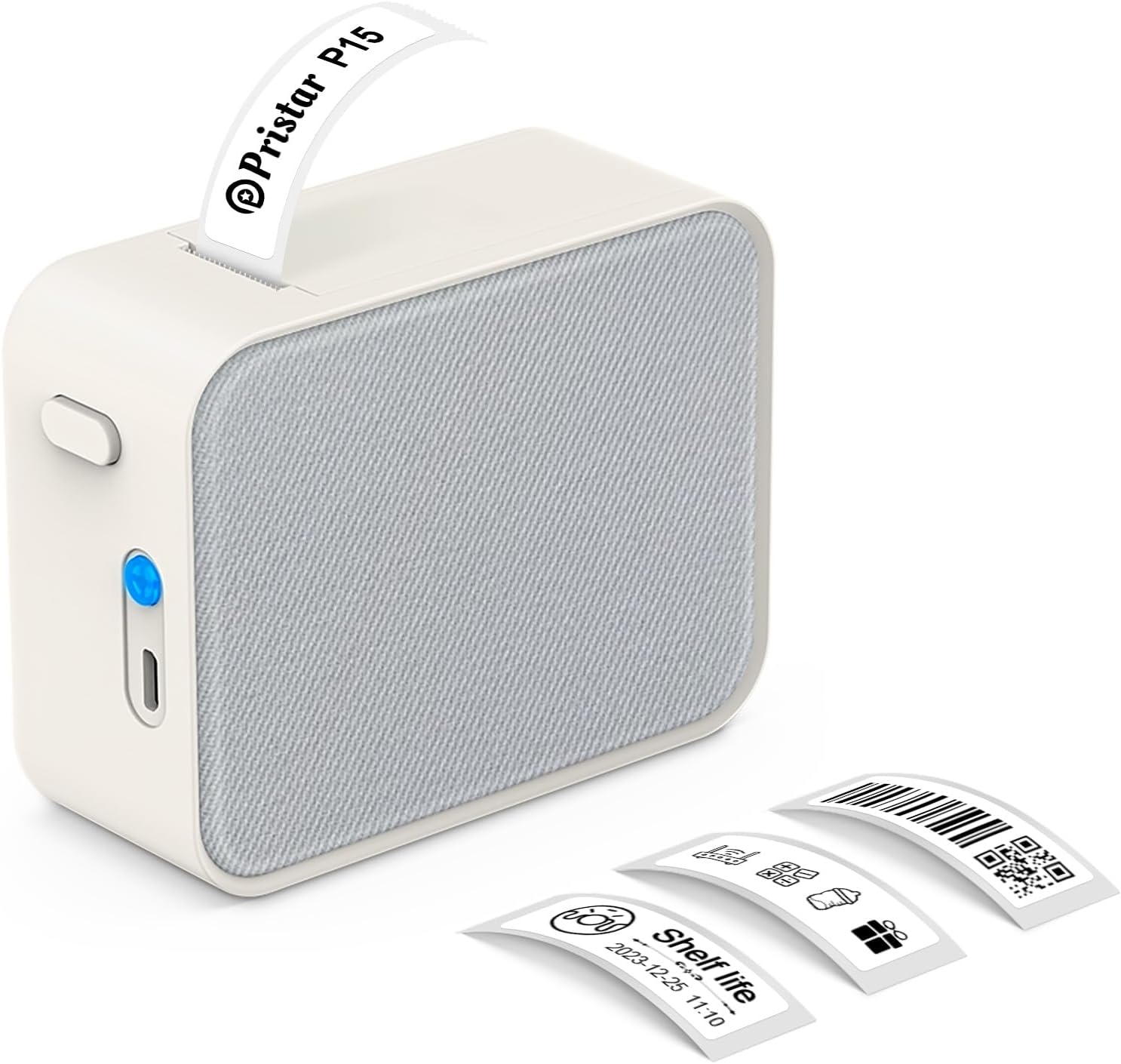
Figure 1.1: Pristar P15 Mini Bluetooth Label Printer
2. זיכערקייַט אינפֿאָרמאַציע
Please read all safety instructions carefully before using the Pristar P15 label printer. Failure to follow these instructions may result in injury or damage to the device.
- דו זאלסט נישט דיסאַסעמבאַל, פאַרריכטן אָדער מאָדיפיצירן די מיטל.
- האַלט דעם אַפּאַראַט אַוועק פון וואַסער, נעץ און הויכע טעמפּעראַטורן.
- Use only the specified USB-C cable for charging.
- Avoid exposing the print head to direct sunlight or strong light.
- האַלטן אויס פון דערגרייכן פון קינדער.
3. פּעקל אינהאַלט
באַשטעטיקן אַז אַלע זאכן זענען פאַראַן אין פּעקל:
- 1 x Pristar P15 Label Printer (with built-in 1200mAh rechargeable lithium battery)
- 1 x Roll of Label Paper (12x40mm, White)
- 1 x USB-C Charging Cable (Power adapter not included)
- 1 x ינסטרוקטיאָן מאַנואַל
4. סעטאַפּ גייד
4.1 אויפלאָדן דעם דרוקער
Before first use, fully charge the printer. Connect the provided USB-C cable to the charging port on the printer and plug the other end into a USB power source (e.g., computer, wall adapter). The indicator light will show charging status.
4.2 לאָדן עטיקעט פּאַפּיר
Proper loading of the label paper is crucial for clear printing.
- Open the printer cover by sliding the release button.
- Insert the label roll with the label face down, ensuring the leading edge of the labels extends slightly out of the slot.
- פֿאַרמאַכט דעם דרוקער דעקל פֿעסט ביז עס קליקט אַרײַן אין פּלאַץ.

Figure 4.1: Label Paper Installation and App Connection Steps
4.3 אַפּ ינסטאַלירונג
The Pristar P15 operates via the 'Marklife' application.
- Scan the QR code provided in the quick start guide or search for "Marklife" in your device's app store (App Store for iOS, Google Play Store for Android).
- אראפקאפיע און ינסטאַלירן די אַפּלאַקיישאַן.
4.4 בלועטאָאָטה קאַנעקשאַן
Connect your printer to the 'Marklife' app.
- מאַכן זיכער אַז בלועטאָאָטה איז ענייבאַלד אויף דיין סמאַרטפאָנע.
- Open the 'Marklife' app.
- Within the app, search for and connect to your P15 printer. Do not connect via your phone's general Bluetooth settings.
5. אַפּערייטינג ינסטרוקטיאָנס
The 'Marklife' app provides extensive features for creating and customizing labels.
5.1 גרונטלעכע לייבל שאַפונג
- Open the 'Marklife' app and ensure your printer is connected.
- Select the desired label size (e.g., 12x40mm).
- Tap on the text box to enter your desired label content.
- Use the editing tools to customize fonts, sizes, and styles.
- Tap the 'Print' button to send the label to the printer.
5.2 אַוואַנסירטע אַפּ פֿעיִקייטן
The 'Marklife' app offers a wide range of customization options:
- Fonts & Languages: Access over 60 fonts and 8 languages for diverse labeling needs.
- Icons & Frames: Choose from 1000+ icons and various frames to enhance your labels.
- באַרקאָדס און QR קאָדס: דזשענערירן און דרוקן באַרקאָודז און QR קאָודז גלייך פֿון דער אַפּ.
- Image & Text Import: Import pictures, or use features like Excel import, scanning, and voice input for text.
- מוסטערן: Utilize free templates for quick label creation. (Note: Some templates may require payment, and signing in allows saving customized templates.)

Figure 5.1: Smart App Control Interface
5.3 Thermal Printing Technology
The P15 uses thermal printing, eliminating the need for ink or toner, making it cost-effective and environmentally friendly. It supports 12-15mm label printing with a 203 DPI resolution for clear results.
5.4 Label Tape Features
Pristar label tapes are designed for durability and ease of use:
- Water & Oil-proof: Labels maintain integrity even when exposed to water or oil.
- Anti-scratch: Resistant to fading or damage from rubbing.
- טרער קעגנשטעל: Durable and not easily torn by hand.
- No Sticky Residue: Designed for easy removal without leaving adhesive residue.

Figure 5.2: Features of P15 Thermal Label Paper
5.5 ברייטע אַפּליקאַציע
The P15 is versatile for various organizational tasks:
- Home Storage: Label food containers, pantry items, and storage bins.
- Office Classification: אָרגאַניזירן files, documents, and office supplies.
- פּרייַז Tags: Create clear and professional price labels.
- School Information Management: Label school supplies, books, and projects.
- קאַבלע פאַרוואַלטונג: Identify cables and wires for electronics.

Figure 5.3: Home Organization Examples

Figure 5.4: Work Organization Examples
6. וישאַלט
To ensure the longevity and optimal performance of your Pristar P15 label printer, follow these maintenance guidelines:
- רייניקונג די פּרינט קאָפּ: אויב די דרוק קוואַליטעט ווערט ערגער, ווישט אָפּ דעם טערמישן דרוק קאָפּ מיט אַ וואַטע שטעכל.ampened with isopropyl alcohol. Ensure the printer is off and dry before use.
- רייניקונג די יקסטיריער: Use a soft, dry cloth to clean the exterior of the printer. Do not use abrasive cleaners or solvents.
- סטאָרידזש: Store the printer in a cool, dry place away from direct sunlight and extreme temperatures. Remove the label roll if storing for an extended period.
7. טראָובלעשאָאָטינג
If you encounter issues with your Pristar P15 label printer, refer to the following common problems and solutions:
| פּראָבלעם | מעגלעך סיבה | לייזונג |
|---|---|---|
| דרוקער טוט זיך נישט אן | נידעריגע באַטעריע; מאַכט קנעפּל נישט פעסט געדריקט | Charge the printer; Press and hold the power button for a few seconds. |
| קענען ניט פאַרבינדן דורך בלועטאָאָטה | Bluetooth off; Incorrect connection method; App issue | Ensure phone Bluetooth is on; Connect via 'Marklife' app, not phone settings; Restart app/phone. |
| נעבעך דרוק קוואַליטעט | Dirty print head; Incorrect label loading; Low battery | Clean the print head; Re-load label paper correctly (face down); Charge the printer. |
| Labels not feeding | Label roll empty; Paper jammed; Cover not closed properly | Replace label roll; Clear any paper jams; Ensure printer cover is securely closed. |
| אַפּ קראַשט אָדער פרירט זיך | Software glitch; Outdated app version | Restart the app; Check for app updates in your app store. |
8. ספּעסאַפאַקיישאַנז
Key technical specifications for the Pristar P15 Mini Bluetooth Label Printer:
| שטריך | באַשרייַבונג |
|---|---|
| מאָדעל | LPPR-P15-LM-GYF |
| פּראָדוקט דימענשאַנז | 4D x 9.5W x 7.9H סענטימעטער |
| פּונקט וואָג | 150 גראַמז |
| קאַנעקטיוויטי טעכנאָלאָגיע | Bluetooth 4.0 (Effective distance up to 10m) |
| דרוק טעכנאָלאָגיע | טערמאַל |
| דרוק האַכלאָטע | 203 דפּי |
| מאַקסימום מעדיע גרייס | 15 מם |
| שטיצט לאַבעל ברייט | 12-15מם |
| באַטערי | 1200 מאַה קריקאָנלאָדלעך ליטהיום באַטערי |
| קאַמפּאַטאַבאַל דעוויסעס | סמאַרטפאָונז (iOS, אַנדרויד) |
| אַרייַנגערעכנט קאַמפּאָונאַנץ | USB-C Cable, Labels |
9. וואָראַנטי און שטיצן
Pristar products are manufactured to high-quality standards. For warranty information and technical support, please refer to the contact details provided on the product packaging or the official Pristar webזייטל. האַלט אייער קויף קוויטל ווי אַ באַווייַז פון קויפן פֿאַר קיין וואָראַנטי קליימז.
For further assistance, you may contact Pristar customer service at pristar_service@outlook.com.
Ask a question about this manual
Ask about setup, troubleshooting, compatibility, parts, safety, or missing instructions. Manuals+ will review the question and use this page’s manual context to help answer it.