
1. הקדמה
The tenlamp G1 Live Sound Card is an integrated audio mixer designed for live streaming, podcasting, recording, singing, and gaming. This equipment bundle includes the G1 audio console and two 3.5mm studio condenser microphones, providing a comprehensive solution for audio production. This manual provides detailed instructions for setting up, operating, maintaining, and troubleshooting your G1 system.
2. פּעקל אינהאַלט
איידער איר גייט ווייטער, ביטע זיכער מאכן אז אלע זאכן זענען פאראן אין אייער פעקל:
- tenlamp G1 אַודיאָ קאַנסאָול
- 2 x 3.5mm Studio Condenser Microphones
- Microphone Stands and Pop Filters
- יו-עס-בי-סי צו יו-עס-בי-איי קאַבל (פֿאַר מאַכט און דאַטן)
- 3.5mm TRRS Audio Cables (for mobile device connection)
- באַניצער מאַנואַל
3. פּראָדוקט איבערview
The tenlamp G1 audio console features multiple inputs and outputs, along with various controls for audio mixing and effects. Familiarize yourself with the layout before setup.

Image: The tenlamp G1 Live Sound Card and two condenser microphones set up for a two-person podcast, demonstrating a typical usage scenario.
3.1 פראָנט פּאַנעל קאָנטראָלס
- Mic VOL Fader: Adjusts the input volume of the connected microphones.
- Music VOL Fader: Adjusts the volume of the background music input.
- Monitor VOL Knob: Controls the volume of the monitoring headphones.
- Output VOL Knob: קאָנטראָלירט די הויפּט אַרויסגאַנג באַנד.
- Reverb Effect Fader: Adjusts the intensity of the reverb effect.
- טרעבל / באַס EQ: Adjusts high and low frequencies for microphone input.
- Voice-change Buttons: Activates various voice modulation effects.
- Sound Pad Buttons: Triggers pre-loaded sound effects.
- Noise Reduction Buttons: Activates different levels of intelligent noise reduction.
3.2 דערציען פּאַנעל קאַנעקשאַנז

בילד: א דעטאַלירטע view of the tenlamp G1 audio console's rear panel, showing various input and output ports including USB-C, Output, Music, Monitor, Headset, and Mic inputs.
- וסב- C פּאָרט: For power supply, data transfer to computer, and digital audio I/O. Note: Does not support USB mic connection via this port.
- Output Ports (TRRS): Connects to mobile devices for live streaming or recording.
- מוזיק אַרייַנשרייַב: Connects external audio sources (e.g., phone, tablet) for background music.
- מאָניטאָר רעזולטאַט: Connects monitoring headphones.
- כעדסעט אַרייַנגאַנג: Connects a headset with integrated microphone.
- Mic Inputs (3.5mm): Connects the included 3.5mm condenser microphones.
4. סעטאַפּ גייד
Follow these steps to set up your tenlamp G1 Live Sound Card for optimal performance.
- פֿאַרבינדן מיקראָפֿאָנען: Insert the 3.5mm plugs of the condenser microphones into the designated מיק input jacks on the rear panel of the G1 console. Secure microphones on their stands.
- Connect Monitoring Headphones: שטעקט אריין אייערע כעדפאָונז אין די מאָניטאָר רעזולטאַט דזשאַק.
- Connect to Power/Computer: Connect the USB-C end of the provided cable to the וסב-C port on the G1 console and the USB-A end to your computer's USB port or a power adapter. The device will power on.
- Connect to Mobile Device (Optional): If live streaming or recording on a mobile device, use the TRRS audio cables to connect the רעזולטאַט ports on the G1 to your mobile device's headphone jack.
- Connect Music Source (Optional): If using external background music, connect your music device to the מוזיק אַרייַנשרייַב דזשאַק.
5. אַפּערייטינג ינסטרוקטיאָנס
This section details how to use the various features of your tenlamp G1 Live Sound Card.
5.1 Basic Audio Mixing
- סטרויערן די מיקראָפאָן באַנד: ניצן די Mic VOL fader to control the loudness of your voice.
- סטרויערן מוזיק באַנד: ניצן די Music VOL fader to balance the background music with your voice.
- מאָניטאָרירן דיין אַודיאָ: סטרויערן די Monitor VOL knob to set a comfortable listening level in your headphones.
- Control Output Volume: די Output VOL knob controls the overall volume sent to your recording device or live stream.

Image: A close-up of the tenlamp G1 audio console, illustrating the various knobs and faders for fine-tuning audio parameters such as microphone volume, music volume, monitoring, output, reverb, treble/bass, and voice effects.
5.2 ראַש רעדוקציע
The G1 features intelligent noise reduction to enhance audio clarity.
- דרוק די דעדאַקייטאַד ראַש רעדוקציע buttons (e.g., "Denoise1", "Denoise2", "Denoise3") to activate different levels of noise cancellation. Experiment to find the best setting for your environment.

Image: The tenlamp G1 audio console displaying its noise reduction capabilities, with three distinct levels labeled "Cheer Denoise1", "Kiss Denoise2", and "Guffaw Denoise3" for clear and clean audio recording.
5.3 Special Streaming Features
Enhance your live streams and recordings with these integrated functions:
- Dodge (Auto Ducking): When activated, this feature automatically lowers background music volume when you speak into the microphone, making your voice clearer.
- אַראָפּנעמען וואָקאַלס: This function attempts to remove the vocal track from accompaniment music, allowing you to sing over instrumental versions.
- לופּבאַקק: Enables recording of internal PC audio along with your microphone input via the USB-C connection.

Image: The tenlamp G1 audio console showcasing convenient features for streaming, including "Dodge" for auto-ducking microphone input, "Remove Vocals" to eliminate vocals from accompaniment, and "Loopback" for recording PC internal audio via USB-C.
5.4 Creating Atmosphere
Utilize the built-in effects to customize your audio environment:
- שטימע טוישער: Select from 4 different voice modulation effects.
- רעווערב מאָדעס: Choose from 5 preset reverb modes to add depth to your vocals.
- Auto Tune: Apply 12-step auto-tune for pitch correction.
- סאָונד פּאַדס: Trigger various sound effects using the dedicated buttons.
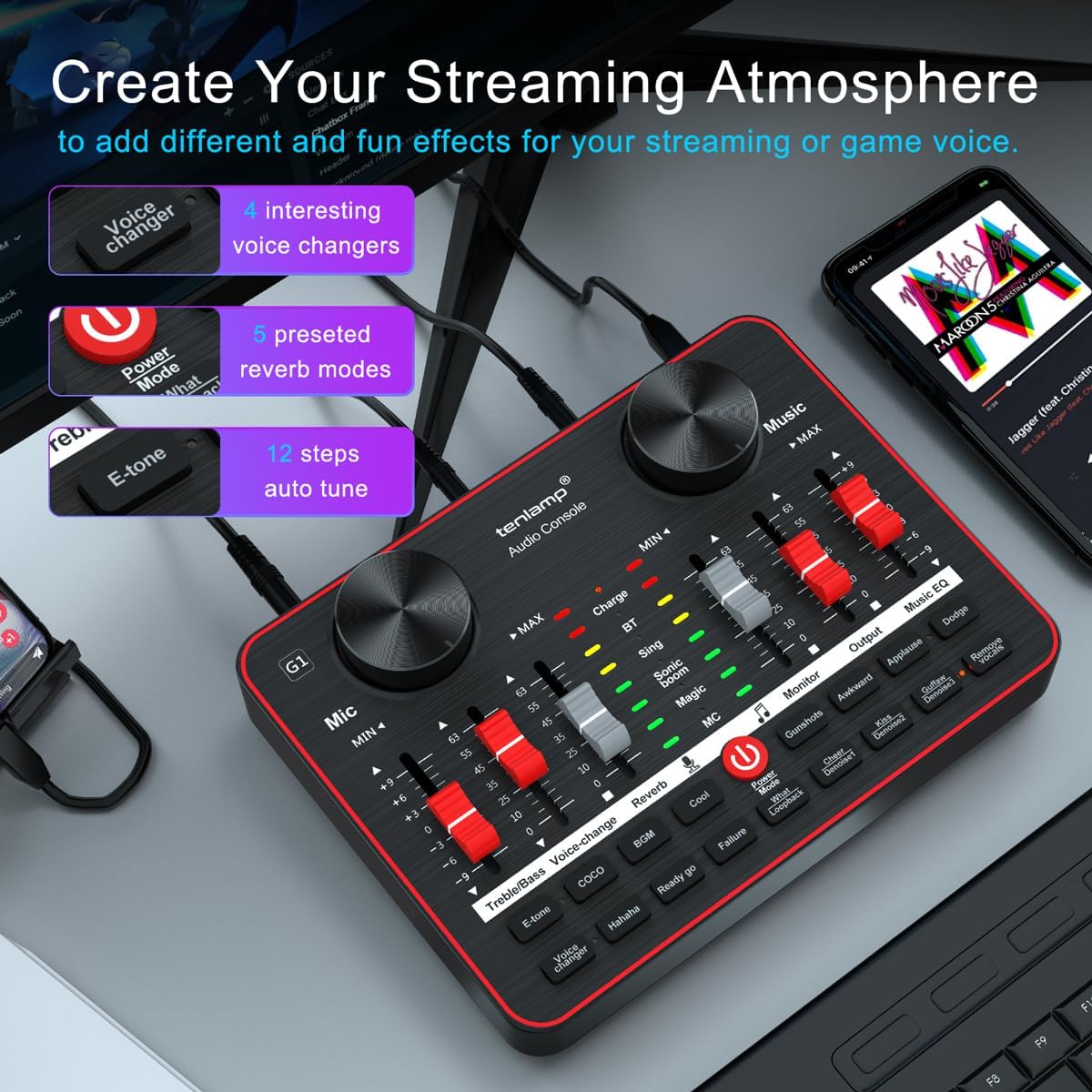
Image: The tenlamp G1 audio console highlighting features designed to create a streaming atmosphere, such as 4 interesting voice changers, 5 preset reverb modes, and 12 steps of auto-tune.
6. וישאַלט
Proper care ensures the longevity and performance of your tenlamp G1 סיסטעם.
- רייניקונג: Use a soft, dry cloth to wipe the surface of the audio console and microphones. Avoid liquid cleaners or abrasive materials.
- סטאָרידזש: האַלט דאָס אַפּאַראַט אין אַ קיל, טרוקן אָרט אַוועק פון דירעקט זונשייַן און עקסטרעמע טעמפּעראַטורן ווען עס איז נישט אין באַנוץ.
- קאַבלע פאַרוואַלטונג: פֿאַרמײַדט צו בײַגן אָדער צו קרימפֿן קאַבלען צו פֿאַרמײַדן שאָדן.
- מיקראָפאָן באַהאַנדלונג: Keep microphones dry and free from dust. Use pop filters to protect against moisture and plosives.
7. טראָובלעשאָאָטינג
אויב איר טרעפט פּראָבלעמען, זעט די פאלגענדע געוויינטלעכע פּראָבלעמען און לייזונגען:
| פּראָבלעם | מעגלעך סיבה | לייזונג |
|---|---|---|
| קיין געזונט רעזולטאַט | Incorrect cable connection, low volume settings, device not powered on. | Check all cable connections. Ensure G1 is powered. Adjust Mic VOL, Music VOL, Monitor VOL, and Output VOL faders/knobs. Verify computer/mobile device audio settings. |
| מיקראָפאָן טוט נישט אַרבעטן | Microphone not properly connected, Mic VOL too low, faulty microphone. | Ensure microphone is securely plugged into the correct 3.5mm Mic input. Increase Mic VOL. Test with the second microphone to rule out a faulty unit. |
| שלעכטע אַודיאָ קוואַליטעט/גערויש | High gain, environmental noise, incorrect noise reduction setting. | Lower Mic VOL if distortion occurs. Activate or adjust noise reduction levels. Ensure proper microphone placement (e.g., close to mouth, away from noise sources). |
| אפאראט נישט דערקענט דורך קאמפיוטער | USB cable issue, driver problem (rare for plug-and-play), computer settings. | Try a different USB port or cable. Restart your computer. Check your computer's sound settings to ensure the G1 is selected as the input/output device. |
8. ספּעסאַפאַקיישאַנז
Key technical specifications for the tenlamp G1 Live Sound Card:
- סאָרט: tenlamp
- מאָדעל: G1
- נומער פון טשאַנאַלז: 5
- קאַנעקטיוויטי טעכנאָלאָגיע: וסב
- מאַכט מקור: עלעקטריש מיט שנור (דורך USB)
- רעזולטאַט קאַנעקטער טיפּ: TRS
- אַודיאָ אַרייַנשרייַב: USB, XLR (via 3.5mm adapter for condenser mics)
9. וואָראַנטי און שטיצן
For warranty information or technical support, please refer to the documentation included with your purchase or visit the official tenlamp website. You can also contact tenlamp customer service through their brand store on Amazon: