
1. הקדמה
This user manual provides detailed instructions for the setup, operation, and maintenance of your BL Android TV Box 11.0. Designed for an enhanced home entertainment experience, this device transforms your television into a smart hub, offering access to a wide range of streaming content, applications, and multimedia features. Please read this manual carefully before using the product to ensure optimal performance and longevity.
2. פּעקל אינהאַלט
ביטע באַשטעטיקן אַז אַלע זאכן וואָס זענען ליסטעד אונטן זענען אַרייַנגערעכנט אין דיין פּעקל:
- Android TV Box (1 unit)
- ווייַט קאָנטראָל (1 אַפּאַראַט)
- מאַכט אַדאַפּטער (1 אַפּאַראַט)
- HDMI קאַבל (1 איינהייט)
- באַניצער מאַנואַל (1 אַפּאַראַט)

Image: All components included in the BL Android TV Box 11.0 package.
3. סעטאַפּ
Follow these steps to set up your BL Android TV Box:
- פאַרבינדן די HDMI קאַבלע: Insert one end of the HDMI cable into the HDMI OUT port on the TV Box and the other end into an available HDMI input on your television.
- פאַרבינדן די מאַכט אַדאַפּטער: Plug the power adapter into the DC IN port on the TV Box, then plug the other end into a power outlet.
- פאַרבינדן צו די נעץ: Once powered on, connect the TV Box to your network. You can use either Wi-Fi (2.4G/5G Dual Band) or an Ethernet cable for a wired connection. Navigate to 'Settings' > 'Network' to configure your connection.
- ערשט סעטאַפּ: פֿאָלגט די אינסטרוקציעס אויף דעם עקראַן צו פֿאַרענדיקן די ערשטע סעטאַפּ, אַרייַנגערעכנט שפּראַך אויסוואַל, צייט זאָנע, און גוגל חשבון לאָגין.
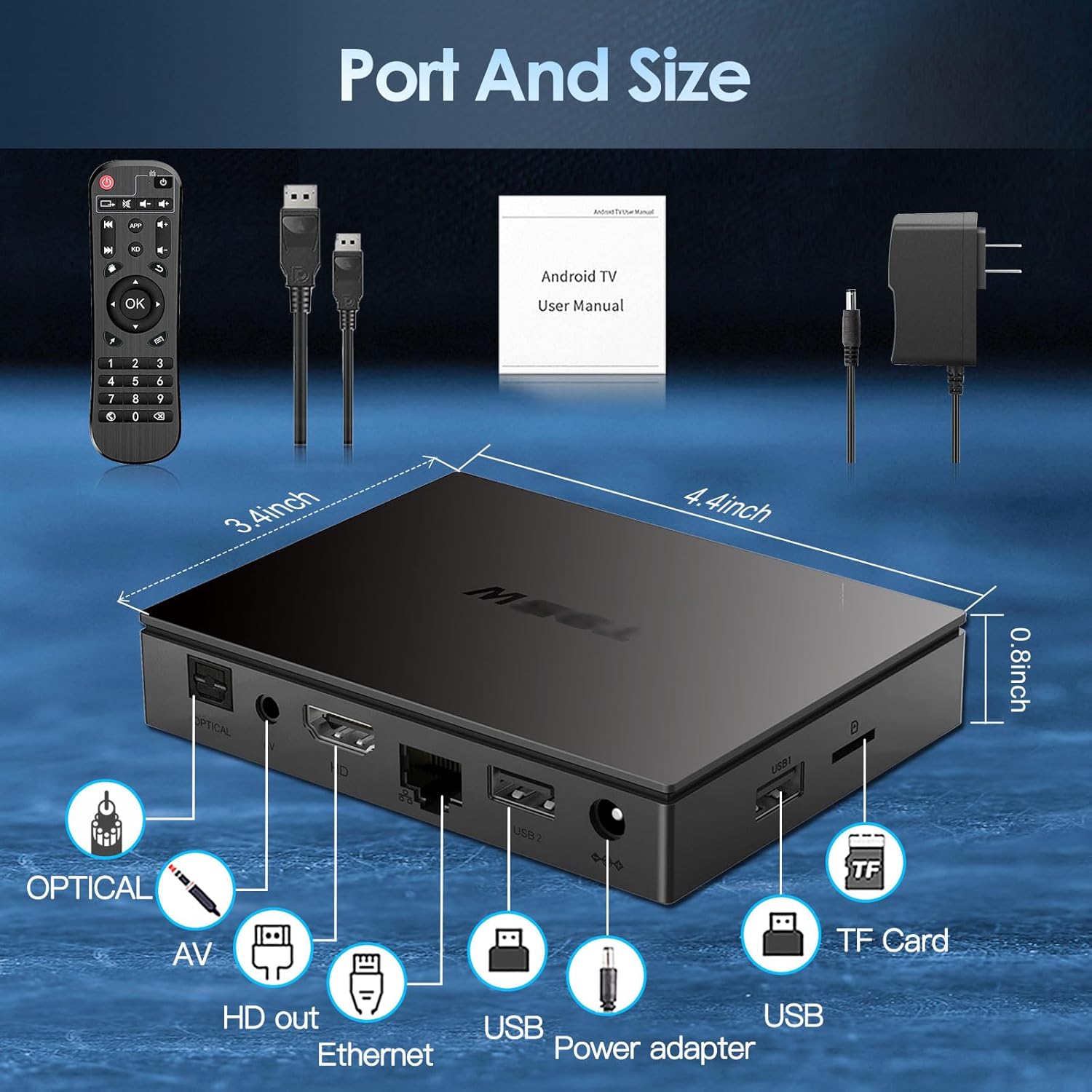
Image: Visual guide for connecting the BL Android TV Box to your television and power.
4. אַפּערייטינג ינסטרוקטיאָנס
Once set up, you can begin using your BL Android TV Box to access various features:
- נאַוויגאַציע: Use the included remote control to navigate through the Android 11.0 interface. The directional pad and 'OK' button are used for selection, while 'Back' and 'Home' buttons provide quick navigation.
- אַפּ אַקסעס: The home screen displays pre-installed applications like YouTube, Netflix, Google Play Store, and Chrome. You can download additional apps from the Google Play Store.
- מעדיע פּלייבאַק: שפּילן לאָקאַלע מעדיע files from USB drives or TF cards connected to the TV Box. The device supports various video and audio formats.
- סקרין שפּיגל: Utilize the wireless screen mirroring function to cast content from your smartphone or tablet to your TV. This feature supports Airplay, DLNA, and Miracast protocols.

Image: The user interface of the Android 11.0 operating system on the TV Box.

Image: Demonstration of wireless screen mirroring from mobile devices to the TV.
5. פֿעיִקייטן
The BL Android TV Box 11.0 is equipped with advanced features for a superior entertainment experience:
- Powerful Amlogic S905W2 CPU: Powered by a Quad-Core Cortex-A35 processor, ensuring smooth performance, efficient image processing, and broad app compatibility.
- Ultra-High Definition Viewינג: Supports 4K HDR10+ technology and the latest AV1 encoding, delivering realistic visuals, efficient video compression, and enhanced picture quality.
- צוויי-באַנד Wi-Fi און בלועטוט 5.0: Features 2.4G/5G dual-band Wi-Fi for stable and fast wireless connectivity, and Bluetooth 5.0 for connecting peripherals like headphones, speakers, keyboards, and gamepads.
- ווירעלעסס פאַרשטעלן מירערינג: Allows you to mirror content from your mobile devices to your TV, facilitating easy sharing of photos and videos.

בילד: איבערview of the Amlogic S905W2 processor.
Image: Highlighting 4K HDR10+ video decoding capabilities.

Image: Connectivity options including Dual Wi-Fi and Bluetooth 5.0.
6. וישאַלט
To ensure the longevity and optimal performance of your BL Android TV Box, follow these maintenance guidelines:
- רייניקונג: ניצט אַ ווייכע, טרוקענע שטאָף צו רייניקן די אויסערלעכע זייט פון דעם אַפּאַראַט. פֿאַרמייַדט ניצן פֿליסיקע רייניקונגס־מיטלען אָדער אַברייסיוו מאַטעריאַלן.
- ווענטילאַטיאָן: Ensure the TV Box is placed in a well-ventilated area to prevent overheating. Do not block the ventilation openings.
- ווייכווארג דערהייַנטיקונגען: Periodically check for system updates in the 'Settings' menu to ensure you have the latest features and security patches.
- מאַכט אַוועק רעכט: Always power off the device correctly before unplugging it to prevent data corruption.
7. טראָובלעשאָאָטינג
If you encounter issues with your BL Android TV Box, refer to the following common troubleshooting steps:
- קיין מאַכט: Ensure the power adapter is securely connected to both the TV Box and a working power outlet. Try a different outlet if necessary.
- קיין בילד/סיגנאַל: Verify that the HDMI cable is correctly connected to both the TV Box and your television. Ensure your TV is set to the correct HDMI input source.
- קיין Wi-Fi פֿאַרבינדונג: Check your router and ensure it is working correctly. Re-enter your Wi-Fi password in the TV Box settings. If issues persist, try restarting both the TV Box and your router.
- רימאָוט קאָנטראָל ניט ריספּאַנדינג: קאָנטראָלירט די באַטעריעס אין דער ווײַטקאָנטראָל און טוישט זיי אויב נייטיק. מאַכט זיכער אַז עס זענען נישטאָ קיין שטערונגען צווישן דער ווײַטקאָנטראָל און דער טעלעוויזיע באָקס.
- אַפּ פֿרירט/קראַשט: Try clearing the cache of the problematic app in 'Settings' > 'Apps'. If the issue persists, uninstall and reinstall the app.
- פּאַמעלעך פאָרשטעלונג: Close unused applications running in the background. Consider performing a factory reset if performance issues are severe and persistent (Note: This will erase all data and settings).
8. ספּעסאַפאַקיישאַנז
| שטריך | באַשרייַבונג |
|---|---|
| מאָדעל נומער | BL-Android-TV-Box-11.0 |
| אָפּערייטינג סיסטעם | אַנדרויד 11.0 |
| קפּו | Amlogic S905W2 Quad-Core Cortex-A35 |
| באַראַן | 4 גיגאבייט |
| ראַם | 32 גיגאבייט |
| ווידעא רעזולטאַט | 4Kx2K@60fps (HDMI 2.1) |
| ווידעא דיקאָודינג | AV1, HDR10+, H.265, H.264, etc. |
| Wi-Fi קאַנעקטיוויטי | 2.4G/5G Dual-Band Wi-Fi |
| בלועטאָאָטה | בלועטאָאָטה 5.0 |
| עטהערנעט | 10/100 ם |
| פּאָרץ | HDMI 2.1*1, USB 2.0*2, Optical, AV, Ethernet, TF Card Slot, Power Adapter Port |
| דימענשאַנז | 11.2 ל רענטגענ 8.6 וו רענטגענ 2.1 ה סענטימעטער |

Image: Port layout and dimensions of the BL Android TV Box.
9. וואָראַנטי און שטיצן
Your BL Android TV Box 11.0 comes with a standard manufacturer's warranty. For specific warranty terms and conditions, please refer to the documentation provided with your purchase or contact the seller directly. If you require technical assistance or have questions not covered in this manual, please reach out to the customer support team of the brand BL. Contact information can typically be found on the product packaging or the brand's official webפּלאַץ.