
1. הקדמה
This manual provides detailed instructions for the installation, operation, and maintenance of your EBTOOLS T20 4K Dash Cam. Please read this manual thoroughly before using the device to ensure proper functionality and safety.
פּעקל אינהאַלט:
- Dash Cam (Main Unit)
- Charging Line (Type-C)
- Backup Camera with Line
- Car Charger with Line
- קרוק
- שרויף פּאַק
- White Adhesive
- באַניצער מאַנואַל
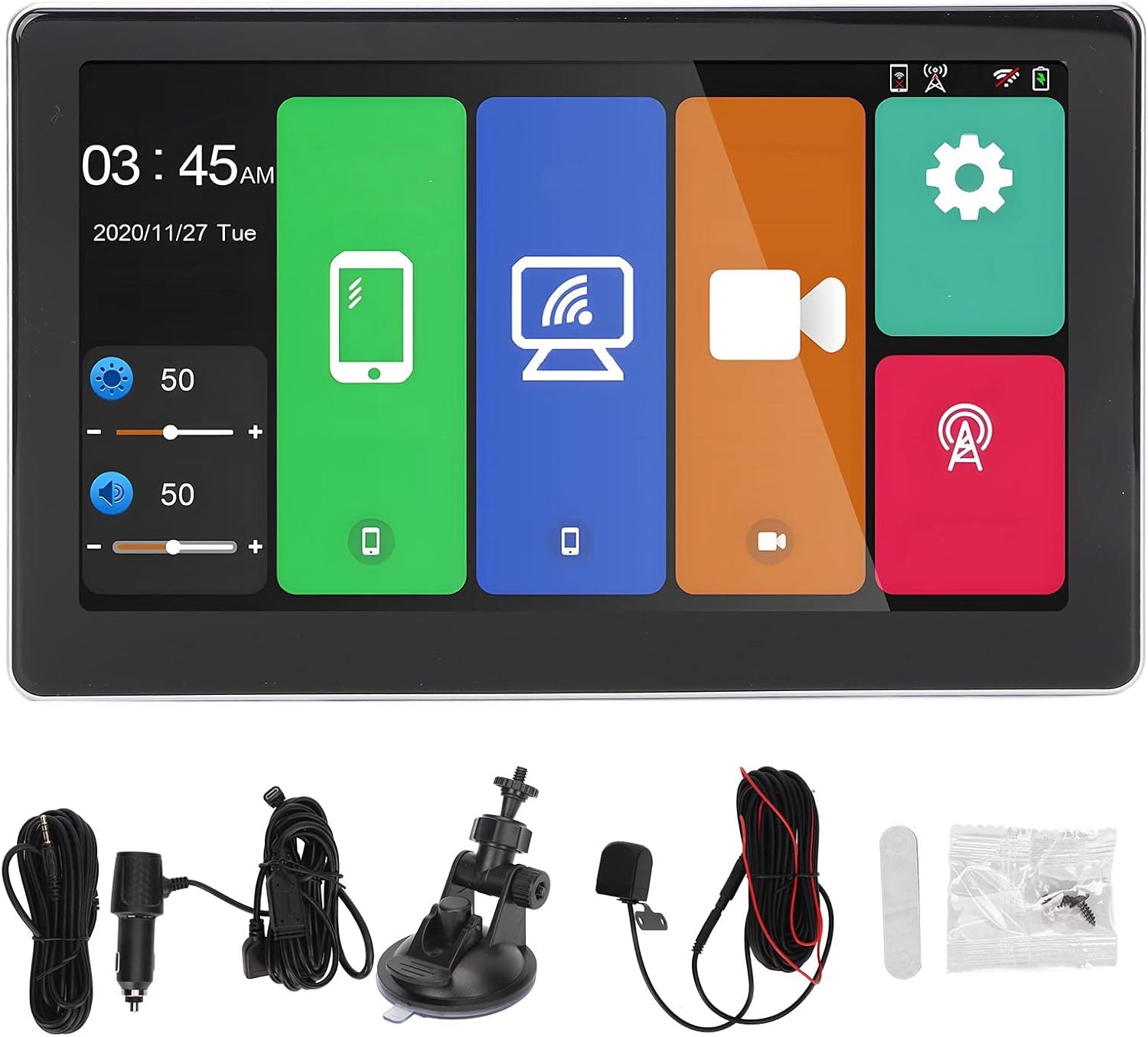
פיגורע 1.1: Included components of the EBTOOLS T20 Dash Cam package. This image displays the main dash cam unit, charging cable, backup camera, car charger, mounting hook, screw pack, and adhesive pad.
2. ספּעסאַפאַקיישאַנז
| שטריך | באַשרייַבונג |
|---|---|
| פּראַסעסער | Allwinner V535, DDR32GB |
| ווירעלעסס מאָדולע | 2.4/5 גהז |
| בלועטאָאָטה | BT5.0 Support |
| עפעם טראַנסמיטער | Supports original car audio output |
| פאַרשטעלן גרייס | 7 אינטשעס |
| פאַרשטעלן האַכלאָטע | 1024 X 600 |
| מאַכט צושטעלן | Type-C, Car Charger, Line (standard car charger) |
| סטאָרידזש | Memory card (up to 256GB, C10 U1 recommended, not included) |
| קאַמעראַס | Dual external AHD camera (5V) |
| באַטערי | געבויט-אין 500 מאַה ליטהיום באַטאַרייע |
| ספּעציעלע פֿעיִקייטן | Multi-language support, Parking Monitoring, Mobile App Control, G-Sensor Collision Locking, Intelligent Voice Control, Carplay, Android Auto, Automatic App Reconnection. |
3. סעטאַפּ און ייַנמאָנטירונג
3.1 הויפּט אַפּאַראַט ינסטאַלירונג
- Select a suitable location on your dashboard or windshield that does not obstruct your view אדער אריינמישן זיך מיט לופטבעגס.
- ריין די מאַונטינג ייבערפלאַך ונ דורך.
- Attach the dash cam to the chosen location using the provided adhesive mount or suction cup mount (if included). Ensure it is securely fastened.
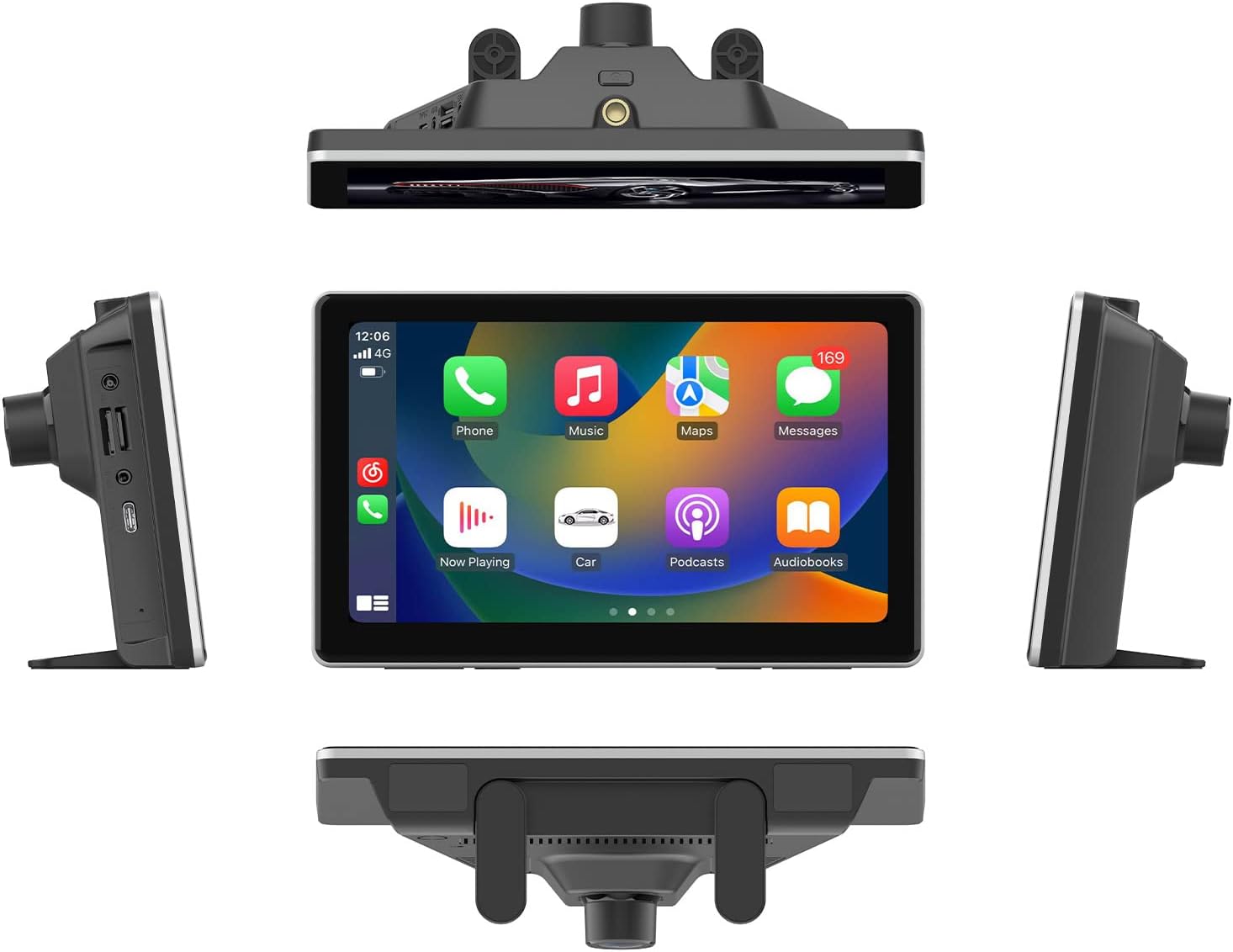
פיגורע 3.1: The EBTOOLS T20 Dash Cam mounted on a vehicle dashboard, shown from multiple perspectives to illustrate its placement and screen orientation.
3.2 מאַכט קאַנעקשאַן
- Connect the Type-C charging line to the dash cam.
- Plug the car charger into your vehicle's 12V power outlet (cigarette lighter socket).
- Route the cable neatly to avoid interference with driving controls.
3.3 באַקאַפּ קאַמעראַ ינסטאַלירונג (אָפּציאָנאַל)
- Mount the backup camera at the rear of your vehicle, typically above the license plate or on the rear bumper.
- Route the backup camera cable to the main dash cam unit. Ensure the cable is securely tucked away and protected from external elements.
- Connect the backup camera cable to the designated input port on the main dash cam unit.

פיגורע 3.2: Display of the reverse image function on the dash cam screen, featuring dynamic parking guidelines to assist with vehicle maneuvering in reverse.
3.4 זכּרון קאַרטל אַריינשטעלן
- זייט זיכער אז די דאַש קאַם איז אויסגעלאָשן.
- Insert a compatible memory card (up to 256GB, C10 U1 recommended) into the designated slot.
- Format the memory card through the dash cam's settings menu upon first use to ensure optimal performance.
4. אַפּערייטינג ינסטרוקטיאָנס
4.1 פּאַוערינג אויף / אַוועק
The dash cam will automatically power on when your vehicle starts and power off when the ignition is turned off (if connected to a switched power source).
4.2 הויפּט צובינד איבערview

פיגורע 4.1: The main user interface of the EBTOOLS T20 Dash Cam, featuring a 7-inch screen with intuitive icons for various functions such as phone connectivity, Wi-Fi, camera recording, and system settings.
4.3 רעקאָרדינג מאָדעס
- שלייף רעקאָרדינג: The dash cam continuously records video in segments. When the memory card is full, the oldest files זענען אָוווערריטאַן.
- G-Sensor Collision Locking: In the event of a sudden impact or collision, the G-sensor will automatically lock the current video segment to prevent it from being overwritten.
- פּאַרקינג מאָניטאָרינג: When enabled, the dash cam will automatically start recording if it detects motion or impact while the vehicle is parked. This feature requires a continuous power supply (hardwire kit, sold separately, may be required for extended parking monitoring).
4.4 קאָנעקטיוויטי פֿעיִטשערז
4.4.1 קאַרפּליי / אַנדרויד אויטאָ
The dash cam supports both Carplay (for iOS devices) and Android Auto (for Android devices). Connect your smartphone via Bluetooth or USB to access navigation, music, calls, and other compatible apps directly on the dash cam screen.

פיגורע 4.2: The Carplay interface displayed on the EBTOOLS T20 Dash Cam screen, illustrating access to common smartphone applications like phone, music, and navigation.
4.4.2 Mobile App Control (Roadcam App)
Download the Roadcam app on your smartphone to control the dash cam, view לעבן פאָאָtage, download recorded videos, and adjust settings wirelessly. The app supports independent and automatic back connection.
4.4.3 FM Transmission
Transmit audio from the dash cam to your vehicle's original car audio system via FM radio. Adjust the FM frequency on the dash cam and tune your car radio to the same frequency.

פיגורע 4.3: Illustration of the FM signal transmission feature, where the dash cam's audio is broadcast to the vehicle's FM radio, allowing playback through the car's speakers.
4.4.4 AUX Audio Output
For a wired audio connection, use an AUX cable to connect the dash cam to your car's AUX input. This provides a direct audio signal to your car's sound system.

פיגורע 4.4: Connection diagram for AUX audio output, detailing how to link the dash cam to a car's audio system using an AUX cable for direct sound transmission.
4.5 אינטעליגענטע שטימע קאנטראל
The dash cam supports intelligent voice commands for hands-free operation of certain functions. Refer to the on-screen prompts or app for available commands.
5. וישאַלט
- רייניקונג: Use a soft, dry cloth to clean the dash cam screen and lens. Avoid abrasive cleaners or solvents.
- זכּרון קאָרט: Regularly format the memory card (e.g., once a month) to maintain optimal recording performance and prevent data corruption. Back up important files איידער פאָרמאַטטינג.
- Firmware דערהייַנטיקונגען: קוק די פאַבריקאַנט ס website or the Roadcam app for available firmware updates to ensure your device has the latest features and improvements.
- טעמפּעראַטור: פֿאַרמײַדט אויסשטעלן די דאַש קאַם צו עקסטרעמע טעמפּעראַטורן פֿאַר פֿאַרלענגערטע פּעריאָדן, ווײַל דאָס קען אַפֿעקטירן די באַטאַרייע־לעבן און די פאָרשטעלונג פֿון דער אַפּאַראַט.
6. טראָובלעשאָאָטינג
- דאַש קאַם גייט נישט אָן:
- זיכער מאַכן אַז דער אויטאָ טשאַרדזשער איז ריכטיק פארבונדן צו ביידע די דאַש קאַם און די אויטאָ'ס עלעקטרישע ווענטיל.
- Check if the vehicle's 12V power outlet is functioning correctly.
- באַשטעטיקן אַז דער טיפּ-C קאַבל איז זיכער פארבונדן.
- Recording issues (e.g., freezing, skipped frames):
- Format the memory card. A corrupted card can cause recording problems.
- Ensure you are using a high-speed memory card (Class 10, U1 or higher).
- Try a different memory card to rule out card malfunction.
- נעבעך בילד קוואַליטעט:
- רייניקט די קאַמעראַ לענסעס מיט אַ ווייכן שטאָף.
- זיכער מאַכן אַז די פּראַטעקטיוו פילם איז אַוועקגענומען געוואָרן פֿון די לענסעס.
- Check settings for video resolution and WDR (Wide Dynamic Range) to ensure they are configured optimally.
- קאַרפּליי/אַנדרויד אויטאָ פֿאַרבינדט זיך נישט:
- Ensure Bluetooth is enabled on both the dash cam and your smartphone.
- Try reconnecting your phone via USB cable.
- ריסטאַרט ביידע די דאַש קאַם און דיין סמאַרטפאָון.
- FM transmission static/interference:
- Adjust the FM frequency on the dash cam to an unused frequency in your area.
- Ensure your car radio is tuned to the exact same frequency.
- Minimize other electronic devices that might cause interference.
7. וואָראַנטי און שטיצן
For warranty information and technical support, please refer to the official EBTOOLS webזייטל אדער קאנטאקט זייער קאסטומער סערוויס. האלט אייער קויף קוויטל אלס באווייז פון קויפן.
פאַבריקאַנט: EBTOOLS
מאָדעל נומער: T20
ASIN: B0CLH3T8TX
ערשטער דאַטע בנימצא: 18 פעברואר 2025