
1. פּראָדוקט איבערview
The LETSUNG GoLite 11 Mini PC is a compact and powerful computing solution designed for daily office tasks, home entertainment, and entry-level industrial applications. Powered by an Intel Celeron N4020C processor, it offers reliable performance in a small form factor. This manual provides essential information for setting up, operating, maintaining, and troubleshooting your device.

פיגורע 1: פראָנט און זייַט view of the LETSUNG GoLite 11 Mini PC, highlighting its compact design and various ports.
2. סעטאַפּ גייד
2.1 פּעקל אינהאַלט
ביטע זיכער מאַכן אַז אַלע זאכן זענען פאַראַן אין פּעקל:
- LETSUNG GoLite 11 מיני פּיסי
- מאַכט אַדאַפּטער
- VESA Mount Bracket and Screws
- באַניצער מאַנואַל (דעם דאָקומענט)
2.2 ערשט סעטאַפּ
גייט נאך די שריט צו אויפשטעלן אייער מיני פּיסי:
- פאַרבינדן פּעריפעראַלס: פֿאַרבינדט אייער קלאַוויאַטור, מויז און אַנדערע USB דעוויסעס צו די פֿאַראַן USB 3.2 פּאָרץ.
- פֿאַרבינדן דיספּליי: Connect your monitor(s) to the HDMI ports. The device supports up to two displays simultaneously.
- פאַרבינדן צו די נעץ: For wired connection, connect an Ethernet cable to the RJ45 LAN port. For wireless connection, ensure your Wi-Fi network is available.
- פאַרבינדן מאַכט: Insert the power adapter into the DC jack on the Mini PC, then plug the adapter into a power outlet.
- מאַכט אויף: דריק דעם מאַכט קנעפּל וואָס געפינט זיך אויף דער פראָנט פון די מיני פּיסי.

פיגורע 2: דעטאַילעד view of the Mini PC's ports, including USB 3.2, HDMI, LAN, 3.5mm headphone jack, DC jack, and power button.
3. אַפּערייטינג ינסטרוקטיאָנס
3.1 פּאַוערינג אויף / אַוועק
- צו מאַכט אויף: דרוק די מאַכט קנעפּל אַמאָל.
- צו פאַרמאַכן אַראָפּ: From the Windows 11 Pro desktop, click the Start button, then Power, and select "Shut down."
- צו ריסטאַרט: From the Windows 11 Pro desktop, click the Start button, then Power, and select "Restart."
3.2 פֿאַרבינדן דיספּלייז
The GoLite 11 supports dual display output via its two HDMI 1.4 ports, allowing for a resolution of up to 1920x1080@60Hz on each screen. Simply connect your HDMI cables from the Mini PC to your monitors.

Figure 3: The LETSUNG GoLite 11 Mini PC supporting a dual display setup for enhanced productivity.
3.3 אויסברייטערן סטאָרידזש
The Mini PC comes with a 128GB M.2 SATA SSD. For additional storage, the device supports expansion up to 512GB. Refer to the detailed instructions for M.2 SSD installation if you wish to upgrade the storage capacity.

Figure 4: Visual representation of the 128GB M.2 2280 SATA SSD, which can be expanded up to 512GB.
3.4 נעץ און קאָנעקטיוויטי
The Mini PC supports Dual WiFi 5 for high-speed wireless internet access and Bluetooth 4.2 for connecting wireless peripherals such as keyboards, mice, and headphones.
4. וישאַלט
4.1 רייניקונג
To maintain optimal performance and appearance, regularly clean the exterior of the Mini PC with a soft, dry cloth. Avoid using liquid cleaners or abrasive materials. Ensure the ventilation openings are free from dust and debris.
4.2 קאָאָלינג סיסטעם
The GoLite 11 features a low-power, low-noise cooling system designed for steady, long-lasting operation. Ensure adequate airflow around the device by not blocking the ventilation holes.
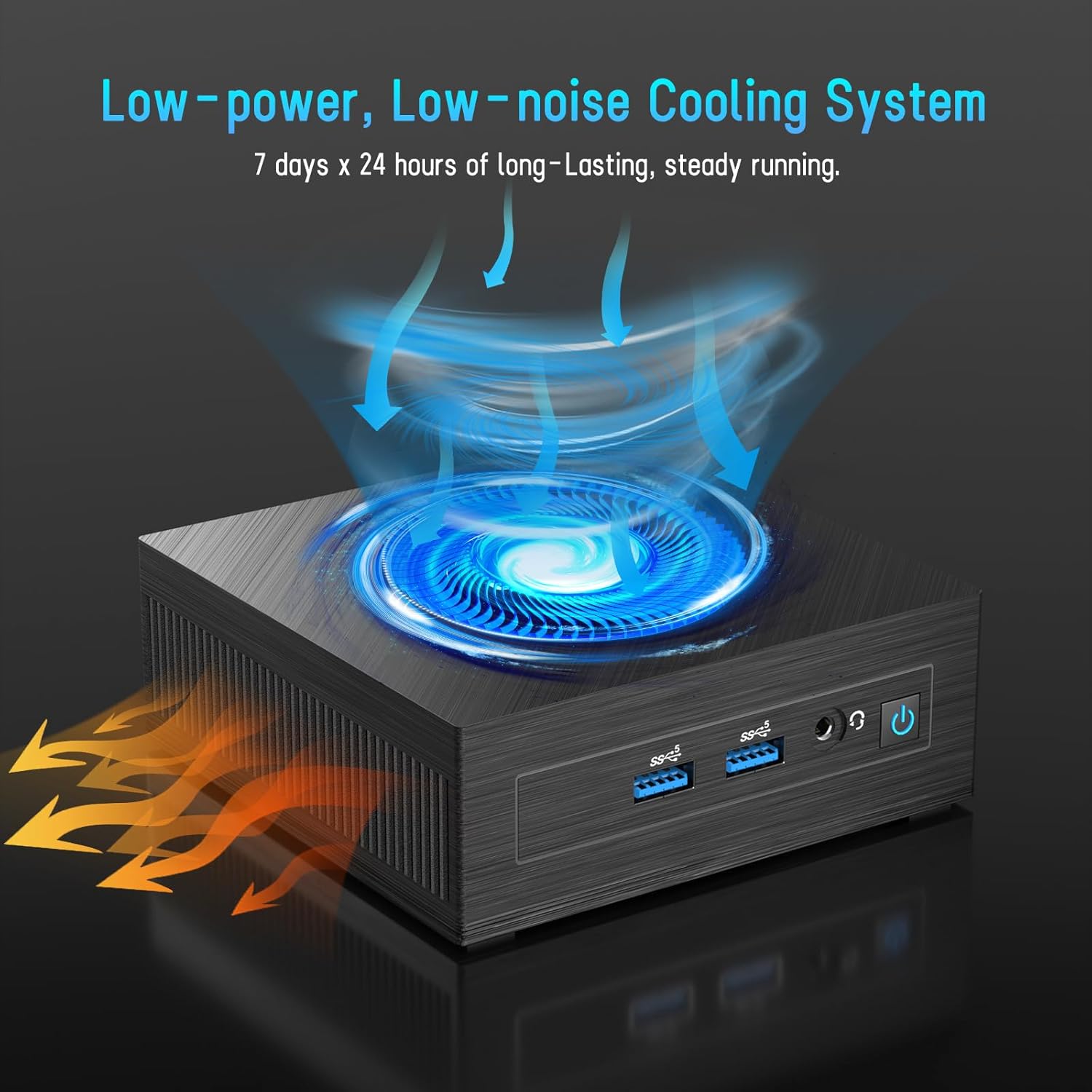
Figure 5: Illustration of the efficient low-power, low-noise cooling system integrated into the Mini PC.
5. טראָובלעשאָאָטינג
If you encounter issues with your LETSUNG GoLite 11 Mini PC, refer to the common problems and solutions below:
- קיין אַרויסווייַז רעזולטאַט:
- Ensure the HDMI cables are securely connected to both the Mini PC and the monitor.
- Verify the monitor is set to the correct input source (HDMI 1, HDMI 2, etc.).
- Try connecting to a different monitor or using different HDMI cables.
- מאַכט ישוז:
- Check if the power adapter is properly connected to the Mini PC and the power outlet.
- מאַכן זיכער אַז די מאַכט ווענטיל איז פאַנגקשאַנאַל.
- If the device does not power on, try a different power outlet.
- נעץ קאָנעקטיוויטי פּראָבלעמען:
- For Wi-Fi, ensure the Wi-Fi adapter is enabled in Windows settings and you are connected to the correct network.
- For wired LAN, check the Ethernet cable connection. Note that the LAN port on this model supports up to 100 Mbps, not Gigabit Ethernet.
- ריסטאַרט דיין ראַוטער/מאָדעם.
- פּאַמעלעך פאָרשטעלונג:
- שליסט אומנייטיקע אַפּליקאַציעס וואָס לויפן אין הינטערגרונט.
- Ensure Windows 11 Pro is up to date.
- קוק אויב עס איז גענוג פריי פלאץ אויפן SSD.
6. טעכניש ספּעסאַפאַקיישאַנז
| שטריך | באַשרייַבונג |
|---|---|
| פּראַסעסער | Intel Celeron N4020C (Dual-Core, up to 2.8 GHz) |
| גראַפיקס | Intel UHD Graphics 600 |
| באַראַן | 6GB LPDDR4 (Integrated, Dual Channel) |
| סטאָרידזש | 128GB M.2 SATA SSD (Expandable up to 512GB) |
| אָפּערייטינג סיסטעם | ווינדאָוס 11 פּראָ (פאַר-אינסטאַלירט) |
| ווידעא רעזולטאַט | 2 x HDMI 1.4 (Supports Dual Display up to 1920x1080@60Hz) |
| וסב פּאָרץ | 4 רענטגענ וסב 3.2 |
| נעץ | Dual WiFi 5, RJ45 LAN (100 Mbps) |
| בלועטאָאָטה | בלועטאָאָטה 4.2 |
| אַודיאָ | 1 רענטגענ 3.5 מם כעדפאָון דזשאַק |
| מאַכט אַרייַנשרייַב | דק דזשאַק |
| דימענשאַנז | 4.53 X 4.43 X 1.61 אינטשעס (115 מם X 112 מם X 41 מם) |
| וואָג | אומגעפער 9.66 אונסעס (274 ג) |
7. וואָראַנטי און שטיצן
The LETSUNG GoLite 11 Mini PC comes with a איין יאָר וואָראַנטי from the date of purchase. This warranty covers manufacturing defects and ensures the product meets its specified performance. Please retain your proof of purchase for warranty claims.
For any questions, technical assistance, or troubleshooting not covered in this manual, LETSUNG customer support is available 24/7 to assist you. Please refer to the contact information provided with your product packaging or visit the official LETSUNG webפּלאַץ פֿאַר שטיצן דעטאַילס.