
הקדמה
This manual provides detailed instructions for the installation, operation, and maintenance of your Dohaeris FRIGUS Air 400 CPU Cooler. Please read this manual thoroughly before installation to ensure proper function and longevity of your product. This CPU cooler is designed to efficiently dissipate heat from your processor, featuring 4 copper heatpipes and a 120mm RGB fan.
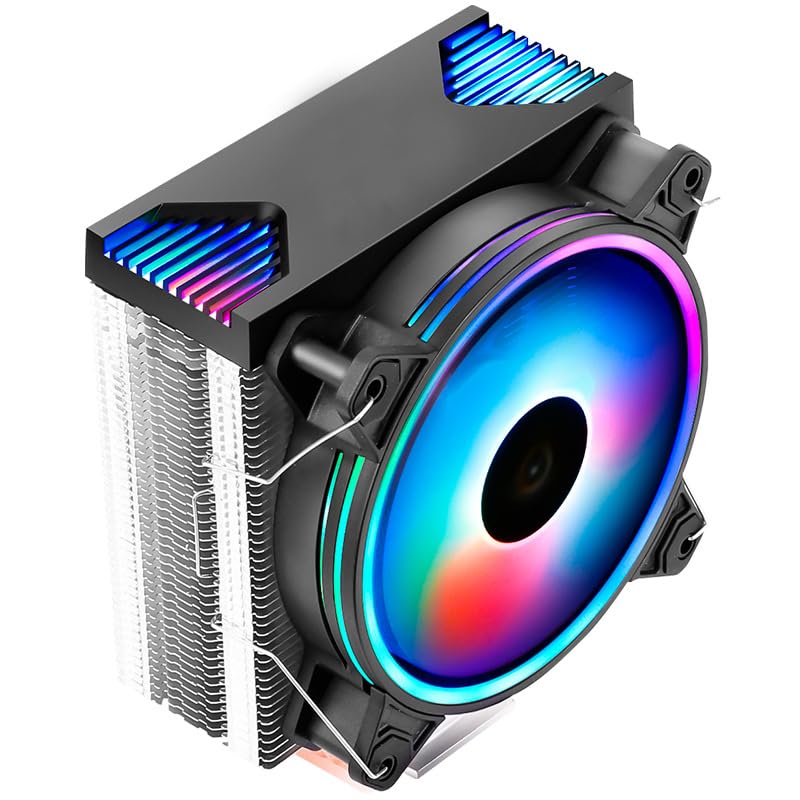
בילד: פראָנט view of the Dohaeris FRIGUS Air 400 CPU Cooler, showcasing its 120mm RGB fan with vibrant lighting and the heatsink structure.
זיכערקייַט אינפֿאָרמאַציע
- זייט זיכער אז אייער קאמפיוטער איז אויסגעלאשן און ארויסגעצויגן פון דער וואנט-אויסשטעל איידער איר הייבט אן די אינסטאלאציע.
- Handle components with care to avoid damage. Avoid touching the fan blades or heatsink fins directly to prevent injury or bending.
- Keep all small parts, such as screws and brackets, out of reach of children.
- Use only the provided mounting hardware. Using incompatible hardware may damage your CPU or motherboard.
- Static electricity can damage electronic components. Consider using an anti-static wrist strap during installation.
פּעקל אינהאַלט
באַשטעטיקט אַז אַלע זאכן וואָס זענען אויסגערעכנט אונטן זענען פאַראַן אין אייער פּעקל:
- Dohaeris FRIGUS Air 400 CPU Cooler (Heatsink with 120mm RGB Fan)
- Intel Mounting Brackets
- AMD Mounting Brackets
- פאָכער קליפּס
- טערמאַל פּאַפּ
- Mounting Screws and Spacers

Image: All included accessories for the CPU cooler, featuring various mounting brackets for Intel and AMD sockets, thermal paste, and screws.
ספּעסאַפאַקיישאַנז
| שטריך | באַשרייַבונג |
|---|---|
| פּראָדוקט דימענשאַנז (LxWxH) | 220 מ״מ x 100 מ״מ x 157 מ״מ (8.66"ל x 3.94"ברייט x 6.18"ה) |
| פאָכער גרייס | 120x120x25mm (4.72"x4.72"x0.98") |
| Heatsink Size | 125x75x158mm (4.92"x2.95"x6.22") |
| היץ פּייפּס | 4 Copper Heatpipes |
| פאַן ספּיד | 800 - 1600 רפּם |
| מאַכט צובינד | 4-שפּילקע פּוום |
| לופט באנד | 60 CFM (מאַקסימום) |
| ראַש מדרגה | 26 דב (מאַקסימום) |
| Voltage | DC 12V |
| קאָאָלינג אופֿן | לופט קאָאָלינג |
| מאַטעריאַל | Aluminum (fins), Copper (heatpipes) |
| קאָמפּאַטיבלע CPU סאָקעטס | Intel LGA 1151/1150/1155/1156, AMD AM4/AM3+/AM3/AM2+/AM2/FM2+/FM2/FM1 |
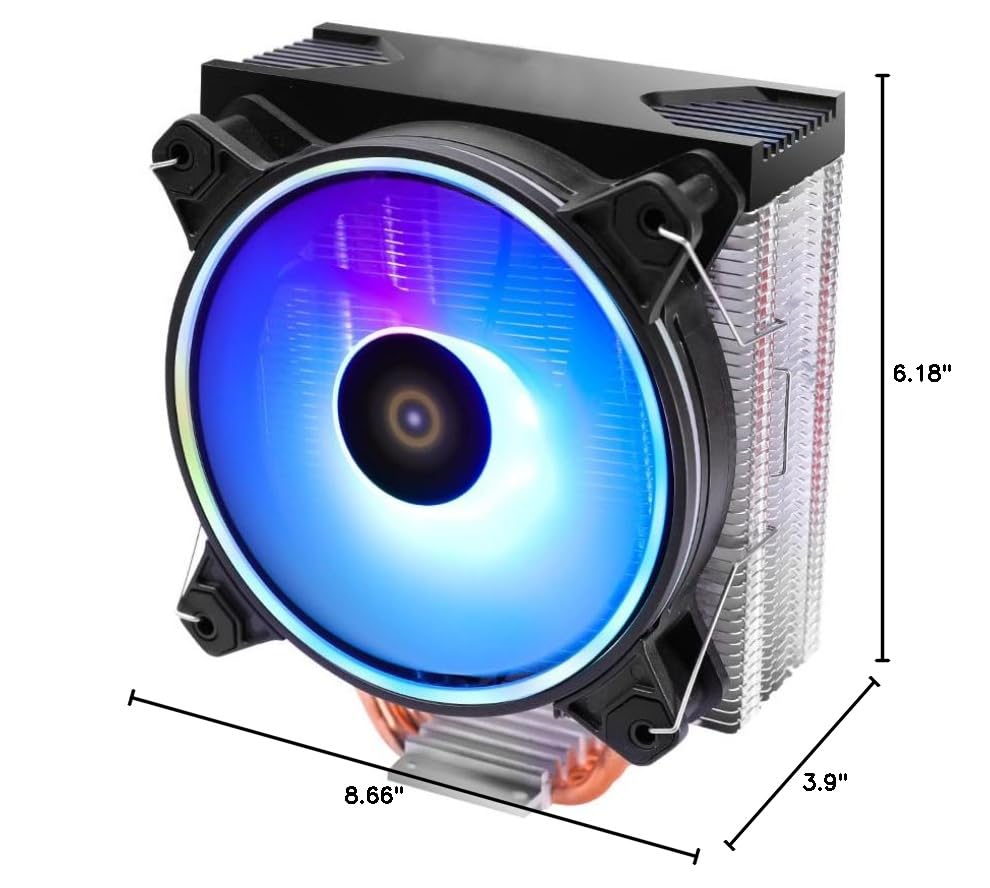
Image: Dimensional drawing of the CPU cooler, indicating its length, width, and height for compatibility checks.
סעטאַפּ און ינסטאַלירונג
Follow these general steps for installing your CPU cooler. Specific motherboard layouts may vary, so consult your motherboard manual for detailed socket access.
- צוגרייטן די מוטערבאָרד:
Identify your CPU socket type (Intel LGA or AMD AM/FM series). Select the appropriate mounting brackets from the package contents. Remove any existing CPU cooler and clean off old thermal paste from the CPU surface using isopropyl alcohol.
- אינסטאַלירן באַקפּלאַטע (אויב נייטיק):
For some sockets, a backplate needs to be installed on the rear of the motherboard. Align the backplate with the holes around the CPU socket and secure it with the appropriate standoffs from the front side.
- צולייגן טערמאַל פּאַפּ:
Apply a small, pea-sized amount of thermal paste to the center of the CPU's integrated heat spreader (IHS). Do not spread it manually; the pressure from the cooler will spread it evenly.
- מאָנטירן דעם קולער:
Carefully place the CPU cooler onto the CPU, ensuring the base makes full contact. Align the cooler's mounting holes with the standoffs or mounting points on the motherboard. Secure the cooler using the provided screws, tightening them in a diagonal pattern until snug. Do not overtighten.
בילד: זייט פּראָfile of the CPU cooler, highlighting the aluminum fin stack and the four copper heatpipes extending from the base.
- פאַרבינדן ווענטילאַטאָר מאַכט:
Locate the 4-pin CPU_FAN header on your motherboard. Connect the cooler's 4-pin fan cable to this header. Ensure the connection is secure. The RGB lighting is automatically controlled via the 4-pin PWM connection.
- קאַבלע פאַרוואַלטונג:
Route the fan cable neatly to avoid interference with other components or airflow.
אַפּערייטינג ינסטראַקשאַנז
- ערשט מאַכט אויף:
After installation, power on your computer. Observe the CPU fan to ensure it spins correctly and the RGB lighting illuminates. Check your BIOS/UEFI settings to confirm the fan speed is detected and operating within expected parameters.
- פאָכער ספּיד קאָנטראָל:
The 4-pin PWM connection allows your motherboard to automatically control the fan speed based on CPU temperature. You can typically adjust fan curves in your motherboard's BIOS/UEFI settings or through compatible software provided by your motherboard manufacturer.
- RGB לייטינג:
The RGB lighting on this cooler features automatic color conversion, meaning it cycles through various colors without requiring additional software or a dedicated RGB header. The lighting effect is pre-programmed.
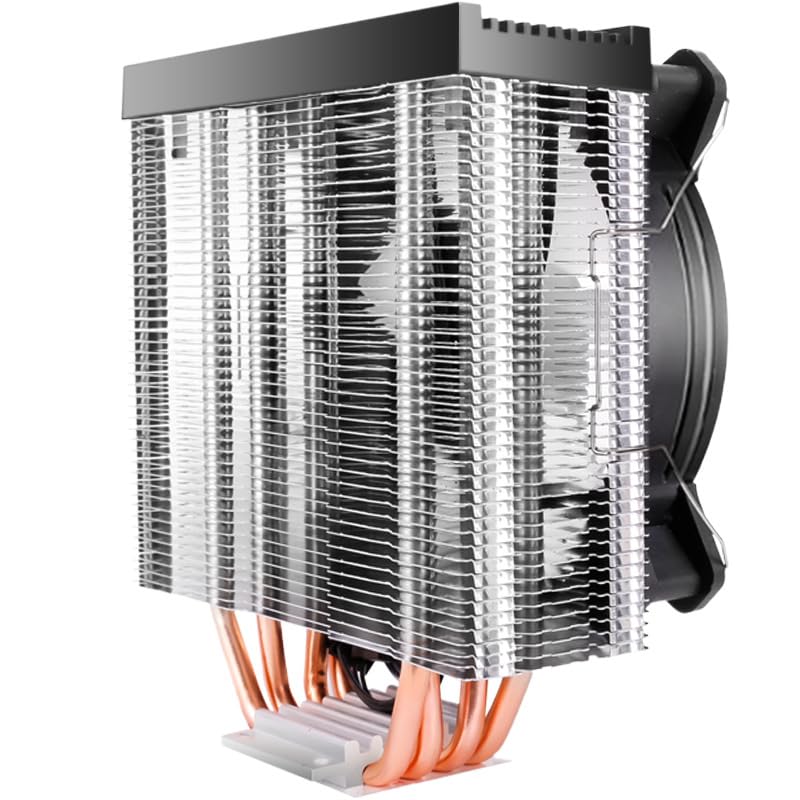
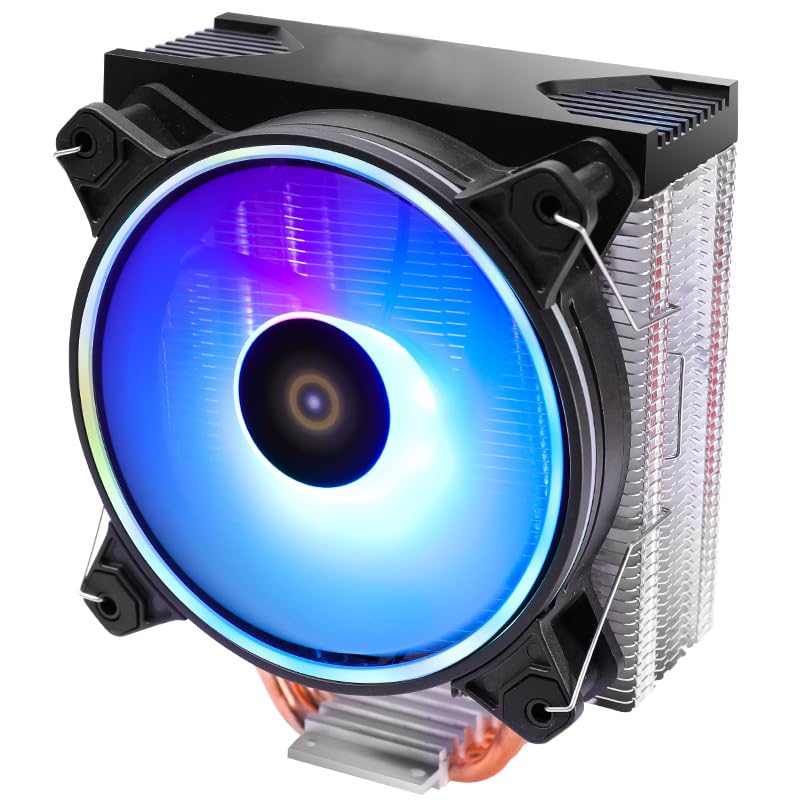
Image: The Dohaeris FRIGUS Air 400 CPU Cooler displaying its vibrant RGB lighting effects, with the product name visible.
וישאַלט
רעגולערע אויפהאלטונג העלפט זיכער מאכן אפטימאלע קיל-פארשטעלונג און פארלענגערט די לעבנס-צייט פון אייער קפּו קולער.
- באַזייַטיקונג פון שטויב:
Periodically (every 3-6 months, or more frequently in dusty environments), power off and unplug your computer. Use compressed air to gently blow dust out of the heatsink fins and fan blades. Hold the fan blades to prevent them from spinning rapidly during cleaning, which can damage the bearings.
- טערמאַל פּאַפּ ריאַפּלאַקיישאַן:
Thermal paste can dry out over time, reducing its effectiveness. It is recommended to reapply thermal paste every 2-3 years, or if you remove the cooler for any reason. When reapplying, clean both the CPU IHS and the cooler's base thoroughly with isopropyl alcohol before applying new paste.
- פאָכער דורכקוק:
Check the fan for any signs of wear, damage, or excessive noise. If the fan becomes noisy or stops spinning, it may need replacement.
טראָובלעשאָאָטינג
| פּראָבלעם | מעגלעך סיבה | לייזונג |
|---|---|---|
| פאָכער נישט ספּיננינג | Loose power connection, faulty fan, incorrect BIOS settings. |
|
| הויכע CPU טעמפּעראַטורן | Improper cooler mounting, insufficient thermal paste, dust buildup, fan not spinning at optimal speed. |
|
| RGB לייטינג טוט נישט אַרבעטן | Loose fan connection, faulty fan. |
|
וואָראַנטי אינפֿאָרמאַציע
Specific warranty details for the Dohaeris FRIGUS Air 400 CPU Cooler are typically provided at the point of purchase or on the manufacturer's official website. Please retain your proof of purchase for warranty claims. The warranty generally covers manufacturing defects under normal use conditions.
שטיצן
For technical assistance, troubleshooting beyond this manual, or warranty inquiries, please contact Dohaeris customer support through their official website or the retailer from whom you purchased the product. Have your product model and purchase date ready when contacting support.


