
1. הקדמה
This manual provides detailed instructions for the MEETION MT-M915 USB Gaming Mouse with Backlight. Please read this guide thoroughly before using the product to ensure correct installation, optimal performance, and to understand its features. This mouse is designed for gaming and general computer use, offering reliable performance and a comfortable design.
2. פּעקל אינהאַלט
- MEETION MT-M915 USB Gaming Mouse
- ינסטרוקטיאָן מאַנואַל (דעם דאָקומענט)
3. סיסטעם רעקווירעמענץ
- Operating System: Windows XP, Linux
- Compatible Devices: Personal Computer, Laptop
- בנימצא וסב פּאָרט
4. סעטאַפּ
4.1 פֿאַרבינדן די מויז
- געפֿינען אַן בנימצא וסב פּאָרט אויף דיין קאָמפּיוטער אָדער לאַפּטאַפּ.
- Plug the USB connector of the MEETION MT-M915 mouse into the USB port.
- The operating system will automatically detect and install the necessary drivers. This is a plug-and-play device, so no additional software installation is typically required.
- The mouse backlight will illuminate upon successful connection.
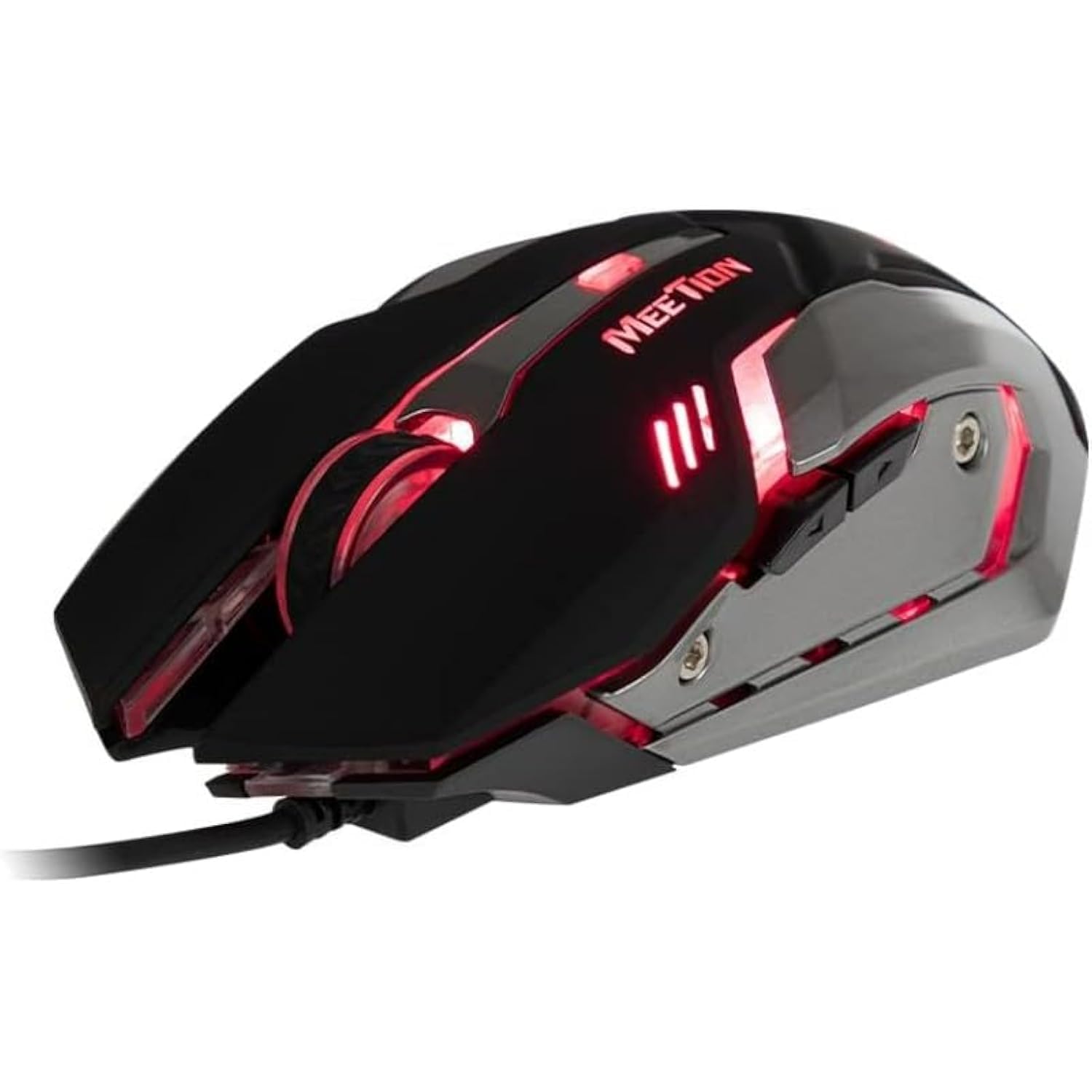
פיגורע 1: זייַט view of the MEETION MT-M915 mouse with red backlight.
5. אפערירן די מויז
5.1 יקערדיק פאַנגקשאַנז
- לינק קליקט: Primary action button, typically used for selecting items, opening files, or interacting with software.
- רעכט גיט: Secondary action button, typically used for opening context menus or accessing additional options.
- סקראָל ראָד: געניצט פֿאַר סקראָלן דורך דאָקומענטן און web בלעטער. עס קען אויך פונקציאנירן ווי א מיטל-קליק קנעפל.
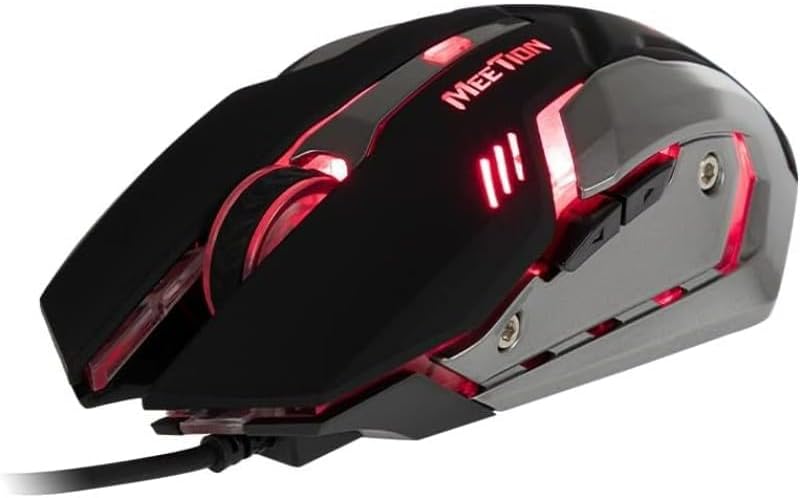
פיגור 2: פון אויבן אַראָפּ view of the MEETION MT-M915 mouse, showing button layout.
5.2 באַקלייט אָפּעראַציע
The MEETION MT-M915 mouse features an integrated backlight. The backlight activates automatically when the mouse is connected to a powered USB port. The color of the backlight may vary or cycle through different colors, as shown in Figure 3.

פיגורע 3: זייַט view of the MEETION MT-M915 mouse with purple backlight.
5.3 אַמבידעקסטראָס דיזיין
The mouse is designed for ambidextrous use, meaning it can be comfortably used by both left-handed and right-handed individuals.
6. וישאַלט
6.1 רייניקונג
- אָפּשטעקן די מויז פֿון אייער קאָמפּיוטער איידער איר רייניגט עס.
- ניצט אַ ווייכן, טרוקענעם שטאָף צו ווישן די ייבערפלאַך פון דער מויז.
- פֿאַר שווערן שמוץ, אַ ביסל דampווישט דעם שטאָף מיט וואַסער אָדער אַ מילדער רייניקונג לייזונג. פֿאַרמייַדט שטרענגע כעמיקאַליעס.
- Do not allow liquids to enter the mouse casing.
6.2 סטאָרידזש
האַלט די מויז אין אַ קיל, טרוקן אָרט אַוועק פון דירעקט זונשייַן און עקסטרעמע טעמפּעראַטורן ווען נישט אין באַנוץ פֿאַר לענגערע פּעריאָדן.
7. טראָובלעשאָאָטינג
7.1 מויז רעאַגירט נישט
- זייט זיכער אַז דער USB קאַבל איז זיכער אַרייַנגעשטעקט אין אַ אַרבעטנדיקן USB פּאָרט אויף אייער קאָמפּיוטער.
- פרובירט אריינצושטעקן די מויז אין אן אנדערן USB פארט.
- ריסטאַרט דיין קאָמפּיוטער.
- Test the mouse on another computer to determine if the issue is with the mouse or your computer's USB ports.
7.2 באַקלייט אַרבעט נישט
- Verify the mouse is properly connected to a powered USB port.
- If the mouse functions but the backlight does not, there might be an internal issue. Contact customer support if the mouse is still under warranty.
7.3 אומשטענדלעכע קורסאָר באַוועגונג
- Ensure the optical sensor on the bottom of the mouse is clean and free from dust or debris.
- Use the mouse on a clean, uniform surface. Avoid highly reflective or transparent surfaces.
- פּרוּווט ריסטאַרטינג דיין קאָמפּיוטער.
8. ספּעסאַפאַקיישאַנז
| שטריך | דעטאַל |
|---|---|
| סאָרט | MEETION |
| מאָדעל נאָמען | MT-M915 |
| מאַנופאַקטורער מאָדעל נומער | CE ELECTRON-559 |
| קאַנעקטיוויטי טעכנאָלאָגיע | וסב |
| באַוועגונג דעטעקשאַן טעכנאָלאָגיע | אָפּטיש |
| האַנט אָריענטירונג | אַמבידעקסטראַס |
| ספּעציעלע פֿעיִקייטן | לייטווייט |
| רעקאָממענדעד ניצט פֿאַר פּראָדוקט | גיימינג |
| קאַמפּאַטאַבאַל דעוויסעס | פערזענלעכער קאמפיוטער, לעפטאפ |
| אָפּערייטינג סיסטעם | לינוקס, ווינדאָוס XP |
| פּונקט וואָג | 50 גראַמז |
| פּעקל דימענשאַנז | 20.7 X 14.3 X 6.1 סענטימעטער |
| באַטעריז אַרייַנגערעכנט | ניין |
9. וואָראַנטי און שטיצן
9.1 וואָראַנטי אינפֿאָרמאַציע
This product is covered by a standard manufacturer's warranty. Please refer to the warranty card included with your purchase or contact your retailer for specific warranty terms and conditions.
9.2 קונה שטיצן
For technical assistance, troubleshooting, or warranty claims, please contact the retailer where you purchased the product or visit the official MEETION webפּלאַץ פֿאַר שטיצן רעסורסן.