
CUPEISI YQ10S MAX
CUPEISI YQ10S MAX Android 15 Tablet User Manual
Model: YQ10S MAX | Brand: CUPEISI
1. הקדמה
This manual provides detailed instructions for the setup, operation, maintenance, and troubleshooting of your CUPEISI YQ10S MAX Android 15 Tablet. Please read this manual thoroughly before using your device to ensure proper functionality and to maximize your user experience. Keep this manual for future reference.

Image 1.1: CUPEISI YQ10S MAX Android 15 Tablet with included accessories (keyboard, mouse, stylus, and protective case).
2. פּעקל אינהאַלט
באַשטעטיקט אַז אַלע זאכן וואָס זענען אויסגערעכנט אונטן זענען פאַראַן אין אייער פּראָדוקט פּאַקעט:
- CUPEISI YQ10S MAX Android 15 Tablet
- ווירעלעסס קיבאָרד
- בלועטאָאָטה מאַוס
- Foldable Protective Cover
- סטילוס
- טיפּ-C קאַבלע
- טשאַרדזשער
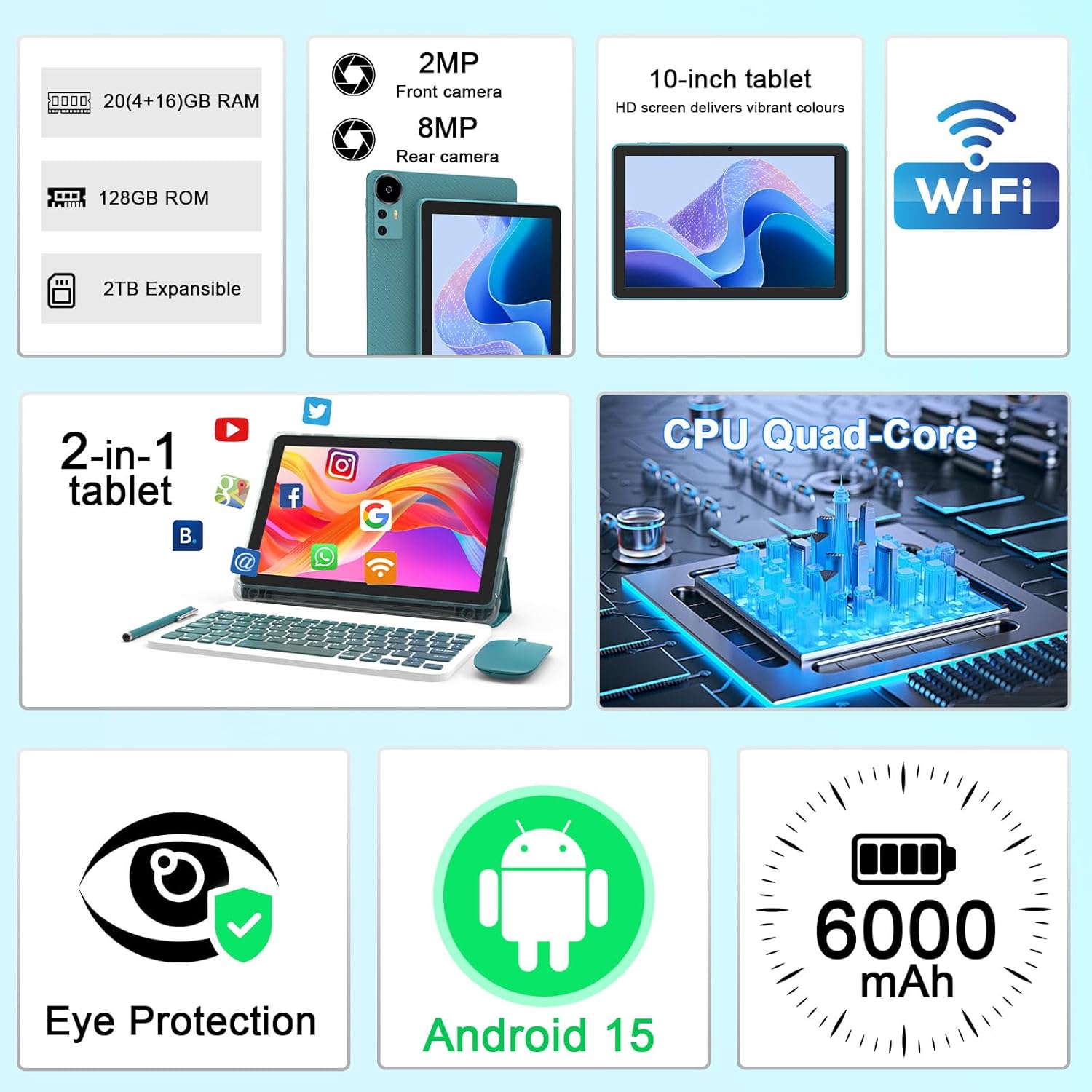
בילד 2.1: איבערview of key features and included components.
3. ערשט סעטאַפּ
3.1 פּאַוערינג אויף / אַוועק
- צו מאַכט אויף: דריק און האלט דעם מאַכט קנעפּל וואָס געפינט זיך אויף דער זייט פון דער טאַבלעט ביז דער עקראַן באַלויכטנט זיך.
- צו מאַכט אַוועק: דריק און האלט דעם מאַכט קנעפּל, און דערנאָך סעלעקטיר 'אויסשלאָגן' פֿון די אָפּציעס וואָס דערשייַנען אויף דעם עקראַן.
- צו ריסטאַרט: Press and hold the power button, then select 'Restart' from the options.
3.2 אויפלאָדן די טאַבלעט
פארן ערשטן באַנוץ, זאָלט איר גאָר אויפלאָדן די טאַבלעט. ניצט דעם צוגעשטעלטן טיפּ-C קאַבל און טשאַרדזשער.
- פֿאַרבינדט דעם טיפּ-C קאַבל צום טאַבלעט'ס טשאַרדזשינג פּאָרט.
- פאַרבינדן די אנדערע סוף פון די קאַבלע צו די מאַכט אַדאַפּטער.
- צאַפּן די מאַכט אַדאַפּטער אין אַ וואַנט ווענטיל.
- The battery icon on the screen will indicate charging status. A full charge typically takes several hours.

Image 3.1: Battery and charging information.
3.3 Connecting Accessories (Keyboard, Mouse, Stylus)
The tablet supports Bluetooth connectivity for the included keyboard and mouse.
- געבן בלועטאָאָטה: גיין צו סעטטינגס > קאָננעקטעד דעוויסעס > בלועטאָאָטה און קער עס אויף.
- Pair Keyboard/Mouse: Put the keyboard or mouse into pairing mode (refer to their individual instructions if needed). Select the device name from the list of available Bluetooth devices on your tablet to pair.
- סטילוס: The included stylus is typically passive and does not require pairing. It can be used directly on the screen for navigation or drawing.
3.4 ווי-פי קאַנעקשאַן
Connect your tablet to a Wi-Fi network for internet access.
- גיין צו סעטטינגס > נעץ און אינטערנעט > ווי-פי.
- צינד אן Wi-Fi. די טאַבלעט וועט סקענען פֿאַר פֿאַראַן נעטוואָרקס.
- אויסקלייבן אייער געוואונטשענע נעץ פון דער ליסטע.
- אויב געבעטן, אַרייַן די נעץ פּאַראָל און צאַפּן פאַרבינדן.
4. יקערדיק אָפּעראַציע
4.1 נאַוויגירן אַנדרויד 15
Your tablet runs on Android 15, offering an intuitive user interface. Swipe gestures, tap actions, and the navigation bar (Back, Home, Recents) are standard for interaction. The Google Mobile Services (GMS) certification ensures access to the Google Play Store and other Google applications.

Image 4.1: Android 15 operating system features.
4.2 ווייַז סעטטינגס
The 10.1-inch IPS display with 1280x800 resolution provides clear visuals. You can adjust display settings to suit your preferences:
- ברייטקייט: אַדזשאַסטירן דעם עקראַן ברייטקייט פֿון די שנעל סעטטינגס פּאַנעל אָדער אין סעטטינגס > ווייַז.
- לייענען מאָדע: Enable 'Reading Mode' in display settings to reduce blue light emission, which can enhance comfort during extended reading sessions.
- שריפֿט גרייס: Customize text size for better readability.

Image 4.2: Details of the 10.1-inch HD screen display.
4.3 סטאָרידזש פאַרוואַלטונג
The tablet features 128GB of internal storage and 20GB RAM (4GB physical + 16GB virtual expansion). Storage can be expanded up to 2TB using a microSD card (not included).
- טשעק סטאָרידזש: גיין צו סעטטינגס > סטאָרידזש צו view internal and external storage usage.
- אַרייַנלייגן מיקראָסד קאָרט: Locate the microSD card slot on the tablet, insert the card gently until it clicks into place.

Image 4.3: Storage and RAM configuration.
4.4 קאַמעראַ באַניץ
די טאַבלעט איז אויסגעשטאַט מיט אַ 8MP הינטערשטע קאַמעראַ און אַ 2MP פראָנט קאַמעראַ.
- עפֿענען קאַמעראַ אַפּ: צאַפּן די קאַמעראַ ייקאַן אויף דיין היים פאַרשטעלן אָדער אַפּ שופלאָד.
- באַשטימען קאַמעראַס: Use the camera switch icon to toggle between front and rear cameras.
- Capture Photos/Videos: צאַפּן דעם שאַטער קנעפּל צו נעמען אַ פאָטאָ אָדער אָנהייבן/אָפּשטעלן ווידעאָ רעקאָרדינג.

Image 4.4: Camera specifications and modes.
4.5 מולטימעדיאַ ווידערשפּיל
The tablet supports Widevine L1, enabling high-definition streaming from platforms like Netflix, Hulu, YouTube, and Prime Video.
- Ensure a stable internet connection for optimal streaming quality.
- Download streaming apps from the Google Play Store.

Image 4.5: Widevine L1 support for multimedia streaming.
4.6 מולטיטאַסקינג
Android 15 enhances multitasking capabilities. Use the 'Recents' button to switch between open applications or utilize split-screen mode for running two apps simultaneously.
- Split-Screen: From the 'Recents' view, tap the app icon at the top of an app's card and select 'Split screen'. Choose a second app to open alongside it.
- The included keyboard and mouse facilitate a laptop-like experience for productivity tasks.

Image 4.6: Tablet used in 2-in-1 mode with keyboard and mouse.
5. קער און וישאַלט
5.1 רייניקונג
- ניצט אַ ווייכן, לינט-פֿרייע שטאָף צו רייניקן דעם עקראַן און קערפּער פֿון דער טאַבלעט.
- פֿאַרמײַדן ניצן שטרענגע כעמיקאַלן, אַברייסיוו רייניגער, אָדער אַעראָסאָל ספּרײַס.
- זיכער מאַכן אַז די טאַבלעט איז אויסגעלאָשן און נישט אַרויסגעטראָגן פֿון דער פּלאַטע איידער איר רייניקט עס.
5.2 באַטערי קער
- פֿאַרמײַדט אויסשטעלן די טאַבלעט צו עקסטרעמע טעמפּעראַטורן (הייס אָדער קאַלט).
- לאָזט נישט די טאַבלעט גאָר אויסגעלאָדן פֿאַר לאַנגע פּעריאָדן.
- Use only the provided charger and cable to prevent damage to the battery.
5.3 ווייכווארג דערהייַנטיקונגען
- קאָנטראָלירט און אינסטאַלירט רעגולער ווייכווארג דערהייַנטיקונגען צו ענשור אָפּטימאַלע פאָרשטעלונג, זיכערהייט און צוטריט צו נייַע פֿעיִקייטן.
- גיין צו סעטטינגס > סיסטעם > סיסטעם דערהייַנטיקן צו קאָנטראָלירן פֿאַר פֿאַראַן דערהייַנטיקונגען.
6. טראָובלעשאָאָטינג
If you encounter issues with your tablet, refer to the following common problems and solutions:
6.1 שטראָם פּראָבלעמען
- Tablet won't turn on: זיכער מאַכן אַז די באַטאַרייע איז אויפגעלאָדן. פֿאַרבינדט דעם טשאַרדזשער און וואַרט אַ פּאָר מינוט איידער איר פּרוּווט ווידער אָנצוצינדן.
- Tablet freezes: דריק און האלט דעם מאַכט קנעפּל פֿאַר אַרום 10-15 סעקונדעס צו צווינגען אַ ריסטאַרט.
6.2 קאָנעקטיוויטי פּראָבלעמען
- Wi-Fi פֿאַרבינדט זיך נישט: Check if Wi-Fi is enabled in settings. Restart your router and the tablet. Ensure you are entering the correct password.
- בלוטוט דעווייס נישט פארבינדן: Ensure the Bluetooth accessory is in pairing mode and within range. Restart Bluetooth on the tablet and try pairing again.
6.3 פאָרשטעלונג פאַרהאַלטונגען
- לאַנגזאַמע פאָרשטעלונג: Close unused applications running in the background. Clear cache data for frequently used apps. Consider adding a microSD card for additional storage if internal storage is nearly full.
- אַפּפּס קראַשן: Ensure apps are updated to their latest versions. Clear the app's cache and data (סעטטינגס > אַפּפּס > [אַפּ נאָמען] > סטאָרידזש).
7. פּראָדוקט ספּעסאַפאַקיישאַנז
| שטריך | באַשרייַבונג |
|---|---|
| סאָרט | CUPEISI |
| מאָדעל נאָמען | CP31M (Item model number: YQ10S MAX) |
| אָפּערייטינג סיסטעם | אַנדרויד 15 |
| פאַרשטעלן גרייס | 10.1 אינטשעס |
| פאַרשטעלן האַכלאָטע | 1280 x 800 פּיקסעלס (HD) |
| פּראַסעסער | 2.0 גיגאהערץ קוואד-קאָר |
| באַראַן | 20GB (4GB physical + 16GB expansion) |
| אינערלעכער סטאָרידזש | 128 גיגאבייט |
| יקספּאַנדאַבאַל סטאָרידזש | Up to 2TB with microSD card (not included) |
| ווירעלעסס טיפּ | 802.11ax (Wi-Fi 6.0, 2.4G/5G) |
| בלועטאָאָטה | BT 5.0 |
| דערציען אַפּאַראַט | 8 מפּ |
| פראָנט אַפּאַראַט | 2 מפּ |
| באַטאַרייע קאַפּאַציטעט | 6000 מאַה |
| דורכשניטלעך באַטאַרייע לעבן | 6-8 Hours (usage dependent) |
| דימענשאַנז (LxWxH) | 9.7 X 6.5 X 0.3 אינטשעס |
| פּונקט וואָג | 0.176 אונסעס |
| קאָליר | NavyBlue |
8. וואָראַנטי און שטיצן
For warranty information, please refer to the warranty card included in your product packaging or contact CUPEISI customer support directly. If you require technical assistance or have questions not covered in this manual, please reach out to our support team through the contact information provided with your purchase.
Ask a question about this manual
Ask about setup, troubleshooting, compatibility, parts, safety, or missing instructions. Manuals+ will review the question and use this page’s manual context to help answer it.