
הקדמה
The BoxWave AllReader SD Card Reader is a versatile and compact accessory designed to facilitate easy file transfer between various devices and SD/microSD cards. With multiple interface options, it provides quick access to your photos, music, videos, and other files, expanding the storage capabilities of your smartphones, tablets, laptops, and desktop PCs.

Figure 1: The BoxWave AllReader SD Card Reader.
שליסל פֿעיִקייטן
- Four Interfaces: Equipped with USB-C, USB-A, Micro-USB, and Apple Lightning connectors for broad compatibility with various devices.
- גרינג File אַריבערפירן: Enables quick and straightforward transfer of files between your memory cards and devices.
- פּלוג און שפּיל פאַנגקשאַנאַליטי: No drivers or complex setup required; simply plug in and use.
- Unlimited Storage Expansion: Provides a convenient way to access and manage files on SD and microSD cards, effectively expanding your device's storage.
- סאָליד פּלאַן: Small and portable, making it easy to carry anywhere.
- ברייט קאַמפּאַטאַבילאַטי: Supports both standard SD cards and microSD cards.
סעטאַפּ גייד
Setting up your BoxWave AllReader SD Card Reader is a simple process. Follow these steps to begin using your device:
- אַרייַנלייגן זכּרון קאָרט: Gently insert your SD card or microSD card into the appropriate slot on the AllReader SD Card Reader until it clicks into place. Ensure the card is inserted in the correct orientation.
- פאַרבינדן צו מיטל: Select the appropriate connector (USB-C, USB-A, Micro-USB, or Apple Lightning) for your host device (smartphone, tablet, laptop, or desktop PC). Plug the AllReader SD Card Reader firmly into your device's port.
- אַקסעס Files: Your device should automatically detect the card reader and the inserted memory card. Navigate to your device's file manager or photo gallery to access the files אויף די קאָרט.
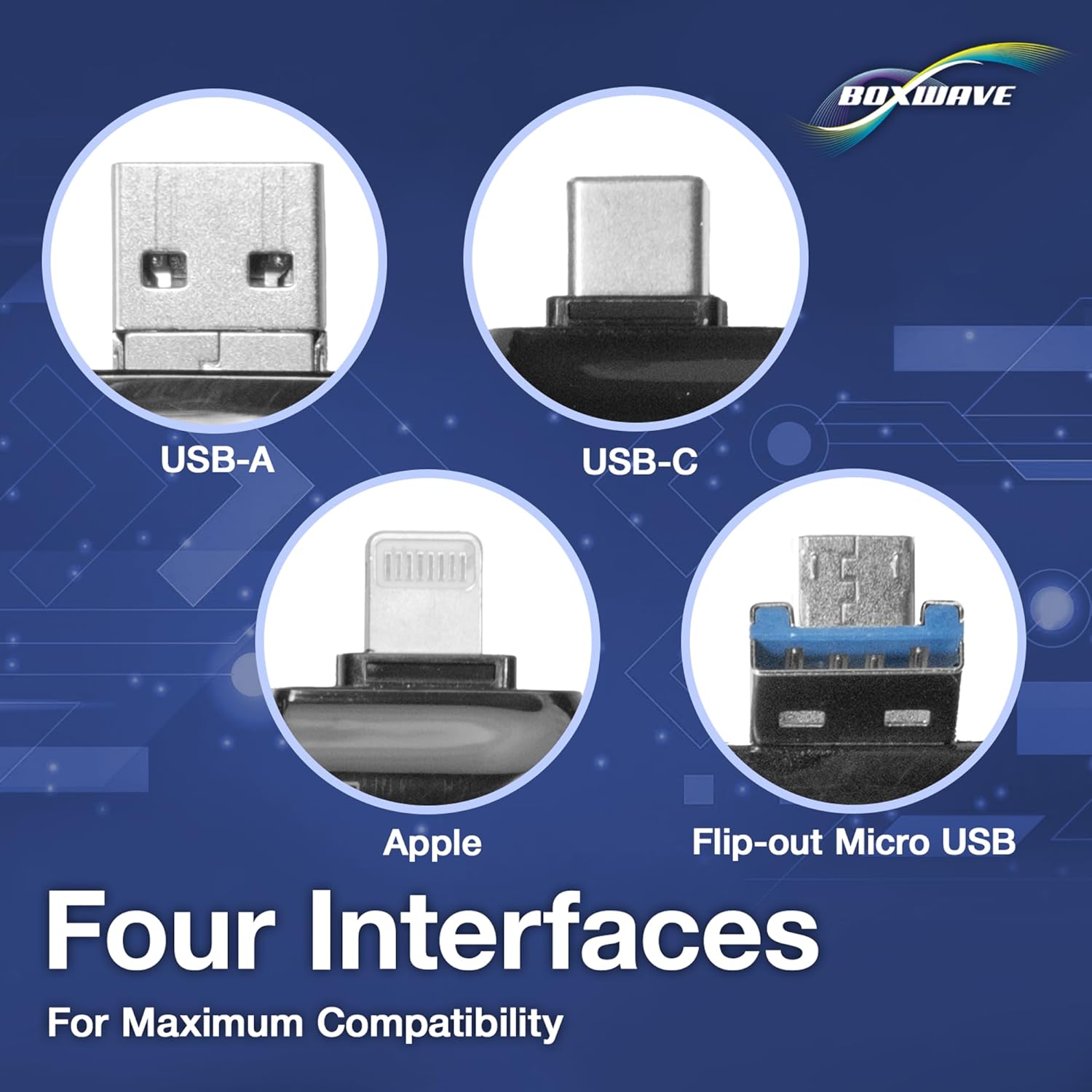
Figure 2: Inserting an SD card into the AllReader and connecting to a mobile device.

Figure 3: The four versatile interfaces of the AllReader SD Card Reader.
אַפּערייטינג ינסטראַקשאַנז
Once the AllReader SD Card Reader is connected and recognized by your device, you can perform various operations:
- Viewing Files: עפֿנט אייער דעווייס'ס file manager application (e.g., "Fileס" אויף iOS, "מײַן Files" on Android, "File Explorer" on Windows, "Finder" on macOS). The inserted memory card will appear as a removable storage device. Tap or click on it to browse its contents.
- קאַפּיינג Files: צו קאָפּיע files from the memory card to your device, select the desired files, then use the "Copy" function within your file manager. Navigate to the destination folder on your device and select "Paste".
- מאָווינג Files: צו רירן files (copy and delete original) from the memory card to your device, select the desired files, then use the "Move" function. Navigate to the destination folder on your device and select "Paste".
- טראַנספערינג Files to Card: צו אַריבערפירן files from your device to the memory card, select the desired files on your device, then use "Copy" or "Move". Navigate to the memory card's folder and select "Paste".
- דיליטינג Files: אויסקלייַבן די files you wish to delete from the memory card and use the "Delete" function. Confirm the deletion when prompted.

Figure 4: The AllReader facilitates easy file אַריבערפירן צווישן פֿאַרשידענע דעוויסעס.
וישאַלט
To ensure the longevity and optimal performance of your BoxWave AllReader SD Card Reader, follow these simple maintenance guidelines:
- האַלטן ריין: Regularly wipe the exterior of the card reader with a soft, dry, lint-free cloth. Avoid using liquid cleaners or abrasive materials.
- באַשיצן קאַנעקטערז: When not in use, keep the connectors free from dust and debris. Avoid touching the metal contacts directly.
- סטאָר רעכט: Store the card reader in a cool, dry place away from direct sunlight, extreme temperatures, and high humidity.
- שעפּן מיט זאָרג: פֿאַרמײַדט צו לאָזן דאָס אַפּאַראַט פאַלן אָדער עס אויסשטעלן צו שטאַרקע קלאַפּן, וואָס קענען שעדיקן אינעווייניקסטע קאָמפּאָנענטן.
- זיכער באַזייַטיקונג: Always safely eject the card reader from your device before physically disconnecting it to prevent data corruption.
טראָובלעשאָאָטינג
If you encounter issues while using your BoxWave AllReader SD Card Reader, refer to the following common troubleshooting tips:
| פּראָבלעם | מעגלעך לייזונג |
|---|---|
| Card reader not detected by device. |
|
| קענען ניט צוטריט files אויף די זכּרון קאָרט. |
|
| פּאַמעלעך file אַריבערפירן ספּידז. |
|
ספּעסאַפאַקיישאַנז
| אַטריביוט | דעטאַל |
|---|---|
| סאָרט | BoxWave |
| מאָדעל נאָמען | AllReader SD Card Reader |
| קאָליר | דזשעט שווארצע |
| ינטערפייסיז | USB-C, USB-A, Micro-USB, Apple Lightning |
| קאַמפּאַטאַבאַל קאַרדס | SD, microSD (TF) |
| פּונקט וואָג | 6 אונסעס |
| ASIN | B0CFZHKKRG |
וואָראַנטי און שטיצן
BoxWave products are designed for reliability and performance. For specific warranty information, please refer to the documentation included with your purchase or visit the official BoxWave website. For technical support or further assistance, you may contact BoxWave customer service through their official channels.
Note: The product description mentions "limited 3rd party tech support for your device (up to 3 inquiries via messaging) - not affiliated with or endorsed by Sunmi". This refers to support for the Sunmi P2 SE device, not the BoxWave AllReader itself. For support regarding the AllReader, please contact BoxWave directly.